Why Are My Sony Headphones Not Connecting? A Troubleshooting Guide
Struggling with Sony headphones that won't connect? This step-by-step troubleshooting guide covers quick fixes, device checks, firmware tips, and prevention to restore reliable Bluetooth sound.


Most connection problems with Sony headphones come from Bluetooth pairing, device compatibility, or outdated firmware. Start by turning Bluetooth on the source device, putting the headphones into pairing mode, and forgetting any prior pairings. If that fails, restart both devices, check for firmware updates, and try a fresh pairing. If issues persist, reset the headphones and re-pair from scratch.
Why connection issues happen with Sony headphones
Connection problems with Sony headphones are frustrating, especially when you rely on wireless listening. If you search for the phrase "why is my sony headphones not connecting," you’ll see that the root causes tend to fall into a few broad buckets: pairing, compatibility, firmware, and interference. According to Headphones Info, most issues originate from the Bluetooth stack on your source device or a misstep in the initial pairing. The good news is that in many cases you can fix the problem in under ten minutes with a methodical approach. In this section we explain the common culprits and how to recognize them so you can tackle the issue quickly and confidently. We’ll distinguish simple, user-error fixes from those that require firmware updates or a quick reset, and we’ll note when it’s time to seek professional help. By understanding the core failure modes, you’ll save time and avoid unnecessary resets.
Quick checks to perform before deeper troubleshooting
Before you dive into complex steps, run through a handful of fast checks that solve most basic connectivity problems. Ensure the headphones are powered on and not in low-battery mode, then verify the source device’s Bluetooth is enabled and set to discoverable. On many Sony headphone models, you must press and hold the power or pairing button until an LED flashes in a pattern that signals pairing mode. Make sure you aren’t currently connected to another device; if so, disconnect or forget that connection. Also, confirm the headphones aren’t paired with more than one device at once, which can trigger automatic disconnections. If your headphones have a companion app, open it to confirm the device status and any firmware prompts. Finally, check for interference from nearby wireless gear like Wi‑Fi routers, other Bluetooth devices, or even microwave ovens. By clearing the simplest hurdles, you often restore a reliable connection without more steps.
How to diagnose the problem across devices
Connectivity issues often behave differently depending on the host device. If the headphones won’t connect to a phone, test with a tablet or a computer to determine if the problem is universal or device-specific. When testing with a phone, try both iOS and Android devices if available, since Bluetooth implementations differ. If the issue occurs with both, it’s likely a headphone-side problem or firmware mismatch. Pay attention to error messages in the OS’s Bluetooth settings; many phones display a failed pairing reason, such as “incompatible codec” or “firmware needed.” If you can pair but the connection drops, check whether the source device’s Bluetooth audio profile matches what the headphones expect (A2DP, HFP, or AAC/LDAC variants). If you consistently fail at pairing, reboot the host device and reset network settings on the phone or tablet. Document any recent OS updates, as new Bluetooth stacks can disrupt existing pairings. This diagnostic approach helps you isolate the culprit and choose the right fix.
Fixes in order: quick wins first
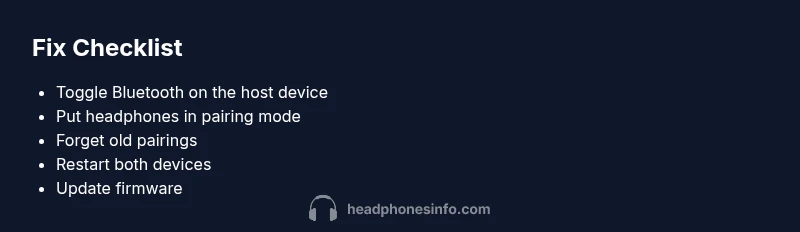
Start with the simplest fixes and move toward more involved ones only if needed. 1) Toggle Bluetooth off and back on on the source device, then retry the pairing process with the headphones in pairing mode. 2) Forget the headphones on the source device, then perform a fresh pairing from scratch. 3) Restart both devices to clear minor firmware hiccups and reinitialize the Bluetooth stack. 4) Move closer to the source device, reduce obstacles like walls or metal surfaces, and eliminate interference from other wireless gear. 5) Update the headphones’ firmware via the official app or Sony’s support site, and check for a matching firmware update on the source device. If you still don’t see success, try a different USB-C/charging cable if you’re using wired adapters, or temporarily disable energy-saving Bluetooth features that could throttle performance. 6) As a last resort, perform a factory reset on the headphones, then re-pair with a fresh profile. Each step should feel incremental and trackable.
Firmware, apps, and resets: when and how to update
Firmware and companion apps matter because Bluetooth stacks evolve and codec support can change with updates. If your Sony headphones won’t connect consistently, start by checking the companion app for a firmware prompt. Install any available updates, then perform a pairing test. If no app prompts appear, visit Sony’s official support site to download the latest firmware and follow the on-device instructions. After updating, perform a full reset of both devices if needed, but avoid repeated resets as a habit. For some users, updating the host device’s operating system resolves compatibility gaps, especially if you’re moving from an older Android or iOS version. When updating, ensure you have a stable power source and sufficient battery on both the headphones and the phone. Avoid interrupting the update, as an incomplete firmware install can render the device temporarily unusable. If issues persist after updates, check codec compatibility and try switching to a more universal profile.
Safety, warranty, and when to seek professional help
If basic troubleshooting fails after you've exhausted the common fixes, consider safety and warranty implications before proceeding further. Do not attempt to open the headphones or perform hardware repairs yourself; internal components are delicate and can be damaged easily. Check whether your unit is still under warranty and use official channels for service requests. If you notice physical damage, overheating, or unusual smells, stop use immediately and contact support. For professional help, rely on authorized service centers or Sony support, especially if a firmware issue is suspected or you require data-safe resets. If you have travel or safety concerns about replacing parts, remember that professional diagnostics usually cost less than risking further damage. Finally, keep records of your troubleshooting steps, firmware versions, and purchase date; these make the service process faster and clearer.
Prevention: keep your Sony headphones connected longer
After you’ve resolved the current issue, take steps to prevent future disconnects. Regularly update firmware and apps, and check for Bluetooth interoperability notes from Sony. Maintain charged batteries and avoid covering the headphones with blankets or metal cases that can impede signal. When using in public spaces, minimize distance and interference by keeping the source device in your line of sight and away from dense walls. If you frequently pair with multiple devices, consider a neutral, dedicated device for listening to music to avoid cross-pairing problems. Finally, store your headphones in a cool, dry place, away from humidity and heat, which can degrade battery performance over time.
Steps
Estimated time: 30-60 minutes
- 1
Power cycle both devices
Turn off the headphones and the source device, wait a few seconds, then turn them back on. Attempt a fresh pairing from the pairing screen. This simple restart clears temporary Bluetooth glitches and can restore a clean connection.
Tip: A clean reboot often fixes stubborn wireless hiccups. - 2
Forget and re-pair
On the source device, forget the Sony headphones from the Bluetooth settings. Put the headphones back into pairing mode and initiate pairing from scratch. Select the correct device from the list and complete the pairing flow.
Tip: Forgetting clears old profiles that can cause auto-reconnections. - 3
Check proximity and interference
Move closer to the source device, remove physical obstructions, and minimize competing wireless signals nearby. Ensure you’re not near microwaves or dense metal cases that can disrupt signals.
Tip: Keep a clear line of sight during pairing. - 4
Test with another host device
If possible, pair the headphones with a second phone, tablet, or computer. If it connects, the issue is likely with the original host device. If it doesn’t, focus on the headphones or firmware.
Tip: Isolating the device helps determine the problem source. - 5
Update firmware and apps
Check the official Sony app or support site for firmware updates. Install any available updates on both the headphones and the host device, then retry pairing.
Tip: Charge both devices fully before updating. - 6
Factory reset if needed
As a last resort, reset the headphones to factory defaults and re-pair. This erases all previous pairings, so you’ll start from scratch.
Tip: Back up important settings where possible before reset.
Diagnosis: Sony headphones won’t connect to any device or remains unpairable.
Possible Causes
- highBluetooth is disabled or not discoverable on the source device
- highHeadphones not in pairing mode or previously paired to another device
- mediumOutdated firmware on headphones or source device
- mediumInterference from other devices or being out of range
Fixes
- easyTurn on Bluetooth on the source device and set it to discoverable
- easyPut headphones into pairing mode and remove older pairings; then initiate pairing from the source device
- mediumUpdate headphone firmware via the companion app or official site; update the source device OS if needed
- easyRestart both devices and reattempt pairing in fresh mode; minimize interference
People Also Ask
Why won't my Sony headphones pair with my iPhone?
Ensure Bluetooth is enabled, forget any prior pairings, and try pairing again. If it fails, update iOS or reset the headphones. Pairing with a different iPhone can also help identify if the issue is device-specific.
First check Bluetooth, forget prior pairings, and try again. If it still fails, update iOS or reset the headphones.
How do I reset Sony wireless headphones?
Refer to your specific model’s reset method in the manual or official site. Perform the reset, then re-pair from scratch. A factory reset often resolves stubborn connectivity issues.
Reset via the model's method, then re-pair from scratch.
My headphones disconnect randomly. What should I do?
Check battery level, proximity, and firmware. Re-pair after a reset, and minimize interference. If the problem persists, consider a firmware update or service check.
Try checking battery, re-pairing, and reducing interference.
Do firmware updates fix connectivity issues?
Yes, updates fix codec support and Bluetooth stack problems. Ensure both headphones and host device are fully charged before updating and follow the official instructions.
Firmware updates can fix many connectivity problems.
Is it necessary to forget devices during pairing?
Forgetting other devices helps avoid conflicts, then re-pair. This is often a quick and effective step for clean connections.
Forgetting other devices often clears conflicts.
Can warranty help if the headset won't connect?
If the issue is hardware-related and within warranty, service or replacement may be covered. Check terms with the manufacturer or authorized centers.
Warranty may cover hardware issues; contact support.
Watch Video
What to Remember
- Begin with quick Bluetooth resets and re-pairing
- Keep headphones and host firmware up to date
- Test with another device to isolate the issue
- If unresolved, contact official support