Can You Find Earbuds If They Are Dead? A Quick Troubleshooting Guide
Urgent troubleshooting guide to locate and revive earbuds when they’re dead. Learn quick fixes, diagnostic flow, and prevention tips to recover lost or non‑powered wireless earbuds.


If your earbuds are dead, you won’t be able to track live location via Bluetooth. Start by charging them in the case and using the manufacturer’s Find My/Locate feature to see the last known location. If that fails, retrace steps, check charging contacts, and perform a reset. Professional help is advised if the battery or hardware is faulty.
Can you locate earbuds after they die?
Can you find earbuds if they are dead? In short, not while they are powered off. Most wireless earbuds rely on Bluetooth beacons that broadcast only when the buds have charge. If they’re completely dead, the locate or Find My feature won’t give you real-time updates. However, you can still benefit from last known location data stored by the companion app, and you can often revive them by charging. According to Headphones Info, many models report the last connected location in the app even if the buds are unpowered. This means your first move is to charge and re-establish a connection to pull up any available history. The goal is to restore power long enough to locate the current state or reconnect for a live signal. Headphones Info’s guidance emphasizes not only locating but also validating that the battery and charging hardware are functioning correctly before deciding the device is truly lost.
How Find My features work with dead batteries
Find My and similar features depend on the buds broadcasting when powered. If the battery is completely drained, the app may show the last known location or simply indicate “not connected.” This is why a quick revival attempt—charging in the case and re-checking the app after a short interval—is critical. Some brands keep a local memory of where the last successful connection occurred, which can guide your search even if the device is silent now. Headphones Info analysis shows that for many popular wireless earbuds, users recover access to the last location within minutes of a full charge, provided the case has begun delivering power and the buds have booted up at least briefly.
Quick checks you can perform before diving deeper
Before you panic, run through a simple checklist:
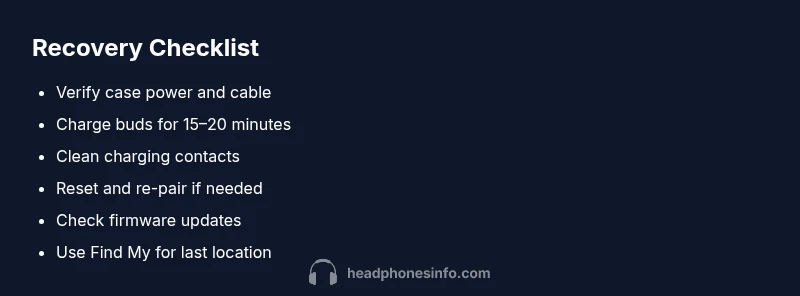
- Verify the charging case has power and the charging cable is working.
- Place the buds in the case and close the lid for at least 15–20 minutes.
- Inspect charging contacts on both the buds and the case for dust or corrosion.
- Check the LED indicators on the case and buds for signs of charging or errors.
- Open the companion app to confirm last connection time and battery status. Badge: If the case or cable is damaged, replace it first. If the buds wake up but won’t pair, move to the reset steps below.
Diagnostic flow at a glance
A systematic approach saves time. Start with the simplest check (power) and move toward more involved fixes. If a step doesn’t resolve the issue, move to the next one and document outcomes. This flow reduces guesswork and helps you determine whether a battery, charging electronics, or software fault is to blame.
Step-by-step revival for common causes (detailed in the next section)
From a drained battery to dirty contacts, most dead-earbud issues are resolved by a handful of repeatable steps. In this section you’ll find practical, tested actions you can perform with common tools you already have: a charging case, a USB cable, and a smartphone. Always begin with safe handling and avoid moisture near electronics. If you notice the case or buds heat up excessively during charging, disconnect and seek service.
Prevention and maintenance to avoid future dead earbuds
Prevention is better than recovery. Regular charging habits, proper storage, and firmware updates help extend battery life and stability. Keep a clean charging cradle, avoid leaving buds in extreme temperatures, and use the official app to monitor health and calibration. For frequent travelers, carry a compact power adapter and a spare cable designed for your brand. Routine checks reduce the chance of mystery dead-bud failures and improve searchability via location features when needed.
Safety, warnings, and when to seek professional help
Working with small electronic devices carries minimal risk if you follow basic safety rules:
- Unplug chargers before inspection and avoid liquid exposure.
- Use manufacturer-approved accessories to prevent damage.
- If the battery is swollen, hot, or emits unusual smells, stop using the device and seek professional service immediately.
- If you still can’t revive or locate the earbuds after a thorough diagnostic flow, contact customer support for a battery or module replacement.
Final quick guide: what you’ll do in the next 20–30 minutes
Charge the case, recheck the buds, test pairing, and verify in the app. If you can’t retrieve power or location, escalate to support with a log of what you tried. This approach minimizes wasted time and increases the odds of recovery or a clear path to replacement.
Steps
Estimated time: 60-90 minutes
- 1
Check power sources
Verify the charging case has power by plugging it in with a known-good cable and adapter. If the case light doesn’t illuminate, try a different outlet or cable. A dead case can prevent buds from charging properly.
Tip: Use the original cable when possible to avoid compatibility issues. - 2
Charge the buds in the case
Place the buds in the case, close the lid, and let them charge for at least 15–20 minutes. Avoid opening and closing the lid repeatedly during charging, which can interrupt the power transfer.
Tip: Check the case LED during charging to confirm activity. - 3
Clean charging contacts
Inspect both buds and the case for dust, lint, or corrosion. Gently clean with a small cotton swab dampened with isopropyl alcohol. Ensure contacts are dry before reassembling.
Tip: Do not use metal objects that could scratch contacts. - 4
Reset and re-pair
If buds still won’t power on or pair, perform a factory reset per the user guide, then re-pair with your phone. This can resolve persistent software faults affecting power management.
Tip: Keep the charging case lid closed during reset if required by your model. - 5
Update firmware and test
Launch the official app and check for firmware updates. Install any updates, then test power-on and Bluetooth pairing again. Firmware can fix glitches that cause random dead-bud behavior.
Tip: Ensure your phone has Bluetooth enabled and is within close range during testing. - 6
Test location features
If the device powers up, use Find My/Locate to confirm last known location and current status. If the app shows a location, head there cautiously while watching for power-on indicators on the buds.
Tip: Document the last known location in case you need to show it to support. - 7
Escalate to support
If steps 1–6 fail, contact customer support for repair or replacement options. Provide model, serial, and a log of attempted fixes to speed up service.
Tip: Keep proof of purchase handy for warranty considerations.
Diagnosis: Earbuds won't power on or respond after being misplaced or after battery drain
Possible Causes
- highBattery fully discharged or defective
- highCharging case not delivering power (damaged dock, cable, or contacts)
- mediumDirty or corroded charging contacts on buds or case
- mediumFirmware glitch affecting power management or Bluetooth pairing
- lowPhysical damage to buds or charging case
Fixes
- easyCharge buds in the case with a known good cable and adapter; verify case indicator shows charging
- easyInspect and clean charging contacts with isopropyl alcohol and a soft brush
- mediumReset buds to factory settings and re-pair with your device
- mediumUpdate firmware via the manufacturer app and retry pairing
- hardIf issues persist, request service or battery replacement from the manufacturer
People Also Ask
Can you locate earbuds after they are dead?
Not while they are powered off. Use the last known location from the companion app and attempt to revive power by charging the case. If the earbuds remain unresponsive, the issue may be hardware-related.
You can’t locate dead earbuds in real time, but you can check the last known location and try reviving power by charging.
What should I do first when my earbuds won’t power on?
First, ensure the charging case has power and the cable is working. Then place the buds in the case for at least 15 minutes and check for charging indicators. If still dead, perform a reset and retry pairing.
First, check the case and charging cable, then charge the buds for a bit and try resetting.
Do all earbuds have a Find My feature?
Most major brands offer a locate feature via their companion apps, but it requires the buds to be connected or recently connected. Some older or budget models may not support location history.
Most popular earbuds have a locate feature in the app, but it depends on the model.
How long should I charge a dead earbud to revive it?
Charge the buds in the case for at least 15–20 minutes to boot them up enough to test power and pairing. If there’s no response after a full charge cycle, proceed with a reset or professional help.
Give them at least 15 to 20 minutes in the case, then test.
If I can’t revive them, is the case still usable?
If the case is faulty or not charging, you may still be able to use the buds with a replacement case or service plan. Check warranty and service options with the manufacturer.
If the case won’t charge, you might need a replacement or service.
When should I seek professional repair?
If you’ve tried charging, cleaning contacts, resets, and firmware updates without success, it’s time to contact support for repair or replacement options. Persistent hardware faults require expert attention.
If nothing works after steps, contact customer support for repair or replacement.
Watch Video
What to Remember
- Start with a known-good charging setup
- Use the app to view last known location and battery health
- Perform a safe reset and firmware update if needed
- Seek professional help if issues persist or hardware is damaged