Can You Track Beats Headphones If They Are Dead? A Practical Guide
Learn how to locate Beats headphones when they're dead or unresponsive, including Find My compatibility, last-known locations, and step-by-step recovery strategies.


Yes, you can often locate Beats headphones after they die by leveraging last known location data, Find My or Beats/Apple ID integration, and recent pairing history. This quick guide explains how to act quickly through known services and practical steps, even if the device isn’t powering on.
Can you track Beats headphones if they are dead? A reality check
Can you track Beats headphones if they are dead? The short answer is: it depends on the device model, how it was set up, and what services were enabled before power was lost. For most modern Beats that work with Apple’s Find My ecosystem or the Beats app, you can access last known location data, recent connection history, and sometimes even trigger a sound when nearby. This is not a guarantee that you’ll see the exact current position, but you can significantly improve your odds by acting quickly. According to Headphones Info, location-based findings for wireless headphones hinge on both device state and the availability of your associated account data. If you prepared in advance by enabling location services and pairing the device correctly, you’ll have a much better chance of recovering your Beats.
How location data and Find My work with Beats headphones
Location-based tracking for Beats hinges on a few core concepts: last known location, proximity signals, and the availability of Find My or Beats app integration. When a Beats headphone is powered on and within Bluetooth range of a trusted device, it can update its location in the Find My network or the Beats app. If the device is completely dead, the system usually can only show you the last recorded location before power-off. This makes timing critical: the sooner you check the last location, the more you can narrow down where the device was last used. Headphones Info analysis shows that the practical value of last-known location is highest if the device was used in a known home, office, or commute route. Always verify that your Beats headphones were linked to your Apple ID (for AirPods/Beats that support Find My) before the battery died, because that linkage is what unlocks the location history.
What you need before you start searching
Before you begin, assemble the basics: your iPhone or Android device with the appropriate tracking app (Find My or Beats app), the charging setup to test wake-up, and a quiet, organized search plan. Ensure your account credentials are handy so you can access location data quickly. Prepare a simple log to note down times, locations, and any clues you find. If you have multiple devices associated with your Beats headphones, make a note of which one is linked to the tracker, as this can influence where you look first. This planning stage is essential to avoid scattered efforts and duplicate searches, which waste time and energy.
When last-known location is your best lead
If the headphones show a last known location, prioritize those coordinates and map out the probable area. Start at the last known point and expand outward efficiently: consider rooms, vehicles, bags, and places you recently used the headphones. Use a grid search pattern to avoid missing small pockets in furniture, under cushions, or in bags. If the device was near a common transit route, re-check those areas with special attention. If you can re-create the last usage scenario (e.g., which bag you used or where you usually store the case), you’ll narrow down the search faster. The key: stay methodical and document every lead you pursue.
The role of charging and wake-up tests
Even if the device is dead, a quick charging test can reveal whether the battery is salvageable or completely degraded. Connect the Beats to a compatible charging cable and power source for at least 15–20 minutes, and watch for indicator lights or a brief boot sequence. If nothing shows, your battery may be at end-of-life or a hardware fault. This test is often decisive: if the device starts responding after charging, you can re-sync with your Find My data and get a fresh location update. If it does not respond, move on to plan B (see below).
What to do if you can’t get a live location
If Find My won’t show a live location due to power constraints, you still have options. Check the pairing history on your phone to identify the last connected device, and scan common areas where you last used the headphones. Consider triggering a sound through Find My if supported; even a faint vibration can help locate a nearby device. If your Beats device doesn’t respond to charging within a reasonable period, there may be a hardware issue that requires professional support or a replacement under warranty. Document all steps you took so you can reference them if you need to contact support later.
Privacy, safety, and best practices for tracking
Tracking devices raises privacy questions, so use tracking features responsibly. Only track devices you own or have explicit permission to locate. Keep your account secure to prevent unauthorized use, and disable location sharing if you no longer need it. Regularly review connected devices and permissions in your Apple ID or Beats account. Headphones should be treated as personal property, and any location data should be used in accordance with applicable laws and policies. Adopting preventive habits — like enabling Find My before a device dies and maintaining a proper charging routine — can save you time if a loss occurs.
What happens after you locate or fail to locate
When you locate your Beats headphones, promptly power them on and reconnect to your account to refresh the location data. If you cannot locate them, preserve as much information as possible and contact Beats support or Apple for guidance on warranty coverage or replacement options. If the device is under warranty, you may be eligible for repair or replacement, depending on the model and terms. Regardless of the outcome, documenting the steps you took and the locations you searched will help you file a clean, accurate report with the manufacturer.
Quick practice tips to prevent future losses
- Enable Find My or Beats app integration on setup and keep it active.
- Regularly verify charging cables and cases so that power failures are less likely.
- Create a routine for checking your devices before you leave a location.
- Keep a simple loss-prevention kit with a case, charger, and a small label with your contact information in case you misplace your headphones.
A concise recap of the approach
In short, you can often locate Beats headphones after they die by leveraging last-known location data, the Find My network, and careful searching of probable areas. If the device does not respond after charging or powering on, you should move to support channels for replacement or repair. Remember, the effectiveness hinges on how well you prepared beforehand and how quickly you act when the device goes missing.
Tools & Materials
- Smartphone with Find My/Beats app(Logged into the same account used with the Beats headphones)
- Charging cable and power source(To test wake-up and battery status)
- Last known location data access(From Find My or Beats app if previously recorded)
- Notebook for notes(Log times, places, and clues)
- Bluetooth-enabled search device (optional)(For scanning in a tricky search area)
Steps
Estimated time: 30-60 minutes total
- 1
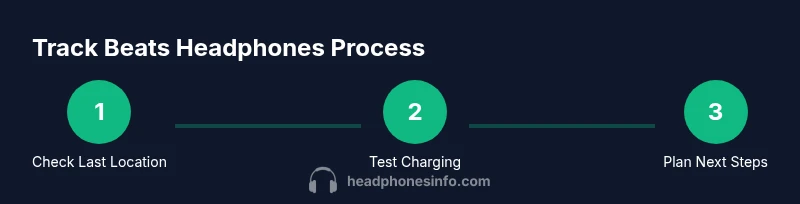
Open Find My or Beats app and check last known location
Launch the app associated with your Beats headphones and navigate to the Devices section. Look for the last known location timestamp and map pin. If a location appears, plan a search path starting from that point. If nothing shows, proceed to step 2.
Tip: If you share an Apple ID, ensure you’re viewing the correct device in Find My to avoid cross-account confusion. - 2
Test charging and wake-up
Connect the headphones to a compatible charging setup and wait 15–20 minutes. Observe any LED indicators or boot sequence. If the device responds, you’ll be able to refresh its location data and possibly trigger a Find My sound.
Tip: Even a brief sign of life means you should re-sync with your account immediately. - 3
Review pairing history and last connections
Check your phone’s Bluetooth settings or the Beats app for a list of last-connected devices. This can reveal where the headphones were connected last, helping narrow the search area.
Tip: Note the location and time of the last connection; it often points to a specific room or bag. - 4
Trigger Find My sound (if supported)
If Find My supports playing a sound on the Beats headphones, use this feature to locate the device when you’re close by. It can reveal the device's position even if it doesn’t power on fully.
Tip: Follow the sound carefully, moving slowly to avoid missing faint cues. - 5
Expand the search with a methodical sweep
Use a grid search pattern in the most likely areas (home, car, gym, or commute routes). Check common pockets (bags, couch cushions, under seats) where a small device could hide.
Tip: Search with a partner to cover more ground without missing spots. - 6
If all else fails, gather information for support
Document the last known location, time, and attempts. Contact Beats or Apple support for guidance on warranty or replacement. Have your purchase date and model readily available.
Tip: A clear, concise report speeds up the service process.
People Also Ask
Can I track Beats headphones if they are completely dead?
If a Beats headphone is completely dead, live tracking may be limited to the last known location before power-off. Use Find My or Beats app data to guide a search and consider a charging test to see if the device can wake up. If no location data is available, move to support options.
You can often rely on the last known location, then test charging to see if the device wakes up. If nothing shows, contact support for options.
Do Beats headphones support Find My integration?
Many Beats models work with Find My when paired with an Apple ID, allowing last-known locations and, in some cases, a sound test. Confirm whether your specific model supports Find My by checking the Beats app or Apple’s Find My compatibility list.
Beats models that pair with Apple IDs can show last-known locations via Find My.
What information do I need to track Beats headphones?
You’ll need access to the linked account (Apple ID or Beats app), the device’s last-known location, and the ability to charge or wake the device. Documentation of the last search area helps if you contact support.
Have your account access, the last-known location, and a charging plan ready.
What if the device isn’t within Bluetooth range anymore?
Out of Bluetooth range means real-time location updates stop, but last-known location remains helpful. Use that point to re-check nearby areas and consider a broader search if you traveled recently with the headphones.
If out of range, rely on last-known location and broaden your search.
Can I protect my privacy while using Find My?
Yes. Use Find My responsibly, only for devices you own or have permission to track. Review which devices have access to your account and disable location sharing when no longer needed.
Be mindful of privacy—only track devices you own or have permission to locate.
What should I do if I can’t locate my Beats headphones at all?
If all attempts fail, collect the data of last known location and search efforts, then contact Beats or Apple support for guidance on repair, replacement, or warranty options.
If you can't locate them, contact support with your findings.
Watch Video
What to Remember
- Know your last known location and plan a targeted search.
- Power on and charging tests can reveal a wake-up path or hardware issue.
- Find My/Beats integration enhances recoverability when used consistently.
- Document every step to speed up support if needed.
- Prevention is better than recovery: enable Find My and maintain charging routines.