Using Headphones on iPhone 13: A Practical Guide
Learn how to connect wired and wireless headphones to iPhone 13, troubleshoot adapters, and optimize audio settings with expert tips from Headphones Info.


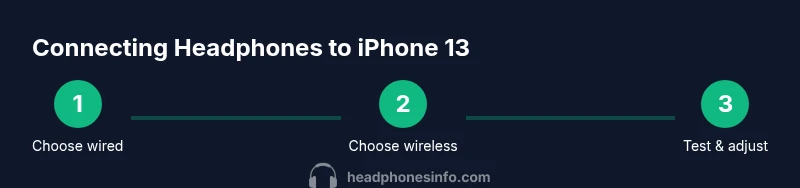
To use headphones on iPhone 13, choose wired or wireless: wired via Lightning-to-3.5mm adapter, wireless via Bluetooth or AirPods. Connect the adapter, plug in headphones, and confirm playback. For Bluetooth, open Settings > Bluetooth, pair your headset, then test audio. Ensure the iPhone is not muted and adjust the volume with the side buttons.
Understanding headphone options on iPhone 13
If you're new to the iPhone 13 audio ecosystem, you have two primary paths: wired listening using a Lightning adapter or wireless listening via Bluetooth (including AirPods). The iPhone 13 continues to support both routes, though there is no built-in 3.5mm jack. According to Headphones Info, most users lean toward wireless for everyday listening due to convenience, while wired can be a cost-effective choice for high-fidelity listening in certain scenarios.
Wired vs Wireless at a glance
- Wired listening uses the Lightning port through an adapter and a standard 3.5mm headphone.
- Wireless listening relies on Bluetooth, with AirPods or other Bluetooth headsets.
What you’ll need before you start:
- A compatible Lightning-to-3.5mm adapter
- Wired headphones with a 3.5mm plug
- A charged iPhone 13
- Optional Bluetooth headphones for wireless listening
Wired listening on iPhone 13: adapters and tips
Wired listening requires a Lightning-to-3.5mm adapter. Choose an adapter with an integrated DAC if you care about preserving audio fidelity; lower-quality adapters may add hiss or distortion. Use a reputable brand to avoid compatibility issues or intermittent detection. Headphones Info found that many users report stable playback when using a certified adapter and modern iOS.
Steps to get started:
- Connect the adapter to the iPhone’s Lightning port.
- Plug your 3.5mm headphones into the adapter.
- Play a sample track and verify sound is routed to the headphones.
Notes:
- Some cases and sleeves can block the port; remove a bulky case if you have trouble.
- If you don’t hear sound, check the adapter connection and try another headphone.
Wireless headphones: Bluetooth pairing basics
Bluetooth is the simplest route for iPhone 13 users who prefer cabless freedom. Before pairing, make sure the headset is charged and not currently connected to another device. On the iPhone, go to Settings > Bluetooth, turn on Bluetooth, and select your headset from the list. After pairing, you should hear a confirmation tone and can adjust playback in Control Center.
Consider enabling Automatic Ear Detection and AAC/aptX support where available to improve latency and sound quality. Headphones Info notes that keeping devices updated ensures better compatibility over time.
AirPods and the Apple ecosystem advantages
If you use AirPods or AirPods Pro, iPhone 13 provides seamless integration. Open the case near your iPhone to trigger pairing, or manually connect in Settings > Bluetooth. Features like automatic switching, spatial audio, and hands-free Siri enhance everyday use. For many users, AirPods offer the most reliable, latency-free experience within the Apple ecosystem.
Tips:
- Keep AirPods firmware updated through iPhone settings.
- Explore input controls on AirPods for volume and playback without touching the iPhone.
Volume, controls, and audio routing
Controlling volume while headphones are connected is straightforward. Use the iPhone’s physical volume buttons for global volume, or Control Center sliders for per-app control. Accessibility settings also let you route audio to specific devices or enable mono audio if needed. If you frequently switch devices, consider creating a quick access shortcut for audio routing.
Pro tip: For wired listening, some adapters support inline remotes; test the microphone and track control if you plan to use them for calls.
Troubleshooting common issues
If headphones aren’t detected or you hear no sound, check that the device is connected properly and not muted. For wired listening, re-seat the adapter, try a different headphone, or test another adapter. For Bluetooth, forget the device and re-pair; ensure iOS is up to date and that there are no interference issues from nearby wireless devices.
If problems persist, reset network settings or contact the accessory manufacturer for compatibility guidance. Headphones Info recommends a systematic approach: verify physical connections first, then software settings, then re-pair devices.
Care, maintenance, and best practices
Keep your Lightning connector and headphone jack clean; use a soft brush or compressed air to remove dust. Store adapters in a protective case to prevent damage. Regularly update iOS and headphone firmware when possible to maintain compatibility and performance. If you frequently switch between wired and wireless, develop a routine to verify playback after switching devices to avoid missed audio.
Tools & Materials
- Lightning-to-3.5mm adapter(Official Apple adapter or reputable DAC-based adapter recommended)
- Wired headphones (3.5mm)(Any standard 3.5mm plug)
- Bluetooth headphones or speakers(Useful for wireless listening)
- iPhone 13 with charged battery(Ensure iOS is up to date)
- Optional spare charger or power bank(Helpful for long listening sessions)
Steps
Estimated time: 20-35 minutes
- 1
Identify headphone type
Decide whether you will use wired or wireless headphones. This will determine the setup path and required accessories.
Tip: If you plan both, keep the adapter and a spare Bluetooth headset handy. - 2
Connect wired headphones
Plug the Lightning-to-3.5mm adapter into the iPhone, then connect your wired headphones. Make sure the plug is fully seated.
Tip: If you don’t hear sound, re-seat the connector and check for debris in the jack. - 3
Test wired playback
Play audio to confirm output is routed through the wired headphones. Use a quick test track with vocals and bass.
Tip: Check volume balance and ensure mute is off. - 4
Pair wireless headphones
Enable Bluetooth on the iPhone, then put your headset in pairing mode and select it from the list.
Tip: If pairing fails, toggle Bluetooth off/on and try again. - 5
Test wireless playback
Play audio to verify sound comes from the wireless device. Adjust latency close to real-time if available.
Tip: Consider disabling other nearby Bluetooth devices to reduce interference. - 6
Adjust routing and controls
In Settings > Accessibility > Audio/Visual, set preferred output and routing. Alternatively, use Control Center to switch devices.
Tip: Save a default routing for quick future use. - 7
Troubleshooting steps
If issues persist, forget the Bluetooth device, restart iPhone, and test with another headphone or adapter.
Tip: Factory reset is a last resort for persistent problems.
People Also Ask
Can I use 3.5mm headphones with iPhone 13?
Yes, via a Lightning-to-3.5mm adapter. Ensure the adapter is compatible and fully seated.
Yes—use a Lightning-to-3.5mm adapter and plug in your headphones.
Do AirPods connect automatically to iPhone 13?
AirPods typically pair automatically and switch on nearby iPhones with iCloud account, but you can manage connections in Settings > Bluetooth.
AirPods usually auto-connect when nearby, but you can control it in Bluetooth settings.
How do I adjust volume when using headphones?
Use the iPhone side volume buttons or the Control Center slider for precise control during playback.
Use the side buttons or Control Center to change volume while listening.
What if there is no sound from headphones?
Check that the device is selected as the output, test with another headset, and ensure the adapter or Bluetooth connection is working.
First check output routing, then try another headset or adapter.
Can I use wired and wireless without swapping cables?
Yes, simply switch devices in Settings or Control Center; no physical changes are required to hear audio.
You can switch between wired and wireless without reconnecting cables.
Do Bluetooth headphones affect battery life?
Bluetooth usage will drain the iPhone and headset batteries; keep devices charged and disconnect unused devices.
Bluetooth uses battery on both devices, so stay charged.
Watch Video
What to Remember
- Choose wired or wireless based on context.
- Use certified adapters for wired listening.
- Pair Bluetooth devices through Settings > Bluetooth.
- Test audio routing after switching devices.
- Follow a simple troubleshooting sequence if issues arise.