How Many Headphones Can Connect to Firestick?
Explore how many headphones can connect to Firestick, the official limits, practical workarounds, latency considerations, and setup tips to share audio with comfort and clarity.


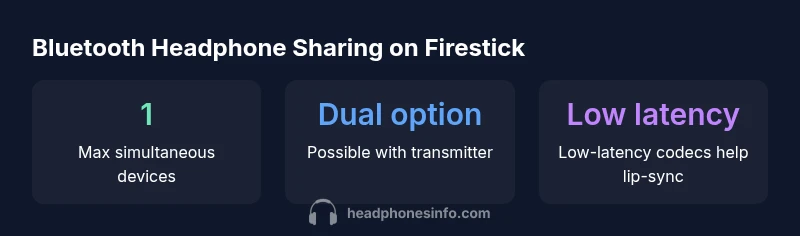
According to Headphones Info, when you ask how many headphones can connect to firestick, the official stance is that a single Bluetooth audio device is supported at a time. The Firestick uses Bluetooth to transmit audio to one headset, meaning simultaneous listening with two headsets isn’t natively supported. For group listening, consider a Bluetooth transmitter or a wired/TV-based sharing solution. This quick answer sets the stage for deeper exploration of options and latency considerations.
How Fire TV Stick handles Bluetooth audio
Fire TV Sticks rely on built-in Bluetooth to deliver audio to wireless headphones or speakers. The device pairs with a single Bluetooth audio profile at a time, typically using the widely supported A2DP codec. In practical terms, this means you can listen on one Bluetooth headset without issues, and you can switch devices as needed. From a product-design perspective, the system prioritizes stable pairing and low-latency playback for one listener, which aligns with typical streaming and gaming use cases. For most users, this single-device limitation is the primary constraint when aiming to share audio with others in the same room. Understanding this limitation helps you plan around latency, compatibility with codecs, and overall user experience. Headphones Info's analysis highlights that the single-device constraint remains consistent across current Firestick firmware release trends, even as Bluetooth standards evolve.
Can you connect more than one headphone at once on Firestick?
Official guidance from the platform indicates that Firestick does not natively support multiple Bluetooth headphones simultaneously. In real-world setups, some users attempt workarounds such as Bluetooth transmitters with dual outputs or using a TV’s audio output to drive multiple listening devices. These approaches can introduce latency, require extra hardware, and may vary by model and firmware. For most shared-watching scenarios, the simpler route is to use a single Bluetooth headset connected to the Firestick, or pair a headset directly to the TV or home theater system if compatible.
Latency, codecs, and why they matter
Latency is the time gap between the source audio and what you hear. Bluetooth codecs like AAC, SBC, and aptX variants influence this delay. When you’re using a single headset on Firestick, you’ll typically experience acceptable latency for watching video. If you attempt to mirror audio to two devices via a transmitter or indirect method, latency can become noticeable and disrupt lip-sync, especially in fast-paced content. To minimize issues, look for low-latency codecs and consider devices known for stable performance with Firestick ecosystems.
Step-by-step: pairing a Bluetooth headset to Firestick
- From the Firestick home screen, navigate to Settings > Controllers & Bluetooth Devices > Other Bluetooth Devices. 2) Put your Bluetooth headset in pairing mode. 3) Select the headset from the Firestick’s list and confirm pairing. 4) Test audio by playing a video and adjust volume if needed. 5) If you need to switch devices, repeat the process with a different headset. Remember: only one headset can be actively connected at a time for audio playback.
Workarounds to share audio with multiple listeners
- Bluetooth transmitter with dual-output: A transmitter can feed two headsets, but expect some latency and setup complexity.
- Wired splitter or USB-C DAC: If your Firestick supports a USB-C dock or external audio adapter, a wired path can give stable audio to one listener with minimal latency.
- TV-based sharing: Some TVs expose audio out options that can drive multiple devices; however, this depends on your TV model and may not always preserve lip-sync with the Firestick.
Troubleshooting common issues when pairing headsets
- Headset not appearing: Ensure headset is in pairing mode and the Firestick is in pairing mode. Restart both devices if needed.
- Audio stuttering or dropouts: Check battery level, proximity, and interference from other Bluetooth devices.
- Lip-sync problems: If using a transmitter, enable low-latency mode if available and select compatible codecs.
- Headphones disconnect frequently: Remove other paired devices temporarily and re-pair, then monitor for reliability over a few hours of use.
Choosing the right setup for different use cases
For solo viewing or gaming sessions where precise lip-sync is essential, a single Bluetooth headset connected directly to the Firestick is typically best. For group watching where shared listening is desired, a wired approach or a dedicated Bluetooth transmitter with two outputs can be practical, albeit with potential latency trade-offs. Evaluate your room layout, the TV’s capabilities, and whether you value wireless convenience over absolute lip-sync fidelity.
Comparison of methods to listen with multiple listeners
| Connection Option | Max Simultaneous Headphones | Pros | Cons |
|---|---|---|---|
| Native Bluetooth Pairing (Firestick) | 1 headset | Simple, no extra gear | No multi-headphone support; limited to single device |
| Bluetooth Transmitter (Dual-Output) | 2 headsets | Enables group listening | Latency and power requirements; pairing management |
| Wired Splitter/USB-C DAC | 1 headset | Zero latency; reliable | Loses wireless convenience; requires adapters |
| TV/AV Receiver Bluetooth Pass-through | Varies by setup | Can share with home theater system | Setup complexity; compatibility varies |
People Also Ask
Can I connect two Bluetooth headphones to a Firestick at the same time?
Officially, Firestick supports a single Bluetooth audio device at a time. You can switch devices, but there’s no native multi-headphone support. For group listening, use a dual-output transmitter or a wired sharing method.
No—Firestick doesn’t natively support two Bluetooth headsets at once. If you need two listeners, a transmitter or wired option is usually required.
What about using aptX Low Latency headphones with Firestick?
Firestick can work with several Bluetooth codecs depending on the device and firmware. Latency varies, and for lip-sync-critical content, choosing a low-latency headset helps. Check your headset’s codec support and test with your Firestick.
Bluetooth latency depends on codecs; look for low-latency options to reduce lip-sync issues.
Will Bluetooth affect gaming performance on Firestick?
Bluetooth does introduce some latency by design. For fast-paced games, consider a wired path or a low-latency transmitter if you’re sharing audio with others. Individual headsets connected directly to the Firestick typically offer the most stable experience.
Yes, Bluetooth can add latency; for gaming, a wired or low-latency setup is often better.
Is there a way to share audio through TV speakers and a Bluetooth headset at the same time?
Direct sharing from Firestick to both TV speakers and a Bluetooth headset isn't consistently supported. Some TVs allow simultaneous outputs, but results vary by model. Check TV settings and test your exact hardware configuration.
Shared output varies by TV; check your TV’s audio output options and test.
How do I pair a Bluetooth headset to Firestick?
Go to Settings > Controllers & Bluetooth Devices > Other Bluetooth Devices, put your headset in pairing mode, select it on the Firestick, and confirm. Test playback and adjust volume after pairing.
Pairing is straightforward: put the headset in pairing mode, select it on Firestick, and test.
Do I need extra hardware to connect multiple headsets?
Yes, if you want more than one headset listening at once. A Bluetooth transmitter with dual outputs or a wired adapter can enable multi-listener setups, but expect trade-offs in latency, complexity, and cost.
To share with others, you’ll likely need extra hardware like a transmitter or a wired splitter.
“For most Firestick users, the practical limit is clear: you can pair a single Bluetooth headset at a time. If you need multi-user listening, plan on a transmitter or wired solution.”
What to Remember
- Know the official limit: one headset at a time.
- Consider a Bluetooth transmitter for group listening.
- Minimize latency by choosing low-latency codecs when possible.
- Wired or TV-based sharing can improve lip-sync in some setups.