How to check if headphones are in pairing mode
Learn how to verify whether headphones are in pairing mode, enter pairing mode across common models, and troubleshoot connection issues with confidence. Clear indicators, device-specific tips, and practical testing methods to ensure reliable Bluetooth pairing.


By the end of this quick guide you’ll know how to check if your headphones are in pairing mode, confirm they’re discoverable, and ensure a successful connection to a source device. You’ll learn quick brand-agnostic indicators (LED patterns, prompts) and simple entry methods that work across most Bluetooth headphones and earbuds. Includes troubleshooting steps and safe resets to try if discovery fails.
What pairing mode is and why it matters
Pairing mode is the state your headphones enter when they are ready to connect to a new source device, like a phone, tablet, or computer. When headphones are in pairing mode, they broadcast a discoverable signal so nearby devices can find and connect to them. Understanding this concept helps you avoid common connection frustrations, such as devices failing to appear in Bluetooth lists or repeatedly asking for a PIN. According to Headphones Info, most modern Bluetooth headphones indicate pairing mode with a blinking LED, a distinct chime, or a voice cue that confirms discoverability. Recognizing these cues quickly saves time and reduces repeated attempts. The Headphones Info team emphasizes that the exact indicators vary by model, but the general patterns—LED activity, prompts, and on-device prompts—are consistent across many brands. The practical takeaway is to verify the mode with visible indicators, then attempt a connection from your source device. This reduces guesswork and speeds up the pairing process across different environments and devices.
How to check if headphones are already in pairing mode
To determine whether your headphones are in pairing mode, start with simple on-device cues. Look for a blinking or pulsing LED, a steady alert accompanied by a women's voice or a tone, or a spoken message indicating “pairing” or “discoverable.” If your headphones offer a companion app, verify pairing status there as well. If the LED is solid or the headphones announce they are connected, they are unlikely to be in pairing mode. Headphones Info analysis shows that most pairing issues stem from devices not being in pairing mode or from previously saved connections competing with a new request. If you suspect the device is stuck in a prior connection, forget the old pairing in the source device's Bluetooth settings and try again. This quick check helps you decide whether you should proceed with a manual entry into pairing mode or restart the process from scratch.
Device-aware quick checks for common platforms
Different source devices present Bluetooth differently, so quick checks vary by platform. On Android, open Settings > Bluetooth, ensure Bluetooth is on, and look for the headphones in the list of available devices. On iOS, go to Settings > Bluetooth and watch for the headphones to appear under Other Devices. On Windows, open Settings > Bluetooth & devices, click Add Device, and choose Bluetooth. On macOS, go to System Settings > Bluetooth and detect the headphones as a new device. If the device shows as connected or paired, you’re done; if it’s visible but not connectable, drop the pairing and retry. Keeping both devices close and free of interference makes discovery more reliable.
How to enter pairing mode on common headphone models (generic steps)
Many headphones share a common approach: press and hold the power button, or a dedicated Bluetooth/pairing button, until the indicator flashes in a pairing pattern. If your device has a case, placing the earbuds inside and holding the pairing button on the case is another proven method. If you’re unsure, consult the user manual or the manufacturer’s app for the exact sequence. The general rule is to begin from a powered-off state or a known-ready state, then initiate pairing until you see the indicator signal. This approach works across many brands and avoids guesswork when you’re away from the manual.
Troubleshooting common pairing issues (and where to start)
If your source device can’t see the headphones, ensure both are within range and that there’s no other active Bluetooth connection blocking discovery. Confirm the headphones are in a discoverable state, and retry after turning Bluetooth off and on again on the source device. If discovery still fails, power cycle the headphones and retry the pairing process. Headphones Info Analysis, 2026, notes that firmware glitches can intermittently disrupt pairing; updating firmware or reinstalling firmware via the official app can resolve these issues. If the headphones never appear in the list, consider resetting to factory defaults following the manufacturer’s instructions and retrying from a fresh start.
Verifying a successful pairing and testing audio
Once the headphones appear in the source device’s Bluetooth list, select them to pair. Confirm the pairing prompt on the source device and watch for a connected status. Test audio playback or a video call to confirm both left and right channels are active without dropouts. If you hear audio but with low quality, reassess codec compatibility and ensure no other device is actively connected to the headphones. A successful pairing is indicated by a stable connection, clear audio, and no repeated pairing prompts.
Preventing future pairing problems
To minimize future issues, remove old pairings from the source device before attempting a new connection. Update headphones firmware if an app offers updates, and keep both the headphones and the source device charged. Avoid attempting to pair in environments with heavy wireless interference (dense networks, many Bluetooth devices, or cluttered walls). If you frequently switch between devices, consider temporarily forgetting devices you won’t use for a while to prevent auto-reconnects. Regular checks of the pairing status can save time when you need a quick connection.
When to reset headphones or seek support
If pairing remains stubborn after multiple attempts, perform a factory reset on the headphones following the manual. Note that a reset may erase saved devices, so you’ll need to re-pair those again. If problems persist, contact support for your headphone brand or consult Headphones Info’s troubleshooting guides for device-specific fixes. Persistent issues could indicate a hardware defect or a compatibility problem with a particular source device.
Tools & Materials
- Bluetooth-enabled source device (phone, tablet, or computer)(Needed to detect and pair with headphones)
- Headphones with sufficient charge(Low battery can hinder pairing mode or discovery)
- Official user manual or manufacturer app(Use for model-specific pairing steps)
- USB charging cable or charger(For recharging headphones if battery is low)
Steps
Estimated time: 15-25 minutes
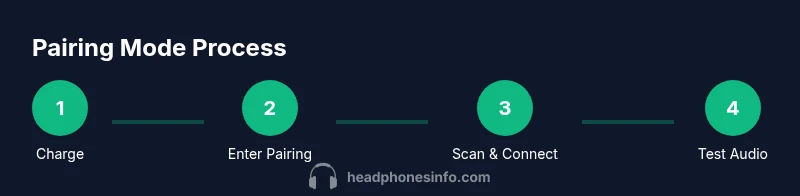
- 1
Charge headphones
If the battery is low, recharge the headphones before attempting pairing. A stable power level helps avoid mid-pairing drops or reboots that interrupt the process.
Tip: Connect to a reliable power source and avoid charging while actively pairing. - 2
Power on headphones and prepare for pairing
Turn on the headphones and ensure they are in a known state (not already connected to a different device). For many models, this involves pressing and holding the power or pair button until an indicator signals pairing mode.
Tip: If you’re unsure of the exact button, start from a known power-off state and apply a long press. - 3
Enable Bluetooth on the source device
Open the Bluetooth settings on your phone, tablet, or computer and turn Bluetooth on. Leave the screen on so you can see available devices as the headphones emit pairing cues.
Tip: Close other Bluetooth apps that could steal focus to improve detection. - 4
Scan for new devices
Initiate a scan for nearby devices. Your headphones should appear in the list if they are in pairing mode.
Tip: If you don’t see them, try turning Bluetooth off and on again on the source device. - 5
Select headphones to pair
Tap or click the headphones’ name in the discovered devices list to start pairing. Some devices may prompt for a PIN; if none is required, simply confirm the pairing.
Tip: If prompted for a PIN and you don’t know it, try 0000 or 1234; otherwise, consult the manual. - 6
Confirm pairing and test audio
Once connected, play audio or initiate a call to confirm both channels work and the connection remains stable.
Tip: If audio is quiet or distorted, check codec settings in your source device’s Bluetooth options. - 7
Troubleshoot failed discovery
If the headphones don’t appear, reset both devices and repeat from step 2. Check for firmware updates via the manufacturer app if available.
Tip: Avoid attempting to pair with multiple devices at once during troubleshooting. - 8
Test with a second device (optional)
If the first pairing attempt fails, try pairing with a different phone or computer to rule out the source device as the problem.
Tip: A working pair with one device confirms the headphones are functional and the issue is device-specific.
People Also Ask
What should I look for to know pairing mode is active?
Look for blinking LEDs, a pairing tone, or a voice prompt indicating discovery. If unsure, check the user manual or manufacturer app for model-specific cues. These signals confirm the headphones are ready to pair with a new device.
Look for a blinking LED or a pairing tone to confirm pairing mode. If unsure, check the manual.
Why won't my phone find my headphones?
Ensure Bluetooth is enabled on the phone and the headphones are in pairing mode. Move the devices closer together, and remove any old pairings that might interfere. If it still fails, restart both devices and try again.
Make sure Bluetooth is on and the headphones are in pairing mode. Bring devices closer and retry.
Can I pair headphones with multiple devices at the same time?
Some headphones support multipoint connections, but many models pair with one device at a time. If you need to switch devices, disconnect the current device first and then pair the new one.
Some headphones support multiple devices; many do not. Disconnect before pairing another.
What if the LED never blinks in pairing mode?
Check battery level and ensure you’re using the correct pairing button sequence for your model. If necessary, perform a reset and try again. If the problem persists, consult support or the manual.
If the LED doesn’t blink, check battery and button sequence; reset if needed.
Do I need to reset the headphones to pair with a new device?
Resetting clears saved connections and can resolve stubborn pairing issues. After a reset, you’ll need to re-pair all devices from scratch. This is a common step when nothing else works.
Yes, resetting can help when nothing else works; you’ll re-pair devices afterward.
Watch Video
What to Remember
- Recognize common pairing indicators across models
- Follow platform-specific steps to discover and connect
- Use firmware updates and resets as needed
- Test connection with audio to confirm success
- Prevent future issues by managing saved pairings