How to Check If Headphones Are Connected on iPhone
Learn how to verify headphone connections on iPhone, troubleshoot Bluetooth routing, and ensure audio plays through AirPods or wired headphones with practical, step-by-step guidance.


To check if headphones are connected on iPhone, verify Bluetooth is on, and that the headphones appear as the active output. Open Settings > Bluetooth or swipe to Control Center to confirm the current output device, then play audio. If sound isn’t routed correctly, re-pair the device or adjust the audio routing.
Why Checking Headphone Connection Status on iPhone Matters
Audio enthusiasts rely on consistent headphone connections to judge sound quality, latency, and overall experience. When headphones fail to connect, the culprit is rarely the headphone driver; more often, it’s the connection path. For many devices, a quick status check confirms whether you’re listening to the intended device. If you're wondering how to check if headphones are connected iphone, this guide covers the essentials. According to Headphones Info, verifying headphone connections on iPhone is a simple, repeatable process that helps ensure you hear audio correctly. The Headphones Info team found that most issues stem from routing or pairing, not faulty hardware. In practice, you’ll test AirPods, wired headphones, and adapters by confirming the active output, then performing a quick playback test. This approach reduces guesswork and speeds up troubleshooting. By the end, you’ll know whether to adjust settings, re-pair, or replace a faulty cable. The steps are designed for both casual listeners and audio enthusiasts who want reliable results every time.
How iPhone Detects Headphones
The iPhone distinguishes between wireless and wired headphones by recognizing the connected device via Bluetooth profiles for wireless listening and through the Lightning/3.5 mm path for wired options. When AirPods or Bluetooth headphones connect, iOS routes audio to the active Bluetooth device as long as the correct profile is in use (A2DP for media, HFP for calls). Wired headphones rely on a compatible jack or adapter that presents an appropriate TRRS signal to the iPhone’s audio subsystem. If the device is currently routed to a car stereo or another Bluetooth speaker, you’ll still see the connected device in Settings, but playback will not come through the intended headphones until routing is adjusted.
Quick Troubleshooting Framework
A simple framework helps you isolate the issue quickly. First, confirm Bluetooth is enabled and the headphones appear as connected in Settings. Then verify the active output in Control Center or the app you’re using. If audio plays but not through the expected headphones, re-check pairing status and consider re-pairing the device. Test with another device to rule out a faulty headphone. Finally, check for OS or firmware updates, as bugs can affect routing. Headphones Info analysis shows that most connectivity problems are due to routing or stale pairings rather than failing hardware, so a clean re-pair often resolves the issue.
Step-by-Step Approach to Verify Connection
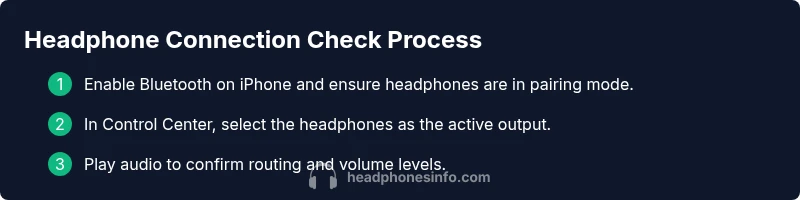
This section expands with precise actions to confirm headphones are connected. Start by turning on Bluetooth on the iPhone and ensuring the headphones are in pairing mode. Then go to Settings > Bluetooth and look for your device marked as Connected. Next, open Control Center, tap the audio routing or AirPlay icon, and select your headphones as the output. Play a short test track and listen for clear audio. If you don’t hear anything, try disconnecting and reconnecting, or forget the device and re-pair it. Finally, test with a different headphone to confirm whether the problem is device-specific. If issues persist, consider restoring network settings or updating iOS.
Testing Scenarios: AirPods, Wired, and USB-C Headphones
AirPods and other Bluetooth headphones usually connect via Bluetooth profiles and should appear under Settings > Bluetooth with the status Connected. With wired headphones, ensure the correct adapter is used and that the iPhone recognizes the physical connection as the audio route. For USB-C or Lightning headphones, confirm driver support and ensure the iPhone supports the USB-C/Lightning headset protocol. Always perform a quick playback test after each change to validate routing.
Common Issues and Quick Fixes
Common issues include: Bluetooth not turning on, headphones not appearing as Connected, and audio routing not updating automatically. Quick fixes: toggle Bluetooth off/on, restart the iPhone, re-pair the headphones, update the iOS firmware, and reset network settings as a last resort. These steps address most routing and pairing problems without hardware replacement.
How to Use Audio Routing in iPhone
iPhone provides quick routing controls via Control Center and the AirPlay button in supported apps. Tap the AirPlay/Output icon and select your headphones as the active device. If multiple outputs are available, make sure you’re not routing to a different device. In Settings > Accessibility > Audio/Visual > Audio Routing, you can set preferences to automatic routing when headphones are connected, helping reduce misrouting over time.
When to Reset or Re-Pair Headphones
If issues persist after standard fixes, reset the headphones by turning them off and on again and perform a fresh pairing. For AirPods, place them in the case, close the lid for 15 seconds, then reopen and reconnect. If you’re using third-party Bluetooth headphones, forget the device in Bluetooth settings and run through the pairing process again. This often resolves stubborn connection problems.
Final Checks and Best Practices
The Headphones Info team recommends adopting a routine check: enable Bluetooth, confirm output, and run a quick test whenever you swap headphones or update iOS. Keeping firmware updated, testing with multiple devices, and avoiding overloading the iPhone with many connected Bluetooth devices can improve reliability. Regular verification helps you maintain consistent audio experiences across apps and environments.
Tools & Materials
- iPhone with latest iOS(Ensure Bluetooth is enabled before testing)
- Headphones to test (AirPods, Bluetooth, wired with adapter)(Have at least one Bluetooth and one wired option if possible)
- Lightning to 3.5 mm adapter (if testing wired on newer models)(Use only if your headphones require a jack on a recent iPhone)
- Access to Settings and Control Center(Needed to verify output and routing quickly)
- Quiet testing environment(Helpful to hear audio details clearly)
- Notebook or notes app(For recording which headphones worked and which didn’t)
Steps
Estimated time: 15-25 minutes
- 1
Enable Bluetooth on iPhone
Unlock your iPhone and open Settings. Tap Bluetooth and ensure it's turned on. Having Bluetooth enabled is the first prerequisite for wireless headphones to connect and route audio properly.
Tip: If Bluetooth is slow to turn on, toggle Airplane mode briefly and then re-enable Bluetooth. - 2
Put headphones in pairing mode
If you’re connecting new Bluetooth headphones, put them into pairing mode as described in their manual. This makes them discoverable by the iPhone.
Tip: Some devices require holding the power button for several seconds; check the LED indicator pattern. - 3
Check active output in Settings
In Settings > Bluetooth, confirm your device shows as Connected. For quick checks, open Control Center and tap the audio routing/output icon to ensure the headphones are selected.
Tip: If the device isn’t listed, try turning Bluetooth off and on again. - 4
Test playback with headphones
Play a short track or a test tone to verify that audio is coming through the selected headphones. Note the volume level and any latency or stuttering.
Tip: Use a track with clear dynamics to catch subtle issues. - 5
Re-pair if needed
If audio won’t route, forget the headphone in Settings > Bluetooth and pair it again from scratch.
Tip: Re-pairing often resolves stubborn routing problems. - 6
Check for alternative routing
Some apps route audio differently; ensure the app isn’t sending output elsewhere (e.g., to a speaker or car system).
Tip: Test across two different apps to confirm consistency. - 7
Test wired headphones with adapter
If using wired headphones, connect the adapter, ensure the connection is snug, and repeat the playback test.
Tip: Wiggle the connector gently to confirm the touchpoints are seated properly. - 8
Update and reset if needed
If issues persist, check for iOS updates and consider resetting network settings as a last resort.
Tip: Backing up before reset is advised; this will reset network configurations but not personal data.
People Also Ask
Why does my iPhone say no headphones connected even when I have AirPods paired?
This usually means the audio routing is not set to the AirPods or the device is not active as the output. Check Settings > Bluetooth for Connected status and use Control Center to select AirPods as the output. If needed, re-pair the AirPods.
AirPods may be connected but not selected as the audio output. Open Control Center and tap the AirPlay icon to switch to AirPods, then test playback.
How can I verify the current audio output path on iPhone?
Use Settings > Bluetooth to confirm the device shows Connected, then use the AirPlay/output control in Control Center to confirm the active path. A quick playback test will verify the path is correct.
Check Bluetooth status and then confirm the output path in Control Center with a quick audio test.
What should I do if Bluetooth keeps disconnecting?
First, ensure the headphones are within range and that firmware is up to date. Forget the device and re-pair, and consider resetting network settings if the issue persists.
If Bluetooth keeps disconnecting, re-pair the device and check for updates. Reset network settings as a last resort.
Do wired headphones require a dongle to connect to newer iPhones?
Yes, newer iPhones without a headphone jack require a Lightning to 3.5 mm adapter or a USB-C equivalent, depending on model and headset type.
Wired listening often needs an adapter on newer iPhones; verify you have the correct dongle.
Will resetting network settings help with headphone connectivity?
Resetting network settings can fix persistent routing issues by clearing saved Bluetooth devices and Wi-Fi networks. It should be used as a last resort after trying standard fixes.
Reset network settings can fix stubborn routing problems, but use it only after trying normal fixes.
Watch Video
What to Remember
- Verify Bluetooth and output device before testing audio.
- Re-pair headphones if routing remains incorrect.
- Test across AirPods, wired, and adapters to isolate issues.
- Use Control Center to quickly manage audio routing.