How to Check If Headphones Are Working
Learn a practical, step-by-step method to verify headphones are working. Test channels, sources, and controls with clear guidance from Headphones Info for reliable results.


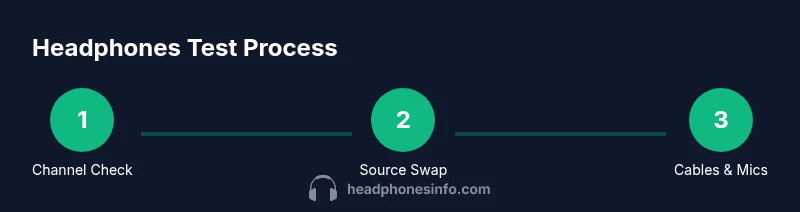
To answer how to check if headphones are working, run a quick, repeatable test across sources and modes. According to Headphones Info, start with a familiar track, verify both left and right channels, switch devices, and try wired and wireless connections. If results differ, isolate the issue to cables, adapters, or the source.
Quick diagnostics: the first signs
If you're wondering how to check if headphones are working, you can start with a basic sanity test. Ensure you’re not muted and that the device’s volume is up. Listen for sound in both ears and note any imbalance, crackling, or silence. If only one side is quiet, check the plug seating, adapter compatibility, and the source device. This early diagnostic helps you distinguish driver faults from connection or source problems. In many cases, issues are caused by a loose jack, dirty contacts, or a damaged cable rather than the headphones’ drivers. Throughout this guide, you’ll learn reliable checks you can perform quickly, whether you’re testing wired or wireless headphones, at home or on the move. By the end, you’ll have a clear yes/no on whether your headphones are working and what to test next.
Tools and setup before you begin
Before you dive into testing, assemble a minimal, repeatable toolkit and establish a quiet testing space. You’ll need at least two audio sources (a phone and a computer) and a wired option if you want to verify wired performance. Have spare cables and adapters on hand, plus a known stereo track with clean, balanced sound. If you are testing wireless headphones, ensure they are charged and paired to a quick-access device. A simple results sheet—or even a notes app—lets you log pass/fail outcomes for each test scenario. This groundwork turns testing from guesswork into data-driven confirmation, which helps you compare models or troubleshoot more effectively over time. Headphones Info emphasizes consistent setup to minimize confounding variables.
How to check if headphones are working: Channel test
Running a channel test is one of the most reliable ways to confirm both drivers are active. Start with a stereo track and listen carefully for equal intensity in left and right channels. Use a balance control if available to shift the audio to each side and verify the cueing remains clear. If you notice a mismatch, swap the headphones between devices or use a monoToStereo adapter to isolate the signal path. A simple mono test can help reveal phase or wiring issues that aren’t obvious with stereo recordings. Record your observations and repeat with a different track to rule out track-specific artifacts. For mic-enabled headphones, repeat the test with a call app to confirm the mic path is unaffected by the main audio path. This step-by-step channel verification is essential for accurate conclusions about performance.
Testing with different sources and formats
Different devices and file formats can yield varying results, so it’s important to cross-check across multiple sources. Try a high-quality MP3, a lossless WAV, and a streaming track on both a phone and a computer. When you switch devices, listen for consistency in volume, tone, and stereo balance. If you detect discrepancies on one source but not another, the issue may lie with that source’s output settings, the cable, or the adapter rather than the headphones themselves. Headphones Info analysis shows that most audio issues are source- or connector-related rather than driver failures. Keep notes on which sources reveal problems and which remain smooth so you can triangulate the root cause more efficiently.
Wired vs wireless: different checks
Wired headphones often reveal issues through cable wear, plug wear, and connector corrosion. Inspect the 3.5 mm jack or USB-C/Lightning adapter for grime and ensure a snug fit. For wireless headphones, confirm the Bluetooth profile and codec negotiation, re-pair if needed, and check for firmware updates. In some cases, switching between wired and wireless modes can help identify if a fault is mode-specific. If wired tests fail while wireless work, the problem is likely the cable or jack; if wireless tests fail, the issue may be the battery, Bluetooth module, or antenna alignment. A consistent approach across modes gives you a clear picture of where the fault lies.
Microphone, inline controls, and accessories test
Many headphones include inline remotes or built-in mics that can fail independently from the audio drivers. Test the microphone by making a quick call or recording a short clip to verify pickup is clean and free of crackling. Check inline controls by pressing play/pause, volume up/down, and track skip to confirm a responsive interface. If any control feels loose or unresponsive, this may indicate a problematic cable or connector rather than the drivers themselves. For accessories like detachable cables, verify secure connection at both ends and inspect contacts for signs of wear. Document which components passed or failed, so you can decide whether thread repair or a full replacement is warranted.
Common issues and fixes
Here are the most frequent problems and practical fixes:
- No sound on one side: reseat the plug, clean the jack, try another cable or adapter, or test with a different device.
- Distortion or crackling: inspect the cable for kinks, replace the cable, and clean the contacts. If crackling persists, the driver or internal wiring could be damaged.
- Bluetooth disconnects: re-pair, update firmware if available, and test with another source to rule out interference.
- Mic not working or poor pickup: check the mic path and ensure the correct input is selected in software; test with a call app.
- Uneven volume: calibrate the source’s equalizer or test with another device to determine whether the issue is device-related or headphones-related.
If you see repeated failures across multiple devices, consider that the headphones may require professional inspection or replacement. When in doubt, methodically isolate each component (cables, adapters, sources) to pinpoint the fault instead of assuming a driver issue.
When to repair, replace, or upgrade
If tests consistently fail on multiple sources and modes, the cost of repairs may exceed the value of the headphones. In this case, replacement is often the most economical option. If only a cable is at fault, replacing the cable or using a compatible aftermarket accessory can extend life at a lower cost than a full swap. For high-end or specialty headphones, consult a repair service to preserve performance. In some scenarios, an upgrade to newer drivers or a different impedance model yields better sound quality and durability. Keeping a maintenance routine—clean jacks, store safely, and avoid tugs on cables—helps prolong reliability.
Documenting results and comparing models
A structured results log makes it easier to compare models and track changes over time. Record the test conditions (source device, format, connection type), the exact symptoms, and the conclusion for each test. Use a simple scoring system: Pass, Pass with caveats, or Fail. When evaluating different models, group results by category (sound quality, channel balance, mic performance) and summarize findings in a side-by-side sheet. This approach not only aids personal decisions but also helps you communicate issues to a retailer or service center. Over time, you’ll build a benchmark of what acceptable performance looks like for your ears and listening needs. Headphones Info suggests keeping test notes consistent to improve reproducibility.
Pro tips for long-term reliability
- Schedule periodic checks after firmware updates or cable replacements to catch drift early.
- Keep cables untangled and store headphones in a protective case to prevent stress on connectors.
- Use a neutral test mix with dynamic range to reveal subtle channel or driver issues.
- If you rely on the mic for calls, test it in real-world scenarios (soft background noise, wind) to confirm reliability.
- Create a simple standardized test routine you can repeat anytime you switch devices or headphones.
Tools & Materials
- Headphones (unit under test)(Fully charged if wireless; ready for testing)
- Audio sources (phone, computer)(At least two devices with known good output)
- Wired connection option (3.5mm/USB-C/Lightning adapter)(Necessary to test wired mode)
- Spare cables/adapters(For swapping and isolating faults)
- Test audio tracks (stereo, balanced)(High-quality sample tracks or a test playlist)
- Secondary testing device (optional)(Helpful for cross-checks)
- Notepad or digital log(Record test results and observations)
- Cleaning cloth(Clean jack and connectors if needed)
- Headphone amp/DAC (optional)(May help with impedance-related checks)
Steps
Estimated time: 30-60 minutes
- 1
Power on and prep devices
Power up all testing devices and ensure any software apps are ready for audio playback. Reset headphones if they offer a reset option. This ensures clean, repeatable conditions for each test. Disable any noise cancellation or EQ that could skew results.
Tip: Perform a quick software reset to clear glitches before starting. - 2
Play a known stereo track
Choose a track with balanced instrumentation and clear stereo imaging. Play it at a comfortable, moderate volume to avoid ear fatigue while you listen for balance and any distortion. Use the same track for every test for consistency.
Tip: Use a track you know well so you can identify subtle issues. - 3
Test left and right channels
Listen for equal loudness and tone in both ears. If you hear imbalance, use a balance control or stereo panning to confirm. Document any differences and test with another device to separate headphone from source issues.
Tip: If your device lacks balance control, swap ears and verify consistently. - 4
Switch sources and modes
Move the headphones between wired and wireless modes (if applicable). If wired, ensure the plug is fully seated. If wireless, re-pair the headphone and confirm firmware is up to date.
Tip: A faulty source can masquerade as a headphone issue. - 5
Inspect connectors and cables
Examine jacks, plugs, and cables for wear, kinks, or dirt. Clean contacts carefully with a dry microfiber cloth. Replace frayed cables and test again to see if the issue persists.
Tip: Even new cables can be defective; test multiple cables if available. - 6
Test inline mic and controls
If your headphones have an inline mic or control buttons, test them on a call and with media playback. Confirm that button presses respond correctly and that mic pickup is clear.
Tip: A non-working mic doesn’t affect audio playback but affects overall usability. - 7
Evaluate environmental factors
Check for interference (especially with Bluetooth). Move away from other wireless devices and try a different room or environment to see if signal quality improves.
Tip: Interference can cause intermittent drops and distortion. - 8
Document and compare results
Record results for each test scenario and note passing or failing outcomes. Use a simple log to identify patterns across devices or formats.
Tip: A structured log simplifies future troubleshooting. - 9
Decide on repair or replacement
If multiple tests fail across devices and modes, plan for repair or replacement. If updates or cable replacements fix the issue, you may extend the life of your current headset.
Tip: Cost-benefit analysis helps decide whether to repair or replace. - 10
Finalize testing and review next steps
Review all observations, summarize outcomes, and plan any follow-up actions (e.g., firmware updates, cable replacement). Schedule another check after any repairs or changes to confirm persistence or resolution.
Tip: Consistency is key for reliable long-term performance.
People Also Ask
How can I tell if one side is quieter than the other?
Listen for a noticeable volume difference between channels. Use balance control if available, and swap sides while playing the same track to confirm consistency. If the imbalance persists across devices, the headphone driver or connector may be at fault.
Check for one-side quiet by using balance control and swapping sides; if it stays, the fault is likely with the headphone path.
What should I do if there’s crackling or distortion at the jack?
Crackling usually points to dirty contacts or damaged cable. Clean the jack with a dry cloth, reseat the plug, and try another cable or adapter. If distortion continues, the issue is likely in the cable or internal wiring.
Clean the jack, reseat the plug, and try a different cable; persistent crackling likely means the cable or internal wiring is faulty.
Is there a quick test for wireless headphones without pairing?
If you can’t pair, try using a wired test path or a different source to confirm whether the issue is with Bluetooth or the headphones themselves. Once paired, run the same checks to verify consistency.
If you can’t pair, test with wired mode to isolate Bluetooth from headphone performance.
Do I need specialized software to test headphones?
Generally no; most tests rely on audio playback and basic device settings. Some users may benefit from OS-level audio tests or built-in diagnostic tools, but dedicated software is not required for standard checks.
Usually you don’t need special software—just playback tests and device settings will do.
How long should headphones last after testing before replacement?
Durability varies by model, but if you encounter repeated failures across devices, modes, and tracks, replacement is a sensible option. Use a structured test log to guide the decision.
If tests fail repeatedly across setups, it’s time to consider replacement.
Can damage from mounting or storage affect sound?
Yes. Physical stress on cables, connectors, or drivers can degrade performance even if the headphones otherwise work. Handle with care and store properly to prevent future failures.
Rough storage can damage cables and connectors, impacting sound quality.
Watch Video
What to Remember
- Test both channels on multiple sources for full verification
- Document results to enable clear comparisons
- Differentiate source vs headphone issues by cross-testing across devices
- Use a wired/wireless cross-check to identify mode-specific faults
- Decide repair or replacement based on repeatable failures across tests