How to Connect Skullcandy Headphones: A Step-by-Step Guide
Learn how to connect Skullcandy headphones across devices with a simple, reliable Bluetooth pairing process. Step-by-step, troubleshooting tips, and device-specific guidance for phones, PCs, TVs, and more.


This guide explains how to connect skull candy headphones to a range of devices via Bluetooth. You’ll learn essential pairing steps, common hiccups, and device-specific tips to ensure a reliable connection, whether you’re using an iPhone, Android device, PC, or smart TV. Follow these steps to complete the pairing quickly and without fuss.
What to know before you pair Skullcandy headphones
Before you start, know that Skullcandy headphones connect via Bluetooth and may support multipoint pairing. Ensure they are charged and within pairing range, and consider updating the headphone firmware if an app or updater is available. If you own an older model, verify whether it supports Bluetooth pairing or if a wired option is required. For best results, minimize interference by turning off nearby Bluetooth devices you aren’t using. According to Headphones Info, successful pairing improves when software on both the headphones and the source device is up to date, and when you perform a quick reset of the headphones before the first pairing.
This primer helps you understand the landscape: Skullcandy models vary in how they present pairing mode and how they appear in device menus. Having a clear plan for your main devices—phone, computer, TV—reduces switch-time during setup. The goal is a stable, high-quality connection with minimal latency and dropouts. If you’re juggling multiple devices, you’ll find multipoint pairing features particularly useful, but not all Skullcandy models support it on every OS.
Understanding Skullcandy connectivity options
Skullcandy headphones generally support Bluetooth Wireless connections and may offer wired listening when a cable is included or when the device lacks Bluetooth. Most modern Skullcandy models use Bluetooth to pair with smartphones, tablets, computers, and smart TVs. Multipoint pairing lets you stay connected to two sources at once, though some models and operating systems handle this differently. For best results, keep the headphones updated through any companion app if available. Headphones Info analysis shows that modern Skullcandy devices aim for low latency and reliable range, typically around standard Bluetooth distances, which helps maintain audio sync with video content and calls.
Note that codecs and aptX support vary by model. If you’re chasing a specific codec like AAC or aptX, check the product page or manual for your model. If you’re unsure, assume default Bluetooth SBC codec will be used unless the model advertises support for a higher-quality codec.
Preparing your devices for pairing
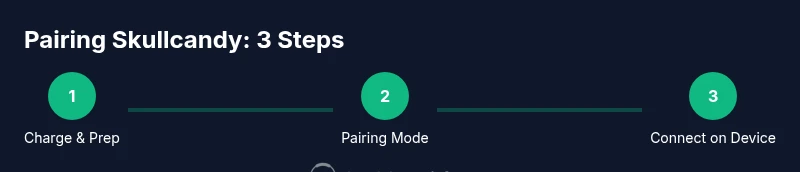
Begin by fully charging the Skullcandy headphones and the source device. Turn on Bluetooth in the source device’s settings and make sure the headphone is in pairing mode (often by holding the power button or a dedicated pairing button until an LED flashes in a specific pattern). On iPhone and iPad, go to Settings > Bluetooth and select the Skullcandy name from the list. On Windows, open Settings > Devices > Bluetooth & other devices and click Add Bluetooth or other device. For TVs with built-in Bluetooth, locate the Bluetooth settings in the TV’s menu and enable discovery.
Tips to improve success: keep devices within a reasonable distance (ideally within a few meters), remove or forget old paired devices, and ensure you’re not actively pairing another device at the same moment. If the headphones show up but won’t connect, try turning Bluetooth off and on again on the source device, then reattempt pairing. Consistency in settings across devices reduces frustration when you switch between devices.
Pairing Skullcandy with iPhone and iPad (iOS)
To connect Skullcandy headphones to an iPhone or iPad, first ensure Bluetooth is enabled on the iOS device. Put the headphones into pairing mode by holding the power button until the LED starts flashing in a pattern that indicates pairing. On the iOS device, open Settings > Bluetooth and wait for the Skullcandy headset to appear under Other Devices. Tap the headset name to initiate pairing. If prompted for a code, most devices accept a default pairing with no code. Once connected, you should see the Skullcandy device listed as Connected and ready to use.
If you experience audio delays or intermittent drops, move closer to the device, restart the devices, or try pairing again after rebooting the iPhone/iPad. Using the latest iOS version often improves compatibility with newer Skullcandy models. Headphones Info notes that firmware updates for headphones can improve pairing stability on iOS in some cases.
Pro tip: After pairing, you can test latency by playing a video and checking lip-sync. If you notice a lag, check if there is a setting to switch to a lower-latency codec in the Skullcandy app if your model supports it.
Pairing Skullcandy with Android devices
On Android, start by verifying Bluetooth is on in Settings, then place the headphones in pairing mode. In Bluetooth settings, select Skullcandy from the available devices list. If prompted, confirm any pairing codes and allow the device to pair. Some Android phones offer faster pairing via Quick Pair or Nearby Share; enable these features if available. If you have multiple Skullcandy devices, ensure you select the correct model name in the list to avoid confusion.
If the headset pairs but audio is distorted or cut out, check the distance between devices, remove other nearby Bluetooth devices that could cause interference, and ensure the headphones have a recent firmware version. Headphones Info emphasizes updating firmware when possible to maintain compatibility with the latest Android Bluetooth standards.
Pairing Skullcandy with Windows and macOS computers
On Windows, click the Start button, go to Settings > Bluetooth & devices, and Add Bluetooth or other device. Choose Bluetooth, then pick Skullcandy from the list. On macOS, open System Preferences > Bluetooth, ensure Bluetooth is on, and select Skullcandy to connect. If the device doesn’t appear, toggle Bluetooth off and on, or use the troubleshooting options offered by the OS.
Once connected, set the Skullcandy as the default output device in your sound settings to ensure audio is routed correctly to the headphones. If you experience audio issues while using the headphones for calls, verify that the device’s microphone is set to optimize quality or switch to a different input source if needed. Firmware updates through the Skullcandy app can improve compatibility with macOS and Windows alike.
Pairing Skullcandy with TVs and other devices
Many modern smart TVs include Bluetooth for wireless headphones. Access the TV’s Settings > Bluetooth (or Audio) and enable discovery. Put Skullcandy into pairing mode and select the headset name from the TV’s list. If your TV doesn’t support Bluetooth, you may need a Bluetooth transmitter connected to the TV’s audio output. For gaming consoles with Bluetooth, some models support headsets, while others require a wired or USB dongle.
Test the pairing by playing content with subtitles or a test video to verify lip-sync and audio quality. If you experience delay, look for a TV option to enable low-latency mode or switch to a different input format. Some Skullcandy models offer a dedicated app that lets you manage Bluetooth connectivity and update firmware for better compatibility with smart TVs.
Troubleshooting common pairing issues
If pairing fails, first reset both devices by turning Bluetooth off and on, forgetting the Skullcandy device on the source, and attempting pairing again. Check battery levels on both devices and ensure the headphones aren’t currently connected to another device. If the headset appears in the list but refuses to pair, try restarting the source device and the headphones. Updating firmware on Skullcandy headphones (via any companion app or manufacturer-provided tool) often resolves stubborn pairing problems. For Windows and macOS users, removing the headset from the list of paired devices and re-pairing can fix stubborn connection problems.
When problems persist, consult the Skullcandy user manual for model-specific steps or contact customer support. Headphones Info suggests keeping a log of which devices were used, the OS versions, and any error messages to help diagnose the issue quickly.
Firmware updates and maintaining performance
Firmware updates for Skullcandy headphones can improve pairing stability, fix latency issues, and enhance overall sound quality. Check whether your model supports a firmware update via a companion app or the Skullcandy support site. Before updating, ensure the headphones are charged and connected to a stable power source. After updating, re-pair the headphones if the device’s Bluetooth settings were altered during the update process.
To maintain long-term performance, store the headphones in a safe place when not in use, keep the charging contacts clean, and periodically check for updates. Regular maintenance helps minimize dropouts and improves compatibility with new devices over time. The Headphones Info team recommends staying current with firmware updates to optimize your listening experience.
Tools & Materials
- Skullcandy wireless headphones(Fully charged before attempting pairing; ensure model supports Bluetooth pairing.)
- Bluetooth-enabled source device (phone, tablet, laptop, or TV)(Make sure Bluetooth is enabled and the device is discoverable.)
- Charging cable compatible with the headphones(Charge fully prior to any firmware update attempts.)
- Quiet, interference-free space(Minimize interference from other Bluetooth devices during initial pairing.)
- Headphones manual or user guide(Helpful for model-specific pairing steps and LED patterns.)
Steps
Estimated time: 20-30 minutes
- 1
Charge and prepare headphones
Plug in the headphones and let them reach a full battery. Ensure the device you're pairing with is powered on and in range. Long battery life improves stability during pairing and testing.
Tip: Pro tip: Use the official charging cable to avoid any charging irregularities that could affect pairing readiness. - 2
Enter pairing mode
With the headphones off, press and hold the power button until the LED starts blinking in the pairing pattern. This makes the headphones visible to nearby devices.
Tip: Pro tip: If the LED pattern isn’t obvious, consult your model’s LED color sequence in the user manual. - 3
Enable Bluetooth on the source device
Open the Bluetooth settings on the device you want to pair (phone, computer, or TV). Ensure Bluetooth is turned on and the device is ready to scan.
Tip: Pro tip: Turn on Airplane mode briefly to reduce wireless interference during discovery. - 4
Select Skullcandy from the device list
In the Bluetooth pairing menu, choose the Skullcandy headset name. If prompted, confirm any pairing requests.
Tip: Pro tip: If the Skullcandy name doesn’t appear, trigger pairing mode again and refresh the device list. - 5
Confirm and test the connection
Once paired, play audio to verify stereo output and check for latency or clipping. If audio seems delayed, adjust settings or switch codecs if supported.
Tip: Pro tip: Keep the headphones as the primary playback device in the system sound settings. - 6
Test multipoint (if supported)
If your model supports multipoint, pair a second device and test switching between sources. This confirms seamless handoff without reconnecting.
Tip: Pro tip: Remove old pairings to prevent automatic reconnects to the wrong device. - 7
Troubleshoot common issues
If pairing fails, restart both devices and perform a fresh pairing. Forget the Skullcandy device on the source, then re-pair from scratch.
Tip: Pro tip: Check firmware updates for both devices before reattempting pairing. - 8
Finalize setup across devices
After successful pairing, set Skullcandy as the default audio output for future use. Label each device clearly to avoid confusion when switching sources.
Tip: Pro tip: Document which devices are paired to which Skullcandy model for quick reference. - 9
Maintain performance with updates
Regularly check for firmware updates and repeat pairing if the OS or app prompts changes. Firmware updates can improve compatibility and stability.
Tip: Pro tip: Keep the headphones charged, as low power mode can impact pairing response time.
People Also Ask
What devices can Skullcandy headphones pair with?
Skullcandy headphones typically pair with any Bluetooth-enabled device, including phones, tablets, computers, and some smart TVs. Check your model's manual for multipoint capabilities and codec support.
Skullcandy headphones pair with most Bluetooth-enabled devices, including phones and computers. Check your model’s manual for multipoint use and codecs.
Why won’t my Skullcandy headphones pair?
Common causes include depleted battery, being out of range, or existing pairings preventing new connections. Make sure both devices have Bluetooth on and try a fresh pairing by resetting the headphones and re-adding them.
If pairing fails, check battery, range, and existing pairings. Try resetting the headphones and re-pairing.
How do I reset my Skullcandy headphones?
Reset procedures vary by model. Typically, you hold the power button for several seconds until LEDs indicate a reset. After resetting, re-enter pairing mode and pair again.
Reset usually involves holding the power button until the LED shows a reset pattern, then re-pairing.
Can I pair multiple devices at the same time?
Some Skullcandy models support multipoint pairing, allowing two devices to stay connected. Check your model's documentation for exact limits and how to switch between sources.
Multipoint pairing is model-dependent; check your model’s guide for the exact two-device limit and switching steps.
Do Skullcandy headphones require an app to pair?
Pairing is usually possible without an app. Some models offer firmware updates or extra controls through a companion app, which can improve performance.
You can pair without an app, though an app may help with updates and tweaks on some models.
What should I do if lip-sync is off when watching video?
Check the video’s audio delay setting, try lowering latency via codecs if available, and ensure both devices are not overloaded with other tasks.
If audio lags, test different codecs or reduce device load and verify the headphones are the selected output.
Watch Video
What to Remember
- Start with a full charge for reliable pairing.
- Place headphones in pairing mode and select from device list.
- Test across devices and update firmware when available.
- Understand multipoint limits to switch sources smoothly.
- If issues arise, restart devices and re-pair.