How to Pair JBL Headphones: A Step-by-Step Guide
Step-by-step guide to pair JBL headphones with Android, iOS, Windows, macOS, and smart TVs. Learn setup, troubleshooting, and tips for a stable wireless connection.


This guide explains how to pair JBL headphones with Bluetooth devices, including steps for Android, iOS, Windows, and desktop apps. You'll learn how to enter pairing mode, choose JBL from the device list, and confirm a secure connection. By following these steps, you’ll enjoy reliable audio with minimal lag and clear voice calls.
Understanding Bluetooth pairing and the JBL ecosystem
According to Headphones Info, JBL headphones rely on standard Bluetooth profiles to deliver stereo audio and hands-free calling. This foundational knowledge helps you understand why some devices show up quickly while others require a nudge in settings. Headphones Info analysis shows that staying on the latest Bluetooth version and keeping devices updated reduces latency and improves stability during pairing. With JBL gear, you get a dependable wireless listening experience when you connect correctly and verify the link on both ends.
Compatibility and choosing the right JBL headphones
JBL offers a range of wireless headphones designed for different use cases—from daily listening to workouts and travel. The pairing process is broadly the same across most JBL Bluetooth models, though features like multipoint or specialized controls can vary. Before you begin, check that your target device supports Bluetooth audio (A2DP) and that your JBL headphones are charged. This ensures you won’t be interrupted mid-pairing by a low battery or an unsupported profile.
Step-by-step overview for JBL headphones pairing
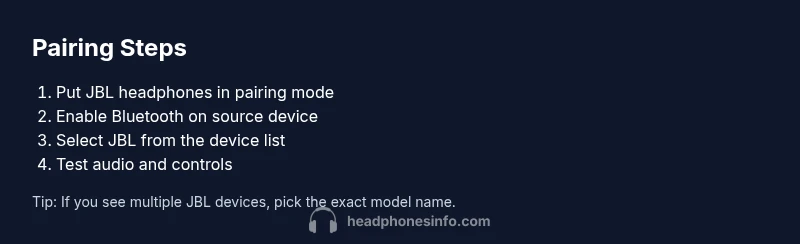
The core steps to pair JBL headphones are straightforward: enable pairing mode on the headphones, turn on Bluetooth on the source device, select JBL from the list, and confirm the connection. The exact button combination often varies by model, but most JBL headphones enter pairing mode by holding the power button for several seconds until the LED blinks, then appear as a selectable device. If a passcode is required, enter a standard code (0000 or 1234) or follow the on-screen prompt.
Pairing with common devices: Android, iOS, Windows, macOS, and smart TVs
- Android: Open Settings > Bluetooth, scan, and select JBL. Confirm pairing and test playback.
- iOS: Open Settings > Bluetooth, tap JBL, and allow prompts about sharing contacts or media.
- Windows: Open Settings > Devices > Bluetooth & other devices, Add Bluetooth device, then choose JBL.
- macOS: System Settings > Bluetooth, locate JBL, and click Connect.
- Smart TVs: Enable Bluetooth on the TV, set headphones to pairing mode, and choose JBL from the list if supported.
Across all platforms, maintain proximity (within about 10 meters) and avoid thick walls or metal objects that can degrade the signal.
Troubleshooting common pairing problems
If JBL headphones don’t appear in the Bluetooth menu, restart both devices and re-enter pairing mode on the headphones. Remove any existing pairing from the source device to prevent confusion. If pairing fails, check for firmware updates on the headphones and the source device. Reset the headphones to factory settings only as a last resort, following the model-specific instructions.
Tips to optimize Bluetooth performance
- Keep devices within line of sight and avoid walls or metal barriers that can block the signal.
- Minimize interference by turning off other Bluetooth devices while pairing.
- Update firmware on both the headphones and the source device to improve compatibility and stability.
- If you experience occasional dropouts, try using a different source device to confirm whether the issue is device-specific.
Safety and privacy considerations when pairing Bluetooth
Be mindful of your surroundings when pairing in public spaces. Disable discoverability after pairing to prevent unauthorized access. When using multipoint, ensure the connected devices aren’t sharing sensitive data in crowded networks. Bluetooth is convenient, but maintaining privacy requires attention to paired devices and permissions.
Tools & Materials
- JBL headphones(Fully charged and ready for use)
- Bluetooth-enabled source device (phone, laptop, or TV)(Ensure Bluetooth is on and updated)
- Charger or USB-C cable(Keep handy for long sessions)
Steps
Estimated time: 5-15 minutes
- 1
Prepare devices
Charge the headphones and source device, enable Bluetooth on the source, and make sure both are within close range. This reduces the chance of the devices failing to pair due to low power or detection issues.
Tip: Charge both devices to at least 50% before pairing to prevent mid-pairing shutdowns. - 2
Enter pairing mode on headphones
Power on the headphones and hold the power button for several seconds until the LED indicates pairing mode (color pattern varies by model). The device is now discoverable.
Tip: If the LED doesn’t flash, try a longer press or consult the manual for model-specific steps. - 3
Enable Bluetooth on the source device
Open the Bluetooth settings on the source device and ensure it is in discoverable mode if required. This allows JBL to appear in the list of available devices.
Tip: Turn off and back on Bluetooth if the device list doesn’t reflect changes. - 4
Select JBL from the device list
In the list of available devices, tap or click JBL to initiate pairing. If prompted, accept pairing requests or permissions.
Tip: If multiple JBL options appear, choose the model exact name to avoid cross-pairing with a similar device. - 5
Confirm connection and test audio
Once connected, play audio to verify stereo sound and check microphone input if you plan to use calls. Verify that controls (volume, playback) respond correctly.
Tip: Test both media playback and microphone reception to confirm full functionality. - 6
Troubleshoot if needed
If pairing fails, restart both devices, re-enter pairing mode, and retry. Check for firmware updates and reset the headphones if required as a last resort.
Tip: Avoid factory reset unless the model’s manual recommends it.
People Also Ask
Can I pair JBL headphones with multiple devices at once (multipoint) and switch between them quickly?
Many JBL models support multipoint pairing. If yours does, enable multipoint in the headphones’ settings and pair each device. You can switch between connected sources by selecting the active device from the headphones or the source device, depending on model.
Yes—if your model supports multipoint, you can connect to two devices and switch between them by selecting the active device in the headphones or on the source.
Why don’t my JBL headphones appear in the Bluetooth list on my phone or computer?
First, ensure the headphones are in pairing mode and charged. Restart the source device’s Bluetooth, forget any previous JBL pairing, and retry. If the issue persists, check for firmware updates for the headphones and the source device.
Make sure you’ve put the headphones into pairing mode and restarted Bluetooth on your device; update firmware if possible.
The headphones connect but there’s no sound. What should I do?
Verify the output device is set to JBL as the audio device in the sound settings. Ensure the headphones aren’t muted and test with different apps or media files. Reconnecting or a firmware update can solve lingering issues.
Check that JBL is selected as the audio output and not muted, then test with another app or file.
Do I need the JBL app to pair my headphones?
Many JBL models work fine without the app, but the app can provide firmware updates, equalizer settings, and occasional troubleshooting steps. If you encounter issues, the app may offer additional options.
The headphones usually pair without the app, but the app can help with updates and settings.
How can I reset my JBL headphones to factory settings?
Factory resets vary by model. If your manual advises it, follow the listed steps exactly to avoid misconfiguring the headset. A reset can resolve stubborn pairing or audio issues.
If your model supports it, follow the exact reset steps in the manual to return to factory defaults.
Is there a difference in pairing JBL headphones with Android vs iOS?
The basic pairing flow is similar, but some features like battery status or multipoint behavior may differ by platform. Check platform-specific prompts and permissions in settings for a smoother experience.
It mostly works the same, but some features may vary between Android and iOS.
Watch Video
What to Remember
- Pair JBL headphones with the source device by entering pairing mode and selecting JBL in Bluetooth settings.
- Keep devices close and free from interference during setup for a stable connection.
- Test audio and controls after pairing to ensure full functionality.
- If issues arise, restart devices, update firmware, and avoid frequent factory resets.