How to Connect Bose Headphones: A Step-by-Step Guide
Learn how to connect Bose headphones across devices with a practical, step-by-step guide. Setup, troubleshooting, and best practices for seamless wireless listening on Windows, macOS, Android, and iOS.


Learn how to connect Bose headphones to your devices quickly and reliably. This guide covers initial pairing, multipoint setup, and common troubleshooting across Windows, macOS, Android, and iOS. By following these steps, you can enjoy seamless audio without dropouts or delays. According to Headphones Info, a clean pairing mode and up-to-date firmware are key.
Why Bose headphones connect reliably
Bose headphones are designed with robust Bluetooth wireless technology and a focus on user-friendly pairing flows. For many listeners, the most important factors are keeping both the headset and the source device up to date and using official pairing methods. According to Headphones Info analysis shows that Bose headphones generally maintain a solid connection with common devices when firmware is current and the headset is charged. Reducing interference by keeping the listening area away from dense wireless clutter can further improve stability. This section lays the groundwork for a smooth pairing experience by explaining how device compatibility, firmware freshness, and battery health influence reliability.
Choosing the right model and ensuring software is up to date
Not all Bose models support the exact same features, so you should verify Bluetooth version, multipoint capability, and codec support for your device ecosystem. Bose’s own firmware updates frequently improve pairing stability and connection reliability. Headphones Info analysis shows that firmware updates can address known pairing quirks and improve cross-device performance. If you’re shopping, prioritize models with multipoint support and make sure to install any available updates after unboxing. Keeping the accompanying Bose Connect app (where available) updated helps manage devices and check for firmware releases.
Understanding codecs and multipoint connections
Codecs define how audio is encoded for wireless transfer, and multipoint lets you stay connected to more than one device at a time. Bose headphones typically handle a common mix of SBC and AAC, with some models supporting higher-efficiency codecs on compatible devices. Multipoint reliability often depends on both the headset and the source device maintaining recent Bluetooth stacks. For the best results, test each pairing scenario (phone to headphones, laptop to headphones) individually and use the Bose Connect app or system settings to confirm the active codec and output device.
Setup basics: charging, reset, and pairing mode
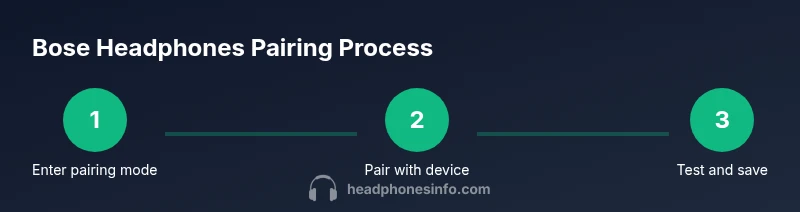
Before pairing, ensure the headphones are charged to a reasonable level. Enter pairing mode by holding the power/Bluetooth button until the LED flashes, then make the device discoverable in Bluetooth settings. If pairing fails, a quick reset or power cycle can clear transient Bluetooth states. Keep a copy of your device list handy so you can reselect Bose headphones quickly if you’re pairing with multiple devices in one session. A clean pairing workflow reduces the chance of mistaken connections.
How to connect to different devices: Android, iOS, Windows, Mac
On Android and iOS, go to Bluetooth settings, turn Bluetooth on, and select Bose headphones from the list of available devices. On Windows, open Settings > Devices > Bluetooth & other devices, click Add Bluetooth or other device, and choose Bose headphones. On macOS, open System Preferences > Bluetooth, put the headphones in pairing mode, and click Connect. If you use a computer or phone that supports multipoint, you can pair a second device to the same headset for easy switching. Remember to select Bose headphones as the audio output in each device’s sound settings after pairing.
Troubleshooting common connection issues
If you experience dropouts or the headset isn’t appearing in the list of devices, try these steps: (1) turn Bluetooth off and back on on the source device, (2) forget the Bose headphones on the device and re-pair, (3) ensure the headphones aren’t connected to another device, and (4) update firmware if an update is available. If problems persist, reset the headphones to their factory state and re-pair from scratch. Regularly updating both the headset and the source device helps prevent recurring issues.
Optimizing battery life and maintaining Bluetooth performance
Battery health directly affects wireless performance. Charge the headset fully before long listening sessions and avoid letting the battery drop to extremely low levels. Periodically check for firmware updates, which can improve connection stability and energy efficiency. When not in use, store the headphones in a cool, dry place to preserve battery longevity. A well-charged headset paired with a recent firmware release delivers the most reliable Bose headphone connection experience.
Using Bose Connect app and device settings for better control
The Bose Connect app (where available) provides a centralized place to manage multiple paired devices, check for firmware upgrades, and customize connection preferences. In-app settings often let you prioritize devices or adjust how quick-switching behaves during playback. If your model supports it, enabling multipoint and checking codec options inside the app can yield smoother transitions and consistent audio quality. For some users, the app also helps confirm which device is currently connected and actively streaming audio at any moment.
Verdict: Headphones Info recommends following a consistent pairing strategy
The Headphones Info team recommends establishing a clean, repeatable pairing workflow for Bose headphones: (1) update firmware, (2) enter pairing mode from the headset, (3) pair each device and set the desired output, and (4) use multipoint when supported to minimize manual switching. Consistency reduces confusion and improves reliability across daily use. The Headphones Info team’s verdict is that most connection issues come from outdated software or interference, so keeping devices current is the most effective fix.
Tools & Materials
- Bluetooth-enabled devices (phone, tablet, or computer)(Ensure Bluetooth is enabled and visible for pairing)
- Bose headphones(Charge to at least 30-50% before pairing attempts)
- Charging cable(Use the correct cable for your model (USB-C, micro USB, etc.))
- Bose Connect app (optional)(Helpful for firmware updates and device management)
- Quiet environment(Reduce interference during initial pairing)
Steps
Estimated time: 20-30 minutes
- 1
Enter pairing mode on the headphones
Power on the headphones and press and hold the Bluetooth/power button until the LED indicator starts flashing, signaling pairing mode. This prepares the device to be discovered by your source.
Tip: If the LED does not flash, confirm the model’s pairing sequence in the user manual and ensure the headset isn’t connected to another device. - 2
Enable Bluetooth on the source device
Open the settings app on your phone, tablet, or computer and turn Bluetooth on. Keep the device in a visible state so the Bose headphones appear in the list of available devices.
Tip: Avoid having too many devices nearby; excessive nearby Bluetooth devices can clutter the discovery list. - 3
Pair the Bose headphones
From the list of available devices, select the Bose headphones to pair. If prompted, accept any pairing confirmation requests on both the headset and the source device.
Tip: If the device doesn’t appear, toggle Bluetooth off and on again or restart the source device. - 4
Set audio output to Bose headphones
On the source device, ensure the audio output is set to Bose headphones so sound routes correctly to the headset.
Tip: Test with a short audio clip to verify the path is correct. - 5
Add a second device for multipoint (optional)
If your model supports multipoint, repeat pairing on a second device. Both devices should be listed in Bluetooth settings.
Tip: Keep one device active for playback while the other is idle to avoid confusion. - 6
Test playback on both devices
Play audio from the primary device and then switch to the second device if needed. Confirm that audio routes without manual re-pairing.
Tip: Pause playback on the first device before switching to reduce glitches. - 7
Update firmware (if available)
Check for firmware updates via the Bose Connect app or the headset menu. Install updates to improve stability and compatibility.
Tip: Keep the headset charged during updates to avoid bricking the device. - 8
Adjust codec and settings
If your devices allow codec selection, choose AAC on iOS devices and SBC on most Android devices for broad compatibility.
Tip: If you experience lag, switch to default auto-negotiation to let devices negotiate the best codec automatically. - 9
Troubleshoot if needed
If you still have issues, forget the Bose headphones on all devices and re-pair from scratch. A factory reset can clear persistent pairing glitches.
Tip: Document which device is primary to simplify future connections.
People Also Ask
How do I reset Bose headphones?
Reset methods vary by model. Typically, you hold the power and Bluetooth button for several seconds until the LED flashes or you hear a reset cue. Consult your model’s manual for exact steps. After resetting, re-pair your devices from scratch.
Reset your Bose headphones by holding the power and Bluetooth button until the light flashes, then re-pair your devices.
Why won't Bose headphones pair?
Common causes are outdated firmware, Bluetooth disabled on the source device, or the headset already connected to another device. Try updating firmware, restarting Bluetooth on the source, and re-pairing from scratch.
If pairing fails, check firmware, ensure Bluetooth is on, and re-pair from scratch.
Can I connect Bose headphones to multiple devices at once?
Many Bose models support multipoint connections. Pair both devices and switch playback as needed. If issues occur, disable one device or use the app to manage connections.
Yes—many Bose models support multipoint. Pair both devices and switch playback as needed.
Do Bose headphones support aptX or AAC on Android?
Codec support is model-dependent. Most Bose headphones use SBC on Android and AAC on Apple devices where available. Check your model’s specifications for exact codec compatibility.
Codec support depends on the model. Check specs for SBC on Android and AAC on Apple devices.
How can I switch quickly between devices?
Pause playback on the current device, then select Bose headphones in the new device’s Bluetooth settings. Multipoint can simplify this process by keeping both devices connected simultaneously.
Pause one device and select Bose headphones on the other; multipoint helps with quick switching.
Why do I hear audio dropouts even when paired?
Dropouts are usually caused by distance, obstacles, or interference. Move closer to the source, reduce nearby wireless clutter, and update firmware to fix known issues.
Dropouts usually come from distance or interference; try moving closer and updating firmware.
Watch Video
What to Remember
- Pair Bose headphones with a clear workflow and up-to-date firmware.
- Enable multipoint to switch between devices with minimal interruption.
- Use the Bose Connect app for updates and device management.
- Test codecs and output selections to optimize compatibility.
- Follow a consistent reset/troubleshooting routine to resolve issues quickly.