How to Connect Sony BT Headphones: A Complete Step-by-Step Guide
Learn how to connect Sony Bluetooth headphones across devices with a clear, data-backed, step-by-step approach. From pairing mode to troubleshooting, this guide covers Android, iOS, Windows, and Mac setups.


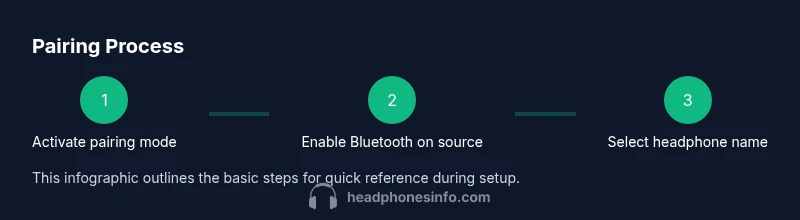
To connect Sony BT headphones, first put them into pairing mode. Then enable Bluetooth on your source device, select the headphones from the list of available devices, and confirm the pairing. Once connected, test playback and adjust volume as needed. If you run into issues, charge the headphones, move closer to the source, and retry the pairing sequence.
How to connect sony bt headphones: a practical overview
If you're wondering how to connect sony bt headphones, this guide breaks down the process for common devices—from smartphones to PCs and gaming consoles. The steps below apply to most Sony Bluetooth headset models, though there may be model-specific variations. In practice, most users complete the pairing in just a few minutes when the headphones are charged and within range. According to Headphones Info, following a consistent pairing routine reduces confusion and speeds up setup. This article blends practical steps with tips to minimize interference and ensure a stable connection across sessions.
Verify device compatibility and prerequisites
Before you start, verify that your source device supports Bluetooth and is set to discoverable mode. Check that the headphones are charged and not in a low-power state, and ensure you’re not in Airplane Mode or a busy wireless environment. Some Sony headphones support multi-point pairing, which allows connections to two devices at once, but you may need to disable the second connection to pair with a new device. Headphones Info analysis shows that most pairing problems stem from low battery, out-of-range distance, or conflicting Bluetooth connections, so start with a fresh battery and a clear Bluetooth list on your phone or computer.
Put your Sony headphones into pairing mode
Pairing mode is the gateway to connecting. For many Sony BT models, you press and hold the power button or a dedicated pairing button until the LED flashes in a distinct pattern. Some models use a long press on the power button, while others require you to press the power button and one of the volume buttons together for a few seconds. If your headphones support NFC, you can tap the device to pair instead of manual pairing. Ensure the headphones are not currently connected to another device during this step, as active connections can block new pairings.
On your source device: enable Bluetooth and locate your headphones
Open the Bluetooth settings on your source device and turn Bluetooth on. The device will scan for nearby devices; keep the headphones close to ensure they appear in the list. Depending on your device, you may see the headphones listed with a model name like 'Sony WH-1000XM4' or a generic Bluetooth device name. If you don’t see the headphones, try turning Bluetooth off and on again, then re-scan. Ensure there are no obstructions or significant interference between the headphones and the source.
Pairing on Android and iOS devices
On Android and iOS, select the Bluetooth menu and tap the Sony headphone name when it appears. The system may prompt you to confirm a pairing code or authorize a connection. For most models, there is no need to enter a code; simply accept the prompt. After successful pairing, you’ll usually hear a confirmation chime, and the headphones will appear as a connected device in your Bluetooth settings. If you have multiple Sony devices nearby, ensure you’re pairing with the intended one to avoid confusion.
Pairing on Windows PC or Mac
Windows and macOS both support Bluetooth headsets, but the interfaces differ slightly. On Windows, go to Settings > Devices > Bluetooth & other devices > Add Bluetooth or other device > Bluetooth, then choose your Sony headphones from the list. On a Mac, open System Settings > Bluetooth, turn Bluetooth on, and click Connect next to your Sony device. After pairing, set the headphones as the default output device if needed. If you experience latency or dropout, update Bluetooth drivers or macOS firmware as a precaution.
Troubleshooting: common pairing issues and quick fixes
If the headphones don’t appear in the list, ensure they’re in pairing mode and charged. Move closer to the source, reduce interference from nearby wireless devices, and temporarily disable other Bluetooth connections. If pairing fails, perform a simple reset by turning the headphones off, then back on, and retry the pairing steps. Some models require a factory reset if all else fails; consult the user manual for model-specific instructions. Headphones Info emphasizes not attempting to pair while the device has an active ongoing connection to another device.
Fine-tuning audio quality and device-specific settings after pairing
Once connected, check the volume balance on both the source device and the headphones. Some Sony models offer on-ear controls for playback, calls, and voice assistants—learn the gestures for quick adjustments. If your device supports it, enable high-quality audio codecs like AAC or LDAC where available, as this improves sound fidelity. On phones with equalizer apps, you can tailor bass, mids, and treble to your listening preferences, but start with neutral settings to avoid listening fatigue after long sessions.
Quick best practices for stable, long-term use
To maintain a reliable connection, keep firmware updated when new versions are released by Sony. Store headphones in a clean, dry place and charge them regularly to prevent unexpected shutdowns. If you frequently switch between devices, re-pair methodically rather than relying on automatic reconnects. For multi-point capable headphones, remember to disconnect from one device before connecting to another to avoid confusion and audio routing issues. The ultimate goal is consistent pairing reliability across daily activities.
Tools & Materials
- A Bluetooth-enabled source device (phone, tablet, PC, or console)(Make sure Bluetooth is on and the device supports the needed Bluetooth version.)
- Sony Bluetooth headphones(Fully charged for best pairing reliability.)
- Optional: USB charging cable(Useful if you want to ensure the headphones stay powered during setup.)
- PC or console with Bluetooth support(Needed if you’re pairing to a computer or gaming system.)
- Test audio source(A music or video app to verify playback quality after pairing.)
Steps
Estimated time: 5-12 minutes
- 1
Charge and power on
Connect the headphones to a charger if needed and press the power button to turn them on. Make sure they are not in sleep or low-battery mode, which can interfere with the pairing process. When ready, proceed to pairing mode.
Tip: A full battery helps prevent disconnections during the setup. - 2
Enter pairing mode
Hold the pairing button or the power button as specified for your model until the LED flashes in pairing pattern. Some models emit a voice cue confirming pairing mode. Do not release the button too soon, or you’ll exit pairing mode.
Tip: If your model supports NFC, you can tap your phone to pair instantly. - 3
Enable Bluetooth on the source device
Open Bluetooth settings on your device and turn Bluetooth on. Allow the device to scan for nearby devices for about a minute. Stay within a few feet of the headphones for best results.
Tip: Turn off other Bluetooth devices nearby to reduce interference. - 4
Select the headphones from the list
In the list of available devices, tap or click the Sony headphones. If prompted, confirm any pairing codes or prompts. The device will indicate when pairing succeeds.
Tip: If you don’t see the device, retry by toggling Bluetooth off and on again. - 5
Test playback
Play audio to confirm sound is routing to the headphones. Adjust volume on both the source and the headphones to comfortable levels.
Tip: Test with a few different apps to ensure consistent performance. - 6
Set as default output
On some devices, you may need to select the headphones as the default audio output. This ensures future connections don’t default to internal speakers.
Tip: Check both system audio and app-specific settings if you notice volume issues. - 7
Troubleshoot if nothing works
If the headphones still don’t appear, restart both devices and try again. If issues persist, consult the manual for a model-specific reset procedure.
Tip: Document the model name and current firmware version if you need support later.
People Also Ask
Why don’t my Sony headphones appear in the Bluetooth list?
Make sure the headphones are in pairing mode, charged, and within close range of the source device. Turn Bluetooth off and back on, then rescan. If still missing, check for a model-specific reset in the manual.
If your Sony headphones don’t show up, ensure they’re in pairing mode and close to your device, then retry the scan.
Can I pair Sony BT headphones with multiple devices at the same time?
Some Sony models support multi-point pairing, but not all do. If yours does, you can connect to two devices simultaneously; otherwise, disconnect from one device before connecting to another.
Multi-point pairing works on some models; check your manual to confirm and manage connections.
How do I reset pairing on Sony headphones?
Reset procedures vary by model. Generally, you can turn off the headphones, then press and hold specific buttons for several seconds. Refer to your model’s manual for exact steps.
If pairing fails, a model-specific reset often solves the issue; consult the manual for exact steps.
What if there’s static or dropouts after pairing?
Check for interference from other wireless devices, move closer to the source, and ensure the headphones’ firmware and source device OS are up to date. A short reset can also help.
Static or dropouts can come from interference; try moving closer or updating firmware.
Do I need a Sony app to pair my headphones?
Most pairing tasks don’t require a dedicated app; however, some models use companion apps for firmware updates or EQ adjustments. Check your model’s features to see if an app is beneficial.
Usually you don’t need an app to pair, but apps can help with updates and tuning.
Watch Video
What to Remember
- Ensure headphones are charged before starting.
- Enter pairing mode on the headphones and enable Bluetooth on the source device.
- Select the Sony headphones from the device list and confirm pairing.
- Test audio and adjust settings for optimal sound.