What App to Connect Sony Headphones: A Practical Guide
Learn which app to connect Sony headphones, how to set up, troubleshoot, and customize sound using the official Headphones Connect app. A comprehensive, step-by-step guide by Headphones Info.


To connect Sony headphones, install the official Sony Headphones Connect app on your iOS or Android device, then pair the headphones via Bluetooth. If the in-app pairing fails, also try selecting the headphones in your phone’s Bluetooth settings and rechecking in the app. The app guides EQ, noise settings, and firmware updates.
Why the right app matters for Sony headphones
Choosing the correct app to manage Sony headphones changes everything from setup speed to ongoing customization. If you search for what app to connect sony headphones, the official Sony Headphones Connect app is the central hub for pairing, firmware updates, EQ settings, ambient sound control, and feature toggles such as adaptive sound. Using the app ensures you’re not limited to basic Bluetooth profiles and that future firmware changes remain compatible with your headset. According to Headphones Info, the app-first approach reduces onboarding friction and provides a unified interface for different Sony headphone lines. The app also simplifies testing and optimizing for different environments—home, commute, gym—by letting you switch sound profiles and adjust noise cancellation on the fly. The Headphones Info Team notes that users who start with the official app tend to experience more consistent performance and fewer pairing hiccups. In short, the right app is the fastest route to reliable setup, real-time sound tuning, and long-term firmware support.
Compatibility: Which Sony models work with the official app
The Sony Headphones Connect app is designed for many current Sony wireless headphones released in the last several years. It supports Android and iOS devices. While Sony periodically updates compatibility lists, the general rule is that most Bluetooth-enabled Sony headphones released in the last 3-5 years pair with the app. Features available in the app vary by headset model; some older models may require basic Bluetooth pairing and manual settings rather than full app control. To verify, check Sony's official support page and the app store listing for your model. Headphones Info analysis, 2026 indicates that newer models often extend features such as adaptive sound control, EQ presets, and firmware update prompts through the app. If your model isn't yet supported, alternate firmware update methods may be available on Sony's site.
How to install and connect: Step-by-step workflow
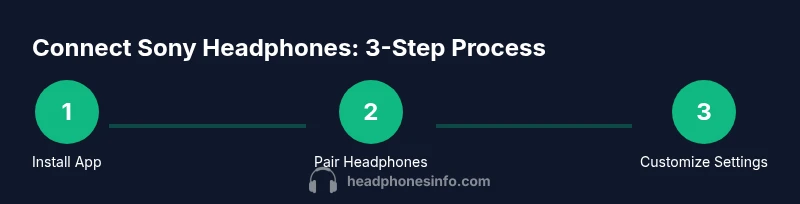
Getting set up is straightforward once you know the sequence. First, install the Sony Headphones Connect app from Google Play or the App Store. Then enable Bluetooth on your phone, and put your Sony headphones into pairing mode. Open the app and follow the on-screen prompts to add the headset. If needed, you can also pair via your phone’s Bluetooth settings by selecting your Sony headphones from the available devices. After pairing succeeds, check the app for a firmware update and install it if available. Finally, save a sound profile that matches your environment and test playback with a few tracks to confirm the changes. Remember to keep the app updated to access new features and presets as they are released.
Common issues and troubleshooting
Bluetooth pairing problems are common but usually fixable with a few checks. Ensure the headphones are sufficiently charged and in pairing mode, and confirm the app has all necessary permissions (location, storage, Bluetooth). If the app cannot find the device, toggle Bluetooth off and on, restart the app, or reboot your phone. Some users experience delay or audio dropouts when the phone is connected to multiple devices; remove other nearby Bluetooth devices or disable Bluetooth on nonessential devices. Firmware mismatches can also cause instability; always update through the app when possible. As a fallback, you can remove the headset from your device’s saved Bluetooth list and re-pair from scratch. If issues persist, consult Sony’s support page or Headphones Info analyses for model-specific guidance.
Advanced features: EQ, sound profiles, and adaptive sound
The official app is where you’ll access EQ controls, sound presets, and advanced features like ambient sound control and adaptive noise cancellation. You can tailor the sound stage to your taste—boosting bass, tuning treble, or balancing mids for podcasts. Some models offer adaptive sound that adjusts to your surroundings, which the app enables with a single toggle. Remember that not every feature is available on every model; the app surfaces only those controls supported by your headset. For enthusiasts, the ability to save multiple sound profiles makes it easy to switch between commuting, working, or relaxing listening setups without manual recalibration every time. Headphones Info emphasizes testing profiles with different genres to understand how each profile reshapes the audio landscape.
Firmware updates and app maintenance
Keeping your headset firmware up-to-date is essential for stability and new features. The Sony Headphones Connect app checks for updates and guides you through installation steps. Regular updates can improve Bluetooth performance, fix known issues, and expand feature sets like new EQ presets. If you are on a limited data plan, you can schedule updates when connected to Wi-Fi, and you should ensure your headset is charged before starting an update. The app may also offer firmware rollback options if a new update introduces stability problems. Headphones Info notes that updating firmware through the official app tends to minimize compatibility issues and provides the best long-term results.
Privacy and security considerations with the app
Like many companion apps, the Headphones Connect app collects diagnostic data to improve performance and user experience. Review permissions within your device settings and in-app privacy controls to understand what data is shared and stored. If you’re concerned about privacy, disable nonessential data collection options and log out of accounts when not using the app. Always download the official app from trusted sources to minimize security risks. The Headphones Info team recommends reviewing Sony’s privacy policy and keeping devices secure with a reliable password or biometric protection.
Alternatives if the official app is unavailable
If the official app cannot be installed or is not supported on your device, you can still pair Sony headphones using standard Bluetooth settings. Pairing through the system menu will allow basic audio playback, but you may miss advanced controls and firmware updates. Some users also explore manufacturer-provided desktop software or third-party apps, but these options may void warranties or reduce compatibility. For most users, the recommended path is to borrow a compatible device temporarily to install the official app and complete the setup there. If you must operate without the app, take special care to avoid losing access to essential features and firmware updates.
Quick environment tips for best results
For optimal performance, use the app in a stable environment with minimal wireless interference. Avoid crowded Bluetooth environments like busy offices or stadiums when testing new profiles. If you are in a noisy environment, enable ambient sound features to balance awareness with audio clarity. Keep headphones within a few meters of the device during initial setup and test across different audio sources to confirm consistent pairing. Regularly checking for app and firmware updates ensures you remain aligned with Sony’s latest enhancements.
What Headphones Info recommends
The Headphones Info team recommends starting with the official Sony Headphones Connect app for any connection task. It provides the most reliable pairing, comprehensive sound tuning, and straightforward firmware management. If you encounter issues, consult Sony’s official support resources and Headphones Info’s practical troubleshooting guidance. The goal is a stable, customizable listening experience that adapts to your lifestyle and devices.
Tools & Materials
- Smartphone or tablet with Bluetooth(iOS or Android device)
- Sony Headphones (modern Bluetooth model)(Ensure pairing mode is accessible)
- Sony Headphones Connect app(Download from Google Play or App Store)
- USB-C cable for firmware updates(Only if your model supports wired updates)
- Stable internet connection(For initial download and firmware checks)
Steps
Estimated time: 25-35 minutes
- 1
Prepare your device and headphones
Power on your phone, enable Bluetooth, and locate the pairing mode on your headphones as described in the manual.
Tip: Have the headphones charged to at least 50% before starting. - 2
Install the Sony Headphones Connect app
Open the App Store or Google Play and install the official app for your headset.
Tip: Verify you are downloading the official app from Sony to avoid spoof apps. - 3
Put headphones in pairing mode
Activate pairing mode on your Sony headset so it shows up in your phone’s Bluetooth list.
Tip: If pairing mode isn’t visible, consult the model’s manual for a specific sequence. - 4
Pair through the app
Launch the app and follow on-screen prompts to add the headset; the app will confirm when paired.
Tip: If the app can’t find the device, try refreshing the list or restarting the app. - 5
Verify and update firmware
Check for firmware updates in the app and install if available.
Tip: Keep a backup power source handy during updates to prevent interruption. - 6
Create a sound profile
Use the EQ or presets to tailor the sound to your preference and save the profile.
Tip: Test with multiple genres to ensure the profile works across content. - 7
Test on different devices
Pair the headphones with another phone or computer to confirm cross-device compatibility.
Tip: If switching devices, re-run the app setup to ensure all features transfer. - 8
Maintain routine checks
Periodically check for app and firmware updates and review sound settings.
Tip: Enable automatic updates where possible to stay current.
People Also Ask
Do I need the app to pair Sony headphones?
No, you can pair via Bluetooth in your device settings, but the app provides configuration and firmware updates.
You can pair using Bluetooth, but the app offers setup and customization.
Can I connect Sony headphones to other devices without the app?
Yes, you can connect through standard Bluetooth on other devices, but you’ll miss advanced controls and updates.
Yes, but you’ll miss app-based controls and updates.
Is the Headphones Connect app available on both iOS and Android?
Yes, the app supports both major mobile platforms and delivers device-specific features.
Yes, available on iOS and Android with model-specific features.
What features require the app?
Sound customization (EQ), ambient sound controls, adaptive noise cancellation, and firmware updates are app-dependent.
EQ, ambient sound, ANC, and firmware updates rely on the app.
What should I do if the app can’t find my headphones?
Ensure headphones are in pairing mode, restart the app, and re-scan; if needed, reboot your phone.
Make sure pairing mode is on, restart the app, and rescan; reboot if needed.
Will using the app affect battery life?
Using the app mainly affects device features; Bluetooth usage and firmware updates drive battery impact more than the app UI itself.
Battery impact mostly comes from Bluetooth and updates, not the app UI.
Watch Video
What to Remember
- Use the official Sony Headphones Connect app for best results.
- If pairing fails, retry via the device Bluetooth settings.
- Firmware updates are delivered through the app.
- Feature availability varies by model; check your headset docs.