How to Connect Sony Headphones to a Laptop
A thorough, step-by-step guide to connect Sony headphones to any laptop via Bluetooth or wired options. Learn setup, troubleshooting, and tips for optimal sound quality.


You can connect Sony headphones to a laptop either wirelessly via Bluetooth or with a wired connection (3.5mm or USB-C, depending on the model). Start by enabling Bluetooth on the laptop or plugging in the cable, then pair or select the device as the default playback output. This approach works on Windows, macOS, and many Linux distributions.
Connection Methods for Sony Headphones on a Laptop
To learn how to connect sony headphones to laptop, you have two main options: a wireless Bluetooth link or a wired connection using a 3.5mm analog jack or a USB-C/USB-A port. Bluetooth offers freedom from cables and is ideal for casual listening, while wired connections deliver consistent latency and uncompressed audio for critical listening. According to Headphones Info, Bluetooth pairing is typically straightforward on modern laptops and Sony headphones, with most devices appearing in the list of available devices within seconds. The Headphones Info team emphasizes checking compatibility codes and ensuring both devices are charged before pairing, as this reduces the chance of dropouts. When you choose wired, you’ll avoid Bluetooth compression, which can slightly affect perceived audio fidelity, especially in high-bit-rate content. For many users, Bluetooth is the default choice, but a wired backup is valuable for gaming or professional listening where latency matters.
In this guide, we explore both pathways across common operating systems and offer practical tips to streamline setup, minimize lag, and preserve battery life on Sony headphones. Headphones Info analysis shows that most modern Sony models support both Bluetooth codecs and wide compatibility with laptop audio drivers, making cross-platform use easy and reliable.
Bluetooth Pairing and Basic Setup on Windows and macOS
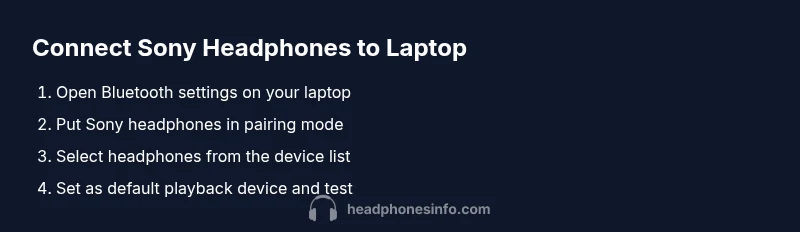
Bluetooth pairing is the most popular method to connect Sony headphones to a laptop. Begin by turning on Bluetooth on your computer, then activate pairing mode on your Sony headphones. On Windows, open Settings > Devices > Bluetooth & devices, click Add Bluetooth or other device, and choose Bluetooth. On macOS, open System Settings > Bluetooth and select your headphones from the list. If the device asks for a pairing code, usually none is required, or it will be displayed as '0000' or '1234' depending on the model. After pairing, set the headphones as the default playback device in the sound settings for consistent audio output. A quick test with a video or music app confirms the path is correct. If you notice lag or audio dropouts, examine your Bluetooth range and potential interference from other wireless devices. Headphones Info’s guidance suggests keeping both devices within a reasonable distance (within line of sight) during setup to simplify the pairing process and reduce dropouts.
Wired Connection Options: 3.5mm Analog vs USB-C Digital
If you prefer a wired connection or your laptop lacks a reliable Bluetooth module, Sony headphones can connect through a 3.5mm analog jack or via USB-C when supported. A classic 3.5mm cable works with most laptops that have a headphone jack. If your laptop uses USB-C for audio, you may need a USB-C to 3.5mm adapter or a USB-C audio dongle that supports headphone output. Plug the cable into the correct port on both devices, then select the wired option in the sound settings, sometimes labeled as 'Headphones' or a specific device name. Wired connections generally offer lower latency and can deliver fuller mid-range response, which is beneficial for watching movies or playing games. If your Sony headphones come with a detachable cord, be mindful of secure connections and avoid tugging on the cable, which can damage the port over time.
Setting the Default Playback Device and Modifying Sound Quality
After connecting via Bluetooth or wired, ensure the laptop routes audio through the Sony headphones by designating them as the default playback device in your operating system's sound settings. On Windows, you can also use the Quick Settings or the sound icon in the taskbar to switch devices. On macOS, the AirPlay icon or the Output tab in System Preferences allows quick toggling. If you notice reduced audio quality, confirm that the correct sample rate and bit depth are in use (where available) and that any system enhancements or equalizers are disabled or configured for your headphones. Headphones Info advises testing both system sounds and a variety of media with your Sony headphones to confirm stability and balance.
Troubleshooting Common Scenarios and Fixes
Sometimes pairing fails or audio drops out. Start with simple checks: ensure the headphones are charged, restart Bluetooth on the laptop, re-pair the device, and verify there are no conflicting devices connected. If the headphones still do not appear, install pending OS updates or reinstall Bluetooth drivers. For wired connections, confirm the cable is intact and properly seated in both the laptop and the headphones' port. If you experience distortion or intermittent audio, check for software equalizers or audio enhancements that might be biasing the signal. Headphones Info notes that most connectivity issues stem from outdated drivers, misconfigured default devices, or signal interference, and provides a straightforward process to address each cause.
Quick Validation, Maintenance, and Best Practices
Test your setup by playing a variety of audio content—music, video, and games—to confirm consistency across sources. Regularly recharge the headphones to avoid mid-use shutdowns, and store them in a case to prevent wear on connectors. Periodically clean the headphone jack and the USB-C port to remove dust, which can impede signal transfer. If you frequently switch between wired and wireless, consider keeping two quick links available: a short USB-C/adapter and a short 3.5mm cable. This minimizes downtime and helps you adapt to different environments, whether you are traveling, at a cafe, or working from a home office. The Headphones Info Team encourages readers to maintain good charging habits and a small cable kit to stay ready for any listening scenario.
Tools & Materials
- Sony headphones(Bluetooth-capable model or wired-capable with detachable cable)
- Laptop with Bluetooth or a 3.5mm/USB-C audio port(Ensure Bluetooth is enabled or a port is available for wired use)
- 3.5mm audio cable(Optional; use if you prefer a wired connection with a 3.5mm jack)
- USB-C to 3.5mm adapter(Optional; needed if your laptop lacks a 3.5mm jack)
Steps
Estimated time: 20-30 minutes
- 1
Prepare and verify devices
Charge the headphones and ensure your laptop is powered on. Confirm you know whether you will use Bluetooth or wired. If using Bluetooth, ensure the laptop's Bluetooth is enabled. If wired, locate the correct port and cable.
Tip: A full charge helps prevent mid-use dropouts during setup. - 2
Enable Bluetooth on the laptop
Open the Bluetooth settings on your computer and make it discoverable. This step is essential for devices to see your Sony headphones. On Windows, you’ll find it under Settings > Bluetooth & devices; on macOS, open System Settings > Bluetooth.
Tip: Keep the laptop within a reasonable range to ensure quick scanning. - 3
Put Sony headphones into pairing mode
Follow your model’s pairing steps to enter pairing mode. This typically involves holding the power button or a dedicated Bluetooth button until the LED flashes in a pairing pattern.
Tip: If you’re unsure, consult the manual or the Sony support site for model-specific steps. - 4
Pair the devices
In the laptop’s Bluetooth menu, select your Sony headphones from the list of available devices and confirm pairing. If prompted for a PIN, it’s usually not required. Wait for a notification that pairing is successful.
Tip: If pairing fails, remove other nearby Bluetooth devices and retry. - 5
Set as default playback device
Open sound settings and set Sony headphones as the default output device. This ensures all system audio routes through the headphones.
Tip: Test with both system sounds and media apps to confirm routing. - 6
Test wireless audio
Play music or a video to verify sound quality and stability. Adjust the headphone volume and laptop output as needed.
Tip: If latency appears with video, try using a different Bluetooth codec if your OS allows it. - 7
Connect wired if needed
Plug the 3.5mm jack or USB-C adapter into the appropriate port and select the wired device in sound settings. Ensure the headphones are set to output via the wired path if you switch mid-use.
Tip: Secure the connection to prevent accidental unplugging during use. - 8
Troubleshooting and fallbacks
If issues persist, reboot devices, re-pair, and check for OS updates or driver updates. Consider testing on another laptop to isolate the problem.
Tip: Document the steps you took so you can replicate the setup later.
People Also Ask
Can I connect Sony headphones to my laptop via Bluetooth?
Yes. Enable Bluetooth on your laptop, put the headphones in pairing mode, then select the headphones from the available devices. If prompted, complete the pairing and set the headphones as the default playback device.
Yes. Turn on Bluetooth, pair the headphones, and set them as the default output.
Why is there no sound after pairing?
Check that the headphones are selected as the default playback device and that volume is up. Ensure the headphones are in range and that no other device is forcing audio elsewhere. If needed, re-pair the device and restart Bluetooth.
Make sure they’re the default device, within range, and try re-pairing if no sound appears.
Do Sony headphones require special drivers?
Most modern laptops use built-in Bluetooth audio drivers, so extra Sony-specific drivers are typically unnecessary. If you encounter issues, check for OS updates or Bluetooth driver updates.
Usually no extra drivers are needed; update your OS or Bluetooth driver if problems persist.
Can I use USB-C wired connection with Sony headphones?
Yes, if your headphones support USB-C wiring or you have an adapter. Plug the cable into the laptop and headphones, then select the wired device in sound settings.
Yes, with compatible USB-C wiring or an adapter, you can use a wired connection.
How can I reduce Bluetooth latency for video or games?
Choose a high-quality Bluetooth codec if your OS supports it and ensure devices are close to minimize lag. If latency remains an issue, switch to a wired connection for the best accuracy.
Use a better codec if available and keep devices close; otherwise try wired for lowest latency.
Watch Video
What to Remember
- Know your connection method: Bluetooth or wired.
- Set Sony headphones as the default playback device after pairing.
- Use wired connections to minimize latency when needed.
- Update drivers and OS as a baseline maintenance step.
- Have a backup wired option in case Bluetooth fails.