How to Disconnect JBL Headphones Without a Phone
Learn safe, no-phone methods to disconnect JBL headphones. This guide covers power cycling, hardware resets, and model-specific steps to sever connections without needing a smartphone.


Yes— you can disconnect JBL headphones without a phone by using hardware controls or a built-in reset, then confirming the connection is fully severed. This no-phone guide covers common patterns, safety notes, and model-specific caveats so you can regain control quickly and prevent unwanted wake-ups or auto-reconnections. Follow these steps safely, and you should stay disconnected until you re-pair intentionally.
Why Disconnect JBL Headphones Without a Phone Might Be Necessary
In many everyday scenarios, you may need to disconnect JBL headphones without using a phone. A broken screen, a lost device, or simply wanting to stop auto-reconnects in a public space are common reasons. According to Headphones Info, no-phone disconnects are often straightforward and depend on the model's hardware buttons or reset sequence. The goal is to give you safe, reliable methods that work across JBL's wireless lines, from over-ear models to sport headphones. It’s important to distinguish between a temporary disconnection (ending the current link) and a full disassociation (clearing pairing memory). By understanding the difference, you’ll choose the method that best fits your needs and avoid surprises when you next power them on.
This section sets the stage for practical steps you can take right away, without a companion device. It also lays out why model variations matter: some JBL headphones use a single multi-function button, others rely on a sequence of presses, and firmware can alter behavior. Keep in mind that no-phone methods are designed to be safe and reversible in most cases, but a factory reset may erase pairing data, so check your model’s manual before proceeding.
Understanding JBL Wireless Disconnection Modes
JBL headphones typically support several disconnection patterns that don’t require a phone. Understanding these modes helps you pick the right technique without guesswork:
- Temporary disconnection: breaks the current link so you aren’t audio-enabled, but the device may still appear in Bluetooth lists.
- Permanent or memory-clearing disconnection: removes a device from the headphone’s saved pairing list, which requires re-pairing later if you want to use them again.
- Firmware-driven reset: some JBL models offer a built-in reset sequence that returns the headphones to factory defaults, potentially clearing all paired devices.
Headphones Info analysis shows that most JBL wireless models support at least one no-phone method to disconnect, though the exact steps depend on the model and firmware. If you can access the model’s user guide, you’ll find the precise sequence (or a reset pinhole) that applies to your device. In the absence of a dedicated reset, powering off and letting the device sit idle for a short period can also break the current connection reliably, especially if the headphone LED behavior shifts to indicate a cold-start state.
When to Disconnect: Use Cases
Knowing when to disconnect without a phone helps you avoid unnecessary steps and ensures you preserve battery life and pairing preferences. Consider these common scenarios:
- You’re in a shared space and don’t want your headphones to auto-connect when you’re not using them.
- The connected phone is temporarily unavailable, and you want to stop audio from triggering through the JBL headphones.
- You’re cleaning or performing maintenance and want the headphones to reset to a known state.
- A firmware update or service issue causes inconsistent behavior, and a non-phone reset can stabilize operation without linking to another device.
From Headphones Info’s perspective, model-agnostic no-phone options are preferred first because they preserve your pairing history while reducing the risk of accidental reconnections later. If a sub-model uses a dedicated reset, follow that path to avoid lingering connections and to re-establish control on your terms.
No-Phone Disconnection Strategies: An Overview
There are several non-phone strategies you can try, depending on your model and its firmware:
- Simple power cycle: turn the headphones off, wait a brief moment, then turn them back on. This often severs the current Bluetooth link without clearing memory.
- Hardware reset (model-dependent): many JBLs include a reset sequence that returns the device to factory defaults. The exact sequence varies; consult your manual and perform the steps precisely as described.
- Releasing memory (where available): some headsets provide a way to forget all paired devices from the headphones themselves. If this option exists, it is typically found in the reset or setup menu.
The following sections walk you through safe, model-agnostic steps and explain how to proceed if your model behaves differently. Remember that firmware differences can alter the behavior of the same button presses, so always cross-check with the official documentation for your exact model.
Step-by-Step: Method 1 — Power Cycle (No Phone Required)
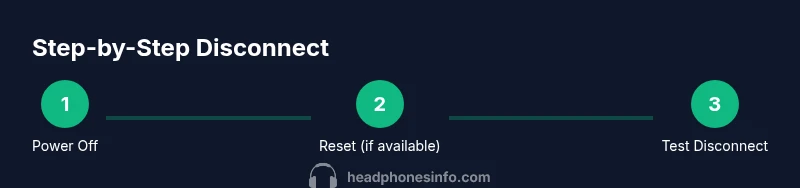
- Power off the headphones: press and hold the power button until the headphones shut down completely. This ends the active Bluetooth link. Tip: A complete shutoff is more reliable than a quick tap.
- Wait several seconds: give the device time to reset its internal Bluetooth state. Tip: a 5–10 second pause is usually enough on most models.
- Power the headphones back on: resume normal operation and listen for the startup indicator. Tip: if you hear a different tone or LED color, it may indicate a fresh boot state.
- Verify disconnection: check that audio no longer streams to the headphones when the connected device attempts playback. Tip: if you cannot test without a phone, skip this step and proceed to the next method.
- Optional: leave them powered off for a longer interval if you want to ensure no auto-reconnects occur soon after. Tip: longer intervals strengthen the no-contact state.
Estimated time: 5–10 minutes.
Step-by-Step: Method 2 — Built-in Reset (If Your Model Supports It)
- Locate the reset method in the user manual: many JBL models offer a factory-like reset to clear paired devices and restore defaults.
- Prepare the headset: ensure it’s charged and not currently connected to another source. This helps avoid incomplete resets.
- Execute the reset sequence exactly as described: this often involves powering on while performing a particular button combination or using a recessed reset hole. Tip: if your model uses a recessed hole, you may need a small pin to press it.
- Confirm reset completion: the LEDs should flash in a pattern or the voice prompt may indicate a reset. Tip: wait for the pattern to finish before proceeding.
- Test the result: power cycle again and verify there is no active Bluetooth link to any device. Tip: only after a successful test should you attempt a new pairing.
Estimated time: 8–15 minutes.
Step-by-Step: Method 3 — Memory/Carking Record Cleared (Model-dependent)
- Access the headset’s memory options: some JBL models provide a direct option to forget all paired devices from the device itself. If available, select this option to clear the history. Tip: this step is irreversible for saved pairings, so ensure you are ready to re-pair later.
- Confirm the memory erase: the device may prompt for confirmation. Accept the erase to proceed. Tip: a long press on the reset button often acts as confirmation.
- Power cycle after erasure: turn the headset off and on to ensure the memory wipe takes effect. Tip: verify the device behaves as a fresh unit.
- Test the disconnect: once memory is cleared, the headphone should not reconnect automatically until you initiate pairing again. Tip: this step helps avoid accidental reconnections when you move to another device.
Estimated time: 10–20 minutes.
Step-by-Step: Method 4 — Firmware Check and Safe Handling (Optional)
- Check for firmware updates (without a phone): visit the JBL support site from a computer and download any available firmware tools or firmware files for your model. Tip: keeping firmware current can improve Bluetooth behavior.
- Install the update if available: follow the official instructions to apply the update, ensuring the headset remains powered during the process. Tip: a failed update can leave the device in an unstable state.
- Re-run a basic reset after updating: perform a power cycle or reset to confirm the device state is stable. Tip: firmware updates often reset connectivity patterns, so re-testing is important.
- Store and safeguard: after updates, store the headphones safely to avoid accidental re-pairing in the same session. Tip: labeling the device helps you remember its state if you manage multiple JBL products.
Estimated time: 15–25 minutes.
Step-by-Step: Method 5 — Final Sanity Checks and Documentation
- Confirm there are no stray connections: power the headphones and check that no devices attempt to stream audio to them. Tip: if you still hear sounds, repeat the power cycle steps.
- Record the procedure you used: write down the exact steps you took and any observed LED patterns. This helps if you need to repeat the process later or share with support. Tip: documentation saves you time on future disconnections.
- Review compatibility notes: verify that you understand any model-specific quirks from the user manual. Tip: keep a copy of the relevant section for quick reference.
- Plan for future use: decide whether you want to pair again now or later. If you re-pair, follow the standard Bluetooth pairing flow from your device. Tip: re-pairing may reset your previously saved connections.
Estimated time: 5–10 minutes.
Step-by-Step: Method 6 — When All Else Fails (Contact Support)
- Gather model details: note the exact JBL model name, firmware version (if available), and where you obtained the device.
- Visit JBL support resources: use the official site or contact their customer service for guidance tailored to your hardware. Tip: providing model and firmware details speeds up support.
- Follow technician guidance: implement any steps the representative recommends, especially if your headset is under warranty. Tip: do not attempt risky hardware modifications outside official advice.
- Consider service options: if the hardware appears faulty, you may need professional inspection or replacement.
Estimated time: 15–30 minutes for initial contact and troubleshooting.
Step-by-Step: Method 7 — Safe Storage and Future-Proofing
- Set a standard disconnect routine: decide on a preferred no-phone method (power cycle, reset, or memory wipe) and document it for quick use in the future.
- Keep a copy of the user manual: store a PDF or printed page that outlines the reset steps for your model.
- Charge and store correctly: ensure the headphones have a healthy battery and are stored in a safe place to avoid unintended re-connections.
- Periodically test connectivity: test disconnect behavior every few months to confirm it remains reliable as firmware evolves.
This proactive approach reduces the likelihood of surprises and keeps your JBL headphones ready for future use.
Step-by-Step: Method 8 — Quick Reference Summary
- Power off the headphones when possible to end the current connection.
- If available, perform a model-specific reset to restore defaults.
- If the device supports memory erase, clear saved pairings.
- Test the disconnect and ensure no auto-reconnect occurs.
Estimated time: 5–15 minutes.
Tools & Materials
- JBL headphones (any wireless model)(Charge level > 20% recommended for resets that require power.)
- User manual or official JBL support page(Use model-specific reset instructions if available.)
- Small pin or paper clip (for reset hole, if applicable)(Only use if your model explicitly supports a recessed reset hole.)
- A computer or tablet with internet access(Helpful for checking firmware updates or support pages without a phone.)
Steps
Estimated time: 15-25 minutes
- 1
Power off the headphones
Press and hold the power button until the device shuts down completely. This ends the active Bluetooth session and prepares the headset for a clean reset.
Tip: A full shutdown is more reliable than a quick power tap. - 2
Power cycle to test the link
Wait a few seconds, then turn the headphones back on to see if the Bluetooth link reconnects automatically. If it does, you may need a stronger disconnection method like a reset.
Tip: If the device still reconnects, proceed to a model-specific reset. - 3
Attempt a model-specific reset
Follow the exact reset sequence described in your manual or on JBL’s support site. This may involve a button combo or a recessed reset hole.
Tip: Only use the sequence specified for your model to avoid unintended results. - 4
Clear memory/paired devices (if supported)
If your headset offers a built-in memory erase, use it to remove saved devices. This step is irreversible for saved pairings and should be used when you won’t need quick re-pairing right away.
Tip: After erasing, perform a power cycle to ensure the memory wipe took effect. - 5
Test the disconnect again
Power the headset and attempt playback from any source. Confirm that there is no audio output and that the headset no longer appears as an active device.
Tip: If testing with a phone is inconvenient, use a laptop or tablet as a test source. - 6
Check for firmware updates (optional)
If you can, update the headset firmware from a computer or mobile device. firmware updates can stabilize Bluetooth behavior and improve future disconnect reliability.
Tip: Do not interrupt a firmware update once it starts. - 7
Document the exact steps you took
Write down the steps and outcomes so you can repeat or adjust later. This helps if you encounter model-specific quirks in the future.
Tip: Keep the notes with the headset’s manual for quick reference. - 8
Contact support if issues persist
If disconnection remains unreliable after all methods, reach JBL support with model details and firmware version. They can offer device-specific guidance or service options.
Tip: Have your device serial or model number ready to speed up the process.
People Also Ask
Can JBL headphones be disconnected without a phone?
Yes. You can disconnect without a phone by powering off the headphones or using a model-specific reset to sever active connections. These methods don’t require a smartphone and are designed to be safe and reversible in most models.
Yes. You can disconnect JBL headphones without a phone by powering them off or using a model-specific reset. It’s a safe, no-phone method.
Will resetting erase all my pairings?
Factory resets often erase saved pairings. If you need to re-pair later, you’ll have to re-connect each device. Check your model’s manual to confirm what a reset will change.
Factory resets can erase saved pairings, so you’ll need to re-pair later. Check your manual for specifics.
Do all JBL headphones support a hardware reset without a phone?
Most JBL models offer a hardware reset or memory-clear option, but the exact steps vary by model and firmware. If in doubt, consult the official manual or support pages for your device.
Most JBL models have a reset option, but the steps vary by model. Check the manual for exact instructions.
What should I do if disconnection still fails after a reset?
If disconnection persists, verify power and battery status, try a longer power-off interval, and consider contacting JBL support with your model details for tailored guidance.
If it stays connected after a reset, check battery status and contact support with your model details.
Is it safe to disconnect JBL headphones without professional help?
Yes, for most models, using the built-in or hardware reset methods is safe when you follow the manual. Avoid forcing hardware or opening devices, which could damage components.
Yes, it's generally safe to reset as described in the manual. Don’t force hardware or open the unit.
Watch Video
What to Remember
- Power cycle first to end current connection
- Use model-specific reset if available
- Clear memory only if you don’t need saved pairings
- Verify no auto-reconnect after reset
- Consult official JBL support for persistent issues