How to Reset JBL Headphones: A Complete Troubleshooting Guide
Learn how to reset JBL headphones to fix pairing, connectivity, and audio glitches. This step-by-step guide covers soft and factory resets, model nuances, re-pairing, and common pitfalls. Written by Headphones Info for audio enthusiasts.


You can reset JBL headphones to fix pairing and performance issues by performing a soft reset or a factory reset, depending on the model. This quick guide covers model-specific steps, safety notes, and how to re-pair with your devices. By the end, your JBL headphones should reconnect cleanly or be ready for a fresh setup.
Why Resetting JBL Headphones Can Fix Common Issues
According to Headphones Info, resetting JBL headphones clears stored connections, clears minor software glitches, and forces the device to reinitialize its wireless stack. The Headphones Info team found that many common issues—intermittent Bluetooth drops, slow re-pairing, random driver hiccups, and unexpected audio gaps—are resolved after a proper reset. Resetting can also resolve phantom button presses or delayed touch controls by restoring the device to its default state. This is not a universal cure-all, but it remains one of the simplest, safest first steps for troubleshooting. Keep in mind that firmware updates, app configurations, and source device quirks can still affect performance after a reset, so consider those as part of a broader diagnostic.
When you reset, you’re essentially rebooting the headphone’s operating system and clearing memory about paired devices and user preferences. For most JBL models, a soft reset is sufficient to clear temporary issues, while a factory reset may be necessary if you have persistent pairing problems or plan to hand the headphones to someone else. Always start with the least intrusive option and move to a full reset only if required.
From a user experience perspective, a reset can restore original audio behavior, brightness of LED indicators, and responsiveness of physical controls. If you’ve noticed that your JBL headphones suddenly stop recognizing the source device or exhibit random pauses, a reset can reestablish the baseline.
Understanding Reset Types: Soft Reset vs Factory Reset
There are two primary reset strategies for JBL headphones: soft reset and factory reset. A soft reset is a lightweight reboot that clears temporary data and reinitializes the Bluetooth stack without deleting saved device pairings in most cases. It’s the safest first step because it preserves your current pairing list and user preferences. A factory reset, by contrast, erases all settings, memory of paired devices, and any saved equalizer or app customizations. It is usually a last resort when soft resets fail to resolve the issue or when you’re preparing the headphones for a new owner. JBL models vary in how they implement these resets, so model-specific guidance is essential.
Soft resets are typically quicker and safer when you’re trying to fix minor glitches, such as audio dropouts or momentary control lag. If the problem persists across multiple devices or after restoring firmware, a factory reset may be warranted. Remember that after a factory reset you’ll need to re-pair your headphones with each device, and you may need to reconfigure any app-based settings.
Model Variations and Reset Procedures Across JBL Lines
JBL offers a range of headphone products—from true wireless earbuds to over-ear wireless models—each with its own reset nuances. While many use a two-button or button-combination method for soft resets, others rely on a sequence of presses and a specific duration. Some models provide a dedicated reset PIN hole, while others rely on a menu-driven reset via the companion app. Because the exact steps differ by model, identify your exact model number (usually printed on the inside band or charging case) and consult the official JBL support page for the precise procedure. When in doubt, rely on the model-specific instruction sheet rather than guessing button presses.
Branding matters: the reset path may also differ by firmware version. If your headphones recently received a firmware update, re-check the reset method described in the latest docs. This is important because some firmware updates change button sequences or LED indicator behavior. If you can’t locate your exact model’s reset path, an online JBL support search or calling support can prevent missteps.
Preparation: What You Need Before You Begin
Preparation is key to a smooth reset process. Start by charging the headphones to a healthy level to prevent mid-reset power loss. Gather any necessary accessories—the USB-C charging cable, the charging case, and a device to re-pair with (your smartphone, tablet, or computer). Have the model number handy, as it will guide you to the right reset method. If you rely on the JBL app for settings or EQ profiles, be aware that a factory reset may clear those, requiring reconfiguration after the reset. Finally, pick a quiet, distraction-free environment so you can focus on button sequences and indicators without rushing.
During preparation, verify that your Bluetooth is on for the source device you intend to use after the reset. This ensures you can immediately start the re-pairing process once the headphones are ready. If you’re troubleshooting while traveling, a solid power bank can prevent you from losing progress if the battery runs low mid-procedure.
Soft Reset: When and How to Do It
A soft reset is the safest first step for most JBL headphones. It reboots the internal software without erasing your paired device list. The typical method involves powering the headphones on and then performing a short button sequence (for many models, hold the power button and Bluetooth button for 5–7 seconds until you see a flash or hear a tone). If your model uses a different pair, the LED pattern will guide you. The idea is to force a clean start of the Bluetooth stack while preserving your existing pairings. After the reset, the headphones should exit pairing mode, allowing you to re-pair with your device if needed.
Soft resets are beneficial because they are quick, low-risk, and reversible. They’re also less disruptive if you’ve customized sound settings or EQ profiles through the JBL app. If you’re unsure about the exact button combination, consult your model’s user manual or the official JBL support site. In many cases, you’ll find model-specific diagrams or short videos illustrating the precise sequence.
Factory Reset: When It’s Necessary and How to Do It
If soft resets don’t resolve the issue or you’re transferring ownership of the headphones, a factory reset can clear all personal data and reset to factory defaults. This option removes all remembered devices and user configurations. The exact process varies by model and firmware, but most factory resets involve a longer button hold or a combination with volume buttons in a specific order. Be prepared to re-pair every previously connected device afterward. If your headphones are part of a corporate fleet or managed by a companion app, confirm that a factory reset won’t violate device management policies.
To perform a factory reset, locate the model-specific procedure from JBL’s official support resources. On some models, you’ll need to press and hold a sequence of buttons for 10–20 seconds until LED indicators flash in a distinct pattern. On others, you may access a reset option through the JBL app. After completion, the headphones will boot as if brand new, and you’ll begin the re-pairing process from scratch. Remember to re-setup any preferred sound profiles and ANC settings as needed.
After Reset: Reconnecting and Testing
Once the reset completes, the headphones should be in a ready-to-pair state. Turn on Bluetooth on your source device, select the JBL headset from the list, and complete the pairing. If your headphones support multipoint connections, re-establish those connections as well. After pairing, test a few audio tracks, control gestures, and microphone performance to verify the reset restored expected behavior. If you have ANC or ambient mode toggles, check that those toggles respond correctly and that the app (if applicable) reflects the correct firmware status.
During re-pairing, ensure the devices you intend to connect are in range and not already memorized by the headset. If pairing fails, try turning off Bluetooth on the source device, forget the JBL device on that source, and attempt pairing again. Keep your JBL firmware up to date, as outdated firmware can mimic reset issues or degrade performance even after a reset.
Common Pitfalls and How to Avoid Them
Resetting JBL headphones is straightforward, but several common pitfalls can derail the process. First, avoid attempting a reset while the battery is critically low; a power interruption can corrupt firmware. Second, don’t force a reset sequence if you’re unsure of the exact model-specific steps—an incorrect sequence can lead to an unresponsive device. Third, after a factory reset, you must re-pair all devices; failing to do so will leave the headphones seemingly non-functional. Finally, if you previously used the JBL app to customize EQ or ANC settings, be aware those configurations will reset to defaults.
To minimize problems, consult the official JBL support resources for your exact model. If the LED indicators or audio cues don’t match the documented patterns, stop and re-check model numbers and firmware versions. If problems persist, contact JBL customer support for guidance rather than continuing to cycle resets, which may extend the time to a stable setup.
Quick Reference by Model: How to Identify Your JBL Reset Method
Because JBL’s reset methods differ by model, a quick way to identify the right path is to locate your exact model number and cross-reference it with the latest JBL support pages. Look on the inside of the headband, the charging case, or the product label for the model code. If you own a mainstream line (like JBL Live, Quantum, or Reflect), there are often short, model-specific videos that demonstrate the sequence. Even within the same product family, firmware updates can alter steps, so always verify with the current official guide. If you’re unsure, start with a soft reset method that most models support and then escalate to a factory reset only if necessary.
Troubleshooting If Nothing Works
If resets don’t fix the issue, the problem may be hardware-based, such as a failing driver, a loose connection in the headphone housing, or microphone issues. Start by ruling out the source device by testing the headphones with a different phone, tablet, or computer. Check for firmware updates on both the headphones and the source device. If multiple sources fail, it’s more likely a headset-specific problem that could require repair or replacement. In many cases, JBL support can guide you through a structured diagnostic or offer a replacement option under warranty. Keep receipts or proof of purchase handy in case you need service.
Tools & Materials
- JBL headphones (model in question)(Ensure they are the exact model you intend to reset; model variations require different steps.)
- Charge cable (USB-C or micro-USB as applicable)(Have it ready to ensure power during the reset process.)
- Source device for re-pairing(Smartphone, tablet, or computer to complete Bluetooth pairing after reset.)
- Quiet workspace(A distraction-free area helps follow steps accurately.)
- Reset pin or paperclip (if model provides a reset hole)(Only for models that use a physical reset hole.)
Steps
Estimated time: 15-25 minutes
- 1
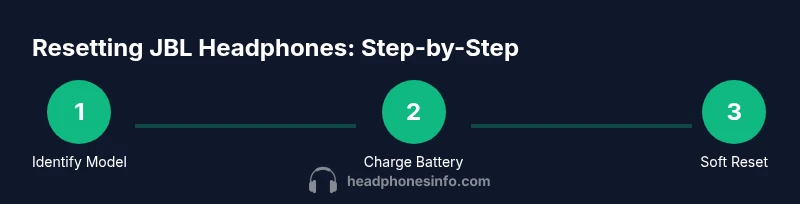
Identify Your JBL Model and Reset Type
Check your exact model number and confirm whether a soft reset or factory reset is appropriate. Model pages or the manual will specify the correct sequence. If in doubt, begin with a soft reset as it’s less disruptive and reversible.
Tip: Consult the official model guide or JBL support page for the precise sequence. - 2
Charge Headphones
Connect the headphones to a power source and ensure they’re at a healthy battery level (ideally 50% or higher) before starting. A sudden power loss mid-reset can corrupt firmware or leave the device unresponsive.
Tip: Aim for at least 50% battery before you start. - 3
Initiate Soft Reset (Common Method)
With the headphones powered on, press and hold the often-used reset combination (commonly Power + Bluetooth) for 5–7 seconds until an LED flash or tone confirms the reset. If your model uses a different combo, follow the exact sequence from the user manual.
Tip: If the LED doesn’t respond within 10 seconds, try again up to 15 seconds, ensuring you hold the exact buttons. - 4
If Soft Reset Fails, Perform Factory Reset
Proceed to the factory reset only if the soft reset doesn’t resolve the issue. This will erase all settings and pairings, so you’ll need to re-pair devices afterward. Follow model-specific steps exactly as documented.
Tip: A factory reset is a last resort—double-check model instructions first. - 5
Re-Pair Headphones with Source Device
Turn on Bluetooth on your source device, select the JBL headset from the available devices, and complete pairing. Verify audio playback and control responsiveness.
Tip: Do not rush during pairing; keep both devices close and ensure Bluetooth visibility is on. - 6
Test and Confirm Reset
Play audio, test controls, and check for stable connection. Ensure ANC, transparency, or ambient modes function as intended, if applicable.
Tip: Test with multiple apps or audio sources to confirm consistency.
People Also Ask
Will resetting JBL headphones erase saved Bluetooth pairings?
A soft reset typically preserves pairings, but a factory reset will erase all saved devices. Always verify which reset you perform. After a factory reset, you’ll need to re-pair each device.
A soft reset usually keeps your devices saved, but a factory reset wipes them all. You’ll have to re-pair afterward.
Do all JBL models support a factory reset?
Most modern JBL headphones support some form of reset, but the exact method varies by model. Check the user guide or JBL’s official support page for your model to confirm availability and steps.
Most models support a reset, but the method differs by model, so check the manual.
How long does a reset typically take?
A soft reset is usually completed within seconds to a minute. A factory reset can take a few minutes, including time to re-pair and test.
Soft resets take seconds; factory resets take a few minutes including re-pairing.
What should I do if the reset doesn’t fix the issue?
If resets don’t help, the problem may be hardware-related or firmware with the source device. Check for firmware updates, test with another device, or contact JBL support for diagnostics.
If resets don’t fix it, there may be a hardware issue or a source-device problem; contact support for help.
Can I reset JBL headphones without a phone?
Yes, many JBL resets can be performed without a phone, especially the soft reset. However, re-pairing will require a source device later.
You can reset without a phone, but you’ll need a device later to re-pair.
Is there a risk of bricking the device with a reset?
Resetting is generally safe when done with model-accurate steps. Incorrect sequences or power interruptions can cause issues, so follow official instructions closely.
There’s little risk if you follow the exact steps; avoid power interruptions.
Watch Video
What to Remember
- Identify your JBL model’s reset method.
- Charge headphones before starting.
- Always try a soft reset first; escalate to factory reset if needed.
- Re-pair devices and test after reset.