How to Get Rid of Static Noise in Bluetooth Headphones
Discover practical steps to eliminate static noise in bluetooth headphones with a data-driven troubleshooting guide. Quick fixes, firmware tips, and prevention strategies from Headphones Info.


Here’s how to get rid of static noise in bluetooth headphones quickly: reset connections, re-pair, and verify firmware. Power cycle both devices, forget the connection, then repair. Check battery levels, reduce nearby interference, and test with another source. If the problem persists, try a different codec or a wired fallback if available.
What Causes Static Noise in Bluetooth Headphones
Static noise in bluetooth headphones isn't caused by a single fault; it's usually a mix of interference, codec issues, and firmware or battery problems. According to Headphones Info, most static occurs when the 2.4 GHz spectrum is crowded or when the codec between the headphones and the source doesn't match well. Battery health also matters: a tired battery can cause hiss or crackle as the power supply fluctuates. Environmental factors, like a microwave or a congested Wi‑Fi router, can create temporary interference. Finally, a damaged cable or a loose connector (for headphones that support wired fallback) can introduce static if the jack or internal wiring is compromised.
Quick Fixes You Can Try Right Now
- Power cycle both devices: turn off the headphones and the source, wait 15–20 seconds, then turn them back on and reconnect.
- Forget the device and re‑pair from scratch to reset pairing history.
- Test with another source (phone, tablet, computer) to rule out a device-specific issue.
- Check battery levels and charging state; low power can introduce audio glitches.
- Update firmware on both headphones and the source device; ensure you have the latest Bluetooth stack.
- Reduce interference by turning off other Bluetooth devices in the area and moving away from crowded 2.4 GHz devices like routers or microwaves.
- If available, switch codecs (for example from SBC to AAC or aptX) to see if the issue improves.
The Role of Device, Environment, and Firmware in Noise Behavior
Device models implement Bluetooth differently, and codec compatibility can create or mask static noise. In crowded environments, multiple active Bluetooth and Wi‑Fi networks add jitter to the audio stream. Firmware updates on headphones and source devices fix known issues with interference and codec handling. Headphones Info notes that even simple changes like moving to a quieter room or changing the source device can dramatically reduce static noise.
Diagnostic Approach: Narrowing Down the Cause
Begin with the simplest checks: battery level, re pairing, and testing with another source. If static continues, confirm whether the noise follows the headphones or stays with the source by trying a friend’s phone or laptop. Look for interference sources such as nearby routers or microwaves and experiment in a different room. If the problem persists after firmware updates and codec checks, narrow down to a hardware issue or compatibility problem. This method aligns with Headphones Info approach.
Step By Step Guide: Fix the Most Common Cause
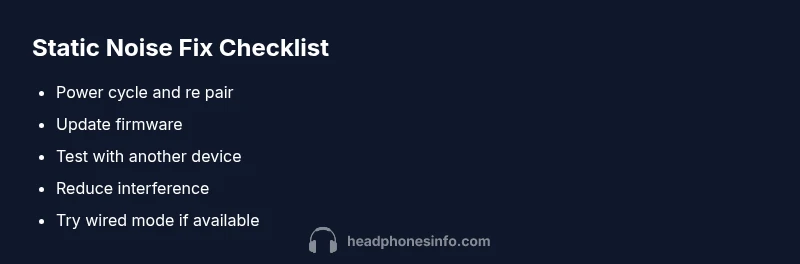
- Power cycle and re pair: turn off both devices, wait briefly, re enable pairing, and reconnect.2) Update firmware: install the latest firmware on headphones and source; restart both after updates.3) Check battery health: ensure both are fully charged and avoid low power states during testing.4) Reduce interference: move away from routers, disable other Bluetooth devices, and test in a cleaner environment.5) Test codecs: switch to the best supported codec on both ends.6) If available, use wired mode: connect via 3.5 mm when the option exists to bypass Bluetooth entirely.
Safety, Compatibility, and Prevention Tips
Keep firmware up to date to minimize compatibility related static noise. Use original charging cables and avoid damaged connectors. Maintain a clean Bluetooth environment by limiting nearby devices and selecting the best available codec. Regularly test on multiple devices to catch device specific issues early.
When to Seek Professional Help
If none of the above steps resolve the issue, the problem may be hardware related or covered by warranty. Contact the manufacturer or a certified service center for a diagnostic. Document firmware versions and the steps you tried to speed up support.
Real World Scenarios and Examples
A user reports crackling when streaming music from a smart speaker. Moving the headphones away from the router and updating firmware reduced the crackling by half. Another user noticed hiss when connected to a laptop with multiple USB hubs nearby; switching to a different USB port and updating the Bluetooth stack cleared the issue in many cases.
Advanced Troubleshooting for Edge Cases
For stubborn static noise, test with a known clean environment (no other Bluetooth devices, no high wifi usage). If the sound changes with location, interference is likely. If it persists solely with one source, the issue is source specific or codec negotiation related. In rare cases a factory reset on the headphones may be needed as a last resort.
Steps
Estimated time: 25-40 minutes
- 1
Power cycle and re-pair the devices
Turn off both headphones and the source. Wait 15–20 seconds, then turn them back on. Put the headphones back into pairing mode and reconnect to the source. This clears transient issues and resets the connection.
Tip: Keep devices close during pairing and confirm you select the correct device in the pairing list. - 2
Update firmware on both ends
Check the manufacturer app or system settings for the latest firmware for the headphones, and ensure the source device has the latest Bluetooth stack. Reboot after updating.
Tip: Back up any settings if the headset stores custom EQ or controls. - 3
Check battery health and charging
Ensure both the headphones and the source device are charged. A marginal battery can cause instability in the audio signal.
Tip: Use the original charger and avoid cheap third party cables during testing. - 4
Reduce interference in the environment
Move away from routers, microwaves, and other strong 2.4 GHz sources. Try a different room or disable nearby Bluetooth devices for testing.
Tip: Interference can be location dependent; test in multiple spots. - 5
Test codecs and alternative sources
If your headphones support multiple codecs, try switching to the best available option. Also test with a different phone or computer to rule out device-specific issues.
Tip: Some devices default to SBC; selecting AAC or aptX where supported can improve stability. - 6
Try wired mode if available
If your headset has a 3.5 mm input, try a wired connection to determine if the problem is Bluetooth specific.
Tip: Wired mode can bypass Bluetooth interference entirely.
Diagnosis: Static/noise during audio playback on Bluetooth headphones
Possible Causes
- highInterference from other wireless devices or crowded spectrum
- mediumLow battery or poor charging state
- mediumOutdated or buggy firmware on headphones or source device
- highWeak or unstable Bluetooth connection or codec mismatch
Fixes
- easyPower cycle headphones and source; re-pair after forgetting the device
- easyUpdate firmware on both headphones and source device
- easyReduce interference by turning off nearby Bluetooth devices and moving away from 2.4 GHz sources
- mediumTest with another device or change codec if supported
- easyCheck battery health and charge fully; replace if necessary
People Also Ask
What causes static noise in Bluetooth headphones?
Static noise is usually caused by interference, codec mismatch, battery issues, or firmware bugs. Testing with multiple devices helps pinpoint the root cause.
Static noise is usually interference or firmware related. Test with different devices to find the source.
Will updating firmware fix static noise?
Yes, firmware updates can fix bugs and improve codec compatibility that cause crackling or hiss. Update both the headphones and the source device when available.
Firmware updates can fix noise by addressing bugs and compatibility.
Can static noise be device specific?
Sometimes the issue is tied to a particular source device or operating system. If the noise only occurs with one device, the problem is likely on that device side.
It can be device specific; try another phone or computer to confirm.
Is 2.4 GHz interference a major factor?
Yes, many wireless devices share the 2.4 GHz band. Routers, microwaves, and other Bluetooth gadgets can cause noise or dropouts.
Interference is a common culprit that you can reduce by moving away from other devices.
When should I replace my headphones?
If noise persists after firmware updates and testing with multiple sources, battery health is poor, or the device is out of warranty, replacement may be necessary.
If it still crackles after all steps, replacement might be needed.
Watch Video
What to Remember
- Start with simple resets and re pairing.
- Firmware updates often fix noise caused by compatibility issues.
- Test with multiple sources to isolate headphone vs source problems.
- Reduce environmental interference to improve stability.
- If persistent, consider wired mode or professional service.