What to Do If Your Bluetooth Headphones Won't Connect
A practical, step-by-step troubleshooting guide to fix Bluetooth headphone connectivity issues. Learn quick fixes, diagnostics, and prevention tips from Headphones Info.


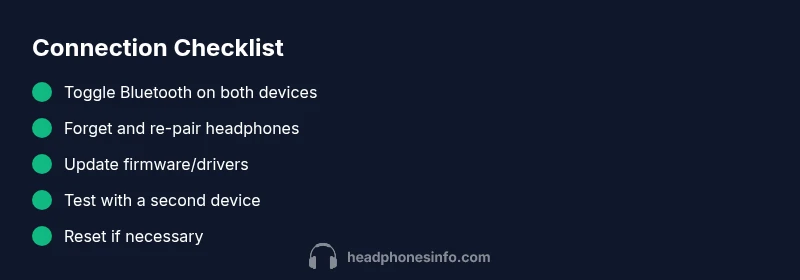
Most connectivity issues are quick, fixable steps: turn Bluetooth off and on on both devices, forget the headphones and re-pair them, and confirm they’re in pairing mode. If that fails, restart both devices, check battery levels, install any firmware updates, and verify compatibility before trying a factory reset or seeking support today.
Why Bluetooth Headphones Won't Connect
Bluetooth is designed to be the simplest way to listen, but when it fails, the frustration is real. The problem is usually not a single fault but a chain of small issues that line up at the moment of pairing. Common culprits include headphones or the host device being out of range or not discoverable, outdated firmware or drivers, interference from nearby wireless gear, and power concerns like low battery or energy-saving modes that put the headset to sleep. According to Headphones Info Analysis, 2026, the most repeatable patterns involve compatibility gaps, stale pairing data, or a device that has forgotten how to pair. With this understanding, you can triage quickly and avoid unnecessary resets.
Key terms to know: pairing, discoverable mode, firmware, drivers, interference, and battery life. Recognize these signals to narrow down fixes faster.
Quick checks you can do right now
- Ensure Bluetooth is enabled on both devices and set to discoverable or pairing mode.
- Put the headphones in pairing mode following the manufacturer’s instructions.
- In your device's Bluetooth settings, forget the headphones and re-pair them.
- Charge both the headphones and the host device, then retry.
If you’re still stuck after these basics, the issue is likely deeper than a simple toggle and deserves a structured approach.
Common causes of connectivity failures
- Outdated firmware on the headphones or host device can prevent effective pairing.
- Incorrect pairing state (the headphones are connected to another device or not in pairing mode).
- Interference from other 2.4 GHz devices, weak signal, or crowded Wi‑Fi channels.
- Battery saver modes or deeply discharged batteries can keep devices from completing a handshake.
- Hardware faults, such as a faulty Bluetooth module, can manifest as intermittent or no connection at all.
Addressing each category in order helps isolate the root cause quickly.
Diagnostic flow overview
Think of the troubleshooting path as a simple flow: symptom → likely causes → practical fixes. Start with the most common issues (pairing mode and recent updates), then move to less frequent problems (interference or hardware faults). Use the diagnostic flow to decide which fixes to apply first and what to test after each step to confirm progress.
Step-by-step: Most common fix preview
This preview outlines the core fixes you’ll perform in the detailed STEP-BY-STEP section. You’ll verify visibility, re-pair, update firmware, reset the headphones, and test with a second device to rule out device-specific problems. Each fix is labeled by difficulty so you can pace yourself.
Prevention tips to avoid future disconnects
Keep your devices updated with the latest firmware and OS versions. Avoid heavy interference environments (busy 2.4 GHz networks, crowded trains, or airports) when you rely on wireless headphones. Regularly re-pair after major OS updates and store headphones in a safe, moderately cool place to protect battery health.
Steps
Estimated time: 30-45 minutes
- 1
Check visibility and proximity
Confirm that both devices have Bluetooth turned on and are within 1–2 meters of each other. Ensure the headphones are in pairing mode and not already connected to another device. If needed, toggle Bluetooth off and back on to refresh the discovery process.
Tip: Pro tip: keep a clear line of sight and minimize metal obstacles between devices. - 2
Forget and re-pair the headphones
In your host device’s Bluetooth settings, remove or forget the headphones. Reboot the host device, then place the headphones back into pairing mode and attempt to pair again from scratch. This clears stale pairing data that can block new connections.
Tip: Pro tip: if you have multiple devices, pair with only the primary one at first to simplify the test. - 3
Update firmware and OS
Check for and install any available firmware updates on the headphones. Also verify that the host device’s OS and Bluetooth drivers are up to date. After updating, retry the connection and test playback.
Tip: Pro tip: charge both devices fully before updating to prevent mid-update interruptions. - 4
Reset to factory settings
If updates don’t resolve the issue, reset the headphones to factory settings following the manufacturer’s instructions. This returns pairing data and settings to default, which often clears stubborn mismatches.
Tip: Pro tip: back up any custom EQ or app settings if the headphones support it, since a reset clears them. - 5
Test with another device
Attempt to pair the headphones with a second device (phone, tablet, or computer) to determine whether the issue is device-specific or universal. If it pairs with one device but not the other, focus on the problematic device’s Bluetooth setup.
Tip: Pro tip: temporarily disable other Bluetooth devices to reduce interference during testing. - 6
Seek professional help if needed
If the headphones still won’t connect after all steps, contact the manufacturer’s support or visit a service center. If the product is under warranty, you may qualify for repair or replacement.
Tip: Pro tip: collect your purchase date, serial number, and recent firmware versions before contacting support.
Diagnosis: Bluetooth headphones won't connect to a device
Possible Causes
- highHeadphones not in pairing mode or not discoverable
- highOutdated firmware on headphones or host device
- highHost device Bluetooth disabled or in airplane mode
- mediumInterference from other devices or crowded 2.4 GHz signals
- lowHardware fault in headphones or host Bluetooth module
Fixes
- easyToggle Bluetooth off/on on both devices, then retry pairing
- easyForget the headphone device and re-pair from scratch
- easyUpdate headphone firmware and host OS/drivers, then re-test
- mediumReset headphones to factory settings following the manual
- easyTry pairing with a different host device to isolate the issue
- easyIf problems persist, contact the manufacturer support or warranty service
People Also Ask
Why won't my Bluetooth headphones connect to my iPhone?
Ensure Bluetooth is enabled and the headphones are in pairing mode. Forget the device in Bluetooth settings, then re-pair. Check for iOS updates and headphone firmware updates. Restart both devices if needed.
Make sure Bluetooth is on, re-pair the headphones, and restart if needed.
Why won't Bluetooth headphones connect to Android devices?
Verify Bluetooth is on and discoverable, forget and re-pair the headphones, and check for system updates on the Android device. If issues persist, try pairing with a different Android phone to confirm device-specific problems.
Turn Bluetooth on, re-pair, and update the device if needed.
My headphones show connected but there is no sound.
Check the media output settings on the host device to ensure audio is routed to the headphones. Test with another app or audio source. If still silent, update drivers/firmware or reset if permitted by the manufacturer.
Check audio output and try another app; update if needed.
Should I reset my headphones to factory settings?
A factory reset can resolve stubborn pairing issues when other fixes fail. Follow the manual precisely to avoid losing essential features. Backup any customizable EQ or app data if possible.
Yes, but follow the manual and backup settings if possible.
What if the issue happens only with one device?
The problem may lie with that device’s Bluetooth configuration. Update the device, reset Bluetooth settings, or test with another profile. If the problem remains, contact device support.
Update and reset Bluetooth on the affected device.
When should I seek professional help?
If you’ve exhausted all troubleshooting steps and the headphones still won’t connect, it’s time to contact support or a service center. Check warranty terms before sending for repair.
If all else fails, contact support or service.
Watch Video
What to Remember
- Start with quick wins to restore connectivity fast
- Update firmware and OS to fix compatibility issues
- Reset as a last-resort step if issues persist
- Test with a second device to isolate the problem
- Seek manufacturer support when hardware faults are suspected