How to Install Headphones: A Complete Setup Guide for All Devices
Learn how to install headphones across wired and wireless setups. This step-by-step guide covers pairing, drivers, device-specific settings, and troubleshooting to ensure optimal sound and comfort.


Goal: learn how to install headphones correctly on a variety of devices, whether wired or wireless. You’ll learn how to pair Bluetooth headphones, install drivers on a PC, and configure audio settings for consoles or mobile devices. Before you begin, gather your headphones, the target device, and any required adapters. According to Headphones Info, a methodical setup yields better sound and comfort.
Why Proper Headphone Installation Improves Sound and Comfort
In the realm of personal audio, how to install headphones correctly matters just as much as the headphones themselves. A thoughtful setup reduces baseline noise, ensures a secure and comfortable fit, and prevents common issues like channel imbalance or inconsistent volume. According to Headphones Info, attention to alignment, impedance matching, and source compatibility can significantly improve perceived sound quality and long-term wear comfort. This careful approach also minimizes fatigue during long listening sessions and helps you get the most out of your chosen headphones. Whether you’re upgrading your home theater system, dialing in a gaming rig, or simply listening on the go, methodical installation sets the foundation for reliable performance and enjoyable listening sessions. Throughout this guide you’ll find device-specific tips, practical checklists, and troubleshooting steps designed for both newcomers and experienced audiophiles.
Wiring vs. Wireless: Choosing Your Installation Path
The installation path you choose will largely depend on your devices and listening context. Wired headphones offer lower latency, predictable audio levels, and no pairing hassles, but they require a physical connection and can limit mobility. Wireless headphones provide freedom of movement, convenient pairing, and evolving Bluetooth codecs, yet they may introduce latency or compression depending on the source and codec. When planning your setup, consider whether you’ll use a computer, a gaming console, a smartphone, or a dedicated audio receiver, and decide if you want a simple plug-and-play experience or deeper control through software and settings. As you proceed, remember that the right connection type preserves audio fidelity and minimizes synchronization issues with video content. Headphones Info’s analysis highlights the practical tradeoffs between wired reliability and wireless convenience, helping you pick the path that matches your usage pattern.
What You Need Before You Start
Before you dive into the steps, gather the essential items and ensure your source devices are ready. If you’re working with wired headphones, you’ll need a compatible jack or adapter (3.5mm, USB-C, or USB-A depending on the device). For wireless headphones, ensure your device’s Bluetooth is enabled and that you have fresh batteries or a charged battery in the headset. Confirm you have the necessary software or drivers installed if you’re pairing to a PC or older hardware. A quiet workspace helps you focus on the steps and catch minor issues, such as a loose plug or a degraded Bluetooth connection. This preparation reduces backtracking and keeps your installation on track.
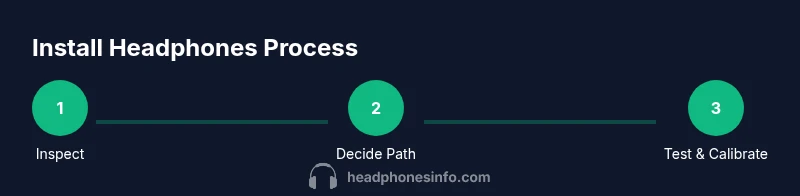
Step 1 — Inspect Headphones and Cables
Begin by visually inspecting the headphones and any cables for signs of wear, damage, or frayed insulation. Gently wiggle plugs to confirm solid connections and test audio output with a familiar source. If you notice any visible damage, replace the corresponding cable or consider a warranty path before continuing. This proactive check prevents intermittent audio drops and ensures you won’t encounter a sudden failure during setup. Keep a clean, organized workspace to avoid tangling and misplacing adapters as you work.
Step 2 — Decide Wired or Wireless Setup
Make a clear decision on the setup path to take. If your primary goal is latency-free gaming or precise audio timing, wired headphones are usually the safer bet. For everyday listening or multiroom use, wireless headphones offer flexibility and convenience. This choice will shape your next steps: you’ll either plug into a specific jack or pursue a pairing process via Bluetooth or a USB wireless adapter. Understanding this distinction early helps you avoid wasted time on unnecessary adapters or software.
Step 3 — Connect Wired Headphones to Source
For wired headphones, locate the correct jack on the source device and insert the plug fully with a gentle push. Confirm that the device recognizes the connection by checking the system sound panel or status icon. If the jack is recessed, use a short, high-quality extension cable to ensure a secure, uninterrupted connection. After connecting, play a sample track or video to verify channel balance and ensure no crackling or static appears during playback. If you hear issues, re-seat the plug and inspect the connector for debris that could impede contact.
Step 4 — Put Wireless Headphones in Pairing Mode
To pair Bluetooth headphones, power on the headphones and activate pairing mode as described in the user manual. The typical indicator is a flashing LED or a specific voice prompt. Keep the source device within close range and avoid obstacles that could disrupt the signal. If the headphones don’t enter pairing mode, try a reset or refer to the manual for a specific button sequence. Once pairing is active, you should see the device appear in your Bluetooth settings with a status of connected.
Step 5 — Pair Headphones with Source and Confirm Connection
On the source device, select the headphones from the list of available Bluetooth devices and confirm the pairing. If prompted, accept any pairing codes or permissions. After a successful connection, test audio playback across apps to confirm consistent output and stereo balance. If you’re using a USB dongle or transmitter, ensure the dongle is plugged in and visible to the system, then select the transmitter as the primary audio output. This step confirms a stable link and readiness for use.
Step 6 — Install or Update Drivers/Firmware (If Required)
Some computers or audio interfaces require updated drivers or firmware to fully support your headphones. Visit the manufacturer’s site or use the official control panel to check for updates, applying them if available. After installation, restart the device to ensure changes take effect. Firmware updates can improve codecs, latency, and overall stability, so it’s worth verifying this step for long-term reliability. Keep a record of your update timestamps for future reference.
Step 7 — Configure Audio Settings on Your Source
Navigate to your device’s sound settings and choose the headphones as the default audio output. If you’re on Windows, you may want to adjust the default format, audio enhancements, or spatial sound options based on your content type. On macOS, you can fine-tune balance and input device selections in the Audio MIDI Setup utility. For gaming consoles and media players, verify that the headset is selected for both output and chat or mic as applicable. Correctly configured settings ensure consistent volume and accurate channel reproduction.
Step 8 — Test, Calibrate, and Adjust Comfort
Play a variety of content to assess bass, mids, and treble balance with your headphones. If necessary, adjust EQ or software enhancements to suit your listening preferences. Check the fit by moving the cups to create a stable seal without excessive pressure on your ears or temples. If you use glasses, ensure the headband tension doesn’t cause discomfort after extended use. A properly fitted headset contributes to both perceived bass detail and comfort during long sessions.
Step 9 — Troubleshooting and Next Steps
If you encounter issues after installation, the first move is to recheck connections, toggling Bluetooth on and off and verifying the selected output device. For persistent problems, consult the support resources or firmware notes on the manufacturer’s site, and consider testing with a different source to isolate the root cause. If you use headphones frequently, bookmark your device’s audio settings profile for quick resets whenever you change adapters or platforms. The goal is a quick, repeatable setup you can rely on across scenarios.
Tools & Materials
- Headphones (wired or wireless)(Fully functional; charge wireless models before use)
- Source device (PC, smartphone, console, or stereo receiver)(Bluetooth capable or have the correct ports)
- 3.5mm audio extension cable or USB-C/USB-A adapters(Useful when ports are obstructed or recessed)
- Bluetooth-enabled computer or USB wireless dongle (for wireless headsets)(Necessary for some PC setups)
- Manufacturer app or control panel(Install latest drivers/firmware if required)
Steps
Estimated time: 15-30 minutes
- 1
Inspect Headphones and Cables
Examine the headphones and any cords for visible damage. Test the plug fit and look for fraying or bent connectors. This ensures you won’t encounter intermittent sound or sudden failure after you begin the installation.
Tip: If you see wear, replace the cable before proceeding. - 2
Decide Wired or Wireless Setup
Choose the connection path based on your primary use case and device compatibility. Wired setups offer low latency and reliability, while wireless setups provide freedom of movement and easier multi-device use.
Tip: Use wired for critical gaming or editing tasks to minimize latency. - 3
Connect Wired Headphones to Source
Insert the 3.5mm or appropriate connector fully into the device’s jack. Avoid forcing connections; if it doesn’t seat smoothly, inspect the port and try a different adapter. Then test with a short audio clip.
Tip: Make sure the volume slider on the source is at a safe level before testing. - 4
Put Wireless Headphones in Pairing Mode
Power the headphones and activate pairing mode per the user manual. Keep the source device within range and avoid barriers that could disrupt the signal. Listen for a confirmation tone or LED pattern.
Tip: If pairing fails, reset both devices and try again. - 5
Pair Headphones with Source and Confirm Connection
Select the headphones from the Bluetooth list and confirm the pairing. Ensure the device shows as connected and test audio playback. If using a USB dongle, verify it appears as a recognized device in your system.
Tip: Test across multiple apps to confirm consistent performance. - 6
Install or Update Drivers/Firmware
Check for updates from the manufacturer’s site or control panel. Install any available firmware or driver updates and restart your source device to apply changes. Updated software can improve codec support and stability.
Tip: Keep a note of the firmware version after update. - 7
Configure Audio Settings on Your Source
Set the headphones as the default output device in your system sound settings. Adjust sample rate and bit depth if available, and disable conflicting enhancements. For consoles, confirm output and chat devices are correctly assigned.
Tip: Disable exclusive mode on Windows if you experience one-sided audio. - 8
Test, Calibrate, and Adjust Comfort
Play diverse content to evaluate tonal balance and comfort. Tweak EQ or enhancements if needed, and ensure the headband fits securely without excessive pressure. Consider padding adjustments for longer sessions.
Tip: Take breaks during long testing to prevent ear fatigue. - 9
Troubleshoot and Plan Next Steps
If issues persist, recheck connections, test with another source, and consult the manufacturer’s resources. Create a quick reference profile of your settings for easy reuse on other devices.
Tip: Document settings so you can reproduce a working setup later.
People Also Ask
Do I need special drivers to use wired headphones on a PC?
Most modern wired headphones do not require extra drivers. If your PC uses a dedicated sound card or an external DAC, you may need drivers for those components. Check the manufacturer’s site for any recommended software.
For most wired headphones, you won’t need extra drivers. If you have a dedicated sound card or DAC, install their drivers first.
Why is there no sound after pairing Bluetooth headphones?
Verify the headphones show as connected, select them as the default output device, and check volume levels. Ensure the codec is supported by both devices and there are no app-specific audio restrictions.
Make sure the headset is the default audio device and that volume is up. Check codecs and app permissions if problems persist.
Can I use wireless headphones with a gaming console?
Many wireless headsets are compatible with modern consoles, but always verify official compatibility lists. Some consoles require USB dongles or specific setup steps for in-game chat and mic routing.
Most modern wireless headsets work with consoles, but confirm compatibility and any required dongles.
How do I reduce Bluetooth latency?
Choose devices that support low-latency codecs like aptX LL if available, and keep devices within range. Disable any aggressive audio enhancements that can introduce delay.
Look for low-latency codecs and keep your devices close together for the best timing.
What should I do if I hear crackling or static?
Check connections and cables for damage, ensure plugs are fully seated, and test with another source. Crackling can indicate a loose connection or faulty cable.
Re-seat connections and test with a different source to isolate the issue.
How should I store headphones after installation?
Store them in a protective case or on a stand to prevent cable kinking and preserve ear pads. Regular cleaning extends longevity and keeps fit comfortable.
Keep them in a case or on a stand to prevent damage and maintain comfort.
Watch Video
What to Remember
- Install headphones with a clear path: wired for latency, wireless for flexibility.
- Check compatibility and keep adapters handy.
- Update drivers/firmware to ensure best codec support.
- Test across apps to confirm consistent output and comfort.
- Document settings for quick future setup.