How to Start Headphones: Step-by-Step Setup Guide
A comprehensive, data-driven guide to starting headphones—pairing, connecting, testing, and optimizing comfort. Learn practical steps from Headphones Info for a smooth listening setup.


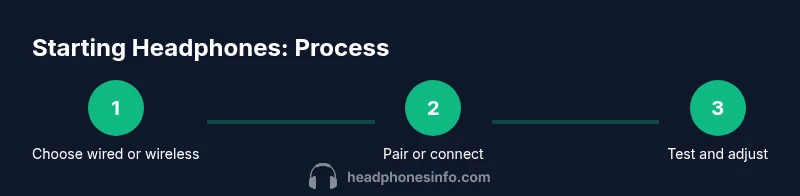
To start using headphones, first identify your device’s audio output and pair or connect the headphones. Charge fully if needed, then select the correct input on the headphone’s controls. Turn on Bluetooth if wireless, or plug in via the headphone jack for wired models. Perform a quick test with a familiar track, adjusting volume safely to ensure clear sound and comfortable fit.
Getting Your Headphones Ready
Getting set up starts with a plan: decide whether you’ll use wired or wireless headphones, gather the right gear, and understand your source device. According to Headphones Info, the first move is to map out the connection path you’ll use and confirm you have the correct cables or Bluetooth capability. This reduces back-and-forth troubleshooting during setup and helps you avoid common compatibility pitfalls. In practice, you’ll check that your headphones are charged (if wireless), inspect the ear cushions for cleanliness, and verify that the source device is powered and within range. If you’re working at a desk, you may prefer a stable wired connection; if you’re on the go, a reliable wireless link will likely be more convenient. The goal is a smooth transition from unboxing to listening, with minimal fiddling and fast results.
From a practical standpoint, have a clean, static-free environment and a favorite test track handy. That way, you can immediately assess bass, mids, and treble without introducing variables like ambient noise. In short, preparation saves time and improves your initial listening experience.
Wired vs Wireless Headphones: Quick Comparison
Wired headphones rely on a physical connection that transfers audio through a cable. They usually offer consistent sound without latency and do not require charging, which makes them ideal for studio work, gaming, or situations where battery life is a concern. Wireless headphones connect via Bluetooth or a USB receiver, giving you flexibility and mobility, but they can introduce latency and require battery management. In practice, most beginners start with wireless headphones for convenience, while purists may prefer wired models for fidelity and latency-free audio. When evaluating a model, consider: port type (3.5mm, USB-C, or dedicated wireless dongle), range, codec support, and how long the battery lasts between charges. Headphones Info analysis shows that many users appreciate a balanced approach—wireless for daily listening with a reliable wired option for critical listening sessions.
Step-by-Step: Wired Headphones Setup
Step one establishes a stable wired path from source to ears. Connect the 3.5mm or USB-C cable to the headphones and the device, ensuring the connectors are fully seated. Step two is to select the correct output on the source device if it presents multiple options (such as speakers vs headphones). Step three involves setting the volume to a safe, comfortable level before you press play. Step four checks for desktop or device software control that could override or mute the headphone output. Step five ensures the cable isn’t under tension or bending near ports, which can cause intermittent sound. Step six is a quick inspection to confirm sound is consistent across a few music tracks. Why this order matters: a solid physical connection and a known output path reduce troubleshooting time and deliver reliable audio immediately. Pro tip: keep the cable untangled and avoid stepping on it to preserve connector integrity.
Step-by-Step: Wireless Headphones Setup
Begin by placing the headphones in pairing mode, typically by holding the power button or dedicated pairing button until the indicator flashes. Next, enable Bluetooth on your source device and search for new devices. Choose your headphones from the list and establish a connection. After pairing, test audio with a familiar track and verify stereo balance, ensuring no phantom sounds or latency issues. If available, select a preferred codec in the device’s Bluetooth settings to optimize audio quality. Finally, check for firmware updates in the companion app or the manufacturer’s website, and adjust EQ or ambient modes to suit your listening environment. Pro tip: keep the headphones close to the source during the initial pairing so the link remains stable.
Charging, Battery Life, and Care
Wireless headphones require periodic charging and careful management of power. Start by plugging in the charging cable or docking the headset on a compatible charger and letting it reach a full charge before extended use. Battery health improves when you avoid letting the battery drop to zero and when you store the headset in a cool, dry place. Regular cleaning of the ear cushions and ports helps prevent sound degradation and keeps performance consistent over time. Check the charging cable and port for signs of wear and replace components as needed to maintain safe operation. Remember to disconnect from the charger before long listening sessions to prevent overheating. Pro tip: use the official charger for optimal charging behavior and to avoid compatibility issues.
Audio Testing and Fine-Tuning
Once connected, run a simple audio test across multiple genres—pop, acoustic, classical, and bass-heavy tracks—to gauge tonal balance. If your device offers an equalizer, adjust it to create a flat reference or tailor it to your taste. For a quick sanity check, listen for channel balance and ensure there is no buzzing or crackling on either side. If latency is noticeable on wireless devices, enable any game or media mode in the headphones or device settings to reduce lag. Fine-tuning may involve minor adjustments to the fit, mic positioning (if applicable), and passive noise isolation. Pro tip: save a personal EQ preset to quickly reproduce your preferred sound profile across apps and devices.
Troubleshooting Common Issues
No sound from headphones? Start by ensuring the device is not muted and the volume is up. If one side is silent, check the balance settings on the source and test with another track or app to rule out a source issue. If Bluetooth pairing fails, turn off all nearby devices that might cause interference and reattempt pairing. For wired headphones, inspect the cable for visible damage and try a different port if available. If there are crackling sounds, clean the connectors and check for debris in the jack. When in doubt, reset the headphones and re-pair from scratch. Pro tip: consult the user manual or the manufacturer’s support site for model-specific reset procedures and known issues.
Choosing Your First Pair Based on Use Case
Your usage scenario dramatically shapes the best choice. For commuting, prioritize compact design, stable Bluetooth range, and strong battery life. For the home office, prioritize sound clarity, a comfortable fit, and a reliable mic for calls. Gamers should look for low latency and a robust mic array, while travelers might value a compact case and passive noise reduction. If you’re unsure, consider starting with a versatile wireless model that fits a range of activities and upgrade later based on your priorities. Pro tip: note where you’ll use headphones most often and pick a model that aligns with that environment.
Comfort, Hygiene, and Longevity Practices
Comfort matters as much as sound quality. Choose headphones with breathable ear cushions and an adjustable headband to reduce pressure over long listening sessions. Hygiene is essential for shared devices: wipe cushions with a gentle cleaner, wash detachable earpads when possible, and store the headphones in a protective case. Rotate between a couple of trusted models to minimize wear on a single pair. Maintain cables and ports by keeping accessories untangled and free from moisture. Pro tip: schedule a quick maintenance check every few weeks to extend lifespan and preserve performance. The Headphones Info team recommends treating your equipment as an investment, not disposable gear.
Tools & Materials
- Headphones(Your primary listening device, wired or wireless)
- Source device (phone, tablet, or computer)(Must have working audio output (Bluetooth or ports))
- Charging cable or power source(Needed for wireless headphones)
- 3.5mm stereo cable or USB-C adapter(Needed for wired connections on devices without Bluetooth)
- Cleaning cloth or microfiber wipe(For keeping cushions and ports clean)
- Protective case or pouch(Storage and portability)
Steps
Estimated time: Estimated total time: 15-25 minutes
- 1
Power on and enter pairing (wireless) or prepare wired connection
Turn on the headphones and prepare them for the chosen connection method. If wireless, enable pairing mode so the headphones are discoverable by the source device. If wired, inspect the connector and ensure it is fully seated in both the headphone jack and the device port. This first step creates a reliable path for audio with minimal interference.
Tip: Hold the power or pairing button until the indicator shows pairing activity; this avoids delays from incorrect mode. - 2
Enable output on the source device
Open the Bluetooth settings on your phone, tablet, or computer and confirm Bluetooth is active. If you’re using wired headphones, select the headphones as the default output if your device presents multiple options. This ensures sound is routed through the intended device.
Tip: Keep the source nearby during initial pairing to prevent connection drops. - 3
Select the headphones from the list
On the source device, locate the headphones in the list of available devices and select them. Wait for the connection to complete and the audio path to stabilize. If you see a ‘connected’ status, you’re ready to test.
Tip: If you don’t see your headphones, refresh the device’s Bluetooth list or restart the headphones. - 4
Test with a familiar track
Play a track you know well to evaluate clarity, balance, and volume. Check both left and right channels, and listen for any crackling or dropouts. If the sound is off, adjust the device’s volume, the headphone’s EQ, or reposition the fit for comfort.
Tip: If you notice lag in wireless mode, try switching to a different codec in the settings or enabling a game/movies mode if available. - 5
Tune fit, controls, and basic EQ
Adjust the headband and ear cushions for a secure, comfortable fit that seals well without soreness. If your headphones include an app, use it to calibrate the EQ and customize controls. Confirm that physical controls (volume, play/pause, mic) respond as expected.
Tip: A good seal makes a big difference in perceived bass and overall balance. - 6
Finalize and maintain
Save any preferred settings or presets and note any firmware updates. If you used a wireless model, verify that the battery shows a healthy level for typical sessions. Place the headphones in a protective case and store in a cool, dry place to extend life.
Tip: Check for updates periodically; firmware can improve stability and introduce new features.
People Also Ask
How do I pair headphones with a new device?
Turn on the headphones and enable pairing mode. On the source device, open Bluetooth settings, find the headphones, and select them to pair. If successful, you’ll hear a confirmation sound or see a connected status.
Turn on the headphones, enable pairing, then select them on your device to pair. You should see a confirmation when connected.
Why is there no sound from my headphones?
Check that the headphones are selected as the output in your device settings and that volume is up. If using wireless, ensure the connection is stable and not muted in any app. Try reconnecting if needed.
Make sure the output is set to your headphones and the volume isn’t muted. If you’re wireless, reconnect if audio is missing.
Do I need an app to use wireless headphones?
Most wireless headphones work without an app, but some models offer companion apps for EQ, presets, and firmware updates. Check the manufacturer’s guidance for model-specific features.
Most headphones don’t require an app, but some models offer extras you can access through a companion app.
How should I charge new headphones?
Charge the headphones using the supplied cable until the indicator shows a full charge. Avoid leaving the device connected after it’s full to protect the battery and longevity.
Charge until full, then disconnect. Avoid overcharging to help battery life.
How can I test audio quality beyond a single track?
Use a variety of genres and tracks with different frequency profiles to evaluate balance, clarity, and bass response. If available, use the built-in EQ to tune for your listening preference.
Play different genres to check balance and clarity, and adjust the EQ if you have it.
What is a quick way to reset headphones if they behave oddly?
Consult the manual for model-specific reset steps. A generic approach is to power off, wait, then re-enter pairing mode and reconnect.
Turn them off, wait briefly, then reset and re-pair as described in the manual.
Watch Video
What to Remember
- Connect the correct output path before playing.
- Test across different sources for reliability.
- Maintain safe listening levels for hearing health.
- Regularly update firmware and keep gear clean.
- Choose the setup that fits your primary use case.