How to Use Wireless Headphones: A Step-by-Step Guide
Learn how to turn on, pair, and optimize wireless headphones with devices. This practical guide covers setup, battery care, and troubleshooting for better sound in 2026.


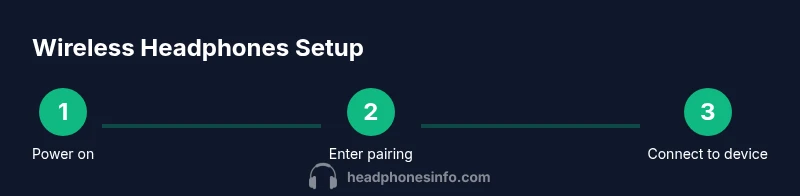
This quick guide shows how to on headphones wireless, covering turning them on, entering pairing mode, and connecting to your device. You’ll learn the essential steps to pair with a phone, tablet, or computer, adjust basic controls, and keep the headphones charged for reliable listening. Follow these steps to get up and running quickly.
Understanding wireless headphones basics
Wireless headphones use Bluetooth or another short-range wireless protocol to transmit audio from your source device to the built-in DAC/amp. In 2026, most models support multipoint pairing (two devices at once) and several codec options for better sound and latency. When evaluating models, look for battery type, comfort, weight, and on-ear controls. According to Headphones Info, wireless headphones have matured, delivering longer battery life and more stable connections. Range can vary with walls, interference, and codec support (SBC, AAC, aptX, LDAC). If you plan to watch video or play games, latency matters; low-latency codecs can help lip-sync. For casual listening, you can use most headphones straight out of the box, but richer models often come with companion apps, presets, and advanced controls. The Headphones Info Team emphasizes that setup speed and reliability vary by device, so pairing with your primary phone or computer first can save time. This section lays the foundation for practical, step-by-step setup later in the article.
Powering on and entering pairing mode
Turning on is usually a short press of the power button until a light or voice cue confirms power. To enter pairing mode, continue holding the button (or use a dedicated pairing button) until the LED blinks or a voice prompt signals pairing. This state lets your source device discover the headphones. If you already paired with a device, you may need to disconnect it first to avoid confusion. Once in pairing mode, enable Bluetooth on your source device and scan for new devices. Tap the headset name to connect. Pairing typically takes a few seconds; if it fails, repeat the steps or try a full restart of both devices. If you’re new to the model, consult the manual for any model-specific steps. Tip: a quick device-to-headphone connection test confirms success and reduces future troubleshooting.
Pairing with devices (phones, laptops, consoles)
Pairing steps differ slightly by platform. On iOS or Android, go to Bluetooth settings, turn on Bluetooth, and select the headset from the list. On Windows or macOS, open Bluetooth settings, choose to add or pair a new device, and select the headset. Some headsets support multipoint, allowing connection to two devices at once; enable this in the app if available, and remember to designate a primary device to avoid audio routing issues. After pairing, check that the correct audio output is selected in each source. If lip-sync issues arise when watching video, switch to a low-latency codec or enable a game/video mode if offered. Keep devices within the recommended range for stable connections. Pro-tip: label your devices in the OS so you can quickly switch between them without re-pairing.
Customizing sound and controls
Many wireless headphones offer on-device controls for volume, playback, and calls, with additional EQ and feature toggles in a companion app. If your model supports it, use the app to adjust EQ curves, noise cancellation levels, and ambient pass-through. Create presets for different scenarios like commuting, focusing, or watching movies. Use EQ cautiously; over-boosted bass or treble can distort audio on some codecs. When testing, listen to a variety of content—music, podcasts, and movies—to ensure the controls respond promptly and consistently. If microphone quality matters for calls or gaming, enable any voice-capture improvements or specific mic modes in the app. Regularly check for firmware updates to unlock new features.
Battery care and charging
Built-in batteries power wireless headphones; to maximize longevity, charge before long listening sessions and avoid leaving the battery fully depleted for extended periods. Use the provided charging cable and a certified power source. Some models support fast charging, offering substantial playback time after a short session; note that frequent fast charging can impact long-term battery health. Store headphones in a cool, dry place when not in use and keep the charging port clean to prevent corrosion. If you notice quicker-than-usual battery drain, check for firmware updates or perform a factory reset if the model supports it. Active noise cancellation and ambient modes draw power, so turning them off when not needed can extend playback time. Pro-tip: regularly calibrate the battery indicator in the companion app for accurate estimates.
Troubleshooting common issues and quick fixes
If pairing fails, restart both the headphones and the source device, then try again. Audio stuttering may be caused by interference or out-of-range signals; move closer to the device and reduce nearby wireless clutter. If only one earbud/housing works, re-pair or try a different codec on the source device. Crackling or low volume can indicate debris or a loose seal; inspect and clean safely. For video lag, switch to a low-latency codec if possible or use wired mode if latency is critical. If there is no sound at all, ensure the headphones aren’t muted and that the correct output device is selected in the OS. A factory reset can resolve persistent issues if supported by the model. Always keep firmware updated to improve compatibility and stability. Warning: avoid moisture, heat, and harsh handling to protect internal components.
Advanced tips and accessibility features
Explore multipoint to switch between a phone and computer without reconnecting. If your headphones support high-quality codecs (aptX, AAC, LDAC), select the best codec for your source device to balance latency and sound. For films and games, enable low-latency mode if available. Use voice assistants for hands-free control when supported; configure wake words and permissions in the companion app. If you listen at high volumes for extended periods, take breaks to protect your hearing. Ambient pass-through can help situational awareness; adjust levels according to environment. Regular firmware updates often bring improved pairing reliability and new features in 2026.
Quick recap and what to test next
After finishing setup, test across a few apps: music players, video streaming, and voice calls. Confirm you can switch between paired devices smoothly and that playback controls work as expected. If you rely on wireless headphones daily, consider setting up a dedicated pairing order and keeping firmware up to date. Finally, bookmark the headphone’s support page for access to troubleshooting guides and feature notes from Headphones Info.
Final note on ongoing care
Keep your headphones clean, dry, and stored in a protective case when not in use. Revisit the companion app periodically to review new features and improvements. The Headphones Info team recommends practicing a quick recharge routine before long listening sessions to maximize longevity and performance.
Tools & Materials
- Charging cable and power source(Use the included cable; ensure battery is not fully depleted before pairing.)
- Bluetooth-enabled source device(Phone, tablet, or computer with active Bluetooth.)
- User manual(Model-specific steps or features.)
- Carrying case or pouch(Protect headphones during testing and travel.)
Steps
Estimated time: 20-40 minutes
- 1
Charge and inspect headphones
Inspect the headphones and charging port, then connect the provided cable to ensure a healthy battery before testing features. This minimizes interruptions during setup and confirms the device is ready for pairing.
Tip: Have the charger handy and verify the battery indicator shows charging. - 2
Power on and locate pairing controls
Press and hold the power button until you hear a cue or see a light indicating the headset is on. If there’s a dedicated pairing button, continue holding until pairing mode is active.
Tip: If you don’t hear anything, check battery or try a quick reset per the manual. - 3
Enable Bluetooth on the source
Open the Bluetooth settings on your phone, tablet, or computer and ensure Bluetooth is enabled. This prepares the device to discover the headset.
Tip: Turn off other Bluetooth devices temporarily to reduce interference during initial pairing. - 4
Pair with the primary device
Select the headset from the list of available devices and confirm pairing. A successful connection is usually shown as connected in settings or announced by the headset.
Tip: If requested, accept any pairing codes or prompts; avoid pairing with multiple devices simultaneously at first. - 5
Test playback and controls
Play music or a video to confirm sound output. Use volume, play/pause, and skip controls to verify responsiveness and that the correct output device is active.
Tip: Test on at least two different apps to ensure consistent behavior. - 6
Enable multipoint (if supported)
If the headset supports multipoint, enable it via the app or hardware buttons and pair a second device. This allows seamless switching between sources without reconnecting.
Tip: Keep primary device active and ensure the secondary device is within range. - 7
Perform basic battery and safety checks
Verify charging continues normally, avoid exposure to moisture, and store headphones safely when not in use. This supports longevity and safe operation.
Tip: Set a reminder to check firmware updates for ongoing improvements.
People Also Ask
What is multipoint pairing and do wireless headphones support it?
Multipoint pairing lets headphones connect to two devices at once, allowing quick switching between them. Not all models support it, and some require enabling it in the companion app or hardware controls.
Many modern wireless headphones support multipoint. Check your model’s manual or app settings to enable it.
How do I know when pairing is successful?
A successful pairing shows 'connected' in the device Bluetooth list, and you may hear a confirmation from the headphones.
Your device will say it’s connected and you might hear a tone from the headset.
Can I use wireless headphones while charging?
Many models allow listening while charging, but some may require a wired connection or limit certain features during charge.
Usually you can listen while charging, but check your model's specifics.
Do all codecs work on all devices?
Codecs vary by device and headset. Use the best common codec your source supports (AAC on iOS, aptX/LDAC on some Androids) for best quality and latency balance.
Codecs depend on both device and headset; pick a compatible high-quality option.
How do I reset headphones?
Most models have a factory reset sequence; follow the manual’s steps to restore defaults and re-pair.
If you can’t connect, a factory reset can often fix the problem.
What if there’s no sound from either ear?
Check mute status, ensure the correct output device, and inspect for debris. If needed, re-pair or reset the headset.
No sound? Recheck output settings and try re-pairing.
Watch Video
What to Remember
- Power on and enter pairing mode before connecting.
- Test across devices to confirm stable connections.
- Use the companion app to customize sound and controls.
- Regularly update firmware for best performance.
- Practice safe charging and storage to extend life.