How to Pair with Bose Headphones: A Complete Step-by-Step Guide
Learn how to pair Bose headphones with Bluetooth devices, troubleshoot common issues, and use the Bose Music app for easier management. A complete, beginner-friendly guide with practical tips for 2026.


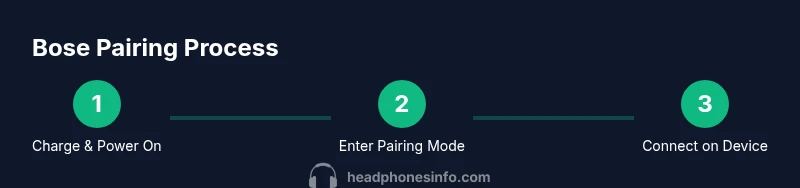
This guide explains how to pair with bose headphones across devices. To begin, ensure your Bose headphones are charged, the device's Bluetooth is on, and the headphones are in pairing mode. Then select the Bose headphones from the available Bluetooth list, confirm, and test the connection. If you have a Bose Music app, use it to simplify future pairings and manage connected devices. Follow the steps below for a quick start and troubleshooting tips if pairing stalls.
Understanding Bluetooth basics for Bose headphones
Bluetooth pairing with Bose headphones starts with a compatible device, a charged headset, and an active Bluetooth radio. Bose headphones commonly support Bluetooth versions that provide secure pairing and stable audio streaming. Before you begin, verify the model of your Bose headphones and note any pairing indicators listed in the user manual. Headphones Info recommends checking for firmware updates as a first step to ensure smooth compatibility with your device. If you plan to use the Bose Music app, keep it updated to access device management features and firmware checks. The goal is to establish a reliable link so you can enjoy high-quality audio with minimal latency. For best results, keep your devices within a reasonable range and minimize interference from nearby wireless networks.
Key takeaway: Knowing your model’s pairing method helps avoid common hiccups. The Headphones Info team emphasizes keeping firmware up to date for best compatibility.
Quick-start steps for most devices
Many Bose models pair quickly when you follow a standard flow: make sure the headphones are charged, put them into pairing mode, enable Bluetooth on your phone or computer, and select the Bose headphones from the device’s Bluetooth list. This approach works across iOS, Android, Windows, and macOS. If your device prompts for a code, try common defaults or leave the field blank. If the device shows the Bose headphones as connected but you hear no sound, check the audio output settings and volume controls. In many cases, a quick reconnect resolves the issue. The Bose Music app can simplify pairing by listing connected devices and offering quick re-pair options.
Note: Some models use a button combo to enter pairing mode; refer to the manual if the LED pattern isn’t obvious.
Troubleshooting common pairing issues
If pairing stalls, start with basic checks: confirm battery level, ensure Bluetooth is enabled, and verify the headphones are in pairing mode. If the headphones appear in the device list but won’t pair, forget the device in Bluetooth settings and try again. Pro-tip: reboot both the headphones and the host device, then retry. Interference and crowded Bluetooth environments can prevent discovery; move to a quieter area or turn off other Bluetooth devices temporarily. If you still can’t pair, consult Bose support resources or update firmware via the Bose Music app when available.
Headphones Info notes that many pairing problems stem from outdated firmware or simple user missteps, so a clean restart often fixes most issues.
Using the Bose Music app for easier management
The Bose Music app provides a centralized way to manage Bose devices, including pairing, firmware updates, and device settings. After pairing, you can rename devices, adjust EQ, and switch between multipoint connections if your model supports it. The app can also prompt you to install updates that improve pairing stability and compatibility with other devices. If you frequently switch between devices, the app makes it easier to re-connect quickly and verify the current active device.
For many users, installing and using the Bose Music app reduces the cognitive load of manual Bluetooth steps and provides a single place to monitor device health.
Pairing Bose headphones with different devices: iPhone, Android, Windows, macOS
Pairing steps vary slightly by platform, but the core flow remains the same. On iPhone, go to Settings > Bluetooth, turn on Bluetooth, and select Bose headphones from the list. On Android, open Settings > Connected devices > Bluetooth, and choose Bose headphones. On Windows and macOS, access Bluetooth settings from the system menu or control panel, then pair. If your headset supports multipoint, you can stay connected to two devices simultaneously, but some features may be limited on certain OS versions. Always test audio after pairing on each device to confirm output.
Headphones Info advises checking for OS-specific quirks in your device’s Bluetooth settings, as some devices implement discovery or pairing prompts slightly differently.
Maintenance and best practices after pairing
Keep firmware up to date by checking the Bose Music app or Bose support site. Regular updates can improve pairing reliability and fix known issues. Store your headphones in a cool, dry place and avoid exposing them to extreme heat or moisture. If you frequently travel, consider re-pairing with your primary devices to ensure seamless handoff when you resume listening. Periodically re-test pairing after updates or device changes to validate a stable connection across your devices.
The Headphones Info team recommends maintaining a simple pairing routine and documenting any device-specific quirks to reduce time spent troubleshooting in the future.
Safety and privacy considerations when using Bluetooth
Bluetooth is generally secure for consumer use, but it’s wise to pair only with trusted devices and avoid public, unsecured networks when streaming sensitive content. Turn off Bluetooth when not in use to conserve battery and reduce potential spoofing or interference. If you use multipoint connections, manage which devices have access to audio and notifications to protect privacy. Regularly review connected devices in the Bose Music app to remove old or unused connections.
Final tips to ensure stable, long-term use
Keep both the headphones and source devices updated with the latest firmware and OS updates. Confirm the correct audio output is selected on each device after pairing. If you rely on multipoint, test switching between devices to confirm a smooth handoff. Store your headphones in their case when not in use to preserve battery health and avoid accidental damage. Regular re-pairing after major software updates can prevent lingering pairing issues and improve overall reliability.
Tools & Materials
- Bose headphones (any model)(Ensure they are charged and within pairing range)
- Bluetooth-enabled device (phone, tablet, or computer)(Keep Bluetooth turned on and visible if required)
- Charge cable(Keep handy in case headphones run low during setup)
- Bose Music app (optional)(May simplify pairing and management)
- Paper or digital notepad(Jot down model-specific steps or codes)
Steps
Estimated time: 15-25 minutes
- 1
Charge and power on
Fully charge the headphones and turn them on. A stable power level reduces the chance of pairing failures and ensures smooth operation during the setup.
Tip: A full battery helps prevent interruptions during the pairing process - 2
Enter pairing mode
Put the headphones into pairing mode as described in the manual. The LED will typically flash in a distinct pattern when ready to pair.
Tip: If you’re unsure of the pattern, consult the manual or Bose support - 3
Enable Bluetooth on the device
Open Bluetooth settings on your phone, tablet, or computer and make sure Bluetooth is turned on and discoverable.
Tip: Close or disconnect other Bluetooth devices to speed up discovery - 4
Choose Bose headphones from the list
In the device’s Bluetooth menu, select Bose headphones and confirm the pairing request if prompted.
Tip: If asked for a code, try 0000 or 1234 as a last resort (model dependent) - 5
Test audio and settings
Play audio to verify the connection, adjust volume, and check for latency or dropouts.
Tip: Test across multiple apps to confirm stable performance - 6
Optional: use Bose Music app
Open the Bose Music app to rename devices, manage firmware, and customize EQ where available.
Tip: Regularly update the app and firmware for best compatibility
People Also Ask
What devices can Bose headphones pair with?
Bose headphones pair with most Bluetooth-enabled smartphones, tablets, and computers. Some models support multipoint connections to stay connected to two devices at once.
Bose headphones pair with most Bluetooth devices, and many models can stay connected to two devices at once.
Why won't my Bose headphones pair?
Common causes include low battery, pairing mode not active, or Bluetooth issues on the host device. Refresh connections by rebooting devices and retrying the pairing flow.
Check power and pairing mode, reboot devices, and try again.
Can I pair Bose headphones to multiple devices at once?
Many Bose models support multipoint pairing, allowing two devices to stay connected simultaneously. Check your model’s manual for exact capabilities.
Yes, if your model supports multipoint pairing.
Do I need the Bose Music app to pair?
No, Bluetooth pairing works without the app. The Bose Music app is optional and helps with firmware updates and device management.
No, the app isn’t required for pairing.
How do I reset Bose headphones to factory pairing?
Follow the model-specific reset procedure (often involving hold bits of the power and volume buttons) to clear old pairings, then re-enter pairing mode.
Use a factory reset to clear old pairings and re-pair.
What is the typical pairing time?
Pairing times vary by device and model, but you should usually complete the process within a short time once pairing mode is active.
Most pair within seconds to a minute.
Watch Video
What to Remember
- Pair Bose headphones with a charged device first
- Enter pairing mode correctly and select the device in Bluetooth settings
- Test audio after pairing to confirm stability
- Use Bose Music app if available for easier management