How to Make Bose Headphones Discoverable for Bluetooth Pairing
Learn how to make Bose headphones discoverable for Bluetooth pairing with clear steps, practical tips, and troubleshooting insights from Headphones Info.


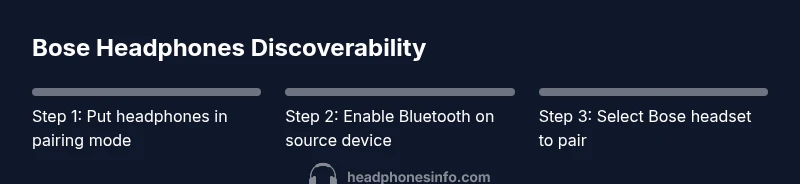
To make Bose headphones discoverable for pairing, power them on and enter pairing mode by pressing and holding the Bluetooth button until the LED flashes. Then enable Bluetooth on your source device and select the Bose headset from the available devices list. If it doesn’t appear, repeat the steps or reset the headphones.
What discoverability means for Bluetooth headphones
Bluetooth devices advertise themselves for a short window when in pairing mode. For Bose headphones, discoverability means they appear in the list of available devices so you can initiate a connection. Different Bose models show different LED signals, but the principle remains the same: enable pairing mode, have your source device scan, and select the Bose headset to pair.
According to Headphones Info, the first step to reliable visibility is making sure the headphones are ready to pair and that your source device is actively scanning. In crowded environments with many Bluetooth signals, it's easy for a headset not to show up. On Bose models, the indicator light typically signals pairing mode, such as a flashing LED. If you don't see an indicator, revisit the pairing steps or try a quick reset.
To improve success, keep the devices within a short distance and avoid physical obstructions. If the headset is already connected to another device, it may not appear as an option until you disconnect or forget the previous pairing. Headphones Info analysis shows that starting from a known, in-range device often yields the fastest result, especially when you follow the official flow.
How Bose headphones enter pairing mode
Entering pairing mode on Bose headphones is generally straightforward. Most models require you to press and hold the Bluetooth button (or the Power/Bluetooth combination) for a few seconds until the LED begins to flash or changes color. If your headset is already connected to another device, you may need to disconnect from that device first or power the headset off and back on to reset the connection.
For models that support the Bose Music app, you can initiate pairing from within the app; this pushes the headphones into pairing mode and guides you through the on-screen steps. If you’re unsure which button to press, consult the model’s user guide or Bose support pages. When pairing mode is active, the headset becomes visible to nearby devices. If the LED doesn’t flash after several attempts, try a restart or a factory reset per the manual.
Pairing with multiple devices and general tips
You can pair Bose headphones with more than one device in many cases, but audio streams will only come from one device at a time. Start by pairing to your primary device, then test a quick switch to a second device to ensure seamless handoff if that model supports multipoint. To maintain discoverability, avoid turning off Bluetooth on the source device during the pairing window. If you frequently move between devices, keep the Bose headphones within range during pairing and limit interference by turning off other nearby Bluetooth transmitters.
In practice, use the Bose Music app on supported devices to view connected devices and manage multipoint connections. If you own an older Bose model without the app, you’ll rely on the standard pairing flow described above. In either case, once paired, the device should automatically reconnect when in range and Bluetooth is enabled on the source.
Troubleshooting when Bose headphones don’t appear
If your Bose headphones do not appear in the Bluetooth list, start with the simplest checks: make sure Bluetooth is enabled on the source device, confirm the headphones are in pairing mode, and ensure there is no older Bluetooth connection blocking visibility. Restart the source device, and if necessary, disable and re-enable Bluetooth. On some Bose models, the LED indicator will flash in a distinct pattern when pairing mode is active; verify that pattern matches the instructions for your model.
If the headset still doesn’t show up, try forgetting any previous Bose pairings on the source device and then re-enter pairing mode. Firmware updates on either the headphones or the source device can fix bugs that affect discoverability. As a last resort, perform a light reset on the headset following the official guide and attempt pairing again.
Security, privacy, and best practices
Always pair with devices you own or trust to reduce exposure to rogue devices. When pairing, avoid leaving your headset in pairing mode longer than necessary to minimize the chance of incidental connections. Keep firmware up to date; Bose often releases improvements that improve discoverability and stability. If you share devices, remember to remove unused headsets from the Bluetooth settings to prevent cross-pairing.
From a user experience perspective, maintaining clean device lists helps you find the Bose headset quickly in the future. For accessibility, enable audio prompts or app-based guidance if your model supports it, which can reduce the time spent in the pairing window. Headphones Info analysis shows that using the official Bose Music app for setup can streamline the process on supported models.
Quick tips for reliable discoverability
- Keep your Bose headphones and the source device close during pairing to maximize visibility.
- Ensure the headphones are in pairing mode before you start scanning.
- If multiple Bose devices appear, select the correct model name to avoid confusion.
- If pairing fails, repeat the steps or reset the headphones as described in the user manual.
Tools & Materials
- Source device with Bluetooth(Phone, tablet, or computer; ensure Bluetooth is enabled)
- Bose headphones(Any model you want to pair)
- Charger(Keep battery above 20% to avoid mid-pairing shutdown)
- Bose Music app (optional)(For supported models to facilitate pairing and management)
- User manual (optional)(Model-specific pairing instructions)
Steps
Estimated time: 5-8 minutes
- 1
Enable Bluetooth on source device
Open the Bluetooth settings on your phone, tablet, or computer and ensure Bluetooth is turned on. This prepares the device to see and pair with nearby devices.
Tip: Do this first to save time and avoid starting and stopping Bluetooth during the process. - 2
Power on Bose headphones and enter pairing mode
Turn on the headphones and press and hold the Bluetooth or Power/Bluetooth button for several seconds until the LED indicator signals pairing mode (flashing or color change).
Tip: If the LED doesn’t signal pairing, try turning the headphones off and back on or consult the model guide. - 3
Scan for devices on the source device
Refresh the list of available Bluetooth devices on your source device and wait a moment for Bose to appear.
Tip: Keep the headphones close and remove potential sources of interference. - 4
Select Bose headset to pair
Tap or click the Bose headset name in the available devices list and confirm the pairing prompt if required.
Tip: If multiple Bose devices appear, choose the correct model name to avoid confusing headsets. - 5
Verify the connection
Play audio or check the Bluetooth status on the source to confirm the headset is connected. Some OSs show a connected status icon.
Tip: If audio doesn’t route to the headset, check the audio output setting on the source device. - 6
Optional: use Bose Music app for setup
On supported models, open the Bose Music app to view connected devices, manage multipoint connections, and update firmware.
Tip: Follow on-screen prompts in the app for the smoothest experience.
People Also Ask
Why won't my Bose headphones show up in the Bluetooth list?
Common causes include headphones not in pairing mode, the source device’s Bluetooth being off, or range/interference issues. Restart Bluetooth or the devices and retry the pairing flow.
If your Bose headphones don’t appear, check that pairing mode is active and Bluetooth is on, then retry the pairing flow.
How long does pairing typically take?
Pairing usually completes within a few seconds to about a minute, depending on the devices and environment.
Most pairings finish in seconds to a minute when everything is set correctly.
Can I pair Bose headphones to more than one device at once?
Many Bose models support multipoint connections, allowing two devices to stay paired. Audio typically comes from one device at a time unless the model specifically supports seamless handoff.
You can pair to two devices, but only one will play audio at a time unless your model supports seamless handoffs.
Do I need the Bose Music app to pair?
Some newer Bose models use the Bose Music app for setup, updates, and management. Others can pair directly via the device without the app.
Some models need the Bose Music app for setup, while others pair directly without it.
How do I reset Bose headphones to factory settings?
Reset procedures vary by model. Refer to the user manual or Bose support pages for the exact steps for your headphones.
Factory reset steps differ by model; consult the official guide for precise instructions.
What if pairing still fails after trying these steps?
Check for firmware updates on both the headphones and the source device, and consider contacting Bose support if issues persist.
If it still fails, update firmware and contact support for further help.
Watch Video
What to Remember
- Put Bose headphones in pairing mode correctly.
- Enable Bluetooth and scan for devices on the source.
- Select the Bose headset from the list to complete pairing.
- Retry or reset if visibility fails and consider app-based setup for supported models.