How to Put Bose Headphones in Pairing Mode
Learn how to put Bose headphones in pairing mode for Bluetooth connections. This guide covers common models, step-by-step actions, troubleshooting, and device-specific tips to help you pair quickly with iOS, Android, or Windows.


Learn how to put Bose headphones in pairing mode for Bluetooth devices. This quick guide covers common models and practical steps to become discoverable, then connects to iOS, Android, or Windows devices in minutes. According to Headphones Info, Bose pairing behavior is broadly consistent across popular models, with model-specific nuances noted.
What pairing mode means on Bose headphones
Pairing mode is the state your Bose headphones enter to be discoverable by another Bluetooth device. If you are asking how to put bose headphones in pairing mode, this section explains the concept and why it matters for reliable connections. In practice, most Bose headphones enter pairing mode after a brief hold of the power or Bluetooth button until an LED blinks in a specific pattern. This makes your headphones appear in the Bluetooth settings of your phone or computer. Once discovered, you can tap to pair. Understanding this state helps you avoid repeated disconnects and ensures a smooth setup across devices. Headphones Info notes that consistent pairing behavior across several popular Bose models reduces confusion for users and speeds up the setup process. If you own multiple Bose devices, label them in your device's Bluetooth settings to avoid cross-pairing mistakes.
Identify your Bose model and its pairing behavior
Bose has several actively supported models, including the QuietComfort series and the newer Noise Cancelling Headphones. Each model shares a core pairing flow, but there can be small differences in button layout and LED cues. Start by locating your device model on the earcup or packaging. This helps you consult the official manual for precise steps, so you don't miss a required button press. For example, newer Bose headphones typically use a combined power/Bluetooth control to enter pairing mode. Older Bluetooth-only models may use a separate Bluetooth button. The goal is to get the LED to flash or glow in a pattern that signals pairing is active. By recognizing your model, you minimize guesswork and speed up the pairing process.
Quick-start overview: universal steps for most Bose headphones
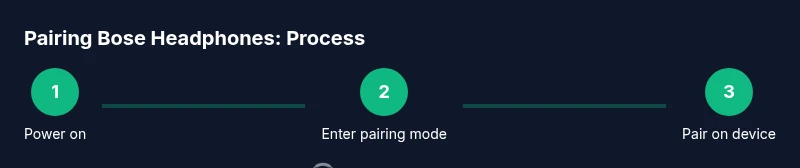
Most Bose headphones follow a familiar flow. First, ensure the device is powered and not connected to another Bluetooth device. Then, hold the power or Bluetooth button until the LED indicates pairing mode. On your source device (phone, tablet, or computer), turn on Bluetooth and scan for new devices. Select the Bose name from the list and confirm the pairing. If prompted, accept any pairing code or permissions. If your headphones were previously paired to another device, you may need to disconnect that device first or forget it in the Bluetooth settings. This approach works for many popular Bose models and reduces trial-and-error. For best results, perform the pairing close to the source device to avoid interference.
Step-by-step: common button patterns that trigger pairing
- Prepare your devices: ensure Bose headphones are charged and powered on. 2. Enter pairing mode: press and hold the power/Bluetooth control until the LED blinks or changes color. 3. Enable Bluetooth on the source device and search for new devices. 4. Tap the Bose device name to pair and confirm any prompts. 5. Test the connection by playing audio. If pairing fails, repeat from step 2 or forget the device on the source and try again.
Model-specific pointers for popular Bose models
Different Bose models use a similar core flow, but button placement can vary. In general, you’ll trigger pairing by holding the main Bluetooth/power control until the LED indicates pairing mode. If your model uses a separate Bluetooth switch, enable pairing by pressing and holding that button as instructed in the user manual. Check LED color and blink patterns since they guide you through pairing vs. charging indicators. For the most reliable results, reference the model’s official guide and verify firmware versions are up to date.
Troubleshooting: common pairing problems and fixes
If your Bose headphones won’t appear in your device’s Bluetooth settings, ensure the headphones are not connected to another device, and confirm the battery is sufficiently charged. Move closer to the source device to avoid interference from walls or other electronics. If you see an older device name or phantom Bluetooth entries, forget them on your source device and retry. Restarting both the headphones and the source device can clear stubborn Bluetooth caches. If the issue persists, consult Bose support or the product manual for model-specific reset steps.
Pairing with iPhone, Android, and Windows: tips and differences
iPhone and iPad (iOS) typically list the Bose device under Bluetooth settings with a recognizable name and a simple Pair button. Android devices behave similarly, but some manufacturers stack Bluetooth devices in a different menu. Windows PCs usually show Bluetooth devices in Settings > Bluetooth & devices. If Windows fails to see the Bose headphones, remove other Bluetooth devices from the PC, enable discoverable mode, and retry. The general rule is to keep both devices updated and within close range during pairing. Headphones should work smoothly across platforms when pairing mode is activated correctly.
Resetting pairing mode and re-pairing after firmware updates
Firmware updates can occasionally alter Bluetooth behavior. If you encounter persistent pairing issues after an update, erase the Bose headphones from all paired devices, then reset to default settings. Re-enter pairing mode and re-pair with your source device. This often resolves misconfigured Bluetooth profiles. After resetting, re-test with a fresh source device to confirm successful pairing. Keep the headphones updated to benefit from bug fixes and improvements that affect pairing stability.
Best practices for stable Bluetooth pairing
Maintain a short distance between the headphones and the source device, ideally under 10 meters, and minimize interference from Wi‑Fi routers or microwaves. Keep other Bluetooth devices out of the immediate area during setup to prevent cross-pairing. If you frequently switch devices, consider using Bose’s multipoint or selective pairing features if your model supports them and always forget older devices before pairing anew. Regularly check for firmware updates, and keep your headphones charged for reliable performance. These habits improve pairing consistency and ensure a quick, hassle-free experience.
Final verification and brand note
Once you complete the pairing, test by playing different audio sources and checking the connection stability. If you consistently experience issues, revisit the pairing steps, reset if needed, and re-pair. The Headphones Info team recommends keeping a quick-reference guide handy for model-specific steps and LED indicators. For most users, a clean pairing process becomes second nature after a few attempts, and you’ll enjoy reliable wireless audio across devices. Remember, correct pairing saves time and reduces frustration when you switch between phones, tablets, and computers.
Tools & Materials
- Bose headphones(Make sure they are charged before attempting pairing.)
- Bluetooth-enabled source device (phone, tablet, or computer)(Ensure Bluetooth is turned on and the device is discoverable.)
- Charging cable or power source(Helpful if headphones are low on battery.)
- User manual or Bose support page for model-specific steps(Useful for model-specific cues and LED indicators.)
Steps
Estimated time: 2-5 minutes
- 1
Prepare devices and locate model
Power on the Bose headphones and keep the source device ready. If possible, identify your exact Bose model to confirm any model-specific cues and button names. This reduces the chance of confusion during the pairing process.
Tip: Charge the headphones fully before starting to avoid interruptions. - 2
Enter pairing mode on Bose headphones
Press and hold the main Bluetooth/power control until the LED indicates pairing mode. The exact LED cue varies by model but typically involves blinking or color changes signaling it is discoverable.
Tip: If in doubt, hold longer (about 3-5 seconds) while watching for LED behavior. - 3
Activate Bluetooth on the source device
Open Bluetooth settings on your phone, tablet, or computer and ensure Bluetooth is turned on. Initiate a scan for new devices so your Bose headphones can appear in the list.
Tip: Stay near the headphones to avoid discovery delays due to interference. - 4
Pair and confirm
Tap the Bose device name on the source device to pair. If prompted, accept any pairing codes or permissions. Some devices require you to confirm a pairing dialog manually.
Tip: If it asks for a code, usually none is required beyond confirming the prompt. - 5
Verify connection
Play audio from the source to verify the connection is stable and the sound is routing through the Bose headphones. If there’s no audio, recheck Bluetooth settings or forget and retry the pairing process.
Tip: Test with a short audio clip to confirm latency is acceptable.
People Also Ask
How do I know my Bose headphones are in pairing mode?
Look for a specific LED cue—usually a blink, color change, or sequence that indicates pairing mode. If unsure, consult the manual for your model. You should also see the Bose device appear in your phone’s Bluetooth list.
Check the LED blink or color cue to confirm pairing mode, and then look for the Bose device in Bluetooth settings to pair.
Why won’t my Bose headphones appear on my phone’s Bluetooth list?
The headphones may not be in pairing mode, or they might be connected to another device. Ensure headphones are released from any previous connection and retry the pairing steps. Also check that Bluetooth is enabled on the phone.
Make sure the headphones are in pairing mode and not connected to another device; retry the pairing steps.
Can I pair Bose headphones with multiple devices at once?
Some Bose models support multipoint pairing, but others do not. If yours supports it, enable multipoint in the app or settings and manage which device is active. If not, you may need to disconnect one device before connecting another.
Multipoint is model-dependent; check your manual to confirm and enable it if supported.
How do I reset Bose headphones to fix pairing issues?
If pairing fails consistently, reset to factory settings as described in the manual, then re-enter pairing mode and re-pair with your device. This clears old Bluetooth profiles that may be causing conflicts.
Try a factory reset as a last resort to clear old Bluetooth profiles before re-pairing.
Do Bose headphones reconnect automatically after a pairing session?
Most Bose headphones attempt automatic reconnect to the last paired device when powered on, provided Bluetooth is enabled on that device. If automatic reconnect fails, select the Bose device in Bluetooth settings manually.
Usually yes, but it can depend on the device and whether it’s still paired.
Watch Video
What to Remember
- Pairing mode is the discoverable state for Bluetooth devices.
- Most Bose models use a shared flow: hold button until LED signals pairing.
- Always verify the connection by playing audio after pairing.