How to Put Sony Headphones in Pairing Mode
Learn how to put Sony wireless headphones into pairing mode with this educational, step-by-step guide. Includes model variations, troubleshooting, and pro tips for reliable Bluetooth pairing.


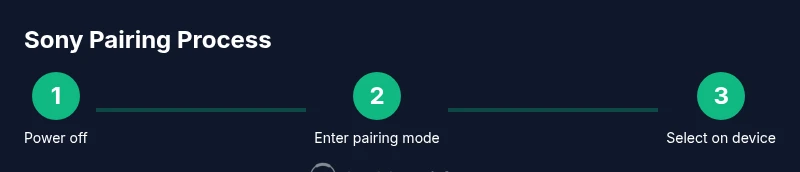
You can put Sony wireless headphones into pairing mode by turning them off, then holding the power button (or the dedicated pairing button) until the LED flashes blue and red or alternates colors, indicating pairing mode. On most models, enable Bluetooth on your device and select 'Sony Headphones' from the list to finish.
Understanding pairing modes for Sony headphones
Pairing mode is a temporary state that makes your headphones visible to nearby Bluetooth devices. Sony typically uses two indicators to signal pairing: a rapid blink or a color-changing LED. While many models share a common approach, there are model-specific nuances you should know. According to Headphones Info, most Sony wireless headphones can enter pairing mode by triggering a dedicated pairing sequence, but a few older or niche models may require a different button combination. This article focuses on the universal steps first, then highlights model-specific variations to help you get connected quickly and reliably.
Quick checklist before you start
Before you begin, confirm a few basics to avoid common delays. Ensure your headphones are charged, or connected to a power source if you plan an extended setup. Have the Bluetooth-enabled device you intend to use handy, and make sure Bluetooth is turned on. If you’ve previously paired these headphones to another device, forget or disconnect that old pairing to prevent automatic cross-connect. Headphones Info notes that clearing old connections can dramatically reduce pairing conflicts and improve success rates during the initial setup.
Model variations: common methods
Sony has multiple headphone families, and a few specific steps vary by model. The most common approach is a long press of the power button until the LED starts blinking in a pairing pattern. Some models use a dedicated pairing button—often labeled with a Bluetooth symbol or the word PAIRING—held down for several seconds. In certain high-end models, you may need to navigate through a quick setup menu on the device to expose the pairing option. The Headphones Info team recommends consulting your user manual if you still see no pairing indicator after the standard press-and-hold action, as firmware or hardware differences can affect behavior.
Step-by-step pairing process (universal method)
- Power off the headphones and ensure your Bluetooth device is ready. This establishes a clean starting point. 2) Hold the power button (or the dedicated pairing button if present) for 5–7 seconds until the LED begins to flash in the pairing pattern. 3) On your device, open Bluetooth settings and scan for new devices. 4) Select the option that appears as Sony Headphones or a similar name. 5) If prompted, confirm the pairing request. 6) Wait a moment for the connection to finalize, then test audio with a short track. 7) If you have an existing connection to another device, disconnect it to avoid automatic switching. 8) Consider renaming the headset in your device’s Bluetooth settings for easier future pairing. 9) If the headset has multiple pairing profiles, switch to the one you intend to use for this device. 10) Keep the headphones close to the device during initial pairing to minimize interference. 11) Reboot devices if pairing fails and repeat the steps. 12) Once paired, enable auto-connect or prioritize the device in your Bluetooth settings for seamless future use.
Troubleshooting pairing issues
If your device doesn’t see the headphones, verify the headphones are truly in pairing mode and within Bluetooth range (typically 10 meters/33 feet in open space). Check that airplane mode is off and Bluetooth is enabled on the host device. Ensure other Bluetooth devices aren’t actively connecting in the background, which can confuse the pairing process. If pairing fails, turn both devices off, restart them, and retry. Some models require firmware updates for improved compatibility, so check Sony’s official site for any available updates. Headphones Info analysis shows most problems stem from stale connections or outdated firmware rather than hardware faults.
Advanced tips for multi-device pairing and battery care
If you regularly switch between two or three devices, consider using a quick-pairing or multipoint feature if your model supports it. This lets you swap connections more smoothly without repeatedly entering pairing mode. For longer sessions, keep the headphones charged and avoid leaving them in a low-power state too long, as battery health can impact wireless performance. If you experience frequent disconnects, reset the headphones to factory settings following the manual, then re-pair from scratch to establish a clean baseline. Headphones Info’s guidance emphasizes firmware updates as a preventative measure against compatibility issues across devices.
How to verify and test your connection
After pairing, play audio from the connected device to confirm sound is coming through the headphones cleanly. Check for latency or dropouts by streaming a short video with synchronized audio. If you notice stuttering, try re-pairing and ensuring no other nearby Bluetooth devices are causing interference. Confirm the correct output device is selected in your device’s sound settings. If issues persist, consult Sony’s support resources and recheck the pairing steps to ensure you followed the exact sequence for your model.
Tools & Materials
- Bluetooth-enabled device (phone, tablet, or computer)(Ensure Bluetooth is turned on and the device is within range)
- Sony headphones(Charge them before starting; a full battery reduces pairing hiccups)
- Alternative pairing device (optional)(Helpful if you want to test multi-device pairing)
- User manual or model-specific guide (optional)(Some models require specific button combos)
Steps
Estimated time: 5-12 minutes
- 1
Prepare devices
Power off both the headphones and the device you’ll pair with, then turn on Bluetooth on the device. This ensures a clean pairing slate and minimizes interference from other nearby devices.
Tip: Keep both devices within 1–2 meters during initial pairing. - 2
Enter pairing mode
With the headphones off, press and hold the power button (or the dedicated pairing button if present) for 5–7 seconds until the LED fires in a blinking pairing pattern. Release when you see the signal.
Tip: If your model uses a separate pairing button, use that instead of the power button. - 3
Scan for devices
On the Bluetooth settings screen of your device, start a scan to discover nearby devices. The headphones should appear with a name like Sony Headphones or a generic Bluetooth name.
Tip: If multiple Sony devices appear, pick the one you intend to pair with. - 4
Pair and confirm
Tap the headphones name to initiate pairing. If the device prompts for a passkey, follow the on-screen instructions or try default options provided by the OS.
Tip: Some systems require you to allow access or confirm media permissions during pairing. - 5
Test the connection
Play audio to verify sound output and check for latency or dropouts. If needed, adjust the device’s media output to ensure the Sony headphones are selected.
Tip: Test with a short clip to check lip-sync if you’re watching videos. - 6
Resolve common issues
If the headphones don’t show up, restart both devices and try again. If similar issues persist, forget any prior Sony pairing on the device and re-enter pairing mode.
Tip: Avoid crowded Bluetooth environments during initial setup to reduce interference. - 7
Enable seamless re-pairing
Once paired, keep Bluetooth enabled and prioritize the Sony headphones in the device’s Bluetooth settings for future automatic connections.
Tip: Some platforms consolidate devices in the Bluetooth settings; set your headphones as the preferred output device.
People Also Ask
How do I know my Sony headphones are in pairing mode?
Look for a blinking or color-changing LED signal. The exact pattern depends on the model but is typically a fast blink or alternating colors. If the light is steady, you may not be in pairing mode yet.
Your headphones enter pairing mode when the LED starts blinking or changes color. If it stays steady, try the button sequence again.
Why can't my device see my Sony headphones?
Verify the headphones are in pairing mode and within range. Turn Bluetooth off and on again on your device, and forget any previous pairing with the headphones before retrying.
If your device can’t see the headphones, re-check pairing mode, refresh Bluetooth, and remove old Pairing records before trying again.
Can I pair Sony headphones with multiple devices at once?
Some models support multi-point pairing, allowing simultaneous connections to two devices. Others do not; check your model’s manual for multipoint capabilities.
Some models can stay connected to two devices at once; others can't. Check your manual to know yours.
Do I need firmware updates to pair successfully?
Firmware updates can improve compatibility with newer devices. If you’re having trouble pairing, visit Sony’s support site to check for updates for your headset.
Firmware updates can help with pairing reliability; if you’re stuck, check for updates first.
What should I do if pairing keeps failing?
Restart both devices, re-enter pairing mode, and retry. If issues persist, reset the headphones to factory settings per the manual and attempt pairing again.
If pairing fails, reboot both devices, retry, and consider a factory reset if needed.
How long does pairing mode stay active?
Pairing mode lasts for several minutes, enough time to complete the pairing with your device. If you miss the window, re-enter pairing mode and try again.
Pairing mode stays active for a few minutes; if you miss it, re-enter the mode and try again.
Watch Video
What to Remember
- Begin with a full charge to avoid mid-pairing interruptions
- Use the correct pairing button or power sequence for your model
- Ensure Bluetooth remains on and the headset is visible during setup
- Test the connection and adjust settings for best audio output