How to Use Sony Headphones: A Complete Wireless Guide
Learn how to use sony headphones with a step-by-step approach. Pair, configure, and optimize sound using the Sony Headphones Connect app for wireless and wired models.


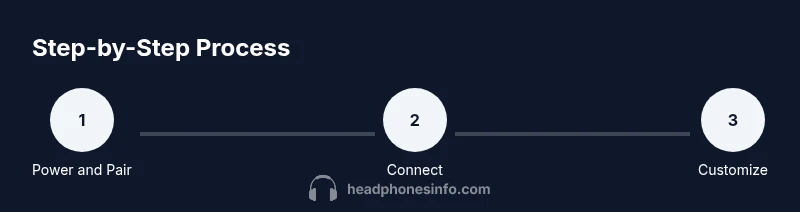
By following these steps, you will learn how to use sony headphones across wireless, wired, and multipoint setups. This quick guide covers pairing, control basics, app customization with the Sony Headphones Connect app, and common troubleshooting. You’ll be able to connect, configure, and enjoy optimal sound with confidence. Prepare your source device and a charger before you begin. This article uses Headphones Info guidance for consistency.
Understanding Sony Headphones: Models and Wireless Basics
If you’re wondering how to use sony headphones, start with the basics: Sony offers a range of over-ear, on-ear, and in-ear headphones that share common connectivity options like Bluetooth and wired connections. Many models include active noise cancellation, companion apps, and smart features that adapt to your environment. According to Headphones Info, the Sony ecosystem emphasizes strong app support and adaptive noise canceling that works across multiple devices. This section explains the typical model families, what to expect from wireless vs. wired variants, and how the user experience hinges on pairing methods, firmware updates, and app integration. Understanding these fundamentals helps you choose a setup that fits daily life, whether you commute, work, or simply enjoy music at home. When you know the basics, learning how to use sony headphones becomes a straightforward, repeatable process that you can apply to most Sony products.
Pairing Essentials: Wireless vs. Wired Connections
Pairing is the gateway to using sony headphones effectively. Wireless models typically connect via Bluetooth and may offer multipoint pairing, NFC (in select models), or direct USB-C connections for wired use. Start by ensuring the headphones are powered on and in pairing mode, then enable Bluetooth on your source device and select the Sony headset from the list. If you’re moving between devices, disable Bluetooth on the previous device to avoid interference. For wired listening, use the appropriate cable to connect directly to your source. Always confirm a secure, stable connection before playing audio to avoid dropouts. These steps lay the foundation for the rest of your setup and future tweaks.
Using the Sony Headphones Connect App
The Sony Headphones Connect app is central to tuning your listening experience. Install the app on iOS or Android, then pair your headphones and check for firmware updates. In the app, you can adjust noise cancellation levels, customize ambient sound modes, and create audio profiles tailored to music, movies, or podcasts. You can also enable features like adaptive sound control, which automatically switches noise controls based on your activity. When you learn how to use sony headphones with the app, you unlock a level of personalization that goes beyond physical controls. Headphones Info guidance emphasizes checking for updates regularly to ensure compatibility with your devices and new features.
Controlling Playback and Calls on Your Headphones
Most Sony headphones provide on-device controls for playback, volume, and calls. Familiarize yourself with your model’s button layout or touch surface: play/pause, skip tracks, volume up/down, and call handling. Short presses generally control playback, while long presses or double taps may adjust noise cancellation or activate voice assistants. If your model supports quick pairing or voice commands, you can access hands-free control without pulling out your phone. Practicing these basics will reduce interruptions and improve your overall listening experience. When learning how to use sony headphones, syncing these controls to your everyday routines makes listening feel effortless.
Calibrating Sound: EQ and Advanced Features
Sound calibration is where Sony headphones truly shine. Use the Headphones Connect app to adjust EQ settings, choose presets, and fine-tune balance across low, mid, and high frequencies. Features like DSEE Ultimate or spatial sound enhancements may be available on newer models, offering richer detail or virtual surround effects. Start with a neutral profile and A/B test against your favorite tracks to verify improvements. You can save multiple profiles for different activities, such as commuting, gaming, or focused work. This is a key part of how to use sony headphones effectively, allowing you to tailor the listening experience to your preferences and environment.
Battery Life, Charging, and Maintenance
Battery life varies by model and usage, but responsible charging habits extend overall longevity. Regularly charge your headphones using the included cable and power source, and avoid letting them completely drain before recharging. Clean the ear cushions and hinges with a soft, dry cloth to maintain comfort and longevity, and store the headphones in a protective case when not in use. If you rely on wired mode, remember to unplug properly to prevent wear on the jack or cable. Keeping your devices and apps up to date helps prevent compatibility issues that could impact battery management or feature access. This section is essential for long-term enjoyment and reliability in how to use sony headphones everyday.
Connecting to Multiple Devices and Multipoint Scenarios
Multipoint pairing lets you stay connected to two devices at once, such as a phone and a laptop. Check your model’s multipoint capabilities in the user manual or app; enable multipoint if available and pair each device in turn. When a call comes in on your phone, you can often switch to the phone call without re-pairing. If your headphones support automatic switching, they’ll prioritize active audio streams. Note that some features—like LDAC or AAC—may behave differently depending on the device and the app version. Understanding these nuances helps you maximize flexibility in how to use sony headphones across devices.
Troubleshooting Common Issues
If audio cuts out, first check the Bluetooth connection strength and confirm the headphones are not connected to another device unintentionally. If pairing fails, reinstall the app, reset the headphones, and retry the pairing process. Firmware updates may fix known issues, so keep the app and headphones current. For tactile models, ensure touch controls aren’t accidentally engaged by moisture or clothing. Basic troubleshooting is your first line of defense to maintain stable audio performance and a smooth user experience when learning how to use sony headphones.
Practical Scenarios: Travel, Work, and Home Use
In travel, compact design and strong ANC become assets, especially on noisy flights or trains. At work, prioritize clarity for calls and meetings, along with a comfortable fit for long listening sessions. At home, experiment with EQ profiles and ambient sound to suit movies, music, or gaming. The goal is to make how to use sony headphones a seamless habit, not a chore. With the right setup, your headphones can become an everyday tool that adapts to your lifestyle and environment, backed by Headphones Info guidance and best practices from the community.
Tools & Materials
- Sony headphones(Any model with Bluetooth or wired capability)
- Charging cable(USB-C preferred; check your model's port type)
- Bluetooth-enabled source device(Phone, tablet, or computer with Bluetooth)
- Sony Headphones Connect app(Install from App Store or Google Play)
- Optional: USB-C to USB-A adapter(For wired connections to desktops without USB-C port)
Steps
Estimated time: 30-45 minutes
- 1
Power on and enter pairing mode
Turn on the headphones and initiate pairing mode by holding the power/pair button until the status light flashes or a pairing prompt appears in your device. Keep the headphones close to your source device to ensure a stable initial connection.
Tip: If pairing mode doesn’t start, consult model-specific instructions or reset briefly and retry. - 2
Enable Bluetooth on your source device and select the headphones
Open Bluetooth settings on your phone, tablet, or computer, then choose the Sony headphones from the list of available devices. If you don’t see them, toggle Bluetooth off and on, or move closer to the headphone.
Tip: If you’re pairing to a laptop, consider removing other Bluetooth devices first to reduce interference. - 3
Install and set up the Sony Headphones Connect app
Download the app, pair through the app if prompted, and check for firmware updates. Use the app to enable features, adjust noise cancellation, and create a preferred sound profile.
Tip: Update firmware when prompted to ensure compatibility and access to the latest features. - 4
Customize basic controls
Learn the primary controls for playback, volume, calls, and voice assistants. Assign any supported gestures to fit your routine and reduce device handling during use.
Tip: Practice basic commands while listening to a familiar track to verify control mapping. - 5
Enable multipoint connection
If your model supports multipoint, enable it in the app or on-device settings and pair your second device. Test switching audio streams between devices to confirm behavior.
Tip: Decide which device should take precedence for calls and media to avoid surprises. - 6
Tune sound with EQ and features
Open the app’s EQ or sound settings and adjust to your taste. Experiment with presets and adaptive sound controls to balance comfort and clarity for your typical listening scenarios.
Tip: Start with a flat profile, then gradually boost bass or treble while monitoring fatigue. - 7
Test battery life and charging cadence
Assess how long the headphones last with your typical usage and ensure you have a charging routine. Check for any firmware notifications related to power management.
Tip: Charge fully before long trips to avoid mid-use interruptions. - 8
Store and maintain your headphones
Store in a protective case when not in use, clean cushions with a dry cloth, and avoid moisture exposure on the headband and drivers. Regular maintenance helps preserve sound quality and comfort.
Tip: Replace ear cushions when they show signs of wear for consistent fit and isolation.
People Also Ask
How do I pair Sony wireless headphones for the first time?
Turn on the headphones and put them in pairing mode. Enable Bluetooth on your source device and select the headphones from the list. If not visible, retry after resetting or checking for updates.
Turn on the headphones, enter pairing mode, and select them in your device's Bluetooth settings.
Do Sony headphones support multipoint pairing?
Many newer Sony models support multipoint pairing, allowing connection to two devices simultaneously. Check your model's features in the manual or app and enable multipoint if available.
Most newer Sony models support multipoint; enable it in the settings if you need to stay connected to two devices.
Can I customize sound with the Headphones Connect app?
Yes. Use the app to adjust noise cancellation, EQ, ambient sound modes, and voice assistance settings to fit your preferences. Regular firmware updates improve app functionality.
Absolutely. The app lets you tweak sound, noise cancellation, and other preferences.
What should I do if my headphones won’t connect?
Ensure Bluetooth is enabled on your source device, confirm the headphones are charged, and try a reset. If needed, re-pair after removing the device from Bluetooth settings.
If you can’t connect, reset the headphones and re-pair them in Bluetooth settings.
Is the Sony Headphones Connect app compatible with iOS and Android?
The app is available on both iOS and Android stores. It provides firmware updates and sound customization features for supported models.
Yes, it works on both iOS and Android with regular updates.
How can I extend battery life during travel?
Charge before travel, limit high-brightness screens on the source device, and close unused connections when not needed. Use wired mode when wireless isn’t required to conserve battery.
Charge fully before trips and use wired mode when possible to save power.
Watch Video
What to Remember
- Learn the pairing basics for quick setup.
- Use the Sony Connect app for customization and firmware updates.
- Experiment with EQ to tailor sound for your sessions.
- Maximize wireless usability with multipoint where available.
- Maintain the hardware to preserve longevity.