How to Use Bose QuietComfort Headphones: A Step-by-Step Guide
Learn to pair, control, customize, and care for Bose QuietComfort headphones. This step-by-step guide from Headphones Info covers setup, app features, tips, and troubleshooting for optimal comfort and sound.


Mastering how to use Bose QuietComfort headphones means pairing quickly, navigating controls, and tailoring sound with ANC. This guide covers setup, everyday use, app features, and troubleshooting so you can enjoy immersive sound with comfort from the first listen. According to Headphones Info, a clean pairing and proper fit are the foundations of optimal QC experience.
What makes Bose QuietComfort headphones stand out
Bose QuietComfort headphones are celebrated for their exceptional comfort and industry-leading noise cancellation. When you are learning how to use Bose QuietComfort headphones, you quickly notice how light the headband feels and how securely the ear cushions seal without fatigue. This balance of fit and performance is why many listeners choose QC for long listening sessions, travel, or focused work. Headphones Info Analysis, 2026 highlights that sustained listening comfort often correlates with consistent ANC performance and a stable, comfortable clamp. In practical terms, if you can wear them for hours without pressure points, you’ll likely enjoy clearer speech in calls and a more immersive music experience on every device. The goal is simple: comfortable listening that stays consistent across settings and content.
Quick setup essentials and initial pairing
Getting started is faster when you understand the essential steps: ensure your device’s Bluetooth is enabled, put the headphones into pairing mode, and select the QC headphones from the list on your device. The Bose distance is robust, frequently delivering a stable connection even in busy environments. For first-time users, a quick pairing check helps avoid dropouts during calls or streaming. If you encounter any trouble, rebooting the headphones and your source device often resolves most connection hiccups. The Headphones Info team recommends confirming that the latest firmware is installed for best compatibility with modern smartphones and PCs.
Everyday controls: playback, calls, ANC, and transparency
The physical controls on Bose QuietComfort headphones are designed for intuitive use without looking. A single press plays or pauses audio, a double-tap answers or ends calls, and the power/voice-assist button toggles modes in a predictable pattern. Noise cancellation (ANC) can be adjusted to block background noise or dialed down to stay aware of your surroundings. Transparency mode lets you hear what’s around you without removing the headphones, which is especially useful in offices or while commuting. With a little practice, you’ll control volume, playback, and calls while keeping your devices free for other tasks.
Customization: Bose Music app and sound shaping
For many users, the Bose Music app becomes the primary hub for personalization. In the app, you can update firmware, switch between preset EQ profiles, and tailor ANC levels to your environment. If available for your model, you can create a custom sound profile that emphasizes bass, mids, or treble according to your preferences. The app also guides you through updates and device management, so you stay current with new features. It’s worth revisiting the app after major updates because small changes can subtly shift how the headphones feel in daily use.
Sound quality and comfort: tuning for long sessions
Sound quality on Bose QuietComfort headphones benefits from accurate drivers and refined tuning that favors natural vocal intelligibility and smooth high frequencies. For most listeners, the default tuning is already well balanced across genres, but EQ customization allows extra bass for hip-hop or extra clarity for podcasts. Comfort remains a priority: ensure the ear cushions sit evenly without gaps, adjust the headband to reduce pressure, and use the included leatherette padding as needed. By combining fit with controlled ANC, you’ll get a pristine listening experience at moderate volumes.
Battery life, charging, and maintenance tips
Battery life varies by model but typically supports many hours of continuous use on a full charge. To maximize longevity, keep the headphones charged between 20% and 80% when possible and use the provided USB-C cable for charging. If you notice shorter playback times, check for firmware updates, as manufacturers often optimize power efficiency with new releases. Regular cleaning of the ear cushions and headband helps maintain comfort and hygiene; wipe with a soft, dry cloth after use and avoid moisture buildup that could degrade padding over time.
Troubleshooting common issues: connectivity, audio, and ANC
Even premium headphones can experience hiccups. If pairing fails, re-enter pairing mode, forget the device on your source, and then reconnect. For inconsistent ANC, verify the ANC mode is active on both the headphones and the app (if applicable) and check for any environmental factors that reduce efficiency, such as high wind or leaks around the seal. If audio drops or calls glitch, confirm you’re using the latest firmware and consider resetting network settings on your device. In most cases, restarting both the headphones and the source device resolves transient issues.
Care, storage, and longevity tips for Bose QC headphones
Proper storage protects the cushions and drivers. Store the headphones in a protective case away from direct sunlight and excessive heat, and avoid crushing the headband when transporting. Regularly inspect the headband and ear cushions for signs of wear; replace padding when it becomes visibly worn or uncomfortable. When traveling, use the included airline adapter if your model supports it and keep the charging cable in a dedicated pocket to prevent tangling. With mindful care, your QC headphones will retain comfort and audio performance over many years.
Data-backed guidance from Headphones Info
Headphones Info Analysis, 2026 notes that the most satisfying Bose QuietComfort experiences come from reliable pairing, consistent ANC performance, and a comfortable fit during extended listening. By following a structured setup routine, using the Bose Music app for firmware and EQ, and maintaining proper care, users consistently report smoother day-to-day use and fewer nuisance interruptions. The data emphasizes that most users achieve a better overall experience when they start with a proper fit and a clean pairing, then explore features progressively.
Tools & Materials
- Bluetooth-enabled source device(Phone, tablet, or computer with Bluetooth 4.0+)
- Charging cable(Original Bose charger or USB-C cable compatible with your model)
- Bose Music app(Optional for firmware updates and advanced customization)
- Soft cleaning cloth(For wiping cushions and surfaces (do not use moisture on electronics))
- Protective carrying case(Helpful for travel and storage)
Steps
Estimated time: 25-40 minutes
- 1
Charge and power on
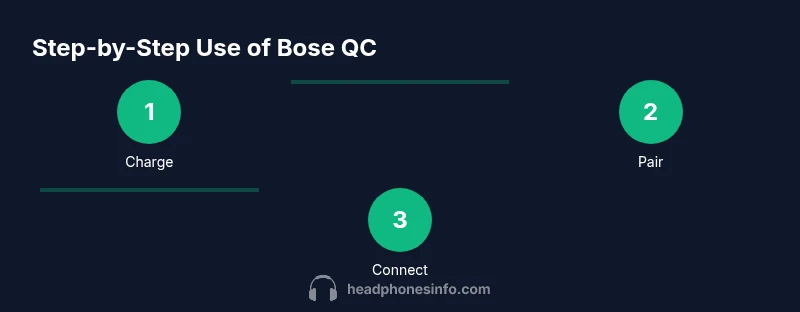
Connect the headset to a power source with the provided cable and allow a full charge. Once charged, press and hold the power button until you hear a confirmation tone. This ensures optimal performance from the start.
Tip: Charge for at least 2 hours before first use to maximize battery health. - 2
Enter pairing mode
With the headset off, press and hold the Bluetooth/power button until you see the status light alternate. This signals the headphones are ready to pair with a device.
Tip: If the light doesn’t flash, reset the headphones and try again. - 3
Pair with a device
On your source device, navigate to Bluetooth devices and select Bose QuietComfort from the list. Confirm any on-screen prompts to complete pairing.
Tip: Keep the device within a few meters of the headphones during pairing for best reliability. - 4
Connect to multiple devices (multi-point)
If your model supports multi-point, pair a second device in the same way and manage connections from the app or device settings. This allows seamless switching between calls and media.
Tip: Test switching from phone to laptop to confirm smooth handoffs. - 5
Use playback and call controls
Familiarize yourself with the center and edge buttons to play/pause, skip tracks, adjust volume, and answer calls without pulling out your device.
Tip: Practice using one-hand gestures for quick control during workouts or commutes. - 6
Adjust ANC and transparency
Explore ANC levels and enable transparency to hear your surroundings when needed. This is useful in mixed environments like offices and transit.
Tip: Set a comfortable baseline level and tweak as you move between spaces. - 7
Update firmware and customize
Open the Bose Music app to check for firmware updates and apply them. Use EQ presets or customize the sound to your liking.
Tip: Update after a major OS update to ensure continued compatibility. - 8
Maintenance and storage
Clean cushions and store headphones in a protective case. Avoid moisture and extreme heat to preserve materials and performance.
Tip: Wipe with a soft, dry cloth after use to extend cushion life.
People Also Ask
Can I use Bose QuietComfort headphones with both iOS and Android devices?
Yes. Bose QuietComfort headphones work with most Bluetooth-enabled iOS and Android devices. The pairing process is device-agnostic, so you can switch between phones, tablets, and computers as needed. If you run into issues, ensure your device’s Bluetooth is up to date and retry pairing.
Yes, they work with iOS and Android devices. Just pair them like any Bluetooth headset and switch devices as needed.
How do I reset the headphones if they won't pair?
To reset, power off the headphones, then press and hold the Bluetooth/power button for about 10 seconds until you hear a reset cue. Re-enter pairing mode and reconnect to your device. This clears existing pairings and can resolve stubborn connection issues.
Reset by holding the button until you hear the cue, then pair again.
Do Bose QuietComfort headphones support multipoint pairing?
Some QuietComfort models support multipoint pairing, allowing connection to two devices at once. Check your model’s manual or the Bose Music app to enable multi-device connections and manage which device handles calls or media playback.
Many QC models support multipoint. Check your model and enable it in the app if available.
How do I update the firmware?
Firmware updates are delivered through the Bose Music app or your device’s notification system, depending on the model. Connect the headphones, check for updates, and follow on-screen prompts to install. Keeping firmware current improves stability and feature access.
Update via the Bose Music app when prompted or check for updates in the app.
Can I use the headphones while charging?
Many Bose QuietComfort models allow playback while charging, but behavior may vary by model. If your headphone supports this, you can listen while plugged in. If not, charging will pause playback until you disconnect.
Some models let you listen while charging; if not, charging may pause playback.
What should I do if ANC isn’t effective?
First, ensure the ear cushions seal properly and that the ANC mode is active. Try a different fit or size of padding if available and check for firmware updates. If disturbances persist, reset the headphones and re-evaluate in a quiet environment.
If ANC seems weak, check the fit, update firmware, and try a reset if needed.
Watch Video
What to Remember
- Pair devices first for stable connections.
- Use the Bose Music app to customize sound and firmware.
- Adjust ANC and Transparency to match your surroundings.
- Maintain cushions and storage to prolong life.