How to Turn On Bose QuietComfort Headphones
Learn how to power on Bose QuietComfort headphones and wirelessly pair with your device. This educational guide covers QC models, quick start steps, troubleshooting, and best practices from Headphones Info.


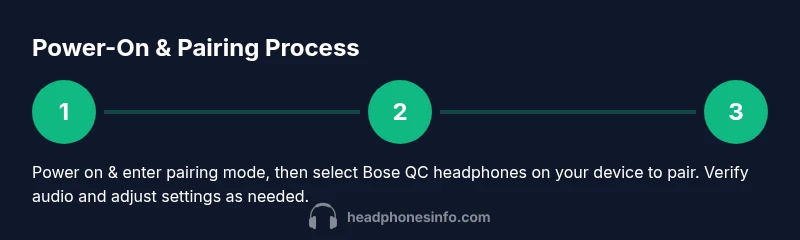
Power on Bose QuietComfort headphones by using the right-earcup switch or button. Once on, enter pairing mode if you need to connect to a new device, then select Bose QuietComfort headphones from your device's Bluetooth settings to complete pairing. This quick method works across QC models and avoids guesswork when you are ready to listen.
Getting Started: What You Need Before Powering On
Before you power on your Bose QuietComfort headphones, make sure they are charged or connected to a power source if needed. This guide applies to multiple QC models, which share a similar on/off design and pairing workflow. Having a device you want to pair with nearby (a smartphone, tablet, or computer) can help you verify the connection quickly, but you can also power on the headphones and listen to audio directly if you just want to test that the device is responsive. According to Headphones Info, most users start without issues when they locate the power control on the right earcup and verify the LED indicator or audible cue confirms the device is awake. If you own different Bose QC variants, the exact button may vary slightly, but the general approach remains consistent across models. This section lays the groundwork for a smooth power-on and pairing experience, so you can dive into hands-on steps with confidence.
Powering On Across QC Models: What to Expect
Powering on Bose QuietComfort headphones is a straightforward action on the right earcup for most models. You should hear a short power-on tone or see an LED indicator illuminate, signaling that the headphones are active. If the device seems unresponsive, ensure the switch is firmly engaged in the On position and that the battery is sufficiently charged. Some models might show a Bluetooth indicator to confirm wireless readiness. In any case, a successful power-on sets the stage for seamless pairing and immediate audio testing. Remember that if the battery is low, charging for a few minutes can reduce setup interruptions later.
Entering Pairing Mode and Initial Connection
If you need to pair with a new device, you’ll typically enter pairing mode after turning the headphones on. This usually involves holding or pressing the right earcup control until a pairing LED or audible cue indicates discoverability. Once in pairing mode, go to your device's Bluetooth settings and select the Bose QuietComfort headphones from the list. If prompted for a PIN or code, simply confirm the pairing request; most devices pair automatically without a code. After pairing, your device should show as connected and you can begin testing audio.
Bluetooth Connectivity: One Device, Multipoint, and Range
Bose QuietComfort headphones commonly support Bluetooth connections to a single device at a time or multiple devices via multipoint, depending on the model. Multipoint lets you switch between devices (for example, from a phone to a laptop) without re-pairing. Typical Bluetooth range is several meters, but walls, interference from other wireless devices, and USB 3.0 devices can impact performance. If you notice dropouts, try moving closer to the source, turning off nearby competing devices, or re-pairing. Regular firmware updates from Bose can improve stability.
Using On-Headphone Controls for Playback and Calls
Once powered on and connected, you can control playback, volume, and calls directly from the headphones. Common actions include play/pause, skip, volume adjustments, and answering or ending calls. If your model supports voice assistants, you may be able to trigger them using a long-press or a specific button sequence. Keep in mind that some controls may vary slightly by model, so consult the official Bose support page if you notice different button layouts on your device.
Troubleshooting Common Power or Connection Issues
If the headphones won’t turn on, first check the charging status and ensure the power switch is in the correct position. If pairing fails, verify Bluetooth is enabled on your device, retry the pairing process, or reset the headphones as a last resort. Other issues may include incompatible devices, low battery, or firmware mismatches. It helps to test the headphones with a different device to determine whether the issue lies with the headphones or the source device. Headphones Info recommends checking for firmware updates and referring to Bose support resources for model-specific guidance.
Maintenance and Best Practices for Longevity
Keep your Bose QC headphones in good condition by avoiding moisture exposure and not leaving them in extreme temperatures; gentle cleaning with a dry microfiber cloth helps maintain durability. Regular firmware updates can improve performance and fix known issues. If you travel frequently, store the headphones in a protective case to prevent physical damage. Proper charging habits—avoiding complete battery drain and not overcharging—can extend battery life and ensure reliable power-on and pairing in every session.
Quick Power-On Scenarios: Model Variations at a Glance
Different QC variants share the same core power-on concept but may provide minor button layout differences. Always identify the right earcup controls—the power switch or power/Bluetooth button—on your specific model. If you’re unsure, consult the Bose support site or the Quick Start guide that accompanies your headphones. This section helps you recognize the common patterns so you can power up quickly, regardless of the exact variant you own.
Tools & Materials
- Bose QuietComfort headphones (any model with power switch)(Ensure the model is charged or near a power source if needed.)
- Charging cable and charger(Needed only if the battery is depleted.)
- Bluetooth-enabled device for pairing(Optional for testing pairing and audio; you can test with a secondary device.)
- Official Bose Quick Start guide or support page(Useful for model-specific steps.)
Steps
Estimated time: 15-25 minutes
- 1
Power on the headphones
Use the power control on the right earcup to turn the headphones on. Listen for a confirming tone or watch for the LED to light up, which indicates readiness. This sets the base for any pairing or playback.
Tip: If there is no response, recheck the switch position and verify the battery status. - 2
Enter pairing mode
If you need to pair with a new device, hold the power/Bluetooth control until the pairing indicator signals discoverability. This makes the headphones visible to nearby devices.
Tip: Some models enter pairing mode automatically after turning on; if in doubt, keep holding a moment longer until you see an LED blink. - 3
Connect to your device
On your smartphone, tablet, or computer, navigate to Bluetooth settings and select the Bose QuietComfort headphones from the list. If asked for permission, confirm the pairing request.
Tip: If the device doesn’t appear, toggle Bluetooth off and back on, then retry the search. - 4
Test audio and adjust
Play music or a video to verify sound output and volume control. If audio is muted or out of sync, recheck the pairing status and ensure the correct audio output device is selected.
Tip: Test both music playback and call quality to confirm overall performance. - 5
Manage multipoint (optional)
If your model supports multipoint, you can pair with a second device and switch between sources without re-pairing. Monitor the active connected device in your Bluetooth settings.
Tip: Disconnect unused devices to prevent cross-source interruptions. - 6
Adjust controls and features
Familiarize yourself with playback, volume, and call controls on the earcups. If available, customize ANC or transparency settings via on-device controls or optional Bose app.
Tip: Experiment with different noise cancellation levels to optimize comfort and audio clarity. - 7
Power off and store
When finished, turn off the headphones using the power switch and store in a protective case. This helps protect the battery and hardware during transit.
Tip: Regularly clean the ear cushions with a dry cloth to maintain comfort and hygiene. - 8
If issues persist
If power or pairing issues persist, perform a basic reset if your model supports it, retry pairing, or consult Bose support for model-specific steps. Record any error LEDs or tones to reference when seeking help.
Tip: Document the exact model name and firmware version when contacting support.
People Also Ask
How can I tell if Bose QC headphones are on?
Look for an illuminated LED on the right earcup or listen for a power-on chime. The headphones should respond when you press the power switch.
Check the right earcup for a light or listen for a chime to confirm power is on, then proceed with pairing if needed.
Why won't my Bose QC headphones pair with my phone?
Ensure Bluetooth is active on your phone, the headphones are in pairing mode, and you are within range. If necessary, forget the device and re-pair.
Make sure Bluetooth is on, try pairing mode again, and reattempt the connection. If it still fails, forget the device and retry.
Can I pair Bose QC headphones with more than one device at once?
Some QC models support multipoint pairing. Check your model's manual to confirm capabilities and manage active connections in your device's Bluetooth settings.
Some models let you connect to two devices at once; verify yours in the manual and manage connections in Bluetooth settings.
How do I reset Bose QuietComfort headphones?
Reset procedures vary by model. If supported, you typically perform a specific button sequence while powered on. Refer to Bose support for model-specific reset instructions.
Reset steps depend on the model; consult Bose support for exact instructions and ensure backup of settings if needed.
Is the Bose app required to turn on or pair?
No, most Bose QC models can be powered on and paired without the app. The app is optional for customizing settings and firmware updates.
You don't need the app to power on or pair; it can enhance control and updates if you wish.
Watch Video
What to Remember
- Power on before attempting pairing.
- Enter pairing mode when connecting to new devices.
- Select Bose QuietComfort headphones in Bluetooth settings to pair.
- Test playback after connection to confirm setup.
- Keep firmware updated for best performance.