How to Pair Bose Headphones: A Step-by-Step Guide
Learn how to pair Bose headphones with iPhone, Android, Windows, and Mac. This step-by-step guide covers models, troubleshooting, and tips to ensure a reliable wireless connection.


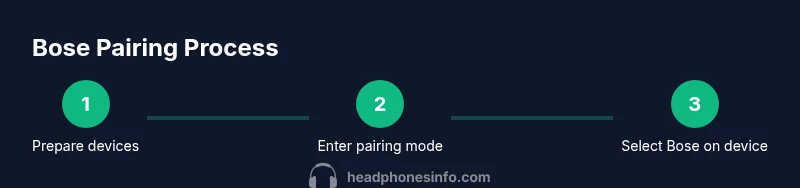
Bose headphones pairing is typically straightforward across devices, but model-specific steps can vary. This guide covers iPhone, Android, Windows, and Mac, with quick tips to minimize interference and ensure a reliable connection. Follow the pairing mode, select Bose in Bluetooth settings, and confirm. For best results, keep firmware up to date and consider the Bose Connect app for advanced control.
Understanding Bluetooth pairing for Bose headphones
Pairing is the initial connection step that lets your Bose headphones talk to another device via Bluetooth. When pairing succeeds, your headphones appear in the list of available Bluetooth devices on your phone, tablet, or computer, and you can start streaming audio immediately. Bose headphones are designed for ease of use, with a standardized pairing flow that works across most modern Bluetooth devices. According to Headphones Info Team, pairing is typically straightforward, but model-specific quirks exist that can trip first-time users. In practice, you'll usually: enable Bluetooth on the source device, put the headphones into pairing mode, select the Bose device name from the list, and confirm. If you’ve previously connected to another device, you may need to disconnect or forget that device to avoid conflicts. For multi-device users, Bose models that support multipoint can maintain connections to two devices at once, allowing seamless switch between a phone call and a laptop video conference. Different Bose models implement pairing slightly differently, so a quick check of the manual is wise for older QC35 II or newer 700 and QC45 models. In this guide we’ll outline the common steps and highlight device-specific nuances so you can pair quickly and start listening without frustration.
Model-specific notes: multipoint compatibility and resets
Bose offers several wireless headphones lines, and most modern models support multipoint Bluetooth pairing, which lets you stay connected to two devices at the same time. The exact steps to add a second device can vary by model, so refer to the model's user guide if you run into trouble. For example, newer Bose headphones such as the Noise Cancelling Headphones 700 and the QC45 handle multipoint gracefully, while older QC35 II relies on simpler pairing flows. If you need to reset or clear paired devices to start fresh, the general approach is to turn the headphones off, re-enter pairing mode, and then pair with the new device. Some models use a dedicated pairing button; others reuse the power button. Because models vary, always confirm the current method in your Bose manual or Bose Connect app. If you cannot connect after multiple attempts, a firmware update can fix known pairing quirks; check Bose’s support site or the Bose Connect app for available updates. For most users, a clean pairing cycle—forgetting previous devices on the source and re-pairing—resolves most issues. Headphones Info analysis, 2026 indicates that keeping firmware updated improves reliability and compatibility with newer Android and iOS versions.
How to pair Bose headphones with an iPhone (iOS)
Start by enabling Bluetooth on your iPhone from the Control Center or Settings. Put your Bose headphones into pairing mode by initiating the pairing sequence until the status indicator shows it is discoverable. On the iPhone, open Settings, tap Bluetooth, and wait for the Bose device name to appear in the list. Tap the Bose name to pair; you may see a confirmation ping or a pairing request banner. Once connected, play any audio to confirm the signal is transmitting through the headphones. If you already have another Bluetooth device connected, you may need to disconnect or forget it to avoid interference. For best results, keep your iPhone within a few meters of the headphones during the pairing process and ensure there are no strong wireless signals that could disrupt the connection. If asked, allow the device to share contacts or media to enable hands-free features. After pairing, you can customize the experience by using the Bose Connect app to manage the headphone settings, but this is optional for basic listening.
How to pair Bose headphones with an Android device
Android devices differ slightly in settings menus across manufacturers, but the general flow is the same. First, turn on Bluetooth on your Android device from Settings. Then, activate pairing mode on the Bose headphones (obtainable by following the device's pairing sequence until the LED indicates discoverable). On your Android device, select Bluetooth settings, look for the Bose headset name in the list of available devices, and tap it to pair. If prompted, confirm the pairing request; some devices require you to grant a one-time permission to use the device's media or phone features. When pairing completes, test by playing audio. If the connection drops, try toggling Bluetooth off and back on, or forget the Bose headphones on the phone and re-pair. For many Android users, enabling multipoint pairing is automatic, but you may need to reconfigure after a firmware update. The Bose Connect app can help manage devices, check battery status, and update firmware, which can improve reliability on Android as well as iOS.
Pairing Bose headphones with Windows or macOS
Windows: Open the Start menu > Settings > Bluetooth & devices > Add device > Bluetooth. Put your headphones into pairing mode and select them from the list when they appear. Accept any prompts to complete pairing, then set your audio output to the headset in the sound control panel if needed. macOS: Open System Preferences > Bluetooth, ensure Bluetooth is on, and look for the Bose headset name in the device list. Click Connect and wait for a confirmation. After pairing, set the Bose headset as the default output device in System Preferences > Sound, or in the volume control in the menu bar. If your computer has multiple Bluetooth adapters, ensure the correct one is used for audio playback. If you’re using Bluetooth for video conferencing, test the microphone and output levels in both Windows and macOS to ensure clear voice and sound distribution.
Troubleshooting common pairing problems
If the Bose headphones do not appear in the Bluetooth device list, restart both headphones and the source device, then re-enter pairing mode. Make sure Bluetooth is enabled and the headphones are sufficiently charged. If the device name never shows up, remove other trusted Bluetooth devices from the environment to reduce interference. If you hear no audio after pairing, check the audio output in your device’s settings to confirm the Bose headset is selected as the default, and verify the volume is up. For multipoint issues, disconnect other connected devices or re-pair in sequence (primary, then secondary). If the integration with the Bose Connect app isn’t behaving as expected, try updating the app or reinstalling it. If problems persist, consult Bose support for model-specific guidance or hardware checks. Always ensure your firmware is up to date, as firmware fixes are a common source of pairing reliability improvements.
Pro tips for reliable pairing and maintenance
- Pro tip: Keep your Bose headphones and source device within close range during pairing to minimize interference from walls or objects. This simple proximity boost reduces dropouts.
- Warning: Avoid pairing in crowded environments with many Bluetooth devices; interference can cause dropouts or slow connection setup.
- Note: Some models require a quick firmware update through the Bose Connect app to unlock the latest pairing enhancements.
- Pro tip: Use multipoint pairing to stay connected to two devices at once, but remember you may need to disconnect one device to switch to another.
- Note: If you’re using a PC or Mac, installing the latest Bluetooth drivers can improve discovery and reliability.
- Pro tip: After a firmware update, reboot both headphones and the source device to ensure the new features initialize correctly.
Tools & Materials
- Bose headphones (any Bluetooth-enabled model)(Charge level > 20% before pairing)
- A Bluetooth-enabled source device (iPhone, Android, Windows, or Mac)(Have Bluetooth enabled in settings)
- Charged charging cable (USB-C or USB-A)(Needed for firmware updates or wired mode)
- Bose Connect app (optional)(For firmware updates and advanced controls)
Steps
Estimated time: 20-30 minutes
- 1
Prepare devices
Power on both the Bose headphones and the source device. Ensure both have a reasonable charge and are in or near your workspace to minimize interference. This initial preparation reduces the chance of mid-pairing dropouts.
Tip: Charge devices fully if possible; a low battery can interrupt the pairing process. - 2
Enable Bluetooth on source
Open the Bluetooth settings on your phone, laptop, or tablet. Make sure Bluetooth is turned on and ready to scan for new devices. Don’t start pairing with the Bose device yet until you’ve confirmed the headphones are in pairing mode.
Tip: Close other Bluetooth apps temporarily to avoid background pairing activity. - 3
Enter pairing mode on Bose headphones
Activate pairing mode on the headphones by following the model-specific method until the LED indicates discoverability. If the indicator pulses or lights in a specific pattern, that signals pairing mode is active. Keep the headphones in this mode until the device shows them in the Bluetooth list.
Tip: If pairing mode doesn’t start, try powering off and back on, then reattempt the pairing sequence. - 4
Select Bose on the source
In the Bluetooth settings of the source device, locate the Bose headset name in the list of available devices and tap or click it to pair. If prompted, allow permissions for media or calls and confirm any pairing requests.
Tip: If the Bose name isn’t visible, refresh the Bluetooth scan or restart the source device. - 5
Confirm pairing and test
Once connected, play audio to verify sound is routed to the headphones. Check the device’s sound settings to ensure Bose is selected as the output device. Confirm that the mic and controls work as expected if you plan to use calls.
Tip: Move around slightly to ensure consistent signal; if audio cuts out, recheck battery levels. - 6
Add a second device (multipoint)
If your Bose model supports multipoint, repeat the pairing steps with the second device. The goal is to have both devices saved, so you can switch between sources without re-pairing.
Tip: For best results, pair the primary device first, then add the second; avoid simultaneous heavy data transfer on both devices during early use. - 7
Reconnect after reboot
If either device is restarted, your Bose headphones should reconnect automatically to the last paired device. If not, re-enter pairing mode and select the Bose headset again from the device’s Bluetooth menu.
Tip: Enable “auto-reconnect” if your device offers it for smoother future connections. - 8
Troubleshoot if needed
If pairing fails, forget the Bose device on the source, reboot both, and attempt pairing again. Check for firmware updates via the Bose Connect app and ensure headphones are not stuck in a stale connection.
Tip: When in doubt, consult the official Bose support site for model-specific guidance.
People Also Ask
What Bose models support multipoint Bluetooth pairing?
Many modern Bose models, including the Noise Cancelling Headphones 700 and newer QC variants, support multipoint pairing. Always verify multipoint compatibility in the model’s manual or Bose support page before assuming functionality.
Most modern Bose models support multipoint pairing, but check your model’s manual to confirm.
How do I reset my Bose headphones to pair with a new device?
If pairing issues persist, turn the headphones off, re-enter pairing mode, and remove the old device from memory. Then pair with the new device as you would for a first-time pair. Specific reset steps can vary by model, so consult the manual.
Reset by turning off, re-entering pairing mode, and re-pairing with the new device.
Why isn’t my Bose headphones showing up in Bluetooth on my device?
Ensure Bluetooth is enabled on the source, the headphones are in pairing mode, and the devices are within range. If not visible, try restarting both devices and forget any old Bose connections on the source before re-pairing.
Make sure Bluetooth is on, headphones are discoverable, and retry pairing after a reboot.
Can I pair Bose headphones with a Windows PC?
Yes. Put the headphones in pairing mode, go to Settings > Bluetooth & devices > Add device > Bluetooth on Windows, and select the Bose headset from the list. Confirm prompts and set the headset as the default output if needed.
Pairing with Windows is straightforward via Bluetooth settings; select Bose and confirm.
Do I need the Bose Connect app to pair my headphones?
The Bose Connect app is optional for basic pairing but useful for firmware updates, device management, and advanced features. If you primarily want listening, you can pair without the app.
The app is optional for pairing, but helpful for updates and features.
What should I do if pairing succeeds but there is no audio?
Check the device’s audio output settings to ensure the Bose headset is selected. Confirm the volume is up and that the headset is not muted on the source device. Reconnect if necessary.
Make sure Bose is the output device and the volume is up; reconnect if needed.
Watch Video
What to Remember
- Power both devices before starting pairing.
- Enter pairing mode on Bose headphones, then select Bose on the source.
- Multipoint support varies by model—check your manual.
- Update firmware for reliability and best performance.