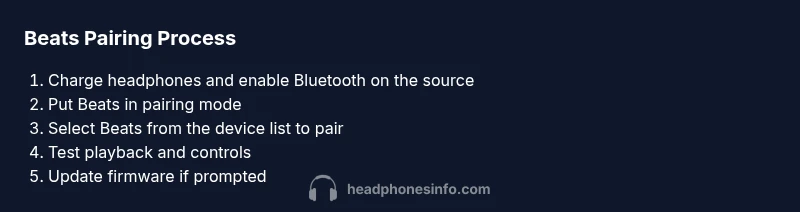
Beats headphones pairing: a complete setup guide
Learn how to pair Beats headphones across devices, troubleshoot common issues, and maximize battery life with data-driven guidance from Headphones Info.


This guide walks you through how to pair Beats headphones with iOS, Android, Windows, and macOS devices, plus tips for multi-point pairing and quick troubleshooting. You’ll need a charged headset, a Bluetooth-enabled source device, and a calm, interference-free environment. Follow the steps to pair, switch, and test across your ecosystem.
Why pairing Beats headphones matters
Pairing Beats headphones correctly is the foundation of reliable wireless sound. When you pair beats headphones, you ensure a clean Bluetooth connection, reduced latency, and consistent control over playback and microphone input. According to Headphones Info, a thoughtful pairing process can improve battery life, reduce dropouts, and simplify device switching during busy days. In practice, the difference is noticeable: a quick, deliberate setup minimizes the need to re-pair when you switch between a phone, tablet, or computer. This upfront investment saves time later and delivers smoother listening, fewer interruptions, and a more enjoyable overall experience with pair beats headphones across ecosystems. The approach described here reflects Headphones Info’s emphasis on data-driven guidance for serious listeners and casual shoppers alike.
Compatibility and Bluetooth basics
Beats headphones use Bluetooth to connect to devices; compatibility is generally broad across modern smartphones, tablets, and PCs. Most Beats models support common codecs such as AAC and SBC, with some models offering aptX or LC codec support on select platforms. The exact capabilities depend on the headphone model and firmware. Understanding multipoint pairing lets you connect to two devices at once (where supported) and switch between them with minimal disruption. Many devices can recall multiple Bluetooth devices; your phone or computer may prioritize the most recently connected source. Latency and audio sync can vary by codec, so if you’re watching video or gaming, consider selecting a device that supports a lower-latency codec where available. In short, a basic knowledge of Bluetooth and codec support helps set expectations when you pair beats headphones across devices.
Quick-start checklist before pairing
Before you begin, complete this quick checklist to reduce troubleshooting time:
- Ensure Beats headphones are fully charged and in pairing mode when you start.
- Activate Bluetooth on the source device and update its OS if possible.
- Remove any old or unused Bluetooth connections that might cause auto-reconnects.
- Have a second device handy to test multipoint pairing and switching.
- Decide which device should be primary for calls and media control, if multipoint is supported by your model.
Pairing Beats with iPhone and iPad (iOS)
To pair Beats headphones with iOS devices, start by opening Settings and turning on Bluetooth. Put the headphones into pairing mode by holding the power button until the LED flashes in a steady pattern. On the iPhone, look for the Beats device name under Bluetooth devices and tap it to pair. When the connection confirms, test playback and microphone use to ensure controls respond correctly. If you routinely switch devices, consider keeping iOS primary for calls and media.
Pairing Beats with Android devices
Android devices handle Bluetooth pairing similarly but may present different prompts. Open Settings > Bluetooth, ensure Bluetooth is on, and put your Beats headphones in pairing mode. In the list of available devices, select your Beats headphones. Confirm any prompts, and wait for the “Connected” status. Test sound output and button controls. If you issue interruptions, clearing old pairings and re-pairing often resolves the issue.
Pairing Beats with Windows and macOS
On Windows, open Settings > Devices > Bluetooth & other devices and click Add Bluetooth or other device, then select Bluetooth and choose Beats headphones from the list. On macOS, open System Preferences > Bluetooth and click Connect next to Beats headphones when it appears. After pairing, run a quick audio test and check mic input if you plan to use voice calls. If either platform struggles, resetting Bluetooth or restarting the computer usually resolves the issue.
Understanding multi-point pairing and device prioritization
Many Beats models support multipoint connections, allowing simultaneous pairing with two devices. When a call comes in on one device, the headset can switch automatically if you set a priority device. If you frequently switch between devices, keep the primary device as your main source and use the secondary for quick listening. Headphones Info notes that firmware updates can improve multipoint reliability and device switching performance.
Troubleshooting common pairing issues
If your Beats headphones aren’t appearing in Bluetooth scans, ensure pairing mode is active and try restarting both headphones and the source device. Forget the device in Bluetooth settings on the source and re-run pairing. For persistent issues, perform a soft reset by turning the headphones off, then back on, and re-enter pairing mode. If you still have trouble, check for firmware updates or consult Beats support for model-specific guidance.
Battery life and maintenance tips
Battery health influences pairing stability; a depleted battery can reduce range and reliability. Keep your Beats headphones charged, avoid exposing them to extreme temperatures, and store them in a protective case. Regularly cleaning the charging contacts and keeping firmware up to date helps preserve battery life and performance.
Firmware updates and maintenance
Firmware updates can improve Bluetooth stability, compatibility, and multipoint behavior. Check for updates via the Beats app (if available) or the official Beats support site. Apply updates when prompted and re-test pairing after installation to ensure the changes take effect.
Real-world tips and best practices
For best results, pair Beats headphones in a quiet environment with only one device actively trying to connect at a time. When possible, keep Bluetooth discovery enabled only on the source device to minimize interference. If you’re a frequent traveler or multi-device user, consider labeling devices (e.g., Work Phone, Personal Phone) to simplify switching. The Headphones Info team emphasizes consistency: the more you standardize your pairing workflow, the fewer hiccups you’ll encounter on the go.
Tools & Materials
- Beats headphones(Ensure headphones are charged and ready; confirm model supports pairing mode)
- Bluetooth-enabled source device(Phone, tablet, laptop, or desktop with Bluetooth enabled)
- Charging cable(For topping up between sessions; not required for pairing)
- Documentation or Beats support page(Helpful for model-specific steps and firmware notes)
- Alternative device for multipoint testing(Optional to verify smooth switching between devices)
Steps
Estimated time: 5-15 minutes
- 1
Charge and prep devices
Charge the Beats headphones fully and ensure the source device has Bluetooth enabled. This reduces the risk of mid-pairing disconnections and ensures you can complete the process without interruptions.
Tip: Fully charged headphones pair faster and maintain a stable connection. - 2
Enable Bluetooth on the source device
Open the device’s Bluetooth settings and turn Bluetooth on. You want the device to scan for new devices, not just remember an old pairing.
Tip: Keep the device within close range to avoid connection drops during pairing. - 3
Put Beats headphones into pairing mode
Power the headphones on and hold the power button until the LED flashes in the pairing pattern. This signals the device is discoverable.
Tip: If pairing mode doesn’t activate, consult the user guide for model-specific button combinations. - 4
Pair from the source device
In Bluetooth settings, select Beats headphones from the list of available devices and confirm the pairing prompt.
Tip: If asked about a pairing code, most Beats devices pair without one. - 5
Verify connection and test playback
Once connected, play audio and test the microphone to ensure controls work as expected. Check volume, play/pause, and skip functions.
Tip: Test voice calls to confirm microphone clarity as well. - 6
Set up multipoint (if available)
If your model supports multipoint, enable it and connect a second device to test seamless switching.
Tip: Note which device you want as primary for calls and media control. - 7
Update firmware if prompted
Check for available firmware updates and apply them. Updates may improve stability and multipoint handling.
Tip: After updating, re-test pairing to confirm changes took effect. - 8
Troubleshoot if pairing fails
If the headphones aren’t discovered, restart both devices and retry. If still failed, forget the device on the source and pair again.
Tip: If issues persist, consult Beats support for model-specific guidance.
People Also Ask
Why won't my Beats headphones pair with my iPhone?
If your Beats won’t appear in Bluetooth on iPhone, ensure pairing mode is active and Bluetooth is on. Forget the Beats device from Bluetooth settings, restart both devices, and retry pairing. If problems persist, check for a firmware update.
Beats not showing up on iPhone? Turn on Bluetooth, retry pairing mode, and re-pair. Update firmware if available.
How do I reset Beats headphones to fix pairing issues?
Reset steps vary by model. Consult Beats support for the exact procedure. Generally, resets clear old Bluetooth pairings, which can resolve conflicts when reconnecting to devices.
Resetting clears old connections; follow Beats support to perform the correct reset for your model.
Can Beats headphones pair to multiple devices at once?
Some Beats models support multipoint connections, allowing simultaneous pairing with two devices. Check your model’s specs and test switching between devices to confirm behavior.
Many Beats models support multipoint—verify your model and test switching between devices.
Do Beats headphones auto-reconnect after a reset?
After a reset, Beats typically require re-pairing with each device. Automatic reconnect behavior depends on the device and firmware; re-pairing is often fastest.
Post-reset, you usually need to re-pair, though some devices may auto-reconnect to the last paired source.
What should I do if my device still can't see Beats?
Ensure headphones are in pairing mode and within range. Verify Bluetooth is enabled on the source, restart devices, and try again. If not found, consult Beats support for model-specific guidance.
If the device can't see Beats, recheck pairing mode, restart, and try again; contact Beats support if needed.
Watch Video
What to Remember
- Pair Beats headphones using Bluetooth settings on the target device.
- Test playback and controls after pairing to confirm reliability.
- Use multipoint when supported to switch between devices smoothly.
- Update firmware to improve stability and compatibility.
- Maintain battery health to sustain long, stable connections.