How to Use Beats Headphones: A Step-by-Step Guide
Learn how to power on, pair via Bluetooth, control playback, adjust ANC, and maintain Beats headphones with a clear, step-by-step approach for optimal sound and comfort.


In this guide you will learn how to use Beats headphones effectively: how to power on, pair via Bluetooth, control playback, adjust ANC, and care for the device. You’ll need a Bluetooth-enabled device and a charged Beats headset. By following the steps, you’ll optimize sound quality and battery life with practical tips.
Understanding Beats Headphones: What makes them unique
Beats headphones excel with a punchy bass emphasis, comfortable design, and a streamlined Bluetooth experience. This section covers the core technologies behind Beats devices: Bluetooth connectivity, codec support, and the typical control layout. If you’re new to Beats, you’ll notice quick pairing with many devices, and the user experience is often simplified for iOS users due to native integration. According to Headphones Info, Beats headphones offer a streamlined pairing experience and strong iOS integration, which can simplify setup for iPhone users and Apple ecosystem fans. When evaluating models, consider whether you want true wireless or over-ear form factors, as this affects battery life, mic quality, and fit. The default sound profile tends to boost bass and clarity, but you can fine-tune using the Beats app or your device’s EQ. Finally, manage expectations: multi-point pairing and advanced spatial audio aren’t universal across every Beats model, so verify the feature set for your specific headset. This approach helps you choose the right model for your listening style and daily routine.
Quick start: Unbox, charge, and pair
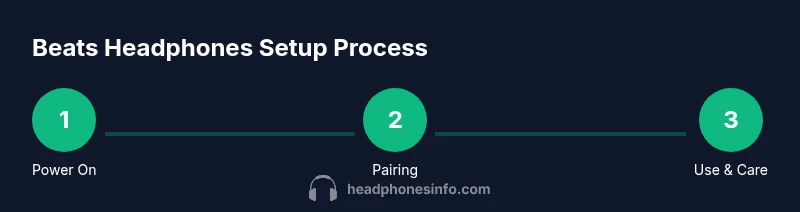
Begin by inspecting the box: headphones, charging cable, and a quick-start guide. If the battery is low, connect the USB cable and charge for at least 15–20 minutes before first use. Power on by pressing and holding the power button until the LED indicator glows or blinks. To enter pairing mode, continue holding the power button until you see a blinking LED pattern or hear an audible cue. On your source device, open Bluetooth settings and select Beats from the device list to complete pairing. If you use multiple devices, pair with the primary one first and switch as needed via Bluetooth settings. After pairing, test playback with a sample track or video and adjust the volume. If you have trouble, restart both the headphones and the source device, forget the Beats device in Bluetooth settings, and attempt pairing again. If your model supports NFC, a tap can trigger quick pairing on compatible devices.
Mastering playback controls and features
Beats headphones use a straightforward control scheme on the earcups: play/pause, track forward/back, volume up/down, and answer/end calls. Some models also support a swipe or long-press for voice assistants. The Beats app (optional) can unlock EQ settings and firmware updates, allowing you to tailor sound to your taste and gear. When you’re on a call, use the built-in mic to ensure your voice is transmitted clearly, and switch between music and calls without pulling the device out of your pocket. If you rely on hands-free voice assistants, confirm that the microphone is working in your environment and adjust the fit for optimal pickup. Headphones Info notes that model differences matter: some devices include spatial audio or enhanced voice capture, while others focus on simplicity and battery efficiency.
Optimize sound quality: ANC, EQ, fit, and environment
Active Noise Cancellation (ANC) and transparency modes vary by model. If your Beats model supports ANC, enable it to reduce ambient noise and improve focus, particularly in transit or crowded spaces. Use the Beats app or device EQ options to tune bass, mids, and treble to your preference. Fit matters: ensure the cushions seal well and the headband is adjusted for comfort to maximize bass response and minimize sound leakage. For best results, test ANC in common environments (bus, office, outdoors) and switch to transparency when you need situational awareness. Regular firmware updates, available through the Beats app, can improve ANC performance and overall stability. Although this guidance prioritizes ease of use, some enthusiasts will want to experiment with different EQ presets to achieve a personalized sound signature. The Headphones Info team notes that consistency across devices depends on model and firmware, so keep your headset updated.
Troubleshooting common issues
If pairing fails or the connection drops, check battery level and move closer to the source device. Forget the Beats device from Bluetooth settings on both ends and retry pairing. If the audio is distorted or muted, verify that the device volume is up and that no other app is muting the stream. For microphone issues, ensure the headset is selected as the input device and re-pair if necessary. If ANC isn’t performing as expected, verify that you’re on a supported model and update firmware via the Beats app. Headphones Info analysis shows that users who keep firmware up to date experience more stable Bluetooth connections and better ANC performance. If you still have trouble, consult the official model guide for reset steps or contact customer support.
Maintenance and care to extend life
Store Beats headphones in a cool, dry place away from direct heat or sunlight. Clean the ear cushions with a soft, damp cloth and avoid harsh solvents. Regularly check charging cables for fraying and replace them if needed. Keep firmware current with official updates and avoid leaving the headphones plugged in after full charge for extended periods. When not in use, fold and store in the case to protect against accidental drops. Regular care helps maintain comfort, battery health, and overall sound quality, ensuring your Beats headset remains reliable for daily listening.
Tools & Materials
- Beats headphones (any model)(Ensure model supports Bluetooth and has enough battery for setup)
- Phone or computer with Bluetooth(Used to pair and control playback)
- Charging cable (USB-C or Lightning)(Charge before first use and as needed)
- Beats app (optional)(Firmware updates and EQ customization)
- User manual or quick-start guide(Helpful for model-specific steps)
Steps
Estimated time: Total time: 15-25 minutes
- 1
Charge and power on
Plug in the charging cable and allow the headset to reach a sufficient charge. Once charged, press and hold the power button until the LED indicates power on. This establishes a stable baseline for setup and ensures the headset won’t power down mid-pairing.
Tip: A full charge minimizes random disconnects during setup. - 2
Enter pairing mode
With the headset off, press and hold the power button until the LED pattern signals pairing mode. Some models may require a dedicated pairing button; refer to your manual if needed.
Tip: If pairing mode doesn’t engage, try a short reset by holding power for longer or cycling power on/off. - 3
Pair with your device
On your device, open Bluetooth settings and choose Beats from the available devices. Confirm the pairing prompt if requested. Test audio playback to confirm a successful connection.
Tip: If you’ve paired with another device recently, forget that device first to avoid conflicts. - 4
Test playback and calls
Play a track, adjust volume, and test a call to verify mic performance. Ensure the headset is selected as the audio input/output device on your source.
Tip: Use a quick sample video to test both audio and mic paths. - 5
Explore ANC and app features
If your model supports ANC, enable it to reduce ambient noise. Open the Beats app (or device settings) to tweak EQ and check for firmware updates.
Tip: Turn off ANC in loud environments to conserve battery and improve situational awareness. - 6
Update firmware and maintain
Check for firmware updates via the Beats app and install them when available. Keep the headset in a safe case when not in use and monitor battery health regularly.
Tip: Avoid interrupting a firmware update; ensure a stable Bluetooth connection during the process.
People Also Ask
How do I pair Beats headphones with an iPhone?
Turn on Bluetooth on the iPhone, then hold the Beats power button to enter pairing mode until the LED blinks. In Bluetooth settings, select Beats from the list to complete pairing. Test audio to confirm.
Turn on Bluetooth on your iPhone, put the Beats into pairing mode, then select Beats in the Bluetooth menu and test the audio.
Can I connect Beats headphones to multiple devices at the same time?
Many Beats models support quick switching, but most cannot stay connected to two devices actively. You can pair with a second device and switch manually when needed.
Some Beats can switch between devices, but you usually connect to one at a time and switch through your Bluetooth settings.
Why is my Beats battery draining quickly?
Battery life depends on usage, volume, and ANC. Disable ANC when not needed and keep firmware updated to optimize efficiency and battery management.
Battery life varies with usage and ANC; turning off ANC when you don’t need it helps save power.
How do I reset Beats headphones to factory settings?
Model-specific, but generally involves holding power and another button together for several seconds to clear pairing data. After reset, re-pair with your devices.
Reset guidance varies by model; consult the manual and perform a reset to clear old pairing data, then re-pair.
Do Beats headphones require the Beats app?
The Beats app is optional for most models but useful for firmware updates and EQ customization. Some features may be limited without the app.
The app isn’t required, but it helps manage updates and sound customization.
Is ANC available on all Beats models?
ANC availability is model-dependent. Beats Studio and Pro lines typically include ANC, while some compact models may offer only basic noise reduction or none.
ANC varies by model; check your specific Beats model to confirm features.
Watch Video
What to Remember
- Pair quickly and reliably with Bluetooth-enabled devices.
- Use ANC and EQ to tailor sound to environment and taste.
- Keep firmware up to date for stability and features.
- Care for the cushions and battery to extend headset life.