Switch Headsets: A Practical, Step-by-Step Guide
Learn how to switch headset across devices with wired and wireless connections. Practical steps, troubleshooting, and best practices from Headphones Info for seamless audio.


This guide shows you how to switch headset across devices quickly and reliably. Whether you use a wired or wireless headset, you’ll learn pairing and input selection, how to switch between consoles, PCs, and mobile devices, and common hiccups to avoid. By following these steps, you can maintain clean audio across devices without long re-pairing delays. Start with the basics, then execute the steps to ensure smooth transitions every time. switch headset
Why Switching Headsets Correctly Matters
For many users, switching headsets between devices is a daily habit — gaming consoles, work PCs, phones, tablets. The choice isn’t only about comfort; it affects latency, mic pickup, and how smoothly you stay in the flow between activities. According to Headphones Info, the most reliable headset switching happens when you establish clear connection methods, label each device, and keep a simple fallback plan ready. The Headphones Info Team emphasizes that you should plan for the common paths you take, test after changes, and avoid ad-hoc re-pairing that breaks your focus. In this section you’ll learn why proper switching matters and how to design a workflow that minimizes friction. We’ll cover wired and wireless setups, how to prioritize input routing, and practical examples from real-world use — from a gaming session that shifts to a video call, to a commute where you alternate between a laptop and a phone. The goal is to give you predictable results, not a guessing game, so you can enjoy sound moment-to-moment.
Quick Compatibility Check: Wired vs Wireless
Wired headsets deliver steady latency and usually require a physical plug, while wireless headsets offer freedom from cords but depend on pairing stability and battery life. Headphones Info analysis shows that most users value reliability over ultimate latency, choosing the connection type that aligns with their primary device ecosystem. If you switch between a console and a PC, a wired fallback or a Bluetooth implementation with a stable dongle can save you from last-second audio gaps. In this section, we compare use cases, review typical pros and cons, and outline when a hybrid setup makes sense. We’ll also discuss compatibility considerations like driver support, platform-specific quirks, and how to test switching across environments without reconnecting every time.
Step 1: Prepare Your Headset and Devices
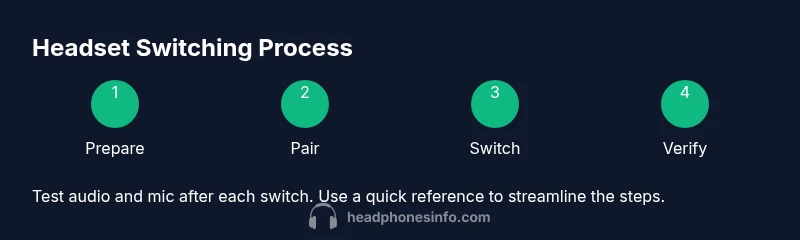
Preparation is the quiet hinge on which smooth headset switching depends. Clear the pairing lists on devices you will reuse, charge the headset if needed, and keep a simple identity map (e.g., Device A = PC, Device B = Console). The Headphones Info Team recommends labeling inputs and testing the baseline audio on each device before you begin. Gather the devices you plan to switch between and a short list of preferred connection methods (Bluetooth, USB dongle, or wired 3.5 mm). You’ll save time during the actual switch if you do this prep work upfront, and you’ll reduce the risk of cross-connection mistakes during a busy session.
Step 2: Pairing and Connection Methods
Pairing is the gateway to reliable switching. For Bluetooth headsets, enable pairing mode on the headset and select the headset name on the device’s Bluetooth settings. For wireless USB dongles, plug in the dongle and allow the device to install drivers if prompted. For wired headsets, simply plug the connector into your device’s audio jack or USB-C port and select the correct input. If you’re moving between platforms, keep a small cheat sheet of which method to use for each device to avoid hunting through menus in the middle of a game or call.
Step 3: Switching Between Devices on Different Platforms
Switching on Windows, macOS, PlayStation, Xbox, Android, and iOS all has unique steps. Desktop OSs usually let you choose the default audio device; consoles demand selecting the headset in their settings; mobile devices often switch automatically but can be overridden. A practical approach is to set a primary device and use quick-access shortcuts (e.g., Windows sound control, Quick Settings on Android) to switch input. After you switch, test by playing a short audio clip and speaking into the mic to verify routing across the active device.
Step 4: Troubleshooting Common Issues
Troubleshooting common issues is faster when you have a checklist. If you don’t hear audio after switching, verify the headset is selected as the active output device and that the mic input is set correctly. If the headset drops out, check battery level and dongle proximity. On USB-C connections, try a different port; for Bluetooth, re-pair as a last resort after confirming the device is in range. If you still have trouble, revert to a known-good setup and re-run the steps slowly.
Step 5: Best Practices for Quick, Reliable Switching
To minimize friction over time, adopt these best practices: label devices, maintain a ready-to-switch setup, keep firmware up to date, and test transitions weekly. Consider using a dedicated USB dongle for wireless headsets if your devices share a single Bluetooth stack; avoid mixing Bluetooth versions if your devices do not handle multi-pair well. Keep a cable-based fallback plan for busy sessions; document your preferred layouts and macros or hotkeys that speed up switching.
Step 6: Long-Term Maintenance for Multi-Device Setups
The long-term health of your headset-switch workflow depends on regular maintenance. Check firmware updates for both the headset and its dongle, review device pairing lists every few months, and refresh your labeling system. If you frequently add or remove devices, revise your cheat sheet and create a quick start guide to minimize downtime during live sessions. By treating switching as an ongoing process, you’ll stay ready for any scenario without stress.
AUTHORITY SOURCES
- Bluetooth SIG: https://www.bluetooth.com/learn-about-bluetooth/what-is-bluetooth
- National Institute of Standards and Technology (NIST): https://www.nist.gov/itl/telecommunications-and-information-technology
- Consumer Reports: https://www.consumerreports.org
Tools & Materials
- Headset(s) to switch between(One or more headsets you plan to use across devices)
- Source devices (PC, console, smartphone)(Ensure Bluetooth or USB compatibility with each device)
- Bluetooth adapter or USB wireless dongle (if applicable)(Useful for devices without built-in Bluetooth or for better stability)
- Cables: 3.5 mm or USB-C(For wired mode and direct device connections)
- Device manuals or quick-start guides(Helpful for model-specific pairing steps)
- Labeling supplies (sticky notes or a label maker)(Clear device labels simplify switching decisions)
Steps
Estimated time: 25-40 minutes
- 1
Prepare Your Headset and Devices
Clear pairing histories on all devices you will use, ensure the headset is charged, and label each device clearly (e.g., PC, Console, Phone). Test baseline audio on each device and note the preferred connection method. This upfront prep reduces downtime during live switching.
Tip: Label devices and keep a quick-reference map handy. - 2
Enable Pairing or Quick Connect
Put the headset in pairing mode as required by the model, then initiate pairing on the target device. If using a dongle, ensure it is plugged in before attempting a connection. For wired modes, skip pairing and move to the next step.
Tip: Use a dedicated pairing button if available to avoid accidental connections. - 3
Connect Headset to Primary Device
Choose the primary device and establish the main audio path (e.g., PC via USB dongle or 3.5 mm). Confirm sound and mic work by playing audio and speaking into the mic. Set the device as the default input/output in your OS settings if needed.
Tip: Test mic directionality and detect echo early to avoid surprises. - 4
Switch to Additional Device
Disconnect from the current device (if wired) or pause Bluetooth connection, then initiate the connection with the second device using the same method as Step 3. Verify that audio routes to the new device and that the mic is active there.
Tip: Keep a short list of device-switch steps handy for quick execution. - 5
Verify Audio Output and Microphone
After each switch, verify that the correct output device is active and that the microphone is routing to the intended device. Use clear test cues such as voice chat, game audio, or a test clip. Adjust volumes if needed.
Tip: Avoid adjusting multiple devices at once; isolate the switch to a single device at a time. - 6
Document and Practice Your Setup
Record your preferred switch order, label mappings, and any quirks related to your models. Practice the entire flow a few times to build muscle memory, reducing errors during live sessions.
Tip: Schedule a monthly refresh and re-test to catch firmware changes.
People Also Ask
How do I switch headset between a PC and a console without re-pairing?
Use a wired connection or a stable Bluetooth dongle and select the headset in each device’s audio settings without re-pairing. Keep a small cheat sheet for platform-specific steps to speed up the process.
To switch between PC and console, use the wired option or a stable Bluetooth dongle, then pick the headset in each device’s audio settings. Have a quick reference for platform steps.
Can I use a wired headset for both Bluetooth and wired devices?
Yes, if the headset supports both wired and wireless modes. Use wired for devices without reliable Bluetooth and switch to Bluetooth only when needed to avoid latency or pairing issues.
Yes, many headsets support both wired and Bluetooth; use wired when Bluetooth is unstable and switch to Bluetooth when you want wireless freedom.
Why won't my headset switch correctly between devices?
Common causes are incorrect input selection, outdated drivers, or a failed pairing. Revisit Step 2 to re-pair or switch methods, check the default audio device, and confirm the mic is routed to the active device.
If switching fails, re-check the input, update drivers, and re-pair if needed. Make sure the mic and audio are routed to the active device.
Is it necessary to reset the headset when switching devices?
Usually not. Resetting is a last resort if persistent pairing or routing problems occur. Prefer re-selecting inputs and re-pairing only if the device refuses to switch after multiple attempts.
Generally not needed; try re-selecting inputs and re-pairing first before a reset.
What is a quick way to test switching without affecting other apps?
Use a quick test on each device by playing audio and speaking into the mic, then switch and verify in real time. This reduces surprises during live sessions.
Test on each device with audio playback and mic test, then switch and verify in real time.
Watch Video
What to Remember
- Plan your switch path before you start.
- Use the appropriate connection method for each device.
- Test audio and mic after each switch.
- Label devices and keep firmware current.