What is wrong with my Bluetooth headphones? An urgent troubleshooting guide
A comprehensive, urgent troubleshooting guide for Bluetooth headphone issues, covering pairing failures, audio dropouts, firmware, and safety tips. Insights based on Headphones Info Analysis, 2026.


When you ask what is wrong with my bluetooth headphones, the most likely culprits are pairing conflicts, low battery, or wireless interference. Start with quick fixes: reset the headphones, unpair and re-pair with the source device, and confirm both ends are updated. If problems persist, test with another device and check for firmware updates.
Why Bluetooth Headphones Fail: Common Causes
When you wonder what is wrong with my bluetooth headphones, you’re not alone. Most issues fall into a few predictable categories: pairing conflicts, weak or dead batteries, firmware issues, or interference from other wireless devices. According to Headphones Info, many dropouts happen when multiple devices contend for the same airwaves, or when the headphones and source haven’t negotiated a clean connection. This section helps you identify which bucket your problem belongs to.
First, look at the pairing status: are the headphones visible on your source device? If not, you may need to reset pairing mode or clear old connections. Battery health is equally critical: a low battery can throttle drivers or cause volume dips. Firmware stability matters too: manufacturers push updates to fix known bugs and improve stability. Finally, environment matters: physical barriers, dense walls, and other Bluetooth devices can cause interference, leading to crackling, stutter, or sudden disconnects. By classifying the symptom, you’ll narrow down the fixes and avoid unnecessary steps. In many cases, a simple reset and re-pair resolves the majority of issues, especially when combined with a firmware check. Remember: even high-end models can misbehave if the firmware is stale or if a nearby device is stealing bandwidth.
Quick checks you can do now
Before you dive into longer diagnostics, run through these quick checks. They address the most common, easiest fixes and can save you a lot of time. Start with the source device and the headphones themselves.
- Check battery levels on both the headphones and the connected device; a low battery is a frequent culprit.
- Ensure the headphones are in pairing mode and the source device Bluetooth is enabled.
- Toggle Bluetooth off, wait 10 seconds, and turn it back on to refresh the connection.
- If you use a multi-point connection, disconnect all other paired devices and test with a single device.
- Update the headphone firmware if an update is available, which often fixes known problems. By completing these steps, you’ll often restore stable audio without more invasive troubleshooting.
Diagnostic Flow at a glance
This section presents a fast, linear flow to diagnose what’s going on. Start with symptom observation, move to likely causes, and apply the simplest fixes first. Symptoms to watch: no audio, intermittent audio, or random disconnects. Likely causes: power/battery, pairing conflicts, or interference. Simple fixes include charging, re-pairing, and firmware updates. If the issue persists, escalate to more advanced steps such as resetting device profiles or testing with a different source. The key is to validate each fix before moving on. By following the flow, you’ll isolate the root cause and apply the minimal, most effective remedy. If you remain stuck, seek professional support to prevent warranty issues.
Step-by-step fixes for the most common causes
- Low battery or power instability: Charge fully, then reconnect. Make sure the headset is not in power-saving mode.
- Pairing conflicts: Forget the device on the source, reset headphones, and re-pair from scratch.
- Interference and range: Move closer to the source, remove other Bluetooth devices nearby, and reduce obstacles.
- Firmware issues: Install the latest firmware via the manufacturer’s app or website.
- Audio routing issues: Check output device in your OS or device settings and reselect the headphones. Tip: perform each step in order and verify playback after each fix.
Safety, firmware, and reset nuances
Safety first: never open or disassemble sealed Bluetooth headphones. Battery packs can be hazardous if punctured. Use official reset sequences provided by the manufacturer, and avoid using third-party tools that claim to re-flash firmware. If you must reset, do so with the headphones powered off and in pairing mode as instructed by the maker. Firmware updates should be applied via the official app or website and only when connected to a trusted power source. Keep devices away from moisture and extreme heat during updates.
Optimizing for fewer interruptions
To minimize interruptions, manage your environment. Keep headphones within a clear line of sight of the source, minimize physical barriers, and reduce competing 2.4 GHz signals by turning off unused Bluetooth devices nearby. If you experience interference at home, switch to a wired connection when possible for critical work. Firmware and app-based optimizations can reduce latency and improve stability, especially on older models.
Testing and verification: what success looks like
Success means consistent playback without unexpected dropouts, stable pairing on first attempt, and no latency or audio glitches across typical listening sessions. After fixes, test with your primary device and a secondary device to confirm cross-device compatibility. Listen for codec-related issues (AAC/aptX/LDAC) if your headset supports them, and verify that volume levels stay balanced. If issues recur, record symptoms and timing to share with support for faster diagnosis.
When to seek professional help
If you’ve exhausted basic troubleshooting and the problem persists across multiple devices, it’s time to consult support. Persistent hardware faults, battery degradation, or leakage from moisture may require advanced diagnostics or replacement under warranty. Always check your warranty terms before sending in devices. A professional assessment can prevent further damage and protect your data.
Prevention tips for long-term reliability
Keep firmware up to date, store devices in a cool, dry place, and avoid exposing headphones to moisture or extreme heat. Regularly reset and re-pair devices to refresh connections. Use a single primary source for critical listening and limit the number of paired devices to prevent cross-connection issues. Periodic checks of battery health and charging accessories help maintain reliability.
Steps
Estimated time: 60-90 minutes
- 1
Charge and verify power
Plug in the headphones and ensure the charging light indicates full power. Verify that the source device has Bluetooth enabled and is not in battery saver mode. If you use rechargeable batteries, ensure they’re not swollen or damaged.
Tip: Tip: use the official charger and cable supplied with the device. - 2
Reset and re-pair
Put the headphones into pairing mode, remove the device from the Bluetooth list on the source, then re-pair from scratch. Ensure you complete the pairing confirmation prompts on both ends.
Tip: Tip: perform pairing near a clear line of sight; avoid walls that block the signal. - 3
Test with another device
Connect the headphones to a second phone, tablet, or computer to determine if the issue is device-specific. If it works on another device, the original source may require drivers or settings changes.
Tip: Tip: check codec compatibility on each device during testing. - 4
Update firmware and drivers
Use the official app or manufacturer website to install the latest firmware for the headphones and the newest Bluetooth drivers on the source device. Reboot both devices after updates.
Tip: Tip: back up favorites/settings if the update resets configurations. - 5
Check for interference
Remove or turn off nearby Bluetooth devices and other wireless hardware that may compete for the same channel. Test again in a shorter range environment to confirm stability.
Tip: Tip: switch to a less crowded frequency band if available. - 6
Confirm audio routing
Ensure that playback is routed to the headphones in your OS or device settings. Some devices default to a different output when re-pairing.
Tip: Tip: verify both system sound and app sound routing if you use streaming apps.
Diagnosis: Headphones frequently disconnect, or there is no audio after connection
Possible Causes
- highPower issue / low battery
- highPairing conflicts or memory stored connections
- highInterference from other devices or weak signal
- mediumOutdated firmware or drivers on devices
Fixes
- easyCharge headphones and source device to full; disable power-saving features
- easyForget the headphones on the source, reset headphones, and re-pair from scratch
- easyMove closer to the source and remove other active Bluetooth devices; reduce barriers
- easyInstall the latest firmware for headphones and the latest drivers on the source
People Also Ask
Why won’t my Bluetooth headphones pair with my device?
Common causes include a device not in pairing mode, outdated firmware, or previous connections still being active. Start by forgetting the device and re-pairing from scratch after a reset.
If you’re having pairing issues, first forget the device, reset, and re-pair. If it still fails, check for firmware updates.
There’s no sound after pairing. What should I do?
Verify the audio output is routed to the headphones, the volume is up, and the device isn’t muted. Update drivers and firmware if needed and test with another app or source.
No sound after pairing? Check the output setting and volume, then update firmware if possible and retest with another app.
Why do my headphones drop out randomly?
Interference, range limits, or battery problems are typical culprits. Move closer to the source, reduce nearby devices, and ensure the headphones stay charged.
If you experience dropouts, reduce interference, keep within range, and verify battery health.
Can a reset fix most issues without professional help?
A reset plus re-pairing resolves many issues, especially when firmware is up to date. If problems persist, contact support.
A reset and re-pairing fixes many problems; if it continues, reach out to support.
Is it safe to update firmware via the app?
Yes, update through the official app or website and avoid third-party tools. Ensure the device is charging during the update.
Yes, update via the official app and keep the device charging during the process.
When should I seek professional help?
If multiple devices fail to resolve the issue and you suspect hardware faults, contact the manufacturer or authorized service.
If several fixes don’t help, contact support for possible hardware repair or replacement.
Watch Video
What to Remember
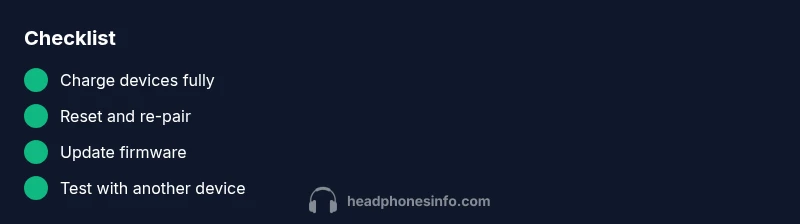
- Reset and re-pair before deeper fixes.
- Check battery levels on both devices.
- Update firmware when available.
- Test with another source to isolate the issue.