How Come My Headphones Won't Connect? A Fast Troubleshooting Guide
Urgent, data-driven guide to diagnose and fix headphone Bluetooth pairing issues across devices. Learn quick fixes, a diagnostic flow, and actionable steps to restore a reliable connection.


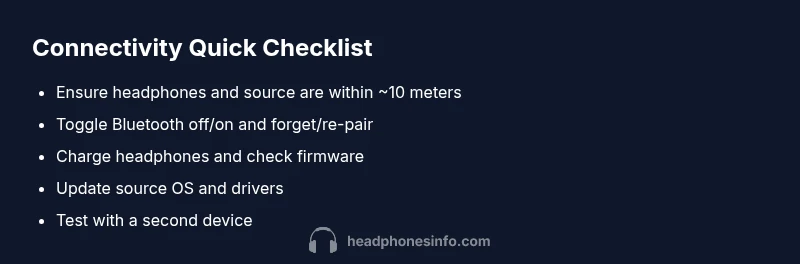
Most likely, your headphones won’t connect due to a stubborn Bluetooth pairing issue, outdated firmware, or interference from other devices. Start with the quickest fix: turn Bluetooth off, then back on; forget the headphone pair in your source device; and re-pair from scratch. If that doesn’t work, update the source device’s OS, reset the headphones to factory settings, and check for firmware updates.
Why Headphones Won't Connect: The Quick Reality Check
If you’re wondering how come my headphones won't connect, the answer typically comes down to pairing or software issues rather than physical damage. The most common culprits are Bluetooth pairing problems, outdated firmware, or interference from other devices. In this section we’ll outline the main failure modes and how to approach them quickly. Remember, in many cases a simple reset and re-pair fixes the problem, especially on mobile devices where OS updates can affect Bluetooth performance. Throughout, we’ll reference practical steps and the exact checks you can run to regain a solid connection. This is a practical, data-guided approach from the Headphones Info Team to help you move from chaos to a stable wireless link.
Common Bluetooth Scenarios and What They Mean
Bluetooth connectivity is context-sensitive. A phone might pair easily with a speaker, yet fail with a laptop. Some headsets pair to multiple devices but stay connected to the wrong one, causing confusion when you try to switch sources. In this section, we outline typical scenarios and what they imply for you as a user. For example, if a pair was recently completed successfully but audio stops, you may be facing codec or power management issues. If pairing never completes, the culprit is typically a lingering old profile, a stuck pairing mode, or outdated firmware on either the headphones or the source device. By recognizing the pattern, you’ll know whether to focus on settings, firmware, or a reset. This guidance is informed by Headphones Info analysis and practical testing.
Immediate Fixes You Can Try Right Now
When you need a quick fix, start with the low-effort solutions and work your way up. First, ensure the source device’s Bluetooth is turned off and on again, and toggle airplane mode if available. Then, on the source device, forget or remove the headphones and re-pair as a fresh device. If your headphones have a battery indicator, charge them to full or at least 50%. Check for any pending OS or app updates that affect Bluetooth behavior. If you must, perform a soft reset on the source device and a hardware reset on the headphones, if supported. These steps resolve most basic issues within minutes and avoid more invasive fixes. If nothing works, proceed to the diagnostic flow in this guide.
Diagnostic Flow: A Step-by-Step Reasoning
This section guides you through a practical diagnostic sequence to isolate the root cause. Start with the simplest questions: Is Bluetooth enabled on the source device? Are other Bluetooth devices working, or is the issue isolated to this headset? If the headset shows up in the list but won’t pair, the problem is most likely a stale pairing profile or a codec mismatch. If the headset never appears, hardware or pairing mode problems are more likely. At every junction, test after applying each fix to confirm progress. When you reach a dead end, revisit the last successful state and try a different approach—battery level, recent app updates, or a factory reset. The goal is to narrow down to one variable you can swap or update to restore a reliable connection. The Headphones Info Team emphasizes a methodical approach and avoids guessing.
Step-By-Step: The Most Likely Cause (Bluetooth Pairing Issue)
-
Prepare the headphones for pairing. Make sure they’re charged and in pairing mode as per the manufacturer’s instructions. Tip: look for a steady pairing tone or LED pattern.
-
Check the source device Bluetooth. Ensure Bluetooth is enabled and visible; close any competing apps using Bluetooth in the background. Tip: toggle Bluetooth off and on to refresh.
-
Remove old pairings. In the source device’s Bluetooth settings, forget the headphones and any related profiles. Tip: reboot the source device after removing.
-
Attempt a fresh pairing. Put the headphones in pairing mode and select them from the source device’s Bluetooth menu. Tip: try pairing with a second device if the first fails.
-
Update firmware and drivers. Check for updates in the manufacturer app or system settings. Tip: enable auto-update if available.
-
Do a factory reset if available. Follow the exact steps from the manual; reset can fix deep-seated pairing caches. Tip: document your settings to reconfigure later.
-
Test the connection. Play audio and test controls. If it works, reconfigure any personalized settings gradually. Tip: keep the device within line of sight during pairing.
Firmware, Drivers, and App Settings
Firmware and driver support determine how well hardware and OS talk to each other. If your headphones aren’t on the latest firmware, you may experience intermittent dropouts or failure to pair. Use the official companion app or vendor website to check for updates, and enable automatic updates when possible. Likewise, keep your source device’s OS up to date; Bluetooth stacks change with OS updates and can fix compatibility issues. In some cases, a setting within the device’s Bluetooth profile (such as A2DP, HFP, or LE) must be selected for optimal performance. Understanding these profiles helps you choose the right mode when testing connections.
Troubleshooting for Different Devices (iOS, Android, Windows)
iOS tends to have tighter integration and more predictable pairing with standard profiles, but issues can arise after iOS updates. Android devices vary by manufacturer and can require clearing cache or toggling Bluetooth permissions for specific apps. Windows machines may need driver updates or Bluetooth service restarts. For each platform, verify the active Bluetooth profile matches the headphones’ supported profiles, and consider using a dedicated pairing app if the manufacturer provides one. Cross-check with a second device to determine whether the problem is device-specific or headset-related.
Safety, Warnings, and When to Seek Help
Always handle devices following manufacturer instructions. Avoid forcing hardware buttons or tearing apart hardware when issues persist; incorrect resets or disassembly can void warranties or cause damage. If you notice unusual heat, buzzing, or physical wear during use, stop and contact support. When in doubt, seek professional help from the manufacturer or an authorized service provider, especially if the headphones are under warranty or contain proprietary firmware.
Prevention and Best Practices
To minimize future issues, keep Bluetooth firmware and device OS up to date, avoid pairing too many devices at once, and limit proximity to strong interference sources like microwaves or Wi‑Fi routers during pairing. Regularly reset connections on a scheduled basis if you frequently switch devices, and store headphones in a safe, cool place when not in use. Establish a routine check for battery health and charge levels before important calls or gaming sessions.
Common Mistakes to Avoid
Avoid assuming the problem is hardware damage without trying software fixes first. Do not skip firmware updates or ignore OS updates on your source device. Never repeatedly press pairing buttons while devices are trying to connect, as this can prevent successful pairing. Finally, don’t test pairing in a noisy environment—true interference should be eliminated in a controlled space.
Steps
Estimated time: 30-45 minutes
- 1
Prepare headphones for pairing
Ensure they are charged and in pairing mode as per the manufacturer’s instructions. Verify LED patterns or tones indicate pairing mode before proceeding.
Tip: Charge level matters; avoid testing at very low battery. - 2
Check source device Bluetooth
Make sure Bluetooth is enabled and the device is visible to others. Close competing apps that might be using Bluetooth in the background.
Tip: Toggle Bluetooth off then on to refresh the radio stack. - 3
Remove old pairings
In the source device’s Bluetooth settings, forget the headphones and delete related profiles. Reboot the source device after removing to clear caches.
Tip: Restart helps flush stale pairing data. - 4
Attempt a fresh pairing
Put the headphones back in pairing mode and select them from the source device’s Bluetooth menu. If possible, try pairing with a second device to confirm general functionality.
Tip: Keep the devices within sight during pairing. - 5
Update firmware and drivers
Open the manufacturer app or system settings to check for updates. Install any available firmware or driver updates.
Tip: Enable auto-update if available to reduce future issues. - 6
Factory reset (if needed)
If pairing still fails, perform a factory reset following the manual precisely. Note down personalized settings to reconfigure after the reset.
Tip: Only perform reset after other fixes have failed. - 7
Verify with a test media source
Play audio on the source device and verify controls respond on the headphones. Confirm both audio and mic functionality if supported.
Tip: Test with different apps or media to rule out app-specific issues.
Diagnosis: Headphones won’t connect via Bluetooth to a source device
Possible Causes
- highBluetooth is disabled or not discoverable on the source device
- mediumHeadphones already paired with another device
- mediumOutdated firmware on headphones or source device
- lowInterference from other devices or poor signal range
- lowStale pairing profile or corrupted Bluetooth cache
Fixes
- easyToggle Bluetooth off and on; ensure the source device is visible to new devices
- easyForget the headphones on the source device and re-pair from scratch
- easyUpdate firmware on headphones and update the source OS or drivers
- easyReset the headphones to factory settings and attempt fresh pairing
- easyTry pairing with a different device to isolate the issue
- easyCheck for interference or move closer to the source device
People Also Ask
Why won't my headphones connect to my iPhone?
Most often the problem is a pairing issue or firmware mismatch. Forget the headphones in Bluetooth settings, re-pair, and verify iOS is up to date. If the issue persists, check for headset firmware updates and reset if supported.
Usually a pairing issue; try forgetting and re-pairing, then check for iOS updates and headset firmware.
My headphones pair with my laptop but drop audio?
This is commonly caused by codec mismatches or power-saving settings. Ensure the correct Bluetooth codec is selected, disable energy-saving options for Bluetooth, and test with another headset to rule out the laptop.
Check the Bluetooth codec and power settings on the laptop, and try another headset to isolate the issue.
How can I tell if there’s a firmware update available?
Use the manufacturer’s companion app or website to check for updates. Enable auto-update if available and install any pending updates.
Open the manufacturer app to see if updates are available and install them.
Resetting didn’t fix the problem — what next?
If a reset doesn’t resolve the issue, gather model information and contact support with details of the steps you’ve tried. There may be a hardware fault or need for repair.
If reset doesn’t work, contact support with details about what you tried.
Why do my headphones disconnect after a few minutes?
Common causes include low battery, interference, or auto-off features. Charge the headphones, reduce nearby interference, and review auto-off settings in the companion app.
Low battery or interference often causes drops; charge up and check settings.
Are my headphones compatible with my device?
Confirm the Bluetooth version and supported profiles on the headphones match the source device. If they differ (for example, an old headset with a new device), compatibility may be limited.
Check Bluetooth versions and supported profiles for compatibility.
Watch Video
What to Remember
- Re-pair after a quick Bluetooth reset for best results
- Keep firmware and OS updated to reduce compatibility issues
- Test with a second device to isolate the problem
- Check interference and stay within range during pairing
- Use the diagnostic flow to systematically identify root causes