How to Fix a Computer Not Recognizing Headphones
Urgent, practical guide to fix a computer not recognizing headphones. Start with quick checks and OS-specific troubleshooting, then driver updates to restore audio quickly.


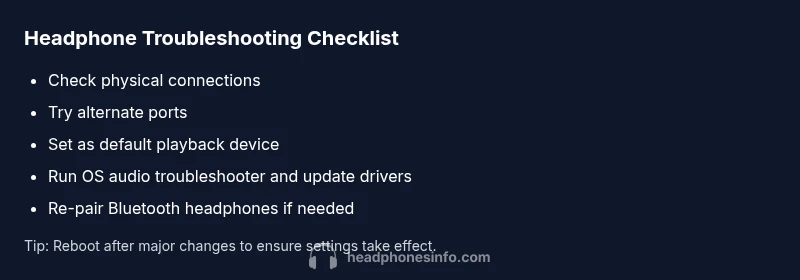
Most likely the issue is a simple connection or driver problem. Start by unplugging and re-plugging your headphones, trying a different port, and setting the headphones as your default playback device. If the issue persists, run the OS audio troubleshooter and update or reinstall drivers. On Mac, use Audio MIDI Setup to confirm inputs and outputs, then reset the Core Audio service if needed.
Why your computer may not recognize headphones
Your computer not recognizing headphones can be caused by a mix of hardware, software, and settings issues. The most common culprits are loose connections, wrong playback device selection, outdated drivers, or codec problems. By understanding how your system detects audio devices, you can triage quickly and avoid unnecessary steps. According to Headphones Info, starting with simple checks often resolves the problem without needing to replace hardware. In this guide, we walk through Windows and macOS steps, USB vs 3.5mm, and Bluetooth considerations to help you diagnose and fix the issue fast.
Quick checks you can perform right now
If you suspect the issue is software-related, begin with quick, safe checks. 1) physically reconnect the headphones and try a different port or dongle. 2) confirm the headphones appear in the sound settings and are selected as the default output device. 3) mute/unmute and verify volume levels in both system and app-specific mixers. 4) reboot the computer to reset audio services. These steps require no tools and can be completed in minutes. This is the fastest path to a live fix.
Common causes of headphone recognition failures
There are several frequent culprits when a computer fails to recognize headphones. Connection issues can be as simple as a loose USB plug or a frayed 3.5 mm cable. Software problems include outdated drivers, corrupted sound settings, or a misconfigured default playback device. Bluetooth scenarios add codec incompatibilities or pairing glitches. In rare cases, a damaged port or faulty sound card can be the root cause. Understanding these categories helps you choose the right fix quickly.
Windows troubleshooting path
Windows users often resolve headphone recognition by reselecting the output device and applying driver updates. Start by typing 'Sound' in the Start menu and opening the Sound settings. Under Output, select your headphones, then click Set Default. Run the Windows Troubleshooter for audio problems, then update or reinstall the audio driver via Device Manager. If you see an exclamation mark, try rolling back or reinstalling the driver. Disable any audio enhancements that could interfere.
macOS troubleshooting path
macOS users typically fix recognition issues by checking System Preferences > Sound > Output and selecting the correct device. Ensure the volume is up and not muted for the specific app. If the device still doesn't appear, reset the Core Audio service by opening Terminal and typing sudo killall coreaudiod, then press Enter and reboot. Make sure macOS is up to date, as system updates often address driver and codec problems.
USB-C, USB-A, 3.5mm, and Bluetooth: Different paths to reconnect
Headphones connect to a computer through multiple paths. USB-C or USB-A connections require compatible drivers and may present as a separate device in sound settings. The 3.5 mm jack relies on the audio chipset and may show up as 'Speakers' or 'Headphones' in Windows. Bluetooth adds another layer: pairing, codecs, and battery status. When troubleshooting, identify which path your headphones use and follow the specific steps: for USB, reinstall drivers; for 3.5 mm, verify physical connection; for Bluetooth, re-pair and ensure the correct profile is active.
Step-by-step guide for the most common cause: wrong default device
Step 1: Open the sound settings and locate the Output section. Step 2: Select your headphones from the list and click Set Default. Step 3: If there is a separate app-specific output, make sure it is not muting the system. Step 4: Apply changes and test by playing audio. If the device still isn't used, proceed to updating drivers. Tip: After changing defaults, restart the audio service for reliability.
Advanced fixes for stubborn issues
Sometimes the issue is deeper in the system: stale cache, corrupted preferences, or a problematic audio driver. Reinstall the audio driver completely, clear audio cache, or reset the system's audio configuration. For Bluetooth headphones, forget the device, reset the headset, and re-pair. If you're on Windows, consider an in-place upgrade or system restore to revert audio settings without affecting your files. For Mac, a PRAM reset can help with persistent audio problems.
Prevention and maintenance to avoid future issues
Regularly updating OS and drivers reduces the chance of a 'computer not recognizing headphones' error. Keep cables in good condition, avoid bending or kinking, and store devices properly. Periodically check sound settings and create a quick test playlist to confirm the default output works across apps. If you use Bluetooth headphones, keep firmware up to date and maintain healthy pairing practices.
Steps
Estimated time: 20-40 minutes
- 1
Check physical connections
Inspect the headphone plug, USB cable, or Bluetooth status. Unplug and reinsert firmly, try a different port, and check for visible damage.
Tip: If you’re using adapters, test without them to rule out adapter faults. - 2
Test multiple paths
If possible, test USB, 3.5mm, and Bluetooth paths separately to identify the failing route.
Tip: Label which path works in another device to speed up testing. - 3
Set default playback device
Open sound settings, select the headphones, and click Set Default. Verify in app sound mixers as well.
Tip: Some apps remember their own output; check app-specific settings. - 4
Run OS audio troubleshooter
Use built-in troubleshooters (Windows: Troubleshoot settings; macOS: Audio MIDI Setup diagnostics) to detect issues.
Tip: Follow prompts and apply suggested fixes. - 5
Update or reinstall drivers
Update drivers via Device Manager (Windows) or Manufacturer utilities; consider a clean reinstall if problems persist.
Tip: Avoid updating through third-party tools unless trusted. - 6
Re-pair Bluetooth devices
Forget the device, reset headphones, and re-pair. Ensure the correct profile (A2DP) is active.
Tip: Charge headphones before pairing to prevent dropouts. - 7
Check hardware health
Test headphones on another device to rule out headset faults; test PC with another known-good headset.
Tip: If issues persist across devices, the headset or PC port may be faulty. - 8
Final check and seek help
If nothing works, consult a technician or the device manufacturer for hardware diagnostics.
Tip: Professional service may be needed for motherboard or audio chipset faults.
Diagnosis: Headphones not recognized by computer across USB, 3.5mm, or Bluetooth
Possible Causes
- highLoose or damaged USB/3.5mm connection or port damage
- mediumWrong playback device selected or muted output
- highOutdated, missing, or corrupted audio drivers
- mediumBluetooth pairing issues or codec mismatch
- lowHardware fault in headphone, USB adapter, or PC sound card
Fixes
- easyCheck all connections, try a different port/cable
- easySet headphones as default playback device in OS settings
- easyRun the OS audio troubleshooter
- mediumUpdate or reinstall audio drivers
- easyRe-pair Bluetooth headphones or reset Bluetooth
- easyTest with another device to isolate hardware
People Also Ask
What should I do first when my computer doesn't recognize headphones?
Start with simple checks: ensure the headphones are connected properly, selected as the default playback device, and not muted. Run any available OS audio troubleshooters. If these steps don't help, proceed to driver updates or port testing.
First check the connections and settings, then run the OS troubleshooter.
Why does Bluetooth headphones work on my phone but not my PC?
Bluetooth issues often involve pairing or codec compatibility. Re-pair the device, make sure the correct profile is active, and update Bluetooth drivers if needed.
Try re-pairing and updating drivers.
How do I set the headphones as the default playback device in Windows?
Open Settings > System > Sound, select Output, and choose your headphones. Click Set Default and test with a sound sample. If needed, restart the audio service.
Go to Settings > System > Sound, pick your device, and set it as default.
What if driver updates fail to fix the issue?
Try reinstalling the driver, rolling back to a previous version, or checking for optional updates from the manufacturer. If the problem persists, a system check or reinstall may be necessary.
Reinstall or rollback drivers, then check for updates.
Can a damaged USB port cause this problem?
Yes. A faulty port can prevent detection. Try a different USB port or use a USB hub with power when testing. If other devices work in the same port, consider hardware service.
A bad USB port can stop detection; test other ports.
When should I seek professional help for headphone recognition issues?
If basic steps fail after comprehensive testing, or if you suspect hardware faults, consult a technician or the device manufacturer. They can diagnose hardware faults and repair or replace components.
If basic fixes fail or you suspect hardware, seek help.
Watch Video
What to Remember
- Check cables and ports first.
- Set the headphones as the default output device.
- Run OS troubleshooter before drivers.
- Test USB, 3.5mm, and Bluetooth paths to isolate the issue.
- Seek professional help if basics fail.