Why Are Headphones Not Working on Computer? Quick Troubleshoot Guide
Urgent, step-by-step guide to fix headphones not working on a computer. Discover quick fixes, driver tips, Bluetooth troubleshooting, and app conflicts with data-driven guidance from Headphones Info.


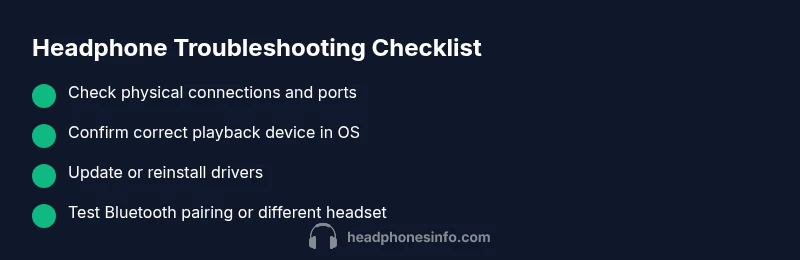
If your headphones aren’t working on your computer, start with quick hardware checks, ensure the correct playback device is selected, and restart the device. This often resolves most USB, 3.5mm, or Bluetooth headset issues before diving into drivers or app-specific settings. According to Headphones Info, many fixes are simply reselecting the output and reconnecting hardware.
Preliminary Check: Quick Fixes You Can Try Right Now
If you’re asking, "why is headphones not working on computer," you’re not alone. Most problems start with simple, overlooked steps. Begin by confirming the headset is firmly connected, the volume is up, and the computer recognizes the device. Test playback in a different app or a different computer to rule out software or port faults. According to Headphones Info, this quick pass resolves the majority of problems within minutes. If the issue persists, move on to more thorough checks while keeping safety in mind.
- Ensure the headphone jack or USB-C/USB-A connector is fully seated.
- For Bluetooth headsets, confirm the device is paired and connected, not just paired.
- Check that the computer’s output device is set to your headphones and not a different device.
- Try a different USB port or headphone cable if available.
- Restart your computer and the headphone device if possible to reset the hardware handshake.
Hardware Connections and Power Checks
The most common source of the problem is a loose connection or a faulty port. Start by unplugging and re-plugging your headphones. If you’re using a USB headset, try a different USB port, preferably one directly on the computer rather than a hub. For 3.5mm jacks, ensure the plug is fully inserted and not loose. If you’re on a laptop, ensure the mute switch on the keyboard isn’t engaged and that the system recognizes the device. Headphones Info notes that many users overlook physical damage or dirt in the jack that prevents a solid connection.
- Inspect the plug for bent pins or debris and clean gently if needed.
- If using Bluetooth, verify the headset’s battery level and re-pair if necessary.
- Check that the headset is not set to “Muted” within the app or OS mixer.
- Confirm there are no other devices taking priority audio output in the system.
- Test with another set of headphones to determine if the issue is with the original headset.
System Settings and Playback Devices
Operating systems can misroute audio output, especially after updates. Open your sound settings and confirm the correct playback device is selected. On Windows, right-click the sound icon, choose Open Sound settings, and set your headphones as the default. On macOS, go to System Preferences > Sound > Output and select your device. Disable any exclusive mode options that let applications take exclusive control of the device. Headphones Info emphasizes verifying the device name matches what you expect and testing with multiple apps to identify app-specific problems.
- Check the volume mixer to ensure individual apps aren’t muted.
- Confirm sample rate or bit depth compatibility if you’ve recently changed settings.
- Reboot the audio service or the entire computer if the change doesn’t apply immediately.
- If you’re using a USB DAC, ensure it’s powered and recognized by the system.
Driver and Firmware Troubleshooting
Outdated or corrupted audio drivers can cause intermittent or no audio. Update or reinstall your audio drivers from the manufacturer’s site or via Device Manager (Windows) or Network Utility (macOS). If you’re on Windows, you can use automatic driver updates, but a clean reinstall often works better for stubborn issues. Firmware updates for USB headsets or sound cards can also fix compatibility problems. Headphones Info recommends creating a system restore point before making driver changes.
- Uninstall the current audio driver, then reinstall the latest version.
- Check for firmware updates from the headset manufacturer.
- After updates, reboot and re-check audio output.
- Ensure the correct driver is active in the device manager and there are no warning icons.
Bluetooth Pairing and Wireless Headphones
Wireless issues are common, especially in crowded environments with interference. Ensure Bluetooth is enabled, the headset is in pairing mode, and it’s listed as connected. Remove and re-pair the device if needed. If your computer supports multiple Bluetooth radios, switch to a different one or update Bluetooth drivers. Headphones Info highlights that interference from other devices can mimic a hardware failure.
- Forget the device in Bluetooth settings and re-pair.
- Keep headphones within a reasonable range and avoid obstructions.
- Check for driver updates specifically for Bluetooth hardware.
- Disable power management features that turn off Bluetooth adapters to save power.
App-Specific Sound and Software Conflicts
Sometimes the issue is isolated to a single app (e.g., a video player, conference app, or game). Verify that the app’s own audio output is set to your headphones. Some apps override system settings, causing no audio even when Windows/macOS show the device as connected. Headphones Info recommends testing with a simple media player to determine if the issue is app-specific and adjusting the app’s audio device accordingly.
- Change the app’s audio output device to match the system device.
- Ensure the app isn’t muted or has low volume within its own controls.
- Check for in-app audio enhancements that could be interfering with output.
- Reinstall or update the app if issues persist across other apps.
Safety, Common Mistakes, and Prevention
Never yank the plug or USB cable; unplug carefully to avoid damaging the jack or port. Avoid using damaged cables or adapters. Prevention includes keeping drivers up to date, avoiding USB hubs for critical audio paths, and performing routine checks after OS updates. Headphones Info advises keeping a simple checklist to quickly diagnose issues next time.
- Regularly check for driver and firmware updates.
- Maintain clean ports and cables; avoid dust buildup.
- Create a mini troubleshooting log to identify recurring patterns.
- If you’re unsure, seek professional help to avoid damaging expensive equipment.
Quick Recap: When to Seek Professional Help and How to Prevent Recurrence
If you’ve exhausted the above steps and still have no sound, likely a hardware fault or a deeper compatibility issue. A professional technician can diagnose a faulty jack, damaged wiring, or internal hardware failures. To prevent recurrence, perform routine maintenance: update drivers, test headphones on multiple devices, and document the fixes that worked so you can act fast next time.
Steps
Estimated time: 20-40 minutes
- 1
Identify the issue type and connect the headphones
Determine whether you’re using a wired or wireless headset. For wired headsets, ensure the plug is fully seated in the correct jack. For wireless headsets, verify pairing status and battery.
Tip: If you’re unsure which jack is the audio output, try a different known-good port. - 2
Test with a different device or app
Check if the issue persists across devices or apps. If sound works on another device, the problem is likely the computer settings or drivers. If it fails on all devices, the headset itself may be at fault.
Tip: This helps isolate whether the problem is hardware or software. - 3
Check system sound settings
Open your OS sound settings and verify the correct device is selected as the output. Ensure volume is not muted, and that exclusive mode is disabled where applicable.
Tip: On Windows, right-click the speaker icon; on macOS, use System Preferences > Sound. - 4
Update or reinstall audio drivers
Use the manufacturer’s site or device manager to update drivers. If necessary, uninstall the current driver and reinstall the latest version.
Tip: Create a system restore point before changing drivers. - 5
Test with different ports or a different headset
If you’re using USB, try another port. If you have another headset, test it to confirm whether ports or the original headset is at fault.
Tip: Prefer ports directly on the computer rather than hubs. - 6
Troubleshoot Bluetooth (if wireless)
For Bluetooth headsets, remove the device, re-pair, and ensure the headset is in pairing mode. Update Bluetooth drivers if needed.
Tip: Keep devices within 1–2 meters and away from interference sources.
Diagnosis: Headphones won’t output sound or are not detected by the computer
Possible Causes
- highLoose connection or damaged jack/port
- highIncorrect playback device selected in OS
- highOutdated or corrupted audio drivers
- mediumBluetooth pairing issues or interference
- lowSoftware/app-specific audio settings
Fixes
- easyCheck all connections, reseat the plug, and test with a different port or cable.
- easySet the correct playback device in OS and test with multiple apps.
- easyUpdate or reinstall the audio drivers and reboot.
- easyForget and re-pair Bluetooth device, or try a different Bluetooth radio/adapter.
- easyTest headphones on another device to determine if the issue is hardware.
People Also Ask
Why are my headphones not detected by Windows?
Windows may not detect headphones if the device is disabled, the wrong output is selected, or drivers are outdated. Check the playback devices, re-enable the device in Device Manager, and update drivers.
Windows might not detect your headphones because the device is disabled or drivers are out of date. Update drivers and set the correct output device.
What should I do if my USB headset isn’t recognized?
Try a different USB port, unplug other USB devices, and reinstall the audio driver. If possible, test the headset on another computer to confirm whether the issue is with the headset or the PC port.
Try another USB port and reinstall drivers; test on another computer to narrow down the cause.
How do I update audio drivers safely?
Visit the headset or motherboard manufacturer’s site to download the latest drivers. On Windows, use Device Manager to update drivers, and restart afterward.
Go to the manufacturer’s site or use Device Manager to update, then restart to apply changes.
Can Bluetooth interference cause no sound?
Yes. Interference from Wi‑Fi, microwaves, or other Bluetooth devices can cause dropout. Re-pairing the headset and updating Bluetooth drivers can help.
Interference can cause no sound; re-pair and update Bluetooth drivers to fix it.
What if the problem only happens in one app?
The issue may be the app’s own audio settings. Check that the app is using the correct output device and isn’t muted, then update or reinstall the app if needed.
If it’s just one app, check the app’s audio output and try reinstalling it if needed.
Is it possible the headphones themselves are faulty?
Yes, hardware faults do occur. If possible, test with another device; if the problem persists, contact the manufacturer for warranty or repair options.
Hardware faults can happen; test with another device to confirm, then contact support if needed.
Watch Video
What to Remember
- Verify basic connections first
- Set the correct playback device in OS
- Update or reinstall audio drivers if needed
- Test with multiple apps/devices to isolate issues
- Bluetooth users should re-pair and check for interference