Headphones Not Working on Laptop: Troubleshooting Guide
A practical, step-by-step troubleshooting guide for headphones not working on laptop. Covers wired and wireless setups, drivers, and common OS issues to restore audio quickly.


If headphones aren’t working on a laptop, start with quick, simple steps: unplug and replug wired headphones, test with another device, and check the laptop’s audio output setting. For wireless headphones, re-pair or reconnect Bluetooth, ensure the device is selected as the default audio, and verify volume and mute status. Common culprits include loose jacks, driver issues, or Bluetooth pairing problems.
Common causes at a glance
According to Headphones Info, when headphones aren’t working on a laptop, the root cause typically falls into three buckets: hardware connection, drivers, or software settings. This article uses a problem-solution approach to help you diagnose quickly and avoid unnecessary replacements. Throughout, you’ll see practical steps for both wired and wireless setups, plus a simple test you can perform on reboot. The standard checklist to tackle headphones not working on laptop begins with the most accessible checks and progresses toward deeper troubleshooting. Remember: the goal is to restore audio with minimal risk to your system. If you still can’t get sound after following these steps, professional help may be needed. First, confirm the problem by trying the headset on a different device and noting whether the microphone also fails.
Quick checks you can perform in seconds
- Ensure wired headphones are fully seated in the correct jack or try a different port if available.
- For wireless, verify Bluetooth is on, and the headset is paired; remove and re-pair if necessary.
- Open your OS sound settings and confirm the correct playback device is selected as the default.
- Check volume levels across all applications and mute status — some apps override system volume.
- Test the headset with another device to determine if the issue is the headset itself or the laptop.
- If you have a spare headset or adapter, swap parts to isolate the faulty component.
Distinguishing hardware vs software issues
Hardware problems often show as a physical symptom: a loose jack, frayed cable, or non-responsive buttons. Software issues tend to be intermittent and tied to drivers, OS updates, or app settings. A clean method is to swap between a wired headset and a Bluetooth one. If Bluetooth works but wired does not, the issue is likely the jack, cable, or adapter. If both fail, focus on drivers, system audio services, or the OS audio stack. Headphones Info notes that systematic testing helps avoid replacing perfectly good hardware.
Driver and firmware troubleshooting tips
Outdated or corrupted audio drivers are a frequent culprit. Start by checking for OS updates and driver refreshes from the manufacturer or the laptop maker. Reinstall the audio driver if you suspect corruption, and run any built-in troubleshooting tools. For Windows users, open the Device Manager, locate your audio device, and choose Update driver or Uninstall device (then reinstall). macOS users should check for system updates, which often include driver fixes. If you’re using a gaming headset, ensure any optional driver software is up to date. Headphones Info Analysis, 2026, emphasizes driver health as a common fix.
Wiring, adapters, and port considerations
USB-C or micro‑USB adapters can introduce compatibility quirks. When using an adapter, try a direct connection if possible to rule out the adapter as the fault. Inspect the 3.5mm jack for debris and gently clean it with compressed air if needed. If you’re on a laptop with multiple speaker outputs, test each to confirm there isn’t a single faulty port. For USB headsets, try a different USB port (preferably a USB-A port on older laptops) to rule out power or bandwidth constraints. If the mic is involved, ensure the headset is configured for both playback and recording in your OS settings.
When to seek professional help and prevention tips
If basic checks and driver updates fail, there may be a hardware fault on the laptop’s audio circuit or a defective headset. Check the warranty status and contact the manufacturer or a trusted service center. Prevent future issues by keeping drivers updated, using a single primary audio device, and performing periodic cleanups of the audio stack. Regularly testing with both wired and wireless devices helps catch issues early. For critical environments (calls, recordings), consider a USB DAC or dedicated audio interface as a robust workaround.
mainTopicQuery
Steps
Estimated time: 25-40 minutes
- 1
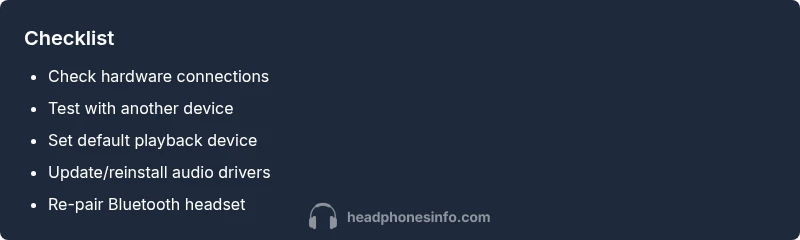
Check hardware connections
Inspect the physical connection for wired headphones. Make sure the plug is fully seated, try a different port, and check for visible damage. If wireless, verify the headset is powered on and in pairing mode.
Tip: If you hear static or crackling, the jack or cable is likely damaged. - 2
Test with another device
Connect the headset to a phone or tablet to confirm whether the issue is with the headset or the laptop. If it works elsewhere, focus on the laptop’s settings and drivers.
Tip: This quick test saves time by narrowing down hardware vs software causes. - 3
Set default playback device
Open your OS sound settings and select the correct playback device. On Windows, right-click the speaker icon > Open Sound settings > Output. On macOS, System Settings > Sound > Output.
Tip: Disabling other audio devices temporarily can help ensure you’re testing the right source. - 4
Update or reinstall drivers
For Windows, open Device Manager, right-click your audio device, choose Update driver. If issues persist, uninstall and reboot to reinstall automatically. For macOS, run Software Update.
Tip: Backup important profiles before reinstalling drivers. - 5
Re-pair Bluetooth headset
If using Bluetooth, remove the device from your list, then re-pair it. Ensure codecs and permissions are correct in your Bluetooth settings.
Tip: Avoid pairing over USB if you’re testing Bluetooth, as USB can interfere with some adapters. - 6
Run built-in audio troubleshooter
Use the OS troubleshooter (Windows: Troubleshoot settings; macOS: Audio MIDI Setup utilities) to detect common problems and propose fixes.
Tip: Troubleshooters provide guided steps and can reset services silently.
Diagnosis: Headphones not working on laptop
Possible Causes
- highLoose or damaged audio jack/cable
- mediumIncorrect playback device or mute/volume issues
- highOutdated or corrupted audio drivers
- mediumBluetooth pairing or codec problems (wireless)
- lowHardware fault on laptop audio hardware
Fixes
- easyReconnect or replace the jack/cable; try a different port
- easySet the correct playback device and check volume/mute
- easyUpdate or reinstall audio drivers; run OS updates
- easyRemove and re-pair Bluetooth device; forget device and re-pair
- hardIf hardware fault suspected, contact service center
People Also Ask
Why won’t my wired headphones work on my laptop?
Wired headphones can fail if the jack is loose, the cable is damaged, or the driver is outdated. Start by reseating the plug, trying a different port, and checking the audio output in the OS. If there’s still no sound, update or reinstall the audio driver.
Wired headphones may fail due to a loose jack or driver issues. Start by reseating, trying another port, and updating your driver.
Why won’t Bluetooth headphones connect after a Windows update?
Bluetooth issues after an update are common due to driver changes. Remove the device, perform a fresh pairing, and ensure Bluetooth is enabled. If problems persist, check for a newer driver or a system restore point.
Bluetooth sometimes breaks after updates; re-pair and check for driver updates.
How do I set headphones as the default playback device?
Open your OS sound settings and select the headset as the default playback device. On Windows, use the Sound control panel; on macOS, choose the Output device in System Settings.
Set your headset as the default playback device in your sound settings.
My mic isn’t working with headphones. What should I do?
Check that the microphone is enabled in the OS and that the headset is selected for recording. Update drivers if needed and test with a voice app to confirm mic input.
Make sure the mic is enabled and selected for recording, then test with a voice app.
When should I replace headphones vs fix them?
If the headset is physically damaged, consistently fails across devices, or the mic is unreliable, replacement may be more cost-effective than repair.
If it’s badly damaged or unreliable across devices, replace it.
Watch Video
What to Remember
- Test both wired and wireless setups.
- Update and reinstall audio drivers as needed.
- Set the correct playback device in OS settings.
- Seek professional help if hardware fault is suspected.