How to Check Headphones Connected to a Laptop
Learn how to verify headphones are connected to your laptop, whether wired or Bluetooth. This step by step guide covers Windows and macOS checks and practical troubleshooting tips to ensure audio output is routed correctly.


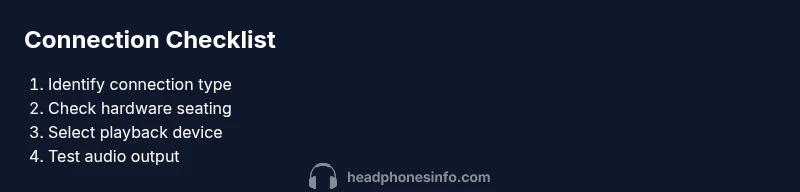
You will learn how to check headphones connected to a laptop, including wired and wireless scenarios. The quick guide covers identifying the connection type, verifying the correct playback device in Windows or macOS, testing audio output with system sounds, and applying simple fixes if no sound plays. This ensures you diagnose typical issues quickly and get back to listening.
Understanding headphone connections
Headphones connect to laptops in several ways: a wired 3.5mm or USB C connection, a USB audio dongle, or wireless Bluetooth. The method matters because the steps to verify the connection differ. According to Headphones Info, the most common pain points come from misidentified output devices, drivers, or a Bluetooth pairing hiccup. In this section we’ll map out what it means for headphones to be connected and how the operating system recognizes them. By understanding the underlying signals—sound path, device status, and driver state—you can diagnose most connection issues quickly and with minimal guesswork.
First, verify that the headphone is indeed connected at the hardware level: the plug is fully seated, the USB C or USB A adapter is recognized by the system, or the Bluetooth pairing shows a connected status. Then confirm software level recognition: the OS lists the device in the Sound settings and shows its sample rate and format. Finally, test playback to confirm that the system routes audio to the correct device. The Headphones Info team emphasizes testing with a short audio sample to verify both sound and balance.
Distinguishing wired vs wireless connections
Wired headphones can connect through a traditional 3.5 mm jack, USB A, or USB C, depending on the laptop ports and the headphones connector. Wireless headphones rely on Bluetooth or a USB wireless dongle. The path the signal takes affects latency, power management, and driver support. If you’re troubleshooting, start by identifying whether you’re dealing with a physical plug or a wireless link. When you know the connection type, you can follow targeted steps to verify that the laptop recognizes the device and that the audio path is routed correctly. In many cases, switching from a wired path to a wireless one or vice versa resolves the issue quickly, because it can bypass a failing driver, a misconfigured default device, or a loose connector. Keep notes of your connection type so you can replicate the fix later.
On Windows: verifying wired connection
Begin with the simplest hardware check: unplug and reinsert the headphone plug, ensuring it is seated all the way. If the laptop has multiple audio outputs, the system may pick a different jack; try both if available. Open the Sound settings by typing the word sound into the Start menu and look under Output. The active device will show as the selected playback device. If your headphones aren’t listed, click Manage sound devices to enable them. Set the headphones as the default output and test with a built in test sound or a video. If you still don’t hear anything, check the Device Manager for driver issues under Audio inputs and outputs or Sound, video and game controllers. Update or reinstall drivers if needed, and reboot. If you use a USB C adapter, try removing it and connecting directly or switching to USB A if the port exists.
On macOS: verifying wired connection
Connect wired headphones and click the sound icon in the menu bar to reveal the Output tab in System Preferences or Sound settings. Select your headphones from the list; macOS often renames devices, so choose the one that resembles your model. If it’s not visible, go to System Preferences > Sound > Output, then show the volume in the menu bar to aid visibility. Test playback with a song or system sound. If silence persists, reset the core audio service by opening Terminal and typing sudo killall coreaudiod, then enter your password and wait a few seconds for the service to restart. If you are using a USB C adapter, ensure it supports audio output and try another adapter or direct USB C connection.
Checking Bluetooth headphones
If you are using Bluetooth headphones, pairing is the first hurdle. Make sure Bluetooth is turned on in the laptop settings, and that the headphones are in pairing mode. In Windows, add a Bluetooth device and select your headphones from the list; in macOS, go to System Preferences > Bluetooth and click Connect next to your device. After pairing, return to the Sound settings and select the headphones as the Output device. If the device appears but produces no sound, try removing it from the list and pairing again. Ensure the battery is charged, as a low battery can cause intermittent audio. For latency sensitive listening, check if a codec like AAC or aptX is available and that it is selected in the headphones preferences. If you are using a Bluetooth dongle, update its firmware or test with a built in Bluetooth radio to compare.
Testing playback and device defaults
Once your device is visible, test audio with a familiar track and with system sounds. Use the volume mixer to confirm that the headphone output isn’t muted and that the overall volume is up. In Windows, click the volume icon, choose Open Volume Mixer, and ensure the app playing audio isn’t muted or set to a low level. On macOS, use the Sound preference to adjust Output volume and confirm that the correct device is selected. If you are not hearing stereo, check the balance setting and any enhancements such as loudness or equalization that could affect perceived output. For high impedance or USB headphones, verify that the USB bus power is sufficient and consider a powered USB hub if needed.
Common issues and fixes
No sound but the headphone appears in the list; confirm that the device is selected as the default playback device and that the app is not routing audio elsewhere. Misidentified devices are common; setting the correct device in OS sound settings can fix this. Outdated or corrupted drivers are another frequent cause; update from the manufacturer site or Windows Update. If the issue is Bluetooth related, re-pairing often resolves the issue. A faulty cable, loose jack, or damaged USB C adapter can also cause intermittent sound; try a known good cable or adapter. Some laptops have alternate audio outputs such as HDMI or display adapters that take precedence; disconnect those to force headphone routing. If you still have no sound after all checks, test your headphones with another device to identify whether the issue is the headphones or the laptop. In some cases, reset Bluetooth module or OS can fix persistent issues.
Quick tests you can run anytime
Here are fast checks you can perform before diving into settings: plug in wired headphones and listen for a test tone. If no tone, re-seat the jack or switch adapters. For Bluetooth, disconnect and re-pair; confirm the device shows as connected and selected in Output. Compare against the built in speakers to confirm system volume works. Try a different app or a different audio file to rule out app specific issues. If driver issues are suspected, use Windows Update or macOS Software Update to pull the latest audio drivers.
Tools & Materials
- Headphones (wired or wireless)(Any model with functioning audio output)
- Laptop with working audio hardware(Windows or macOS system with audio drivers)
- 3.5mm to 3.5mm audio cable or USB-C adapter(Only if needed for wired connections)
- Bluetooth headphones or a Bluetooth dongle(Needed for wireless testing or if your laptop lacks Bluetooth)
- Access to OS sound settings(Essential for selecting the correct playback device)
Steps
Estimated time: 30-45 minutes
- 1
Identify the connection type
Look at the headphone plug or the wireless pairing method to determine if you are using a wired jack, USB C, USB A, or Bluetooth. This guides the exact checks you will perform next.
Tip: Knowing the path avoids mixing steps meant for wired and wireless setups. - 2
Check the physical connection
For wired setups, ensure the plug is fully seated and try alternate ports if available. For Bluetooth, verify pairing mode and that the device shows as connected.
Tip: A loose connection is a common culprit for no sound. - 3
Open the OS sound settings
Open the OS sound or audio settings to view the list of playback devices. Confirm that the headphones appear and are selected as the default output.
Tip: Use quick search functions to reach sound settings faster. - 4
Choose the correct playback device
Select the headphones as the active output device. Check volume levels and ensure apps are not muted or routed to a different sink.
Tip: Some apps override system output; verify within the app as well. - 5
Test playback
Play a familiar track or a system sound to confirm audio routing. Listen for stereo balance and volume accuracy.
Tip: Use a stereo track to verify left and right channels are correct. - 6
Troubleshoot drivers or Bluetooth
If no sound persists, update or reinstall audio drivers and re-pair Bluetooth devices. Reboot after driver changes.
Tip: Driver updates resolve many misdetection issues. - 7
Confirm with a secondary path
If issues remain, test a different connection path (wired vs Bluetooth) to isolate the fault to the device or to the port.
Tip: Isolating the fault helps determine the right fix.
People Also Ask
How do I know if my headphones are connected on Windows?
Open the Sound settings and check the Output devices list. If your headphones appear, select them as the default output and test with a system sound.
In Windows, open sound settings and pick the headphones as the default output, then test with a quick sound.
Why is there no sound through headphones after connecting?
Make sure the correct playback device is selected and not muted. Update drivers if needed, and test with system sounds or a video.
Check the output device and driver status, then test with a system sound.
Headphones not showing in playback devices?
Try replugging, disable and re-enable the device, or reinstall audio drivers. On Bluetooth, remove and re-pair the device.
If it doesn’t show up, replug or re-pair the device and update drivers.
How can I fix Bluetooth pairing issues?
Remove the device from the Bluetooth list, re-pair it, and ensure the headphones are in pairing mode. Update OS Bluetooth firmware if available.
Remove and re-pair the device and update Bluetooth firmware if possible.
Are Bluetooth latency and audio quality common concerns?
Yes, Bluetooth can introduce latency and compression. Use supported codecs when available and keep devices updated.
Bluetooth may add a delay; pick devices and codecs that support low latency when possible.
Is it safe to use third party adapters?
Yes, choose reputable adapters and confirm compatibility with your laptop and headphones to avoid damage or poor performance.
Yes, but stick to trusted adapters to ensure compatibility.
Watch Video
What to Remember
- Identify connection type before fixes
- Set the correct playback device in OS
- Test with reliable audio sources
- Update drivers if problems persist