How to Check If Headphones Are Plugged in Windows 10
A comprehensive guide to verify headphone connection on Windows 10, covering hardware checks, sound settings, drivers, and troubleshooting tips from Headphones Info.


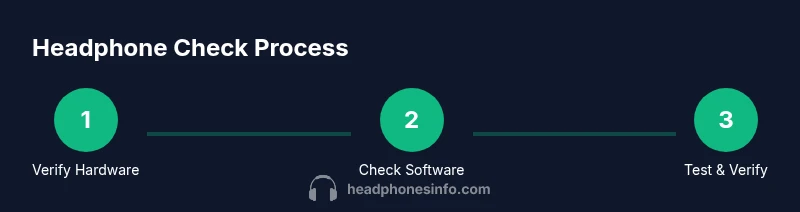
To check if headphones are plugged in on Windows 10, start with the system sound icon, then confirm the device appears under Output in Settings. If detected, set it as default and test with a few apps. This quick check helps you identify whether the issue is hardware, driver, or software related.
Why Headphones Connection Status Matters
On Windows 10, the moment you plug in headphones, the operating system should switch playback to the new device automatically. However issues arise when the device isn't recognized or Windows 10 retains the old default device. Understanding why the connection status matters helps you fix problems quickly and reduces the time spent chasing sound on streaming apps, games, or video calls. According to Headphones Info, many users misinterpret the Windows 10 sound icon when headphones are connected. The path to a reliable fix starts with confirming the physical connection, then verifying software settings, because hardware and software problems often play tug-of-war. This guide covers both wired and wireless headphones, including USB-C and 3.5mm jacks, Bluetooth pairings, and common misconfigurations that prevent sound from routing to your headset. If you're looking for how to check if headphones are plugged in windows 10, start with the Windows sound icon and test playback. This classic hardware check often reveals the problem without touching software.
Check Basics: Is the Headphones Properly Connected?
Before diving into Windows settings, verify the basics. For wired headphones, ensure the plug is fully seated in the jack, remove any dust, and try a different port if available. If you use a USB-C or USB-A adapter, reseat the connection and test another cable. For wireless headphones, ensure the headset is powered on, in pairing or connect mode, and within range of the PC. If you see any indicator lights, consult the manual; sometimes lighting indicates a fault. If you’re asking how to check if headphones are plugged in windows 10, start with the Windows sound icon and test playback. This quick hardware check often reveals the problem without touching software.
Verify Playback Device and Volume in Windows 10
Next, verify that Windows is routing sound to your headset. Open Settings > System > Sound. Under Output, select your headphones from the list. If the device is not listed, you may have a driver issue or the device is disabled. Use the Test button or play a short clip to confirm sound. Make sure the volume slider for the device is up and that the app you're using isn’t muted. If you see multiple devices, setting headphones as the default output often resolves conflicts across apps and games.
Update Drivers and Bluetooth Settings
Driver status is a frequent snag. For wired headphones, visit Device Manager > Sound, video and game controllers, right-click your device, and choose Update driver. If Windows can’t find a newer driver, visit the manufacturer’s site or run Windows Update to fetch the latest package. For wireless headphones, ensure Bluetooth is enabled and the headset is paired correctly. Remove and re-pair the device if needed, and confirm the headset is selected as the audio output in the Bluetooth options. Updating drivers and re-pairing can fix recognition and latency issues that block sound.
Run Windows Troubleshooter and Services Checks
If the problem persists, run Windows’ built-in troubleshooter. Go to Settings > Update & Security > Troubleshoot > Playing Audio and follow the prompts. Additionally, verify the Audio endpoint builder and Windows Audio services are running. In Event Viewer or Services, make sure the startup type is Automatic and the service status is Running. These checks can catch misconfigured services that block headphone sound and restore normal routing quickly.
Common Edge Cases and App-Specific Issues
Sometimes the issue isn’t Windows itself but an app. Some programs force their own audio device, bypassing the system default. Check in-app audio settings and ensure exclusive mode is disabled if you need system-wide playback. If your headset works in the OS but not in a specific app (like a game or video conference tool), set the app to use the appropriate output device or adjust its internal volume. Long-term reliability also depends on keeping firmware up to date and avoiding conflicting audio software from different vendors. If you’re troubleshooting via how to check if headphones are plugged in windows 10, remember to test across several apps to isolate the problem.
Quick Fixes for Wired Adapters and USB Ports
If you’re using adapters, try alternative ports and cables. Some USB hubs lack sufficient power for high-end headsets, causing intermittent detection. Always plug the headset directly into the computer when testing. For USB-C adaptors, detach and reconnect, restart the computer, and then re-test. If the problem persists, test with another headset to confirm whether the issue belongs to the original hardware or the PC’s USB subsystem.
Final Verification and Best Practices
Conclude with a full check: ensure Windows recognizes the headset in both hardware and software layers, confirm default playback, and verify that all relevant services are running. Maintain updated drivers and firmware, test with multiple apps, and document the steps you take for future troubleshooting. The Headphones Info team recommends bookmarking this guide so you can quickly validate headphone connections on Windows 10 and avoid repeated headaches when devices are moved between machines or networks.
Tools & Materials
- Windows 10 PC or laptop(Admin rights not strictly required but helpful for driver installs)
- Headphones (wired or wireless)(Test with both if available)
- USB-C to 3.5mm adapter (optional)(Needed for some mobile-style adapters)
- Alternative testing headset or cable(Useful for isolating hardware issues)
- Internet connection(Needed to fetch driver updates)
- Access to Windows Settings and Device Manager(Needed for configuration and driver actions)
Steps
Estimated time: 30-45 minutes
- 1
Confirm physical connection
Inspect the headphone plug or wireless pairing, reseat the connector, and test with another port or cable if available. Dust or a loose connection can mimic a driver problem.
Tip: Gently rotate or wiggle the plug to verify a solid seat without forcing it. - 2
Check Windows output device
Open Settings > System > Sound and confirm the correct device is selected under Output. If multiple devices appear, pick your headphones and test playback.
Tip: Use the Test button to hear a quick chime and confirm routing. - 3
Set as default and test volume
Right-click the headphones in the output list and choose Set as Default. Then adjust both the device and app volumes to ensure sound is audible.
Tip: Disable any mute state at the device level and check headset volume controls. - 4
Update or reinstall drivers
In Device Manager, update the audio driver. If no update is found, uninstall the device and reboot to reinstall automatically.
Tip: Prefer official driver sources or Windows Update for the latest compatible package. - 5
Pair or re-pair wireless headphones
For Bluetooth or wireless headsets, remove the device from Bluetooth settings, then pair again. Ensure the headset is in pairing mode when you search.
Tip: After re-pairing, re-check sound routing in Settings. - 6
Run the audio troubleshooter
Navigate to Settings > Update & Security > Troubleshoot > Playing Audio and follow prompts. This tool can identify common misconfigurations.
Tip: Run it after each major change (driver update, re-pairing, etc.). - 7
Check app-specific settings
If sound only occurs in one app, check that app’s audio output settings and disable exclusive mode if enabled. Some apps ignore system defaults by design.
Tip: Test with a different app to see if the issue is app-specific. - 8
Reboot and validate with another device
Restart the PC and test headphones with another device if possible to determine whether the issue is the PC or the headset itself.
Tip: A clean reboot can resolve lingering driver lockups.
People Also Ask
What should I do first if Windows 10 won't detect my headphones?
Start with a physical check of the connection, then verify the device appears in Windows Settings > Sound. If it's detected but silent, test the volume and the per-app audio. If still unresolved, run the Windows audio troubleshooter.
First, check the hardware, then test sound in Settings. If needed, use the built-in audio troubleshooter.
Why does Windows 10 show 'Headphones' but no sound?
This usually means a default device isn’t set, the volume is muted, or the app is using a different output. Check the default playback device, volume levels, and per-app settings to ensure sound is routed correctly.
Make sure headphones are the default output and not muted in both Windows and the app.
Is it possible that the problem is with a specific app rather than Windows settings?
Yes. Some apps override system settings or use exclusive mode. Check the app's audio output settings and disable exclusive mode if needed, then test with another app to confirm.
App settings can override system defaults; adjust them and try again.
Can I use Bluetooth headphones if the wired jack is not working?
Yes, Bluetooth can serve as a workaround. Pair the device in Windows Bluetooth settings and select it as the default output, then test across a few apps.
You can switch to Bluetooth, then verify with several apps.
How do I set a headset as the default playback device in Windows 10?
Open Settings > System > Sound, choose your headset from Output, and click Set as Default. Confirm by playing audio and adjusting volume.
Set it as default in Sound settings and test playback.
What if sound works in Windows but not in a specific game or app?
Investigate the app’s audio settings, ensure it uses the correct output, and disable any exclusive mode. Re-test after applying changes.
App audio may be misconfigured; adjust its settings and test again.
Watch Video
What to Remember
- Check hardware connections before changing software
- Set headphones as the default playback device in Windows
- Use built-in troubleshooter to identify common issues
- Keep drivers and firmware up to date for reliability
- Test across apps to isolate OS vs. app-specific problems