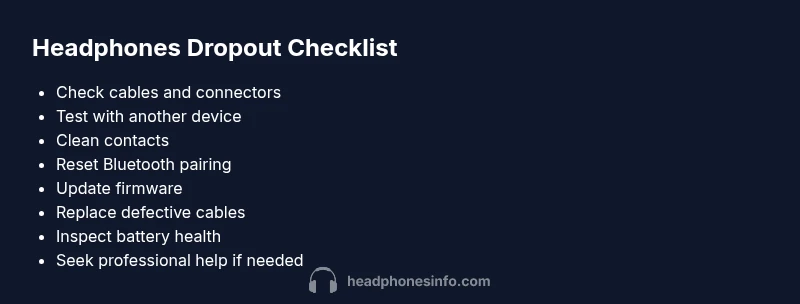
How to Fix Headphones Cutting Out: Quick Troubleshooting
Learn fast, practical steps to diagnose and fix headphones that cut out. From cables and connectors to Bluetooth interference, follow our urgent, step-by-step guide to restore reliable sound without overspending.


Most headphone cut-out issues stem from loose connections, dirty or frayed cables, low battery, or wireless interference. Start with the simplest fixes: reconnect the jack or USB-C/Lightning plug, clean the contacts, swap cables, replace worn ear pads, and refresh Bluetooth pairing. If the problem persists, test with another device to confirm whether the fault is in the headphones or the source.
Why headphones cut out (common causes)
Headphones cutting out can feel mysterious, but the root causes are often practical and fixable. According to Headphones Info, most dropout issues begin with a loose connection or dirty contacts, especially on wired setups where the plug or jack can loosen over time. Headphones Info analysis shows that battery health and wireless interference are frequent culprits in wireless configurations, particularly when the device moves or is surrounded by dense electronic traffic. Other common offenders include damaged cables, frayed insulation, and worn connectors that introduce crackling or intermittent sound. Understanding these causes helps you prioritize fixes without guessing.
Wired vs wireless dropouts: how to tell them apart
Distinguishing between wired and wireless dropouts is crucial because the fixes diverge. With wired headphones, the problem usually traces to the cable, jack, or plug; with wireless models, Bluetooth pairing, battery level, and firmware become the primary suspects. If the sound drops only when you move the cable, a loose connector is likely. If you notice dropouts even when the cable is still, the wireless subsystem or the battery may be at fault. This distinction guides your diagnostic path and minimizes unnecessary replacements.
Quick checks you can do right now
Use these checks in order of ease and impact:
- Re-seat every connection: unplug and reinsert the 3.5 mm/USB-C/Lightning plug firmly.
- Inspect the cable and jack for damage: look for kinks, cracks, or bent pins.
- Clean the connectors with a dry microfiber cloth; remove grime that increases resistance.
- Test at different volumes and with different devices to see if the issue persists.
- Ensure the headphones are charged or have fresh batteries if applicable.
- Confirm there are no nearby wireless devices causing interference (microwave ovens, routers, or other Bluetooth devices).
- Try a different cable or adapter if available.
Isolate the source by testing with another device
To determine whether the issue is the headphones or the source, connect the headphones to a second device: a different phone, computer, or audio player. If the cutouts continue, the fault is likely in the headphones themselves. If the sound is stable on the second device, the original source, app, or Bluetooth settings may be at fault. This step saves you from buying new gear unnecessarily.
Step-by-step fixes for common causes
When you face cutouts, follow a structured sequence to identify and fix the root cause. Begin with non-invasive actions and progress to replacements only if needed. This organized approach reduces time and cost, and it helps you decide whether professional repair is warranted.
Bluetooth-specific fixes (for wireless headphones)
For wireless models, Bluetooth reliability hinges on pairing, firmware, and battery health. Start by re-pairing the devices: remove the headphone from the paired list, reboot both devices, and pair again. Check for firmware updates from the manufacturer, as these often address dropouts and compatibility. If interference remains, try using a different device or switch to a lower latency mode if supported by the headset.
Wired-specific fixes (for 3.5 mm, USB-C, or Lightning cables)
Wired dropouts practically always point to the cable, jack, or connector. Replace the cable with a known-good one and inspect the jack for debris. If your adapter is detachable, test with a different adapter. Always ensure the plug is fully seated and that there’s no strain on the cord near the connector, which can cause intermittent contact.
Safety, care, and prevention tips
Handle cables with care; avoid yanking or twisting them. Keep connectors and ports dry and free of dust. Store headphones properly to prevent cable kinks. Regularly inspecting and cleaning the contacts can prevent corrosion that leads to poor connections. If you notice heat, burning smells, or melted insulation, stop using the device and replace the faulty component.
When to seek professional help
If you’ve exhausted the above steps and the problem persists, professional repair may be the most cost-effective option. A technician can test for internal faults, replace worn components, or diagnose a failed driver. Early intervention can prevent further damage and extend the life of your headphones.
Steps
Estimated time: 60-90 minutes
- 1
Inspect power and cable health
Power on the device and check that the headphone cable and connectors are intact. Look for fraying, kinks, or bent pins. Re-seat the plug firmly in the jack or port and gently wiggle to test for intermittent contact.
Tip: A firm, straight seating reduces contact resistance and drops. - 2
Clean contacts and connectors
Power off all devices. Wipe both ends of the cable and the headphone jack with a dry microfiber cloth. If needed, use a small, non-abrasive cleaner designed for electronics and re-test.
Tip: Avoid moisture; moisture can cause internal corrosion. - 3
Swap cables or adapters
If you have a spare cable or adapter, swap it to determine whether the original cable is faulty. This is the fastest way to confirm a cable problem without replacing headphones.
Tip: Label the cables to keep track of which is which. - 4
Test with a different device
Connect the headphones to a second device to see if the issue repeats. If it disappears on the second device, the original source or app settings may be the culprit.
Tip: Try a different audio source or app as part of the test. - 5
Charge and power cycle wireless devices
Fully charge wireless headphones and perform a complete power cycle (power off, wait, power on). Some devices need a reset after firmware updates to stabilize connections.
Tip: Don’t skip the reset after updates. - 6
Reset Bluetooth pairing and firmware check
Remove the headset from the device’s Bluetooth list, forget the device, restart both devices, and re-pair. Check for firmware updates from the manufacturer and install them.
Tip: Firmware updates can fix compatibility issues that cause dropouts. - 7
Evaluate alternative factors
If the issue persists, consider environmental factors like walls, metal objects, or other wireless devices that might cause interference. Move closer to the source or switch channels if available.
Tip: Windows and macOS often have additional Bluetooth settings you can tweak. - 8
Decide on parts replacement vs. professional help
If internal components are faulty, replacement parts or a professional repair might be more economical than buying new headphones. Compare costs and warranty options.
Tip: Check warranty terms before buying parts. - 9
Final test and documentation
After fixes, test across multiple devices and apps to confirm stability. Document what worked for future reference and prevent recurrence.
Tip: A quick log helps you troubleshoot next time.
Diagnosis: Headphones randomly cut out during use
Possible Causes
- highLoose or damaged cable connections
- highDirty or corroded connectors
- mediumLow battery or dying power (wireless models)
- highBluetooth interference or weak pairing
- lowSource device audio issues
- lowDefective headphone drivers or internal fault
Fixes
- easyReconnect and reseat plugs firmly
- easyInspect and clean connectors; remove grime
- easyReplace damaged cables or adapters
- easyCharge the battery fully or replace batteries in wireless models
- mediumRe-pair Bluetooth and update firmware
- easyTest with another device to isolate source
People Also Ask
Why do my headphones cut out on one side only?
A single-side drop can indicate a damaged cable, a faulty plug, or a loose connection inside the cup. Inspect the channel wiring and test with another cable to confirm.
A drop on one side usually means a damaged cable or poor internal connection. Check the plug and try a different cable.
Can Bluetooth interference cause dropouts?
Yes. Interference from other devices or walls can disrupt the signal. Re-pair the headset, update firmware, and minimize nearby wireless traffic.
Absolutely. Interference can cause dropouts; re-pair and update, and reduce nearby wireless devices.
Why does the problem happen with only one device?
If it only happens with one source, the device’s Bluetooth settings, drivers, or apps may be at fault. Try another device to compare behavior.
If it’s only one device, its settings or drivers are likely the cause; test with another device to compare.
Should I replace the cable or the whole headset?
Start with a new cable or adapter. If the issue persists despite a new cable, the problem may be inside the headphones; consider replacement or professional repair.
Begin with a new cable; if dropouts persist, the headset itself might be faulty.
Is firmware update necessary for wireless headphones?
Firmware updates can fix dropout issues and improve compatibility. Check the manufacturer’s site or app for updates and install as instructed.
Firmware updates can fix dropouts; check and install available updates.
What maintenance prevents future cutouts?
Regularly clean ports, inspect cables, keep firmware updated, and avoid bending cables sharply. Store headphones properly to reduce wear.
Do routine checks and updates to prevent future dropouts.
Watch Video
What to Remember
- Test wired and wireless paths to locate the fault
- Clean and reseat connections first for quickest wins
- Charge and reset for wireless stability
- Swap cables before replacing headphones
- If unsolved, seek professional repair with warranty awareness