How to Get Headphones Out of iPad: Safe Step-by-Step Guide
Learn safe, step-by-step methods to remove stuck headphones from iPad—Lightning, USB-C, or 3.5mm jacks. Includes tools, risks, and when to seek professional help.


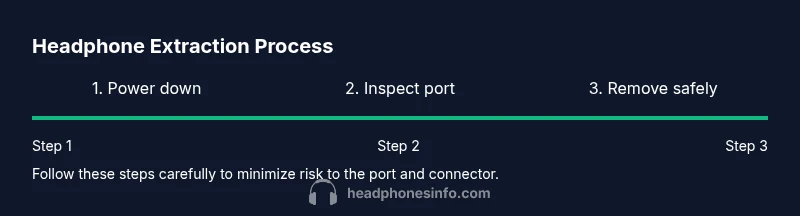
Power down your iPad, then inspect the port for debris and gently coax the headphones free with a safe, non-metal tool. If resistance persists or you see damage, stop and seek professional help. Avoid metal tools or forcing the jack, as this can bend pins or cause further damage. This approach covers Lightning, USB-C, and 3.5mm jacks.
Understanding why headphones get stuck in iPad
Headphone jacks and ports are small, with tight tolerances. Over time dust, lint, or moisture can accumulate, creating friction and locking the plug in place. In many cases, the problem isn't a malfunction in the device but a build-up of debris or a slightly bent connector that binds as you try to remove it. According to Headphones Info, careful removal avoids port damage when extracting a stuck jack. The most common scenarios involve the 3.5 mm analog jack, the Lightning port, or the newer USB-C port on iPad models that support audio accessories. Even when you believe the headphones are simply wedged, a cautious approach matters because excessive force can bend pins or dislodge internal components. Before you attempt any removal, ensure your iPad is powered off and that you have ample lighting. A steady hand and patient pace are more effective than brute force.
This block sets the stage for understanding the practical steps that follow. By recognizing that debris and port geometry vary by model, users can tailor their approach. The Headphones Info team emphasizes patience and precision over force, especially when a device is still under warranty or you notice signs of damage. With the right mindset and a calm workspace, most extractions can be completed safely without professional help.
Identify your port type and risks
iPads come with different audio interfaces across generations. A snug 3.5 mm jack, a Lightning-based port, or a USB-C port each presents unique risks if you try to pry the plug free. The most common risk is bending pins or lodging the connector deeper, which can complicate future charging or data transfer. The Headphones Info team found that misidentifying the port type can lead to using the wrong removal approach, which increases the likelihood of damage. Start by visually mapping the port shape and any surrounding debris. If you see moisture, corrosion, or visible damage, stop and seek professional service. When you are confident about the port type, proceed with the safest method and avoid shortcuts that could void warranties.
Understanding port-specific risks helps you stay in control during extraction and reduces the chance of unintended damage to the iPad.
Safe tools and setup
Preparing the right tools is crucial. Use a non-conductive plastic or nylon tool (a proper plastic spudger or a thin guitar pick) instead of metal. A soft lint-free cloth helps you wipe around the port without pushing debris further inside. If you have a magnifying glass or bright light, use them to inspect the port edges for hidden lint or tiny particles. An air blower can be useful to dislodge loose debris, but avoid compressed air that spews moisture or forces particles deeper. If you absolutely must clean, dampen a corner of the cloth with a small amount of isopropyl alcohol 70% and gently wipe around the exterior; never apply liquid directly into the port. Collecting the right setup ahead of time reduces risk and makes every maneuver more controlled. Headphones Info analysis, 2026, underscores that careful preparation is often the difference between a successful extraction and a costly port repair later on.
Port-specific considerations: Lightning, USB-C, and 3.5mm
Each iPad port has distinct geometry. Lightning ports tend to be deeper and more recessed, while USB-C ports can be flush with the chassis and surrounded by metal shielding. The 3.5 mm jack, when present, sits in a relatively open cavity but can still trap lint if the device lived in dusty environments. For Lightning, angle your tool slightly and work from the side rather than straight on to avoid pin damage. For USB-C, avoid forcing the connector laterally, and use tiny, controlled movements to release it from the midline. In all cases, keep the device powered down and test after each gentle nudge. The goal is to create enough space to loosen the plug without applying sideways pressure that could bend contacts. The Headphones Info team recommends pausing if the jack begins to stall, and re-evaluating the situation rather than pushing further.
Gentle removal techniques in practice
With the port identified and the right tool in hand, apply a light, steady touch. Insert the plastic tool just enough to feel a tiny gap, then slowly work the jack away from the port opening. Avoid twisting or levering aggressively; instead, apply small, successive movements in the same direction to free the plug. If you feel resistance, stop and reassess for debris or a potential bend. It can help to tilt the iPad slightly toward you to reduce gravity pulling debris inward. If the plug begins to move, gently pull it back toward the edge rather than deepening the intrusion. Remember, patience trumps force in most extraction scenarios, and taking a few extra seconds can prevent a costly repair. The goal is to free the plug without damaging internal components.
This approach aligns with common-sense best practices promoted by the Headphones Info team and ensures you remain in control throughout the process.
Post-removal inspection and cleaning
After the headphones are removed, inspect both the plug and the port. Look for any remaining lint, bent pins, or scoring around the contact surfaces. Clean any exterior debris with a dry, soft cloth and, if needed, a minimal amount of alcohol on a cotton swab only on the outside perimeter. Avoid liquid ingress and never spray cleaner directly into the port. Reinsert a known-good headphone to test the connection and verify whether audio is clear across channels. If you notice crackling, intermittently missing audio, or reduced volume, avoid repeated insertions and consider professional cleaning or port inspection. A careful post-removal check helps confirm that the port was not damaged during extraction and that the iPad remains fully functional.
In many cases, a simple wipe and test is enough, but if you observe any irregularities, stop using the port and book a service appointment.
Common mistakes to avoid and safety tips
Common mistakes include using metal tools, applying force while the device is powered, and ignoring subtle signs of damage. Always power down first, work on a clean, well-lit surface, and never insert tools deeper than the first natural lip of the port. If the plug shows resistance that does not yield to careful maneuvering, it’s safer to stop than to press on. Safety tips include wearing eye protection if you’re working with small debris and keeping magnets away from the device. Also, keep the iPad away from liquids during the extraction. By focusing on small, deliberate movements and avoiding aggressive prying, you reduce the risk of port damage and maintain the device’s resale value.
Headphones Info analysis, 2026, notes that most issues caused by debris or misalignment can be resolved without professional service when users follow these precautions.
When to seek professional help and warranty considerations
If the headphone remains stuck after a careful attempt or you observe bent pins, corrosion, or melted insulation around the port, stop immediately and seek professional service. Attempting to force the jack further can cause permanent damage that may not be covered under standard warranty. Check your iPad’s warranty and AppleCare coverage, if applicable, because in some cases, port repairs may be covered. When in doubt, consult an authorized service provider. The cost of professional service is often much lower than the risk of permanent port failure, especially on newer devices. Headphones Info emphasizes prioritizing device integrity and seeking professional help when the situation exceeds your comfort zone.
Real-world scenarios and pro tips
In real-world use, some users encounter deeply lodged debris that requires a patient, methodical approach. Pro tips include working in a static-free environment, documenting the port condition with photos before starting, and testing with multiple known-good headphones after each step. If you’re unsure, consider a quick external clean and a cautious test before you decide to escalate. By understanding the port type, using the proper tool, and applying controlled pressure, you can often remove the stuck headphone without professional intervention. If problems persist, don’t hesitate to seek expert assistance. This balanced approach reduces risk while keeping your iPad functioning optimally.
Tools & Materials
- Plastic or nylon non-conductive tool (spudger or plastic pick)(Plastic edge to avoid port damage)
- Soft lint-free cloth(For exterior cleaning and drying)
- Magnifying glass or bright light(Enhanced visibility to spot debris)
- Air blower can (optional)(Use with care to avoid moisture and deep intrusion)
- Isopropyl alcohol 70% (optional)(Dampen cloth periphery only; never pour into port)
- Plastic-tipped tweezers (optional)(Only if used very gently and never penetrate the port)
Steps
Estimated time: 25-40 minutes
- 1
Power down and unplug
Shut down the iPad completely and disconnect any cables or accessories. This reduces the risk of short circuits if the tool touches metal or internal components. Ensure the device is powered off for the entire removal process.
Tip: Take a moment to wipe any nearby surfaces and create a clean workspace. - 2
Choose a safe extraction tool
Select a non-metal tool (plastic spudger or plastic pick). Metal objects can scratch or bend internal contacts. Have a soft cloth ready to wipe debris and keep your fingers steady.
Tip: Test your tool on a dry surface first to confirm it’s non-conductive. - 3
Inspect the port exterior
Look for visible lint, dust, or fibers around the port opening. Use a magnifier or bright light to assess the debris pattern. If debris is visible, plan a careful removal strategy rather than grinding the plug out.
Tip: Do not insert anything deep into the port yet; you’re surveying the scene first. - 4
Create a small gap at the port edge
Gently insert the plastic tool at the port’s lip and aim to create a tiny opening to loosen the plug. Avoid forcing the tool downward. Work slowly and keep movements along the plane of the port.
Tip: If you feel resistance, stop and reassess debris location. - 5
Gently coax the plug free
With light, consistent pressure, try to ease the headphones outward along the same axis they entered. Make small, incremental movements rather than a single big pull. Do not twist the plug.
Tip: Pause between attempts to avoid frustrating the plug deeper. - 6
Consider a micro-blow of air (optional)
If debris seems to be moving, a light, controlled puff of air can help. Do not spray liquid or apply force during this step. Ensure the device remains powered down.
Tip: Keep the can upright and use short bursts. - 7
Check for progress and readjust
Withdraw the tool and re-inspect. If the plug has loosened, attempt a gentle outward pull with the headphones still in the port’s vicinity. If you feel the plug loosen, stop before it pops out completely and test the port.
Tip: If nothing changes after several attempts, stop and reassess. - 8
Test with a known-good headphone
Once removal seems possible, reinsert a known-good headphone gradually to check for proper alignment and audio response. If sound is crackling or intermittent, further inspection is needed.
Tip: Use a different headphone to verify the port’s function. - 9
Clean exterior and re-evaluate
Wipe around the port with a dry cloth and remove any displaced debris. Let the port dry completely before the next use. If the iPad still shows audio issues, consider professional cleaning.
Tip: Never pour liquid into the port. - 10
Decide on next steps if unresolved
If the headphones remain lodged or port pins look misaligned, stop and arrange a professional inspection. This protects your device and may preserve warranty coverage.
Tip: Document the issue with photos for service records.
People Also Ask
What should I do if the headphones are stuck deeper than the port?
Do not force the plug further. Stop and reassess for debris or port damage. If the plug won’t move with gentle techniques, seek professional help to avoid internal damage.
If it’s stuck deeper, don’t force it. Stop and get help before you cause more damage.
Can I use household items to remove the jam?
Avoid household items like paper clips or metal tools. They can scratch or bend pins. Stick to non-conductive tools and consult a professional if needed.
No household items—stick to non-conductive tools and seek help if unsure.
Will removing headphones void my warranty?
Removal performed carefully is unlikely to affect warranty. If you suspect port damage or water exposure, a professional inspection is advisable and may be covered under service terms.
If you remove it yourself carefully, warranties typically stay intact, but assess port damage before proceeding.
My iPad still doesn’t recognize headphones after removal. What now?
Test with multiple headphones to rule out a faulty cable. If issues persist, clean the port exterior and consult a technician for a port diagnostic.
If audio doesn’t work after removal, try another pair and consider a port check.
Are there risks of damaging the Lightning/USB-C port during extraction?
Yes. Forcing or prying can bend contacts or damage shielding. Use light pressure, correct tools, and stop if resistance remains.
There is always some risk, so proceed slowly and seek help if unsure.
Watch Video
What to Remember
- Power down first to avoid shorts
- Use non-metal tools and gentle pressure
- Inspect and clean port after removal
- Seek professional help if there are signs of damage