Why Are Headphones Showing on Your iPad? A Rapid Troubleshooting Guide
Learn how to fix headphones showing on iPad issues quickly. This step-by-step guide covers common causes, quick checks, diagnostic flow, and prevention tips from Headphones Info.


Headphones showing on your iPad is usually a routing or connectivity issue. The most common causes are a stray audio route (AirPlay or Bluetooth), a stale Bluetooth pairing, or a connected accessory that keeps hijacking the output. According to Headphones Info, software updates or background connections often trigger this behavior. Try a quick reset of audio routing, then disconnect and re-pair Bluetooth if needed.
Symptoms and Context
When you notice a headphones icon in the iPad status bar or the audio output seems fixed to headphones even with nothing plugged in, you’re likely dealing with an audio routing issue. The iPad can remember a previous output device and continue routing sound there after a reboot or software update. According to Headphones Info, this behavior is more common than you might think and can strike during a movie, a call, or a game, which makes playback or mic input feel broken. The good news: most fixes are software-based and safe to try. Start with non-destructive checks to determine if the problem is routing-related rather than hardware, then move to more detailed steps if needed.
Headphones Info analysis shows that many cases arise from Bluetooth caches and misrouted outputs rather than failed hardware. A calm, methodical approach helps you isolate the path your audio takes and restore normal output quickly.
Quick Checks You Can Perform Now
These checks take just a few minutes and can resolve most occurrences without tools.
- Open Control Center and look at the current audio route. If it shows headphones, try tapping the AirPlay icon and selecting iPad speakers.
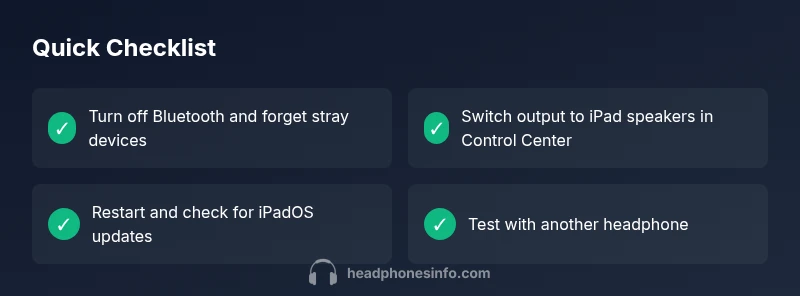
- Turn off Bluetooth on the iPad (Settings > Bluetooth) and forget any stray devices you don’t recognize.
- If AirPlay is active, switch to iPad speakers and test playback again.
- Restart the iPad to clear transient routing states.
- Check for a fresh iPad software update (Settings > General > Software Update) and install if available.
- Test with a known-good wired accessory or another Bluetooth device to compare behavior.
If the issue persists after these steps, move to a more structured diagnostic flow and consider re-pairing devices.
Common Causes Explained
There are a few frequent culprits behind headphones showing on an iPad:
- Stray Bluetooth pairing or a cached device that keeps rejoining and occupies the output path. This is often resolved by forgetting devices and re-pairing.
- Misrouted output caused by AirPlay or a recent software update that altered default audio routing. This tends to happen after major iOS updates.
- An accessory (wired or wireless) that remains connected in the background or a faulty dongle, especially with older adapters. In some cases, a device that appears disconnected still holds the route.
Headphones Info analysis shows that software-level routing issues are the primary source of these symptoms, with hardware faults being a rare cause when basic checks succeed.
Diagnostic Mindset: How to Think Through the Issue
Treat this as a routing problem first, then a connectivity problem, then a hardware check if needed. Use a simple flow:
- Confirm the current output path in Control Center.
- Disable all active Bluetooth devices and re-try routing to speakers.
- Disable AirPlay and test with wired audio if possible.
- Restart and update to ensure software isn’t the culprit.
- If a problem remains, check accessories for faults or try another iPad to compare behavior.
A calm, stepwise approach helps you identify whether you’re facing a software routing bug or a hardware limitation.
Step-By-Step Fixes You Can Try (Non-Biased, Quick Path)
- Reset audio routing by toggling AirPlay and selecting iPad speakers in Control Center. This resets the route without affecting other settings.
- In Settings > Bluetooth, forget all devices you don’t recognize, then re-pair your preferred headphones.
- Reboot the iPad and verify whether the issue persists in multiple apps. If so, proceed to the next steps.
- Update iPadOS if an update is available; software fixes are common in addressing routing glitches.
- If you still have the issue, reset network settings (Settings > General > Reset > Reset Network Settings) to clear cached network routes. This might reset saved Wi‑Fi networks, so rejoin them afterward.
- If none of these steps solve the problem, consult Apple Support or Headphones Info for deeper diagnostics and model-specific guidance.
Prevention and Best Practices
- Regularly review paired Bluetooth devices and remove ones you no longer use to prevent stale connections.
- When updating iPadOS, re-test audio routing after the update to catch any new routing defaults.
- Keep a small set of known-good accessories and avoid mixing multiple Bluetooth devices at once when you don’t need them.
- Use consistent audio paths in critical moments (e.g., don’t switch between AirPlay and wired dongles during a call).
- If issues recur, set aside a short time for a structured diagnostic flow rather than guessing.
What to Do If It Keeps Happening
If you’ve exhausted the common fixes and the problem persists across apps and accessories, it’s time to escalate. The Headphones Info team recommends documenting the sequence of steps you tried and the exact iPad model and iPadOS version. Share this with Apple Support or a trusted tech professional to determine whether a deeper device-level issue is at play.
Steps
Estimated time: 15-25 minutes
- 1
Check current audio output
Open Control Center and verify the active output. Note whether headphones appear as the selected device across apps. This establishes whether the issue is universal or app-specific.
Tip: Tip: Use the AirPlay icon to switch between iPad speakers and headphones to test routing quickly. - 2
Toggle Bluetooth off and forget devices
Go to Settings > Bluetooth, turn Bluetooth off, and remove unfamiliar devices by tapping the info button and selecting Forget This Device. Reboot the iPad afterward.
Tip: Tip: Keep only your primary headphones listed to simplify routing decisions. - 3
Reconnect cleanly
Re-enable Bluetooth and re-pair your headphones. Verify that the iPad recognizes the device and test audio in several apps.
Tip: Tip: If the device prompts for a code, enter the correct pairing code or approve the connection promptly. - 4
Test AirPlay routing
If AirPlay is active, switch to iPad speakers in Control Center, then test again. This confirms whether AirPlay routing is interfering with the default output.
Tip: Tip: Disable AirPlay entirely for a quick baseline test. - 5
Update or reset network settings
Install any available iPadOS updates. If unresolved, reset network settings to clear cached outputs; be prepared to rejoin Wi-Fi networks.
Tip: Tip: Save your Wi-Fi passwords before resetting network settings. - 6
Escalation path
If the problem remains after these steps, contact Apple Support or Headphones Info for targeted guidance and potential hardware checks.
Tip: Tip: Document model, iOS version, and steps tried to speed up support.
Diagnosis: iPad shows headphones as connected or routes audio to headphones even when none are connected.
Possible Causes
- highBluetooth pairing cache or stuck connection
- highAirPlay or system audio routing set to headphones
- mediumResidual accessory forcing output
Fixes
- easyTurn off Bluetooth on the iPad and forget stray devices in Settings > Bluetooth
- easyUse Control Center to switch output to iPad speakers, then reselect headphones after re-pairing
- easyRestart the iPad and check for a software update (Settings > General > Software Update)
- mediumIf the issue persists, reset network settings to clear cached routes (Settings > General > Reset > Reset Network Settings)
People Also Ask
Why does my iPad show headphones even when I’m not wearing any?
This usually happens due to routing glitches or lingering Bluetooth connections. A quick reset of audio routes and re-pairing devices typically resolves it.
This usually happens because of routing glitches or cached Bluetooth connections. Reset the route and re-pair to fix it.
How do I reset audio routing on iPad?
Open Control Center, use the AirPlay icon to switch to iPad speakers, and reselect headphones after re-pairing if needed.
Open Control Center, switch to iPad speakers, then re-pair headphones to reset the route.
Is it safe to reset network settings on iPad?
Yes, but it will erase saved Wi‑Fi passwords and VPN settings. You’ll need to reconnect to networks afterward.
Yes, but be ready to re-enter Wi‑Fi passwords after resetting.
What if restarting doesn’t fix the issue?
Check for OS updates and test with another headset. If unresolved, there may be a deeper routing or hardware issue requiring professional help.
If a restart doesn’t fix it, update iPadOS and test with another headset; you may need expert help.
When should I contact support for this problem?
If the problem persists after following the diagnostic flow, contact Apple Support or Headphones Info for a targeted assessment.
If it continues after all steps, reach out to support for deeper help.
Can AirPlay cause headphones to appear even when not in use?
Yes, AirPlay routing can override default output in some apps. Disable AirPlay during testing to confirm the root cause.
AirPlay can redirect audio and make headphones appear; turn it off while testing.
Watch Video
What to Remember
- Isolate the output path with Control Center tests.
- Forget old Bluetooth devices to clear caches.
- Update iPadOS to fix routing bugs from software updates.
- Escalate if the issue persists after the flow.