How to Get Headphones Out of Call Mode
Learn a clear, steps-based approach to exit call mode on headphones. This guide covers common devices, troubleshooting, firmware updates, and proactive tips to prevent call-mode hangups.


According to Headphones Info, exiting call mode usually takes a simple sequence of toggles and reconnections. Start by confirming Bluetooth is enabled, then run the device's call-control or mute function to restore normal audio. If needed, re-pair the headphones or reset them following the manufacturer guidelines. This approach works across most Bluetooth and wired models and minimizes disruption by using built-in controls first. If your device offers a companion app, check for extra call-mode toggles.
What is call mode and why headphones enter it
According to Headphones Info, call mode is a headset state that prioritizes microphone use and telephony, which can mute media playback and keep the mic active. When headphones enter this mode, you may notice that you can't control volume or skip tracks, and incoming calls take precedence. This behavior helps with clarity during calls but can be confusing when you want to listen to music or watch videos. Call mode can be triggered by actions like answering a call, pressing and holding a multifunction button, or re-pairing after a device switch. Understanding what happens helps you troubleshoot quickly and avoid misdiagnosing a hardware fault. In this guide, we explain how to get headphones out of call mode across common platforms and models, with practical steps you can apply today.
Common scenarios that trigger call mode
Call mode often activates after an incoming call or when multipoint pairing is active, causing audio routing to favor the microphone. Some devices automatically switch to call mode when the headset is set as the preferred audio device for calls, even if you’re not actively on a call. A few models toggle call mode when you press the call control during playback or when the headset reconnects after being out of range. Understanding these triggers helps you anticipate situations where call mode might re-engage and plan your exits accordingly.
Quick checks before you act
Before diving into resets, verify a few basics: ensure the headphones are actually connected to a source, confirm the playback app isn’t paused by accident, and check whether any active call is present on the connected device. If you’re using multipoint, disable secondary devices temporarily to see if call mode persists. Also examine the LED indicators or on-ear prompts for a call-mode icon, which hints at the current state. These quick checks save time and avoid unnecessary resets.
Method A: Phone-based exits (iOS and Android)
Begin with your phone, since many call-mode issues originate there. On iOS devices, go to Settings > Bluetooth, tap the info icon next to your headphones, and choose Disconnect. Then toggle Bluetooth off for a few seconds and back on, reselecting the device. On Android, navigate to Settings > Connections > Bluetooth, access the gear icon for your headphones, and toggle off Call Audio Routing or Media Audio as applicable, then reconnect. These steps reset routing without touching the headphones themselves and resolve most call-mode glitches.
Method B: Headphones-based exits (button combinations)
Many headphones support a dedicated reset or exit combination. Common options include holding the power button for 5–7 seconds, or pressing the multifunction/center button along with a volume control for 8–12 seconds. The goal is to perform a soft reset that clears the current routing state without erasing your pairings. If your model has a reset pin or a tiny reset switch, use it as directed in the user manual. Pro tip: avoid holding buttons too long, which can trigger a factory reset.
Method C: Re-pairing and firmware updates
If exits fail repeatedly, unpair the headphones from all devices, then re-pair one device at a time. This clean slate can fix stubborn routing bugs. After re-pairing, check for firmware updates using the manufacturer app or website. Firmware updates frequently address call-mode quirks and improve multipoint stability. If available, enable automatic updates to reduce future issues.
Troubleshooting when exit fails
If call mode returns after a restart or after reconnecting, test with a different source device to determine whether the issue is device-specific. Try a wired connection (if supported) to verify basic playback and mic behavior. A factory reset should be your last resort when all other steps fail, followed by a fresh pairing. If the problem persists, contact the manufacturer’s support team with your model and firmware version.
Pro tips for preventing call mode from sticking
- Keep firmware up to date to minimize quirks that trigger call mode.
- Disable multipoint when you don’t need it, or set a preferred primary device.
- Use the manufacturer app to set auto-switch behavior and confirm call routing settings.
- Test after any app or OS update, since changes can alter audio routing logic.
How to test and verify the exit across devices
After performing the exit steps, play media on your headphones and verify volume and track controls work as expected. Make a quick test call to confirm the microphone and call routing are functioning normally. If you have access to another device, repeat the same sequence to ensure the behavior is consistent. This cross-device testing helps prevent hidden issues from going unnoticed.
Tools & Materials
- Headphones(Fully charged and within Bluetooth range of testing device)
- Phone or computer with Bluetooth(Primary device used for testing the exit procedure)
- Original charging cable(Useful if your headset requires power during a reset)
- Headphones manufacturer app (optional)(Used to check for firmware updates or extra call-mode toggles)
- Printed quick-start guide (optional)(Reference for model-specific steps)
Steps
Estimated time: Total time: 8-15 minutes
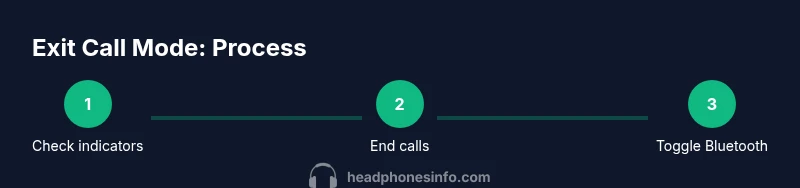
- 1
Check indicators
Inspect LED indicators or on-device prompts to determine if call mode is active. Confirm that playback controls are not muted due to another app issue.
Tip: LED colors vary by model; consult your manual if colors aren’t obvious. - 2
End active calls
On the connected phone, end any ongoing call or move to another app to reset the call state.
Tip: Don’t drive while testing; ensure it’s safe to interact with devices. - 3
Toggle Bluetooth off and on
Switch Bluetooth off, wait 5–10 seconds, then re-enable and re-pair if necessary.
Tip: Reconnecting fresh often clears stale routing states. - 4
Disconnect and reconnect headphones
Forget the device in your phone’s Bluetooth menu, then pair it again.
Tip: Keep track of which device you re-connect to avoid cross-pairing. - 5
Reset headphones
If supported, perform a soft reset by holding the power or reset button for 5–7 seconds.
Tip: Use reset only after other steps fail to avoid data loss. - 6
Update firmware
Check the manufacturer app for firmware updates and install if available.
Tip: Firmware updates resolve known call-mode issues in many models. - 7
Test playback and calls
Play audio, skip tracks, and place a test call to confirm normal behavior.
Tip: Do separate tests for audio and mic functions. - 8
Verify multipoint behavior
If your headset connects to multiple devices, temporarily disable the secondary connections.
Tip: Prioritize one device to prevent automatic switching into call mode. - 9
Document the outcome
Record which steps worked for your specific model for future reference.
Tip: Create a simple checklist you can reuse later.
People Also Ask
What is call mode on headphones?
Call mode is a state where the headset prioritizes microphone input for calls, which can shift audio routing and mute playback. It helps with call clarity but may disrupt listening to music or videos.
Call mode prioritizes the mic so calls come through clearly, but playback can be affected.
Why won’t my headphones exit call mode?
Common causes include lingering call routing, stuck button states, or a firmware glitch. Start with basic resets and Bluetooth toggles before deeper steps.
Often it’s a routing or button state issue rather than hardware failure.
Do I need to reset my headphones to exit call mode?
A reset is usually a last resort after other steps fail. Many issues resolve with a simple toggle, unpair/re-pair, or a firmware update.
Most people don’t need a full reset—try the other steps first.
Will updating firmware help with call mode problems?
Yes. Firmware updates fix known bugs that can cause call-mode misbehavior and improve multipoint stability.
Firmware updates can fix the root causes of call mode staying active.
What should I do if call mode keeps returning after every reboot?
Check multipoint settings, perform a factory reset if necessary, and verify with another device to isolate the issue.
If reboot keeps bringing back call mode, you may need a reset and re-pairing.
Watch Video
What to Remember
- Identify call mode symptoms early and know your device indicators
- Use non-destructive resets before firmware updates
- Disable multipoint when not needed to simplify routing
- Re-pair and update firmware to fix persistent issues
- Always test across devices after changes to confirm success