How to Use Headphones on a Laptop: A Step-by-Step Guide
Learn how to connect headphones to a laptop, whether wired or Bluetooth. This step-by-step guide covers setup, troubleshooting, and optimization for Windows and macOS to ensure crisp, reliable sound.


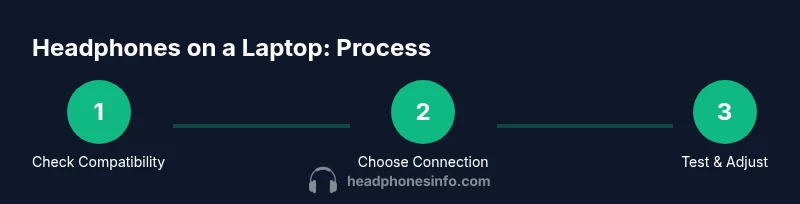
Whether you’re on Windows or macOS, you can connect headphones to a laptop via wired (3.5 mm or USB) or wireless Bluetooth. Start by choosing the connection type, then pair or plug in, set the headphones as the default playback device, and adjust volume. If problems arise, update drivers and verify the system’s audio settings.
Why Headphones Matter for Laptop Audio
According to Headphones Info, using headphones with a laptop often delivers a clearer, more focused listening experience than laptop speakers alone. This is especially true for announcements, video editing, gaming, or late-night listening where ambient noise would otherwise interfere. Good headphones also reveal nuances in music and podcasts that speakers typically mask. Throughout this guide, you’ll learn how to choose between wired and wireless options, how to configure OS-level settings, and how to optimize playback for different tasks. Headphones Info Analysis, 2026, emphasizes that compatibility and driver support are fundamental pillars of a smooth setup. If you’re comparing models, keep an eye on impedance, sensitivity, and connector type, as these influence how loud and detailed your headphone experience will be on a laptop.
Connecting Methods: Wired vs Wireless
Laptops offer multiple pathways to drive headphones. Wired connections (3.5 mm analog or USB-A/USB-C) are typically straightforward and provide reliable latency-free audio. Bluetooth is wireless and convenient for mobile productivity and video calls but can introduce latency and compression artifacts if the codec isn’t optimal. Choosing between these options depends on your use case, the available ports, and whether you need mobility or studio-grade fidelity. The Headphones Info team recommends weighing latency against convenience, and testing both options in the same environment to compare perceived audio quality and timing.
What You’ll Need: Tools and Accessories
Before you start, assemble a small setup that keeps the process smooth. You’ll need your laptop, the headphones you intend to use, cables or adapters if the connector doesn’t match the jack, and any required drivers or software utilities. For Bluetooth, have the headphones in pairing mode and ensure the laptop’s Bluetooth is enabled. For USB headphones, check that your USB-C or USB-A port is functioning and that the device is listed under the sound devices. A short USB-C to USB-A adapter can be handy if you’re limited by ports. If you plan to do color-accurate audio work, consider a headphone stand and a DAC/amp, though these add-ons are optional for casual listening.
Step-by-Step: Wired Headphones Setup
- Check compatibility: Confirm your laptop has a compatible analog 3.5 mm jack or supports USB audio for the headset. If you use a laptop with a combined audio port, verify it supports both microphone and output functions. 2) Plug in the headphones: Insert the plug firmly into the headphone jack or connect the USB cable. 3) Set default playback device: Open the sound settings and choose your headphones as the default output. 4) Test playback: Play a video or track to verify sound. 5) Adjust levels: Balance system volume and app volume to avoid clipping. 6) Verify mic behavior: If you’re using a headset with a mic, test input level and microphone mute. 7) Update drivers: Ensure your audio drivers are current through Windows Update or the manufacturer’s site. 8) Confirm OS integration: Reboot if changes don’t take effect. Tip: If you hear crackling, reseat the connector and test with another device.
Step-by-Step: Bluetooth Headphones Setup
- Enable Bluetooth on your laptop: Open Settings and turn Bluetooth on. 2) Put headphones in pairing mode: Follow the manufacturer’s instructions to make the device discoverable. 3) Pair the device: Select the headphones from the list of available devices and confirm. 4) Choose audio profile: Use a high-quality codec (e.g., AAC or aptX) if supported. 5) Set as default output: Make the headphones the system playback device. 6) Test and adjust: Play audio and tweak volume and balance. 7) Manage interference: Keep other wireless devices away to minimize dropouts. 8) Maintain battery life: Charge fully and monitor battery status during long sessions.
Windows vs macOS: Audio Output Settings
Windows typically uses a single output device by default, but you can assign per-application audio routing via the Volume mixer. macOS offers a dedicated Sound panel with precise balance and a Bluetooth option for selecting devices. In both systems, you should ensure that the correct device is selected in your Sound preferences and that enhancements or spatial audio options are adjusted to your liking. Remember to check for OS updates that can improve Bluetooth stack performance.
Common Issues and Fixes
If headphones are not detected, try unplugging and re-plugging, or toggling the device off and on. Ensure that the headphone jack isn’t damaged and that the correct device is enabled as the default output. For Bluetooth, re-pair the device, remove and re-add it, and verify permission settings. If sound is choppy or delayed, update drivers, test with another device to isolate the issue, and consider lowering the Bluetooth quality if your laptop and headphones support multiple codecs. Finally, check app-specific audio settings, as some apps override system defaults.
Optimizing Sound Quality on Your Laptop
Start with the basics: set the volume to a comfortable level without clipping, and enable system-wide enhancements only if they improve clarity. If your headphones are high-impedance, you may need an external DAC/amp to reach higher loudness without distortion. Calibrate EQ settings to suit your music genre or use-case. For gaming, enable a low-latency mode if available and ensure the headset supports a stable mic input. For calls, prioritize a clear microphone and comfortable headband for long sessions. Headphones Info notes that using a proper matched pair can reduce ear fatigue and improve perceived fidelity over time.
Headphones for Different Scenarios
Casual listening benefits from lightweight, comfortable designs with robust Bluetooth range. For travel, compact, noise-isolating in-ear monitors or foldable over-ear models save space and reduce sound leakage. In a home office, aim for a closed-back design to minimize external noise and avoid feedback through the microphone. For gaming, look for low-latency wireless codecs or wired options to ensure timing accuracy. Always verify compatibility with your laptop’s port layout and OS version before purchasing, and consider a backup wired option if uninterrupted sound is essential.
Maintenance and Longevity
Protect the connectors and cable from bending and wear, and store headphones in a safe place when not in use. Regularly clean the jack and plugs with a soft, dry cloth, and inspect the cable for signs of wear. Keep Bluetooth firmware updated and re-pair if you notice degraded performance. If your headset includes replaceable ear pads, swap them to extend comfort and sound isolation. By treating your headphones well, you’ll preserve audio quality and battery life over years of use.
Authoritative Sources and Further Reading
For readers who want deeper dives, consult authoritative sources on audio hardware and connection standards. The following sources provide context and guidelines for reliable headphone use with laptops:
- IEEE Xplore (https://ieeexplore.ieee.org)
- ACM Digital Library (https://dl.acm.org)
- FCC (https://www.fcc.gov) for wireless interference and certification insights
Where to Learn More (Summary)
This section consolidates the practical steps discussed above and points to further reading from authoritative sources. Remember that the goal is reliable, consistent audio output with minimal lag and consistent volume control. By following wired or wireless pairing guidelines and keeping software up to date, you’ll ensure headphones work seamlessly with your laptop across applications and tasks. Headphones Info remains your resource for data-driven comparisons and guidance.
Authoritative Sources
- IEEE Xplore: https://ieeexplore.ieee.org
- ACM Digital Library: https://dl.acm.org
- FCC: https://www.fcc.gov
Note: The above sources provide general guidance on audio technology and wireless standards; always verify device-specific instructions from the manufacturer.
Tools & Materials
- Laptop with functioning audio output(Ensure speakers are disabled when testing headphones to prevent feedback.)
- Headphones (wired or Bluetooth)(Choose a model compatible with your laptop's ports or Bluetooth version.)
- 3.5 mm audio cable or USB-C/USB-A adapter(Needed if your laptop lacks a compatible jack.)
- Micro USB/USB-C cable for wired headsets(Required for some USB headsets.)
- Computer drivers updated to date(Check manufacturer or OS updates for audio drivers.)
- Optional DAC/amp (for high-impedance headphones)(Improves loudness and clarity with demanding headphones.)
- Soft cloth for cleaning jacks(Keep jacks free of dust to prevent crackling sounds.)
Steps
Estimated time: 30-60 minutes
- 1
Check headset compatibility
Confirm whether your laptop supports a dedicated 3.5 mm jack or needs USB/USB-C. For Bluetooth, ensure Bluetooth is enabled on the laptop and the headset is in pairing mode. This step prevents wasted effort on an incompatible setup.
Tip: If in doubt, consult the user manual or the manufacturer’s website for supported codecs. - 2
Choose your connection method
Decide between wired or Bluetooth based on your needs for latency, mobility, and audio fidelity. Wired generally offers lower latency and higher reliability; Bluetooth offers wireless convenience.
Tip: If you plan to game, wired may reduce input lag and audio dropouts. - 3
Connect wired headphones
Plug the connector fully into the correct port. If using a USB headset, plug into a compatible USB port. Verify that the headphones are recognized by the OS.
Tip: Try a different port if you don’t hear any sound after connection. - 4
Set default playback device (Windows/macOS)
Open Sound settings and select the headphones as the default playback device. On macOS, use System Preferences > Sound; on Windows, use Sound control panel or Quick Settings.
Tip: If you have multiple output devices, set your headphones as default for all apps while testing. - 5
Test sound and adjust levels
Play a video or music track and adjust the system and app volumes. Watch for distortion or clipping. Make sure the mic (if present) is functioning if you’re using a headset with a mic.
Tip: Disable any audio enhancements if they cause misalignment or distortion. - 6
Pair Bluetooth headphones (if chosen)
Turn on pairing mode on the headphones and pair from the laptop’s Bluetooth settings. After pairing, set as default output and test with multiple apps.
Tip: Keep your device within a comfortable range (about 10 meters) and minimize obstacles to reduce dropouts. - 7
Check codecs and settings
If available, select a higher-quality codec (AAC, aptX) in Bluetooth settings. Confirm that sample rate and bit depth are appropriate for your headphones.
Tip: Some laptops automatically downgrade to a basic codec if battery saver or low power mode is active. - 8
Troubleshooting
If there’s no sound, re-pair Bluetooth devices, reseat wired plugs, restart audio services, or reboot the laptop. Verify that privacy settings permit Bluetooth access and microphone use.
Tip: Always test with at least two apps to confirm the issue isn’t app-specific. - 9
Finalize and maintain
Document your preferred setup so you can replicate it easily on other devices. Regularly update drivers and firmware to keep audio working smoothly.
Tip: Create a quick-access guide for future reference and warranty checks.
People Also Ask
Will Bluetooth headphones work on all laptops?
Most modern laptops support Bluetooth headphones, but check your OS version and the headset’s supported codecs. If your laptop lacks Bluetooth or has limited range, a wired connection is a reliable fallback.
Most laptops today support Bluetooth headphones, but confirm codecs and OS support. If in doubt, use wired as a reliable fallback.
Why is my wired headphone not detected?
Ensure the jack is clean and fully seated, try another port if available, and verify the device appears in the sound settings. If needed, update the audio drivers or restart the device.
Check the jack, try another port, and confirm the device shows up in sound settings. Update drivers if necessary.
How do I adjust volume for individual apps?
On Windows, use the Volume Mixer to adjust per-app output levels. On macOS, set per-app output via third-party apps or system controls for certain configurations.
Use the Volume Mixer in Windows or per-app controls on macOS where available.
Can I use USB-C headphones with a laptop lacking USB-C?
If your laptop lacks USB-C ports, you’ll need a USB-A adapter or a 3.5 mm headset. Some USB-C headsets may require an adapter to connect to older laptops.
If there’s no USB-C, use an adapter or a wired 3.5 mm option.
What should I do if there is audio lag on Bluetooth?
Try a higher-quality codec, update Bluetooth drivers, and minimize interference by moving away from other wireless devices. If lag persists, switch to a wired connection for latency-sensitive tasks.
Update drivers, choose a better codec if possible, and consider a wired hookup for low latency.
Are there safety cautions when using headphones with a laptop?
Avoid prolonged listening at high volumes to protect your hearing. Ensure the laptop remains stable to prevent cable damage or accidental unplugging.
Listen at safe volumes and keep cables and devices stable to prevent accidents.
Watch Video
What to Remember
- Choose wired or Bluetooth based on latency and convenience.
- Set the headphones as the default playback device for consistent output.
- Update drivers and firmware to avoid common audio issues.
- Test across multiple apps to ensure consistent behavior.
- Consider a DAC/amp for high-impedance headphones to maximize sound quality.