How to Get Headphones to Work on PC
Learn how to get headphones to work on PC across wired, USB, and Bluetooth setups. Step-by-step fixes for drivers, settings, and mic performance.


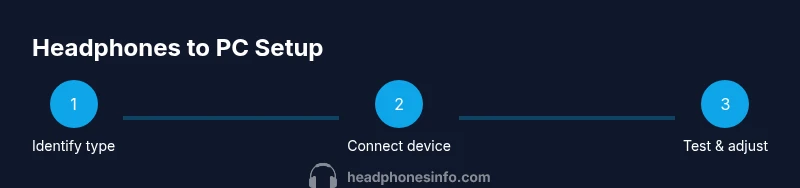
By the end of this guide, you’ll be able to get any headset to work on PC, regardless of connection type. You’ll identify your headphone type, verify ports, fix audio routing, and troubleshoot mic problems. Follow the step-by-step process to restore sound quickly and confidently. This quick answer also highlights common failures and the fastest fixes.
Understanding headphone types and PC compatibility
Headphones come in three main connection families: 3.5mm analog, USB, and Bluetooth wireless. Each type interacts with Windows, macOS, or Linux differently, so your first step is to identify how your headset connects. If you’re unsure, check the product label or packaging for the connection type. This matters because some PCs recognize USB devices instantly while others require driver installations, and some Bluetooth headphones may need pairing in both devices and apps. According to Headphones Info, the majority of PC problems trace back to misidentified connection types or blocked audio devices, so starting with a clear map of ports will save you time. If you want to know how to get headphones to work on pc, start by identifying the connection type. Once you know the port, you can plan the steps that follow with confidence and minimize trips to unknown settings.
Prepare your PC: drivers and baseline checks
Before you dive into connecting your headphones, set a solid baseline on your PC. Ensure the operating system is up to date, and verify that speakers work to confirm the system audio is functional. Open the Sound control panel to inspect the list of playback devices and identify which ones Windows has enabled. If you see a gray or disabled device, re-enable it. Battery-powered wireless wireless headsets also benefit from a quick reboot of the dongle or USB receiver. Headphones Info emphasizes that most sound issues are caused by disabled devices or conflicting drivers, so take a minute to confirm a clean baseline before making any changes.
Wired headphones: USB, 3.5mm, and USB-C connections
Wired headphones are the simplest to get working. If you have a 3.5mm jack, plug into the green or headset port typically labeled with a headphone icon. If you use USB, try a different USB port if you don’t hear sound initially—front panel ports can be finicky on some desktops. USB-C connections often require no extra drivers, but some PCs still rely on chipset drivers for proper enumeration. After connecting, check the Volume mixer and the Playback devices list to ensure the device is set as Default and not muted. If your headset includes a built-in mic, test microphone input in the Recording tab and grant any app permission prompts as needed.
Bluetooth headphones: pairing, codecs, and range
Bluetooth headphones require a successful pairing and a stable link. Start by turning on Bluetooth on your PC and setting the headset to pairing mode. In Windows, go to Settings > Bluetooth & devices and select your headphone from the list. If pairing fails, remove the device, reboot, and try again. Pay attention to supported codecs (SBC, AAC, aptX) as they affect latency and audio quality. Keep the headset within a reasonable range and minimize interference from other wireless devices. If you’re using macOS, similar steps apply via System Preferences > Bluetooth. Headphones Info notes that poor range or outdated Bluetooth drivers are common culprits for dropped connections.
Windows sound settings: output and input configuration
In Windows, correct sound routing is essential. Open Settings > System > Sound. Under Output, choose your headphones as the default device; under Input, select your headset’s microphone if applicable. Use the App volume and device preferences to route audio by app when needed. If you still hear no sound, check that “Headphones” aren’t disabled in the control panel’s Playback tab and verify that the sample rate matches your device capabilities. Headphones Info analysis shows that mismatched sample rates and disabled devices frequently cause intermittent or no sound, especially after OS updates.
Testing audio and troubleshooting common issues
Always start with a quick test: play a video or run a sound test in Windows. If there’s no audio, recheck the default device, volume, and mute switches. For mic issues, ensure the correct input is selected, the mic is not muted, and apps have permission to access the microphone. If you still have problems, try unplugging and re-plugging the device, updating or reinstalling drivers, or using Windows’ built-in troubleshooter. If you’re using Bluetooth, forget the device and re-pair as a last resort. The goal is to identify whether the issue lies with hardware, drivers, or software settings.
Mic setup and voice quality considerations
A headset mic can be sensitive to placement. Position the mic about 1–2 inches from your mouth and avoid obstruction by clothing. In Windows settings, boost the mic level if needed and disable auto-mic gain where available. For clean recordings, ensure no other input devices conflict, and review app-specific mic permissions. If your voice sounds distant, check the mic pickup pattern and consider a USB dongle upgrade for more stable performance.
Gaming, conferencing, and media playback: optimizing experience
For gaming, ensure the headset is set as the default output device and enable spatial audio if your headset supports it. In conferencing apps, select the correct microphone and speaker in the audio settings, and use push-to-talk or noise suppression if available. For media, verify sample rate and bit depth settings match the headset specifications. Regular checks of app-specific audio preferences can prevent surprises during important calls or streams.
Maintenance, updates, and optimization tips
Keep drivers and firmware up to date by visiting the manufacturer’s site or using Windows Update. Clean cables and ports to avoid corrosion or debris, and store wireless headsets in a safe place to preserve battery life. Regularly verify that permissions, privacy settings, and device defaults remain correct after software updates. Headphones Info recommends periodic re-testing of both output and input devices to maintain consistent performance over time.
Tools & Materials
- Headphones (wired or wireless)(Ensure the model is compatible with PC (3.5mm, USB, or Bluetooth).)
- PC or laptop with working audio hardware(Test speakers first to isolate issues.)
- Appropriate connection cable or dongle(3.5mm stereo jack or USB/Bluetooth dongle as needed.)
- Bluetooth adapter (if needed)(Use a USB Bluetooth adapter if your PC lacks built-in Bluetooth.)
- USB-C/USB-A port(Required for USB headphones; use different ports if issues arise.)
- Manufacturer driver/software (optional)(Install for enhanced features or troubleshooting.)
Steps
Estimated time: 30-60 minutes
- 1
Identify connection type
Check the headset packaging or labels to confirm whether you’re using 3.5mm, USB, USB-C, or Bluetooth. This determines the exact steps and ports you’ll use on the PC. WHY: Different connection types require different configuration paths and drivers.
Tip: Note the port color or symbol to prevent confusion later. - 2
Connect the headset
Plug in the headset to the identified port and power on the device if needed. For Bluetooth, enable pairing mode and keep the headset close to the PC during pairing.
Tip: If using USB, try a different USB port if audio doesn’t appear immediately. - 3
Open system sound settings
On Windows, open Settings > System > Sound; on macOS, open System Preferences > Sound. Locate the output device and switch to your headphones. Confirm input (microphone) if applicable.
Tip: Record a quick test clip to verify mic input is active. - 4
Set defaults and test playback
Set your headphones as the default output device and run a test audio source. Confirm the volume is up and not muted, and check the app you’ll use for playback.
Tip: Use a system sound to verify the overall setup before opening a game or app. - 5
Update drivers or firmware
If there’s no sound or the device isn’t recognized, update the audio drivers or firmware from the manufacturer’s site or Windows Update. Reboot if prompted.
Tip: If updating, disconnect and reconnect the headset after installation. - 6
Re-pair Bluetooth (if applicable)
If Bluetooth is flaky, remove the device and re-pair. Ensure the headset is in pairing mode and within range.
Tip: Turn off other nearby Bluetooth devices to reduce interference during pairing. - 7
Check exclusive mode and sample rate
In advanced sound settings, disable exclusive mode if available and adjust the sample rate to match the headset specs.
Tip: Mismatched sample rates can cause crackling or stuttering audio. - 8
Run built-in troubleshooters
Use Windows Troubleshooter for sound or the macOS Audio MIDI Setup utility to verify configurations.
Tip: Troubleshooters can catch misconfigurations that aren’t obvious in the UI. - 9
Test with multiple apps
Play sound from a browser, a media player, and a voice app to confirm consistent output across contexts.
Tip: If one app behaves differently, adjust app-specific audio settings. - 10
Verify mic and playback together
If you’re using a headset with a mic, test both channels and confirm that the mic isn’t muted or restricted by privacy settings.
Tip: Ensure apps have permission to access the mic. - 11
Document your setup
Record which port or method solved the issue for future reference. This helps when you upgrade or switch PCs.
Tip: Create a simple checklist you can reuse later. - 12
Final verification
Restart your PC and perform a final test across all major use cases: music, video, game, and a call.
Tip: A quick reboot can clear stubborn conflicts.
People Also Ask
Why don’t my headphones show up in Windows sound settings?
Check cables and connections, ensure the device is powered (for active headsets), and verify that the correct playback device is enabled. If needed, reinstall drivers or run the Windows audio troubleshooter.
If you don’t see your headset in sound settings, check the cables and re-run the driver setup. The built-in troubleshooter can help identify conflicts.
Can Bluetooth headphones work on a PC without built-in Bluetooth?
Yes, you can use a USB Bluetooth adapter. Install the adapter’s drivers, pair the headset, and ensure the correct audio devices are selected in system settings.
You can use a USB Bluetooth dongle to enable Bluetooth on a PC that lacks built-in Bluetooth.
What should I do if the microphone isn’t picking up voice?
Verify the headset mic is selected as the input device, adjust the input volume, and grant microphone access to apps. If needed, update drivers or test with a different microphone.
Make sure the mic is set as the input device and that apps have permission to use it.
Is it better to use USB or 3.5mm for gaming on PC?
USB headsets typically offer more features and stable power, while 3.5mm jacks are simple and widely compatible. Choose based on your headset’s features and PC ports.
It depends on your headset and PC, but USB often gives more features and stable performance.
How do I test headset audio quickly?
Use Windows’ built-in sound test or a quick video/audio clip in a browser to verify output and mic functionality.
Play a test sound in settings or a video to confirm both playback and mic work.
Should I disable exclusive mode in Windows?
Yes, disabling exclusive mode avoids apps locking the audio device, which can cause conflicts with other programs.
Turn off exclusive mode so multiple apps can access the audio device without conflicts.
Watch Video
What to Remember
- Identify connection type before changes
- Set defaults and test across apps
- Update drivers and re-pair if needed
- Test mic separately for clear voice