What is Wrong with My Apple Headphones? Troubleshooting Guide
A fast, data-driven troubleshooting guide to diagnose and fix common Apple headphone problems, from AirPods connection drops to charging issues. Includes quick checks and a step-by-step flow.


Apple headphone issues usually stem from compatibility, debris, or firmware problems. Start with a quick reset and re-pair, then check charging and case status. If needed, inspect for moisture or firmware updates and test on another device to distinguish device vs. headphone faults. If unresolved, consult official Apple Support and our troubleshooting flow.
Why Apple headphones sometimes behave unexpectedly
Apple headphones—whether AirPods, AirPods Pro, or EarPods—often misbehave for human and device reasons. According to Headphones Info, most issues originate from simple, solvable causes: pairing glitches, debris on charging contacts, moisture exposure, or outdated firmware. In many cases, the fastest fix is a targeted reset and re-pair sequence, followed by a quick check of the charging case and battery status. Understanding these common culprits helps you avoid unnecessary replacements and keeps your listening experience consistent.
Beyond hardware, software interactions define how well headphones work with iPhone, iPad, or Mac. A minor Bluetooth interference or a stalled firmware handshake can create intermittent disconnects or audio dropouts. In the sections that follow, you’ll find a practical, data-driven flow to diagnose symptoms, step-by-step fixes you can perform at home, and safety tips to protect delicate components. The goal is to empower you to resolve most problems quickly, before considering professional service.
Quick checks you can perform before deeper fixes
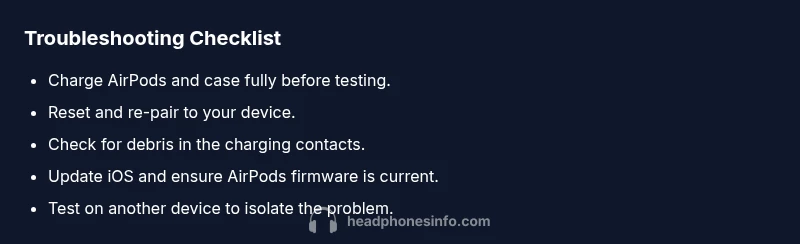
Before diving into complex steps, run these fast checks. Confirm the AirPods are charged and the case lid is closed, then reopen and place AirPods in your ears. On iPhone, open Settings > Bluetooth and forget the AirPods, then re-pair them. Check for software updates on your iPhone and ensure the AirPods firmware is current (this is automatic but can be triggered by reconnecting to a device). Inspect the charging contacts for debris or lint and clean gently with a dry, soft brush. If you notice moisture or condensation, let devices dry completely before testing again. If you have multiple devices, try pairing with another one to see whether the issue follows the headphones or the host device. Finally, disable any audio routing apps that might change how sound is directed to the AirPods.
Identifying symptoms and their likely causes
Different symptoms point to different root causes. If you hear crackling, muffled sound, or one earpiece missing, check for debris, loose connections in the stems, or microphone blockages. Frequent dropouts usually indicate Bluetooth pairing or interference rather than a hardware fault. If the AirPods connect but no sound plays, verify the audio output is directed to the AirPods in the Control Center and that volume is up. If the mic picks up ambient noise poorly or calls sound distant, examine the mic grills for obstructions or moisture. Always compare behavior across devices to determine whether the problem is with the AirPods themselves or the host device.
Connection and pairing: Bluetooth troubleshooting
If AirPods won’t connect or keep disconnecting, start with the basics: turn Bluetooth off and back on, ensure AirPods are selected as audio output, and forget the device on your iPhone before re-pairing. If pairing remains stubborn, reset the AirPods by placing them in the case and holding the setup button until the status light flashes amber then white. Check for interference from nearby devices (watch, car stereo, other Bluetooth headsets) and try pairing with a different iPhone or iPad to verify whether the issue is AirPods or the host device. Finally, update iOS and ensure AirPods firmware is current by reconnecting to a device.
Sound quality and microphone problems
When sound quality degrades, start by confirming the audio source and app are not applying an EQ that boosts certain frequencies. Check the left/right balance in accessibility settings and test audio across multiple apps to rule out app-specific issues. If the mic quality is poor, inspect the microphone grills for lint or moisture and try a voice memo to compare input quality. If you hear crackling or popping, clean the mesh gently with a dry brush and let AirPods dry completely after exposure to moisture. If problems persist, update device software and AirPods firmware, or try a different device to determine whether the issue lies with AirPods hardware or software compatibility.
Battery life, charging, and case health
Battery performance on AirPods can vary with usage patterns and firmware. Ensure the charging case is charging correctly by placing AirPods inside with the lid closed and watching the status light. If AirPods still run down quickly, verify that the case battery is holding a charge and inspect for swollen batteries, which require immediate disposal by professionals. When charging, use the official cable and avoid third-party chargers that may deliver inconsistent current. Firmware updates can also optimize battery management, so keep iPhone firmware current and let AirPods update automatically when connected.
Cleaning, moisture, and safety considerations
Cleaning AirPods and their charging case is safe when done carefully. Use a soft, dry brush or microfiber cloth to remove debris from mesh grills and charging contacts. Do not immerse AirPods or the case in water, and avoid using liquids directly on the mesh openings. If moisture exposure has occurred, let devices dry completely in a warm, dry place before testing. Avoid using sharp tools that could scratch the metal or silicone seals. Regular inspection for corrosion can prevent longer-term failures.
When to escalate and how Headphones Info can help
If you’ve completed the steps above and AirPods still misbehave, it’s time to escalate. Collect your device model, iOS version, AirPods firmware version, and a short description of the symptom, then contact Apple Support or Headphones Info for a data-driven diagnostic flow. We provide structured troubleshooting guidance and can help you decide whether a repair, replacement, or firmware rollback is appropriate. Remember, device compatibility and safety come first.
Steps
Estimated time: 20-40 minutes
- 1
Check basics and reset
Ensure AirPods are charged and placed in the case. With the lid open, press and hold the setup button until the status light flashes amber, then white. Release, reinsert AirPods, and test pairing again.
Tip: A quick reset clears stale Bluetooth data that can cause drops. - 2
Forget device and re-pair on iPhone
Go to Settings > Bluetooth, tap the AirPods, and choose Forget This Device. Reboot your iPhone, then re-pair the AirPods as if new.
Tip: For persistent issues, try pairing to a different iPhone or iPad. - 3
Update OS and AirPods firmware
Ensure the iPhone is on the latest iOS. Reconnect the AirPods to trigger any available firmware updates, which often resolve compatibility bugs.
Tip: Firmware updates happen in the background; keep devices connected to power during updates. - 4
Clean AirPods and case
Gently brush the mesh and charging contacts with a dry brush. Avoid liquids; moisture can cause audio or charging issues.
Tip: Never insert objects into the mesh; use a soft brush only. - 5
Test with another device
Pair the AirPods with a second iPhone or a Mac to see if the problem follows the headphones or the original device.
Tip: If it works on another device, the issue is likely with the host device settings. - 6
Check audio routing and accessibility settings
Open Control Center and verify AirPods are chosen as the output; check the volume and any accessibility audio routing options.
Tip: Some apps override system audio routing; test across apps to confirm consistency. - 7
Inspect moisture and storage
If AirPods have been exposed to moisture, dry thoroughly before testing again. Store in a cool, dry place away from humidity.
Tip: Sweat and moisture can corrode contacts over time; dry before use. - 8
Decide on professional help
If issues persist after all steps, contact Apple Support or Headphones Info for a deeper diagnostic or repair options.
Tip: Provide model, iOS version, and a symptom log to speed up service.
Diagnosis: AirPods won't connect to iPhone or disconnect frequently
Possible Causes
- highBluetooth pairing issue or out-of-date Bluetooth firmware on the phone
- mediumDirty charging contacts or debris around the stems charging points
- mediumBattery in AirPods or charging case is drained or swollen
- lowSoftware update causing compatibility hiccup
Fixes
- easyReset the AirPods and re-pair to the device
- easyClean charging contacts and check case battery level
- easyUpdate the iPhone to the latest iOS and ensure AirPods firmware is current
- easyTest with a different device to isolate hardware vs. device
- easyIf problems persist, seek Apple Support or Headphones Info diagnostics
People Also Ask
Why won't my AirPods connect to my iPhone?
A connectivity failure can be caused by Bluetooth issues, outdated firmware, or a bad pairing. Start by forgetting the AirPods, resetting, and re-pairing. If it persists, test with another device to determine whether the issue is the AirPods or the phone.
AirPods won't connect? Start by forgetting the device, resetting, and re-pairing; if it still fails, test on another device to isolate.
How do I reset my AirPods?
Place the AirPods in their case, open the lid, and press and hold the setup button until the status light flashes amber, then white. Release, then re-pair with your device.
To reset, put them in the case, hold the button until the light flashes amber and white, then reconnect.
Why is there no sound or muffled sound in AirPods?
Ensure AirPods are selected as the audio output in Control Center, check volume, and verify no EQ or accessibility settings are muting audio. If needed, clean the mesh and retry.
If there’s no sound, make sure AirPods are the output and check your volume and EQ settings.
AirPods won’t charge or the case LED doesn’t light?
Check that the case is charging, try a different charging cable, and inspect the contacts. If the LED still doesn’t light, there may be a hardware fault.
Make sure the case charges, try another cable, and check the contacts.
Do AirPods Pro require firmware updates?
Firmware updates for AirPods Pro happen automatically when connected to an iPhone with internet access. There’s no manual update option; keep the iPhone updated and stay connected.
AirPods Pro updates happen automatically when connected to the internet; keep your iPhone updated.
Is it safe to clean AirPods with alcohol wipes?
Avoid liquids near the mesh openings. Use a dry brush or microfiber cloth to clean; do not wipe with alcohol or solvents near the openings.
No—avoid alcohol; use a dry brush or microfiber.
Watch Video
What to Remember
- Start with a reset and re-pair to clear glitches.
- Keep devices updated—iOS and AirPods firmware.
- Inspect for debris or moisture affecting charging and sound.
- Test on another device to isolate the problem.
- Escalate to support if problems persist.