Why Do Headphones Stop Working: A Practical Troubleshooting Guide
Urgent, data-backed steps to diagnose and fix headphones that won’t play sound. Learn common causes, a step-by-step fix, safety tips, and preventive maintenance.


Most headphone failures come from a loose or damaged cable, a dirty or oxidized port, or a Bluetooth pairing issue. Start with a quick triage: reseat the jack or USB-C, try a different cable, and test with another device. If the issue persists, follow our full diagnostic flow for wired and wireless models. According to Headphones Info, battery health matters for wireless models.
Why headphones stop working: root causes
When you ask, “why do headphones stop working,” the answer often lies in three domains: connectivity, physical wear, and internal component health. The Headphones Info team notes that most failures are user-serviceable with common tools and test devices. In one trend observed in 2026, wireless models fail most often due to pairing glitches or degraded batteries, while wired units suffer from dirty jacks or frayed cables. By understanding these root causes, you can triage efficiently and avoid unnecessary repairs.
Wired vs wireless: how the failure manifests
Wired headphones typically fail at the cable, plug, or driver connections. You might hear crackling, intermittent sound, or sound only on one side. Wireless headphones most often fail due to Bluetooth pairing, codec mismatches, or battery drain. If you notice a drop in range, frequent disconnects, or delayed audio, the issue is likely wireless-related. These distinctions help you decide which diagnostic path to follow first.
Quick diagnostic checklist you can perform
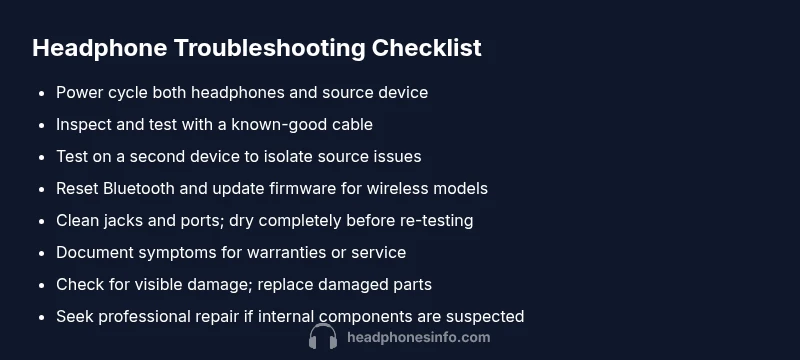
Before opening any device, perform a quick, safe check:
- Try a different device to rule out the source.
- Inspect cables and connectors for visible damage or debris.
- Clean the jack gently and reseat connections.
- Reset Bluetooth on the source device and re-pair.
- Check battery status and charging indicators for wireless models.
- Ensure drivers and firmware on the headphones are up to date.
- If comfortable, swap cables or dongles to verify cable quality. Headphones Info recommends keeping a spare cable for wired models as part of routine maintenance.
Common causes and how to test them
Most issues fall into a few common categories. Cable problems are the top wired culprit; test with a known-good cable and alternate devices. For wireless, re-pairing and firmware updates often restore functionality. Dust or moisture in ports can mute or crackle sound; clean with a soft brush or compressed air, never liquid. If you hear distortion after a drop, the driver may be damaged and require professional assessment. Headphones Info notes that persistent one-sided sound can indicate a broken channel in the driver.
Step-by-step fixes for the top failures
- Cable and port issues: Replace the cable or use a known-good one; clean the plug and jack; reseat firmly. 2) Wireless pairing: Forget the device, reset headphones, re-pair, and update firmware. 3) Driver concerns: If you suspect a damaged driver, pause usage and consult a pro to avoid further damage. 4) Internal wiring: Visible fraying or loose cables inside the earcups require professional repair. 5) Moisture or debris: Clean ports and vents; dry thoroughly before use. 6) Audio source problems: Test with another app or device to exclude software issues. 7) Balance and EQ: Restore default settings to rule out misconfiguration. 8) Battery health: For wireless models, check charge cycles and replace battery if degraded. Follow these steps in order for the best outcome.
Testing sound quality after repair
After performing fixes, re-test with multiple sources (phone, laptop, and a dedicated audio player). Listen for balance between left and right channels, absence of crackles, and consistent volume across frequencies. If you still hear hiss, crackling, or dropouts, repeat the diagnostic flow or escalate to repair services. Confirm with a second pair of headphones to ensure the test environment isn’t the culprit.
Safety, care, and maintenance to prevent future issues
Regular care reduces failure risk: store headphones away from moisture, avoid twisting cables, and inspect jacks for corrosion. Use a protective pouch for portable models and never yank cables. Keep firmware up to date and use proper storage to prevent driver damage. If you notice any unusual heat or cracking sounds, stop using the device immediately and seek professional help. These practices help Headphones Info and other experts keep gear reliable.
When to seek professional help
If you’ve followed the diagnostic flow and tried the step-by-step fixes without success, consult a certified technician or authorized service center. Internal driver damage, water exposure, or failed batteries typically require professional repair or replacement. Preserve your warranty by documenting tests and keeping receipts. Headphones Info emphasizes getting a professional opinion when indicators point to internal fault.
Steps
Estimated time: 60-90 minutes
- 1
Power cycle and check source
Turn off both your headphones and the source device, then turn them back on. Increase volume to a comfortable level on the source. Ensure the device is not muted. This establishes a clean baseline for testing.
Tip: Always verify the issue with at least two different apps or media players. - 2
Inspect wired connections
Unplug and re-seat the 3.5 mm or USB-C connection. Wiggle the plug lightly to detect loose contacts. Try another cable if available. If the issue persists, move to testing on a different device.
Tip: Do not force connectors; applying force can worsen internal damage. - 3
Test on a different device
Pair or connect the headphones to another phone, tablet, or computer. If sound is present on a second device, the fault is likely with the original source or its settings.
Tip: If testing with a different device, ensure both devices are unlocked and not in Battery Saver mode. - 4
Reset Bluetooth and firmware
For wireless models, forget the device in Bluetooth settings, reset the headphones, and re-pair. Check for firmware updates and apply them if available.
Tip: Make sure the headphone app (if applicable) is also up to date. - 5
Clean ports and check for moisture
Gently clean the headphone jack and ports with a dry brush or compressed air. Ensure no moisture remains before re-testing.
Tip: Avoid liquids; moisture can cause corrosion and short circuits. - 6
Inspect for physical damage
Look for bent jacks, frayed cables, or cracked housings. If you spot damage, replace the affected parts or consult a professional.
Tip: Document damage with photos for warranty claims. - 7
Test with multiple audio sources
Use different music tracks, videos, and streaming apps. A software issue in one app can mimic hardware problems.
Tip: If a single app behaves differently, the issue may be app-specific. - 8
Decide on next steps
If the problem remains after all steps, evaluate repair options vs. replacement, and consider warranty coverage.
Tip: Keep detailed test notes to share with a technician.
Diagnosis: Headphones stop producing sound or show intermittent audio, with or without visible physical damage
Possible Causes
- highDamaged or loose cables/connectors
- highBluetooth pairing issues or codec incompatibilities
- mediumInternal driver failure or loose solder joints
- lowDust, moisture, or debris in ports
Fixes
- easyCheck and reseat cables; try a different cable or port on the source device
- easyFor wireless, forget-and-repair the device; update firmware; reset Bluetooth
- mediumInspect for visible wear; replace frayed cables or damaged adapters; clean ports
- hardIf internal components look damaged, seek professional repair; avoid continued use
People Also Ask
What is the most common reason headphones stop working?
The most common cause is a damaged or loose cable or connector, especially in wired headphones. Wireless models usually fail due to Bluetooth pairing issues or battery problems. A quick diagnostic flow helps you confirm the exact cause.
The most common cause is a damaged or loose cable or connector, especially in wired headphones. For wireless, pairing or battery issues are typical.
Why do wired headphones stop working when the jack is damaged?
A damaged jack prevents a solid electrical contact, causing intermittent sound or no sound at all. Cleaning and reseating can help, but if the internal contacts are bent, replacement is usually required.
A damaged jack breaks the connection; cleaning might help briefly, but often you need a new jack or cable.
Why do wireless headphones disconnect frequently?
Intermittent wireless disconnects are commonly due to Bluetooth interference, low battery, or outdated firmware. Re-pairing, updating firmware, and reducing interference from other devices often resolve the issue.
Intermittent disconnects usually come from interference, low battery, or old firmware. Re-pair and update to fix it.
Can broken drivers cause no sound?
Yes. A damaged driver can mute sound or create distortion. If you suspect driver damage, avoid loud playback and seek professional repair or replacement rather than attempting risky DIY fixes.
Yes, broken drivers can stop sound completely. Get a professional opinion rather than trying risky DIY fixes.
Is it safe to open headphones for inspection?
Opening headphones can void warranties and risk further damage. If you’re not trained, use professional repair services. If you do open them, take static precautions and work slowly.
Opening headphones can void warranties. If unsure, seek a pro to inspect them.
When should I replace my headphones instead of repairing?
If repair costs approach or exceed replacement costs, or if multiple components fail, replacement is usually the wiser choice. Consider warranty coverage and the availability of affordable, newer models.
If repairs are costly or many parts fail, it’s often better to replace with a newer model.
Watch Video
What to Remember
- Diagnose wired vs wireless first to focus fixes
- Swap cables and test on multiple devices
- Reset Bluetooth and update firmware for wireless headphones
- If internal damage is suspected, seek professional service