Why Headphones Don’t Work on iPhone: Troubleshooting Guide
Facing issues with wired or Bluetooth headphones on iPhone? This troubleshooting guide covers common causes, step-by-step fixes, and practical tips to restore audio quickly.


Most problems stem from compatibility, settings, or a loose connection. Start with simple checks: try a different cable or Bluetooth device, clean the port, and ensure the iPhone volume is up and not muted. If the issue persists, re-pair Bluetooth and consider a reset of network settings as a last resort. This quick path saves time and headaches.
Why Headphones Issues Happen on iPhone
Headphones can fail to play due to a mix of hardware wear, software routing, and accessory misfit. When you ask 'why headphones don t work on iphone', many readers are surprised to learn that a lot of issues originate from simple misconfigurations or degraded cables. According to Headphones Info, the most common culprits are compatibility between adapters and iOS, port debris, and outdated Bluetooth codecs. This section explains how these factors interact and why your symptoms change with different devices. By understanding the underlying causes, you can quickly target the right fix rather than replacing hardware on a hunch.
Compatibility and iOS version considerations
Audio routing on iPhone can change after a system update, affecting whether sound is sent to headphones or other output devices. If you recently updated iOS, or you install a new accessory, you may see jitter, no sound, or intermittent playback. Headphones Info analysis shows that after major iOS updates, users report more Bluetooth codec negotiation issues and port recognition problems. Being aware of these patterns helps you anticipate when a simple setting adjustment will restore audio.
Troubleshooting wired headphones and adapters
Wired headphones and adapters are surprisingly fragile in daily use. Lightning-to-3.5mm adapters can wear out from repeated plugging, and dust or lint in the Lightning port can block a solid connection. Damaged cables may have intermittent contact, and 3.5mm connectors can deform if bent. Start with a visual inspection, then test with a different adapter or cable. If the port looks clean but the problem persists, try the same headphones with another iPhone to isolate the device.
Troubleshooting Bluetooth headphones and audio devices
Bluetooth issues often stem from pairing glitches, codec negotiation, or battery state. If sound cuts out, try forgetting the device and re-pairing it. Check that the device uses a compatible codec (AAC, SBC, or aptX where supported) and keep devices within a comfortable range. Interference from other wireless gear or a crowded Bluetooth scene can also cause stuttering. A quick reset of Bluetooth settings can fix stubborn connections.
App-level and system-level audio settings you should verify
iPhone routing can be influenced by app permissions and system settings. Ensure Do Not Disturb or Focus modes are not forcing audio output to a different device, and check the Audio Routing option under Accessibility Settings to confirm it’s set to Automatic or Headphones when applicable. Some apps override global settings, so test audio playback in a couple of different apps to confirm the behavior is consistent across the system.
Step-by-step fixes you can try at home
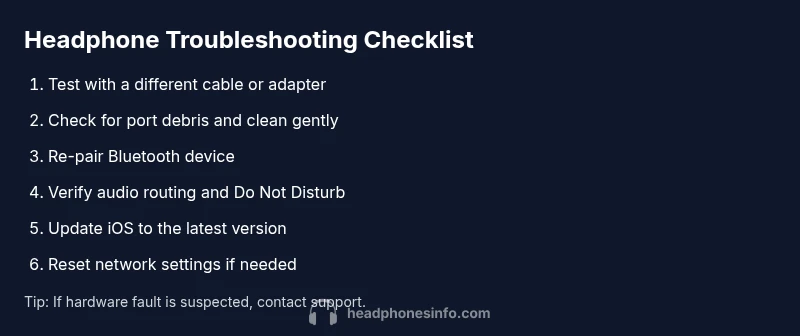
A structured fix path avoids guesswork. Start with the simplest, lowest-effort steps and progress to more involved actions if needed. This approach works well whether you’re dealing with a Lightning adapter, 3.5mm cable, or Bluetooth headset. Remember to test sound after each step to confirm whether you should move on. If none of the fixes resolve the issue, proceed to professional support.
When to seek professional help and prevention tips
If you’ve ruled out cables, adapters, settings, and software glitches but the problem persists, it’s likely a hardware fault—either in the headphones, the Lightning port, or the internal iPhone audio circuit. A professional repair or warranty claim may be required. To prevent future problems, store accessories properly, avoid forcing connectors, and keep iOS up to date with firmware that improves audio routing.
Steps
Estimated time: 20-45 minutes
- 1
Check physical connections
Inspect all cables and adapters for wear, fraying, or damage. Clean the Lightning port and headphone jack gently with a soft brush or compressed air if available. Re-seat the connection firmly to ensure a solid contact.
Tip: Take your time with cleaning; avoid inserting sharp objects that could damage the port. - 2
Test with alternatives
Try a different cable or adapter, and use a separate Bluetooth headset to determine whether the problem follows the accessory group or the iPhone. If one works while the other doesn’t, you’ve isolated the faulty component.
Tip: Label the working accessory so you don’t confuse tests later. - 3
Re-pair Bluetooth devices
Forget the problematic Bluetooth device in Settings > Bluetooth, then re-pair it. Confirm you’re using a supported codec and that the device is in pairing mode during setup.
Tip: Keep devices close and free from other active Bluetooth sources during pairing. - 4
Check iOS audio routing
Navigate to Settings > Accessibility > Audio/Visual and set Audio Routing to Automatic. Ensure Do Not Disturb or Focus modes aren’t forcing a different output.
Tip: Test playback in two apps to rule out app-specific routing quirks. - 5
Update and reset as last resort
Update iOS to the latest version, then, if needed, reset Network Settings (Settings > General > Reset > Reset Network Settings). This can resolve stubborn routing or codec issues.
Tip: Back up important data before performing resets; note that Wi‑Fi passwords will be removed. - 6
Assess hardware faults
If all tests fail, test headphones with another device or try a known-good accessory with your iPhone. A professional assessment may be required for port or internal component faults.
Tip: Check warranty status and prepare purchase receipts before seeking service.
Diagnosis: Audio stops or no sound from headphones on iPhone under various scenarios
Possible Causes
- highLoose connection or dirty jack/port
- mediumBluetooth pairing issue or codec mismatch
- mediumiOS software glitch or misconfigured audio routing
- lowHardware fault in headphones or Lightning/port
Fixes
- easyReconnect and clean the port; inspect for debris, corrosion, or bent pins
- easyRe-pair Bluetooth device; forget and re-connect, test with another device
- easyReset network settings or toggle audio routing in Settings > Accessibility > Audio/Visual
- mediumTest with known-good headphones or adapter; if still failing, contact support
People Also Ask
Why are my headphones not working with my iPhone?
Common causes include loose connections, adapter wear, Bluetooth pairing issues, or iOS routing glitches. Start with simple checks and then move to more detailed steps.
Headphones not working on iPhone is usually caused by a loose connection or software routing, so begin with quick checks and then proceed to targeted fixes.
How can I tell if the issue is with the headphones or the iPhone?
Test with a different headphone or device to see which component follows the fault. If one accessory works on another phone, the issue is likely with the original headphones.
Test with other headphones or devices to determine whether the problem lies with the headphones or the iPhone.
Will resetting network settings fix audio issues?
Resetting network settings can resolve stubborn routing or codec problems but will remove saved networks and passwords. Use as a last resort after other fixes.
Resetting network settings can help with stubborn audio routing issues, but note it will erase saved Wi-Fi passwords.
Should I update iOS to fix headphone problems?
Updating iOS often resolves compatibility and routing glitches that affect audio output. Check for available updates and install them if appropriate for your device.
Updating iOS can fix many audio routing problems; check for updates and install when ready.
What should I do if Bluetooth keeps dropping?
Forget the device, re-pair, and ensure no interference from nearby Bluetooth devices. If issues persist, reset Bluetooth settings and test with another device.
If Bluetooth keeps dropping, re-pair and test with other devices to rule out interference.
When should I replace headphones?
If you’ve ruled out connections, adapters, and settings, and there’s no sound in any device, it’s likely a hardware fault and replacement or professional repair may be needed.
If none of the fixes work across devices, consider replacement or professional repair.
Watch Video
What to Remember
- Identify whether the issue is hardware- or software-related
- Test with multiple accessories to isolate the fault
- Follow a step-by-step path from simple to advanced
- Update iOS and reset only as a last resort
- Seek professional help if port or internal hardware is implicated