Why Headphones Show on Your iPhone: A Troubleshooting Guide
Experiencing 'Headphones' showing on your iPhone? This urgent guide explains why it happens, quick fixes, and a step-by-step flow to restore proper audio routing.


Most often, your iPhone shows headphones because of an audio-routing glitch—residual Bluetooth connections or a cached AirPlay path. Start by turning off Bluetooth, checking the audio output in Control Center, and reconnecting to iPhone as the output. If the issue persists, restart the device and remove stray Bluetooth devices. These steps resolve the majority of cases.
Why this happens on iPhone
If you’re seeing 'Headphones' as the active output on your iPhone even when nothing is plugged in, you’re not alone. According to Headphones Info, this is almost always an audio-routing hiccup rather than a hardware failure. The most common culprits are cached Bluetooth pathways, stale AirPlay routes, or previously-connected accessories that keep reappearing in the audio output menu. Several iOS features—like Handoff, AirPlay, and Bluetooth—can latch onto a virtual route and keep your device thinking a headset is connected. In many cases, simply clearing these routes and forcing the phone to re-evaluate the current outputs will restore normal playback. If you recently paired a Bluetooth headset, a car audio system, or even a smart speaker, those connections can linger in the system and confuse the output picker until you reset them. This is why quick resets often solve the problem without needing hardware service.
Common symptoms and scenarios
You may notice several telltale signs: the status bar shows headphones as the active device, audio plays only through speakers despite no headset, and control center repeatedly offers 'Headphones' as the output. Sometimes, apps warn about unavailable devices or AirPlay routes that vanish after a moment. If you recently unplugged a headset and the phone still shows 'Headphones', or if Bluetooth devices appear in your Bluetooth list even when off, those are red flags that a routing cache needs clearing. In some cars or smart speakers, an active Bluetooth profile can re-seize the path after a reboot, returning you to the same issue. Recognize that this is usually software-driven, not a broken jack or failed headset.
Quick fixes you can try now
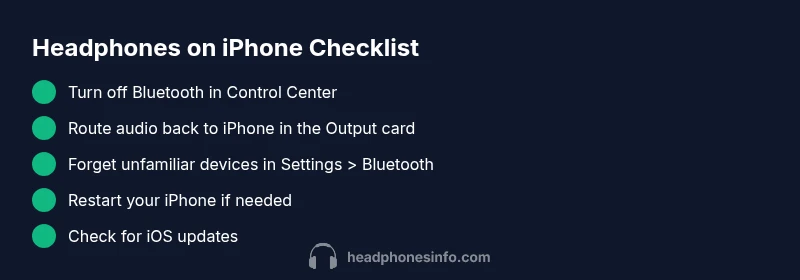
Start with the simplest steps and work your way up. First, disable Bluetooth from Control Center and Settings, then test audio by playing a video or music. If the device still routes to headphones, open Control Center and switch the audio output back to iPhone. Next, in Settings > Bluetooth, forget any recently connected devices you don’t recognize and re-pair only the ones you use. A quick restart of your iPhone can clear transient routing caches. If you’re using AirPlay, temporarily disable it and route audio directly to iPhone. Finally, ensure your iOS is up to date; software updates fix many routing bugs.
Diagnostic flow at a glance
Symptom: iPhone shows 'Headphones' as the active output without a connected headset. Potential causes include residual Bluetooth pairing, cached audio routes, or misrouted AirPlay paths. The primary fixes are to clear Bluetooth devices, reroute audio, and reboot. If these steps don’t resolve the issue, the problem may be deeper in the system cache or iOS routing tables. The key is to perform checks in a logical order—from simple toggles to more involved resets—so you don’t miss a basic fix that resolves the problem.
Step-by-step fix: reset audio routing
- Open Control Center and check the current audio output; tap the audio card and select iPhone as the output. 2) Turn off Bluetooth entirely from the Control Center and then again from Settings > Bluetooth. 3) In Settings, forget any unfamiliar devices under Bluetooth; then re-pair only the headphones you know. 4) Use AirPlay to route audio back to iPhone; disable any AirPlay devices temporarily and test playback on iPhone speakers. 5) Restart your iPhone to flush temporary caches; after reboot, retest audio. 6) If the problem persists, reset network settings (Settings > General > Transfer or Reset iPhone > Reset > Reset Network Settings) and reconnect to Wi‑Fi. Estimated total time: 20-40 minutes.
Safety and precautions
Until the issue is resolved, avoid pairing or leaving unknown Bluetooth devices connected to your iPhone, as they can re-create the misrouting problem. Never force hardware changes or disassembly to fix a software routing issue. If you rely on custom VPNs or enterprise Wi‑Fi, back up relevant settings before performing network resets. Always ensure you have a backup of important data before major resets.
Prevention and best practices
To prevent recurrence, curate your Bluetooth device list, regularly reboot after firmware updates, and keep AirPlay usage minimal when not needed. Periodically check Settings > Bluetooth and Settings > AirPlay & Handoff to clear stale paths. Keeping iOS up to date also reduces routing bugs as new fixes are rolled out by Apple.
Troubleshooting wrap-up
With the majority of cases resolved by routing-oriented fixes, you should be able to return audio to the iPhone speakers without hardware changes. If the problem recurs after all standard steps, there may be a deeper software issue or a rare hardware fault requiring professional support.
Steps
Estimated time: 20-40 minutes
- 1
Check current audio output in Control Center
Open Control Center and examine the active audio output. If it shows 'Headphones' or any non-existent device, try tapping the output and selecting iPhone. This confirms whether the device is routing through the wrong path.
Tip: Pro tip: press and hold the audio card to view all available outputs. - 2
Disable Bluetooth temporarily
Turn off Bluetooth from Control Center and then from Settings > Bluetooth. After turning it off, play audio again to see if the path reverts to iPhone. This step clears stale connections that may be forcing a headset route.
Tip: If you must use Bluetooth later, reconnect deliberately to avoid lingering routes. - 3
Forget stray Bluetooth devices
In Settings > Bluetooth, forget any unfamiliar devices. These can reappear as the active output after a reboot if not removed. Re-pair only the headphones you truly use.
Tip: Keep a short list of trusted devices to streamline troubleshooting. - 4
Test AirPlay routing
If AirPlay is enabled, switch it off or route audio directly to iPhone. Then test playback. Misrouted AirPlay can leave the system thinking a headset is connected.
Tip: Disable AirPlay briefly to force a clean routing path. - 5
Restart the iPhone
Power cycle the device to flush temporary caches and reset routing tables. After reboot, test audio again to see if the issue remains resolved.
Tip: Wait a full minute after reboot before testing audio. - 6
Reset network settings if needed
If the issue persists, reset network settings (Wi‑Fi passwords will be removed; you’ll reconnect afterwards). This can clear deep routing caches that are not affected by other steps.
Tip: Back up passwords and know your Wi‑Fi credentials before resetting.
Diagnosis: iPhone shows 'Headphones' as the active output even when no headphone is connected
Possible Causes
- highResidual Bluetooth pairing or cached audio route
- mediumMisrouted AirPlay path or lingering AirPlay device
Fixes
- easyTurn off Bluetooth from Control Center and Settings, then test output
- easyRoute audio back to iPhone in Control Center
- easyForget unfamiliar devices in Settings > Bluetooth and re-pair trusted devices
- easyRestart iPhone to clear caches
- easyReset network settings if issues persist
- easyUpdate iOS to the latest version
People Also Ask
Why does my iPhone show headphones even when nothing is plugged in?
This is almost always an audio-routing issue caused by cached Bluetooth routes or misrouted AirPlay paths, not a hardware fault. Try toggling Bluetooth, rerouting audio, and restarting the device.
It's typically a routing glitch. Start by turning off Bluetooth, then reselect iPhone as the output and restart if needed.
Is it safe to reset network settings to fix this issue?
Resetting network settings fixes many routing problems but removes saved Wi‑Fi passwords and VPNs. Back up credentials before proceeding and be prepared to reconnect to networks.
Resetting network settings can help, but you’ll need to rejoin Wi‑Fi networks afterward.
Can AirPods or other Bluetooth devices cause this problem?
Yes. AirPods or any Bluetooth device can create a persistent audio route. Disconnect them and re-route audio to iPhone to observe changes.
Bluetooth devices like AirPods can trigger this, so disconnect them when troubleshooting.
Will updating iOS help with this issue?
Keeping iOS up to date fixes many audio routing bugs and can prevent recurrence of this issue.
An iOS update often resolves routing glitches.
What if this keeps happening after a reset?
If the problem persists after standard fixes, there may be a deeper software issue or rare hardware fault. Consider contacting Apple Support.
If it still happens after resets, seek professional help.
How can I prevent this from recurring in the future?
Limit stray Bluetooth connections, routinely restart after updates, and monitor AirPlay routing to ensure outputs stay correct.
To prevent it, manage Bluetooth and AirPlay routes carefully.
Watch Video
What to Remember
- Restart iPhone to reset audio routing
- Forget stray Bluetooth devices to prevent reoccurrence
- Route output back to iPhone via Control Center
- Keep iOS up to date to fix routing bugs
- If persists, seek expert support