Why Headphones Won’t Connect to iPhone? A Troubleshooting Guide
Struggling to pair headphones with your iPhone? This urgent, step-by-step troubleshooting guide covers common causes, fixes, and prevention tips to restore reliable Bluetooth connections.


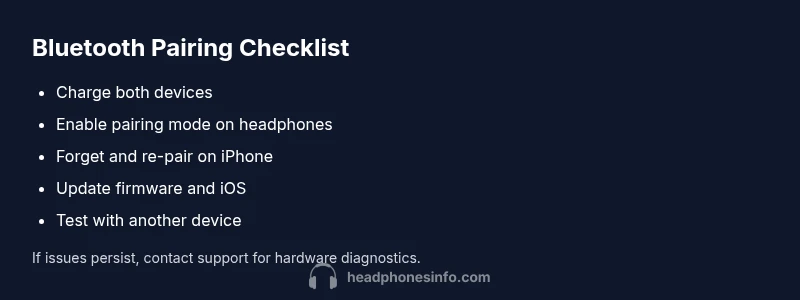
Headphones not connecting to iPhone is most often a Bluetooth pairing or software issue. Start by turning Bluetooth off, then on again, forget the device in Settings > Bluetooth, and re-pair. If that fails, check iPhone iOS version and headphone firmware, reset network settings, and test with another device to isolate the problem.
Why the issue happens and how to approach it
If you’re asking why is headphones not connecting to iphone, the root cause is almost always a pairing mismatch, a software hiccup, or interference from nearby devices. The Headphones Info team emphasizes a systematic approach: verify the simplest possibilities first, then move to firmware and system updates. In most cases, a quick reset of Bluetooth, re-pairing the device, or updating software resolves the problem. This section explains the common scenarios and provides a practical framework to methodically rule them out. By following these steps, you can quickly determine whether the issue is with the headphones, the iPhone, or the environment, and apply the appropriate fix. The guidance below reflects data-driven insights from Headphones Info Analysis, 2026, and is designed for both audiophiles and casual listeners.
Diagnostic mindset: is it a device, a software, or an interference issue?
Bluetooth problems usually have simple explanations at first glance. Signs like the device not appearing in the pairing list, repeated pairing errors, or audio dropouts point to different culprits. Narrowing down the cause helps you avoid unnecessary resets and wasted time. Consider whether the headphones work with another phone or tablet, and whether other Bluetooth devices in the vicinity are competing for airspace. If the headphones are new, check for packaging issues or hardware faults. If they’ve worked before and suddenly stop, software or settings are the likeliest culprit. This mindset keeps you focused on the most impactful fixes first.
Check basics before diving deeper
Begin with the simplest checks: ensure your iPhone is not in Airplane mode, confirm the headphones are charged, and verify you’re within close range with a clear line of sight. Disable any active Bluetooth accessories that might be competing for a connection, and restart both devices. A quick battery check is often overlooked but critical, since low power can affect Bluetooth performance. Also confirm the headphone case or dock is clean and free from debris that could impede pairing on some models. If you’re unsure where to start, go back to the quick steps and circle back to any failed step methodically.
When to reset and re-pair
If basic checks don’t resolve the issue, the next logical move is to forget the device and re-pair. On the iPhone, go to Settings > Bluetooth, tap the headphone name, and choose Forget This Device. Then, put the headphones back into pairing mode and reconnect. If you’re using wired adapters or dongles, remove them during the reset to prevent confusion. After re-pairing, test calling, music playback, and voice assistant responsiveness to ensure the connection is stable across use cases.
Firmware, software versions, and compatibility
Outdated firmware on either the headphones or the iPhone can cause intermittent failures or complete inability to pair. Check for available updates on both devices and install them if possible. Some headphones require a companion app to update, while others update automatically when connected to a trusted network. It’s also worth confirming compatibility notes from the manufacturer, as certain features or protocols may require newer iOS versions. If an update is pending, allow adequate time for the process and avoid interrupting the device during installation.
Advanced checks: test with other devices and apps
To isolate the problem, connect the headphones to a different phone or tablet. If they pair smoothly there, the issue is likely with the iPhone settings, OS, or account. Conversely, if the other device has the same problem, the headphones may have a hardware fault or a lingering firmware issue that needs a dedicated reset. Test across different apps (music, calls, voice assistants) to ensure no app-specific settings or permissions block the connection. This cross-device testing helps you pinpoint whether the fault is systemic or isolated.
Safety, resets, and when to seek help
Resetting network settings on the iPhone can erase saved Wi‑Fi networks and Bluetooth pairings, so back up important backups first. If you suspect a hardware issue after all troubleshooting steps, contact the manufacturer’s support or a local service center. Avoid opening the headphone chassis yourself, which could void warranties or cause further damage. Remember to observe safety norms when handling electronic devices near moisture or when exposing them to heat. If you’re unsure at any point, consult a professional.
Prevention: keeping connections reliable over time
Regular updates, keeping a single primary Bluetooth device, avoiding overcrowded Wi‑Fi channels, and storing headphones in their case when not in use can reduce future disconnects. Maintain clean ports and contacts, and perform a quick battery health check periodically. If you rely on headphones for critical tasks, consider setting up a dedicated Bluetooth profile or memory pairing with your iPhone to streamline automatic reconnection after resets.
Steps
Estimated time: 30-45 minutes
- 1
Check basics and proximity
Ensure headphones are charged, iPhone is awake, Bluetooth is enabled, and you are within a comfortable distance with minimal interference. Clear space around devices and turn off other nearby Bluetooth devices if possible.
Tip: A quick restart of both devices often resolves many transient issues. - 2
Forget and re-pair
Go to Settings > Bluetooth, find your headphones, and select Forget This Device. Put the headphones back in pairing mode and reconnect from the Bluetooth list. Confirm the connection is active for calls and audio playback.
Tip: Make sure the headphones are in pairing mode long enough to be discovered. - 3
Update firmware and iOS
Check for available updates on both devices. Install any pending firmware for the headphones and iOS updates for the iPhone. A minor mismatch can prevent successful pairing.
Tip: If the headphone maker provides a dedicated app, use it to verify firmware status. - 4
Test with another device
Pair the headphones with a second iPhone or an Android device to determine if the issue is device-specific or a broader fault.
Tip: If it pairs on another device, the problem is likely with the original iPhone settings. - 5
Reset network settings on iPhone
Resetting network settings can clear stubborn Bluetooth conflicts. Note that you will need to rejoin Wi‑Fi networks afterward.
Tip: Only perform this if simpler steps fail, as it affects all network connections. - 6
Reset headphones to factory defaults
Many headphones have a reset procedure documented by the manufacturer. This can resolve deeper firmware issues that a standard update cannot fix.
Tip: Follow the official reset steps precisely to avoid bricking the device. - 7
Check for hardware faults
If problems persist across devices, there may be a hardware fault in the headphones themselves. Check for obvious damage or unusual warmth.
Tip: If under warranty, contact support before attempting costly repairs. - 8
Seek professional help
When all else fails, consult the manufacturer’s support or a qualified technician. Do not open sealed components yourself.
Tip: Document steps you’ve tried to speed up troubleshooting with support.
Diagnosis: Headphones won't connect to iPhone via Bluetooth
Possible Causes
- highBluetooth pairing issue or mispaired device
- mediumOutdated firmware on headphones or iPhone
- lowBluetooth interference or crowded airspace
Fixes
- easyToggle Bluetooth off and on, then forget the device and re-pair
- easyUpdate headphone firmware and iPhone iOS to latest versions
- mediumReset network settings on iPhone and reset headphones, then re-pair
- easyTest headphones with another device to confirm where the fault lies
People Also Ask
Why won't my headphones pair with my iPhone at all?
There could be a simple pairing mismatch or a software glitch. Begin with toggling Bluetooth, forgetting the device, and re-pairing. If the problem persists, check firmware and OS updates on both devices.
Try turning Bluetooth off and back on, then forget and re-pair the device. If that fails, check for updates on both devices.
My iPhone says pairing failed. What should I do?
Retry with the device in pairing mode, ensure the headphones are discoverable, and avoid pairing with multiple devices at the same time. If needed, reset network settings on the iPhone.
Make sure the headphones are discoverable and try pairing again. If it fails, reset network settings on your iPhone.
Do I need to reset my iPhone or headphones?
Resetting is a last resort but can clear stubborn conflicts. Start with simple steps, then consider a factory reset on the headphones or a network reset on the iPhone if issues persist.
Only reset after trying simpler fixes. If needed, reset the devices and try again.
Why do headphones disconnect mid-use after working?
Interference, battery issues, or unstable firmware often cause mid-use dropouts. Update firmware, reduce interference, and ensure sufficient battery before testing again.
Disconnections usually come from interference or battery problems; update and re-test.
Can a different device help identify the problem?
Yes. If the headphones pair with another device, the original iPhone settings are likely at fault. If they don’t pair either device, the headphones may have a fault.
Testing on another device helps pinpoint whether it's the iPhone or the headphones.
When should I contact support?
If the issue persists after all standard fixes, contact the headphone manufacturer's support. Have your device model, iOS version, and firmware version ready.
If everything fails, reach out to support with your device details.
Watch Video
What to Remember
- Start with simple checks before deeper resets
- Update firmware on both devices for compatibility
- Forget and re-pair to reset the connection
- Test on another device to isolate the issue
- When in doubt, seek official support